
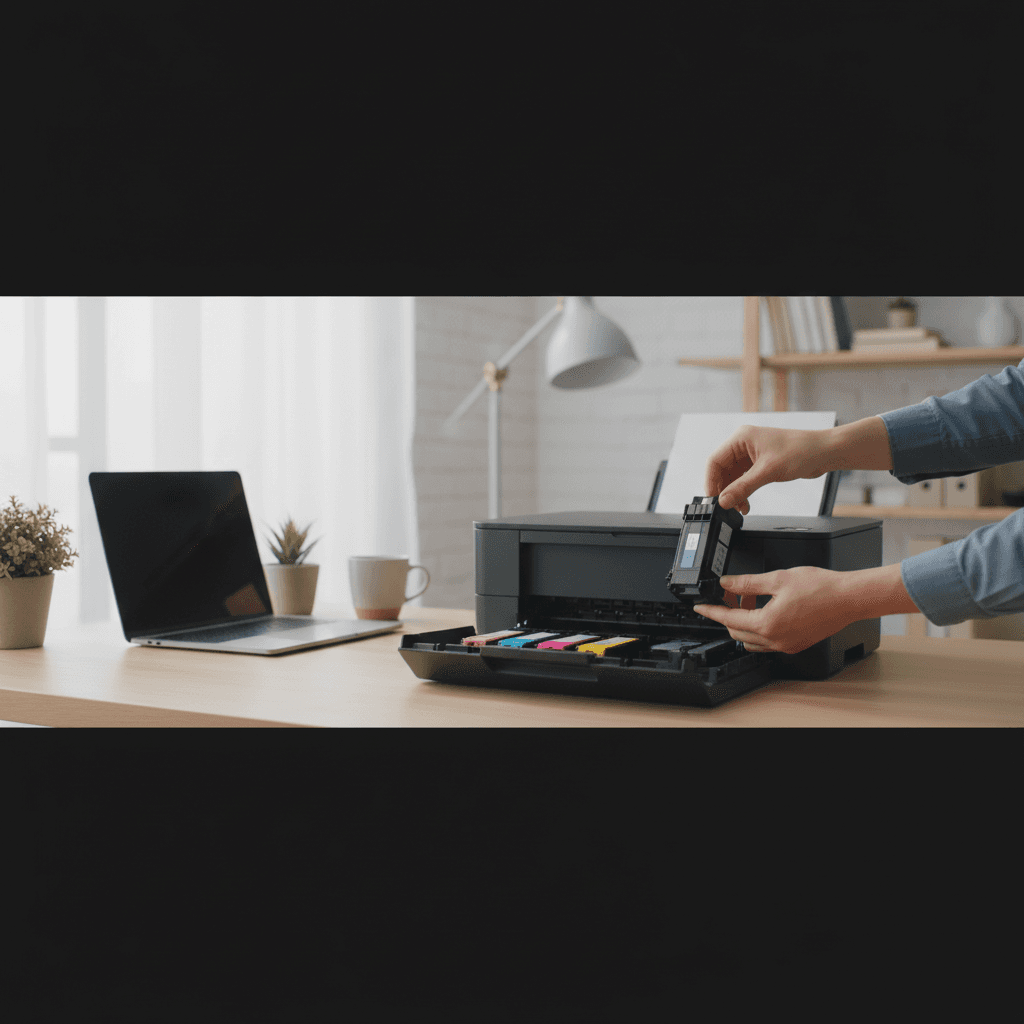
Non-Genuine or Incompatible Cartridge Message
Getting warnings about non-genuine or incompatible cartridges? Here's what these messages mean and how to handle them for each printer brand.
What's Happening
Your printer displays a warning that you're using a "non-genuine," "incompatible," or "non-OEM" cartridge. This happens when you use third-party, refilled, or remanufactured cartridges instead of the manufacturer's originals. Some printers just warn you; others refuse to print entirely.
Quick Checks (Do These First)
- Is the cartridge actually compatible? Verify it's made for your exact printer model.
- Did firmware recently update? Updates often add new cartridge restrictions.
- Is there an option to "Continue" or "Accept"? Many printers let you dismiss the warning.
- Check for a stuck previous cartridge chip - sometimes chips from old cartridges cause confusion.
Step-by-Step Fixes
For HP Printers
HP has become increasingly restrictive with their "HP+" and cartridge protection features:
- Look for "Cartridge Protection" in printer settings - disable it if possible
- Some printers show "Continue with Used/Setup Cartridge" - select this
- HP+ enrolled printers ONLY accept HP cartridges - this cannot be bypassed
- Consider downgrading firmware if a recent update caused the issue (search for your model + "firmware downgrade")
For Canon Printers
- When you see the warning, hold the Resume/Cancel button for 5-10 seconds
- Or press "OK" multiple times to acknowledge and continue
- Canon printers usually let you print after dismissing the warning
- Some models require pressing a specific button sequence
For Epson Printers
- Press and hold the ink button or pause button for 5+ seconds
- Epson typically allows printing after the warning is acknowledged
- Third-party cartridges with chips work better than chipless/refilled
- EcoTank models are more accepting of third-party ink
For Brother Printers
- Brother is generally the most third-party friendly
- Acknowledge any warnings by pressing "Yes" or "Accept"
- Ink level readings may be inaccurate with third-party cartridges
- Most Brother printers continue printing regardless
If Nothing Worked
Some printer firmware is designed to completely block non-OEM cartridges. You may need to use genuine cartridges, find a third-party supplier with better-quality chips, or consider a different printer brand for future purchases.
When to Call a Pro
If you need to use third-party cartridges for cost reasons and your current printer doesn't cooperate, a tech can help you find workarounds or recommend printers known for third-party cartridge compatibility.
Need Professional Help?
If you're in the Tampa Bay area and need hands-on assistance, Geeks in Sneaks provides friendly, on-site tech support in Clearwater, Clearwater Beach, and Dunedin.
Related Topics
Need Professional Help?
If you're still having trouble, our expert technicians can help.
Learn about our printer support serviceMore Printer Issues Fixes
See all Printer Issues fixes →How to Prevent Malware from Abusing Network Printers
Concerned about malware using your printer to spread or spy? Here's how to secure network printers against malicious software and attacks.
How to Prevent Kids or Guests from Printing 100-Page Jobs
Tired of accidental massive print jobs from kids or guests? Here's how to set up quotas, require approval, and control who can print what.
How Often Should You Check for Printer Security Updates?
Printer firmware updates aren't optional—they patch security holes. Here's how often to check, how to update, and how to set up automatic updates.
How to Block Unwanted Cloud and Remote Print Features
Don't want HP ePrint, Canon Cloud, or Epson Connect on your printer? Here's how to disable cloud printing features for better privacy and security.
How to Use Guest Networks or VLANs to Isolate Your Printer
Want to keep your printer on a separate network for security? Learn how to use guest networks and VLANs to isolate printers from your main devices.
How to Securely Dispose of Old Printers with Stored Data
Getting rid of an old printer? Learn how to wipe stored data and dispose of it securely so your personal information doesn't end up in the wrong hands.
Are Scanned or Copied Documents Stored on Your Printer?
Wondering if your printer keeps copies of documents you scan or copy? Here's what gets stored, how to check, and how to clear it.
How to Reconnect Your Printer After Changing WiFi Password
Changed your WiFi password and now your printer won't connect? Here's how to get it back online in minutes.