
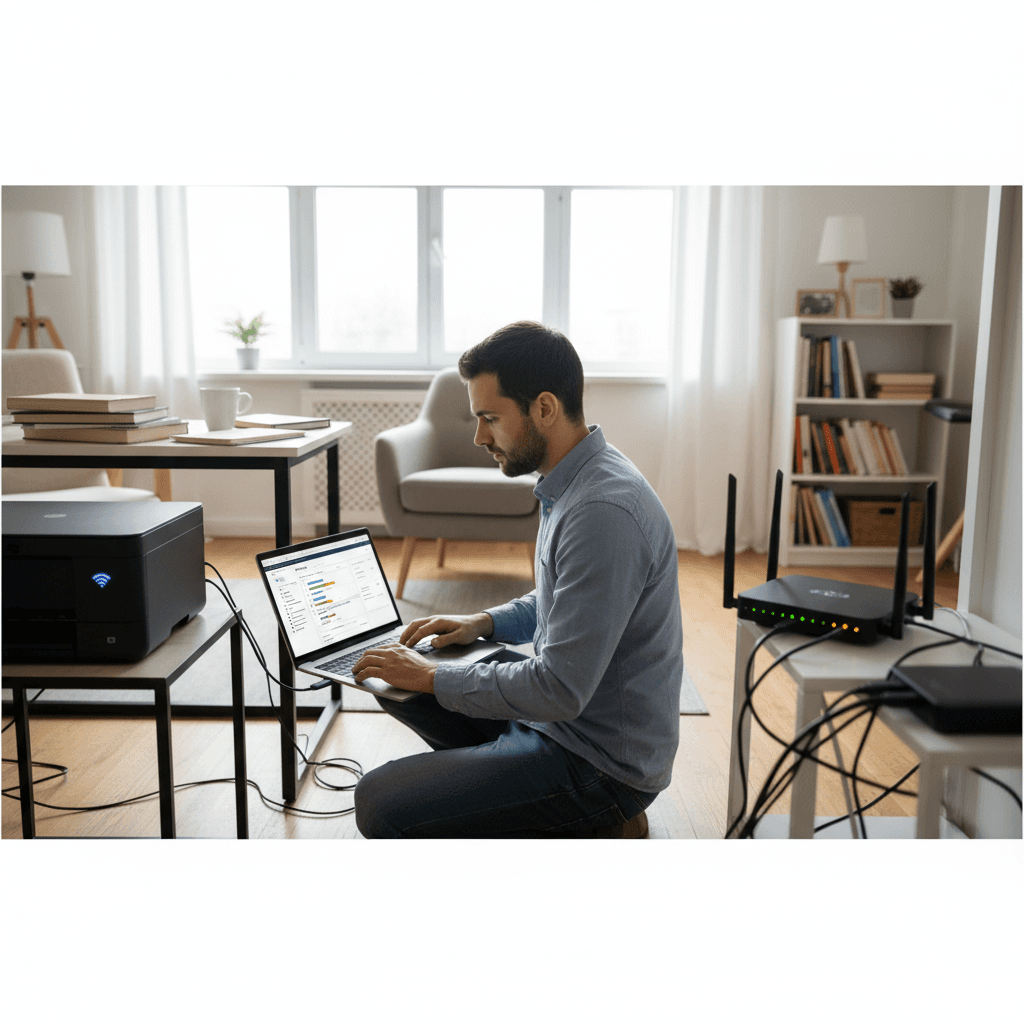
How to Reconnect Your Printer After Changing WiFi Password
Changed your WiFi password and now your printer won't connect? Here's how to get it back online in minutes.
What's Happening
When you change your WiFi password for security reasons, your printer doesn't automatically know the new password. It's still trying to connect with the old one, which is why it shows as offline or disconnected. This is one of the most common printer issues, but it's also one of the easiest to fix. You just need to tell your printer the new WiFi password, and it'll reconnect. The process takes about 5-10 minutes depending on your printer model.
Quick Checks (Do These First)
- Is your WiFi working? Make sure other devices can connect to WiFi with the new password.
- Is the printer powered on? It needs to be on to reconnect to WiFi.
- Can you access the printer's screen? Most modern printers have a touchscreen or button panel where you can change WiFi settings.
Step-by-Step Fixes
Fix 1: Reconnect Using Printer's Control Panel (Easiest)
Most printers with a screen or display panel let you reconnect to WiFi directly from the device.
- On your printer, press the Home or Menu button
- Navigate to Settings, Network, or the WiFi icon
- Select Wireless Setup Wizard or WiFi Setup
- Your printer will scan for available networks
- Select your WiFi network name (SSID) from the list
- Enter your new WiFi password carefully (passwords are case-sensitive)
- Wait for the printer to connect—you'll usually see a confirmation message or WiFi icon
- Print a test page to confirm it's working
This method works for HP, Canon, Epson, Brother, and most other brands with displays.
Fix 2: Use WPS Button (No Password Needed)
If your router and printer both have a WPS button, this is the fastest way to reconnect without typing the password.
- Make sure your printer is on and near your router
- On your printer, press and hold the WPS button (usually marked with a symbol that looks like two arrows in a circle)
- Within 2 minutes, go to your router and press its WPS button
- Wait 1-2 minutes for the devices to connect automatically
- The WiFi light on your printer should stop blinking and stay solid
- Print a test page to confirm
WPS bypasses the need to enter your password—the devices exchange the WiFi credentials automatically.
Fix 3: Reconnect Using Your Computer (Windows)
If your printer doesn't have a display or WPS, you can reconnect it through your computer.
- Connect your printer to your computer temporarily with a USB cable
- Open Settings > Devices > Printers & scanners
- Find your printer in the list and click on it
- Click Manage > Printer properties
- Look for a Ports or Network tab
- Click Configure Port or run the printer's setup utility
- Select your WiFi network and enter the new password
- Once connected, disconnect the USB cable—your printer should now work wirelessly
Fix 4: Use Manufacturer's Printer App
All major printer brands have mobile apps that make reconnecting easy.
For HP: Use the HP Smart app
- Download HP Smart from the Microsoft Store, Mac App Store, or your phone's app store
- Open the app and click Add Printer
- Select your printer (it might show as offline)
- Click Fix or Reconnect
- Follow the prompts to select your WiFi network and enter the new password
For Canon: Use the Canon PRINT app
For Epson: Use the Epson iPrint app
For Brother: Use the Brother iPrint&Scan app
All these apps have similar setup wizards that walk you through reconnecting to WiFi.
Fix 5: Reset Network Settings and Start Fresh
If the above methods aren't working, reset your printer's network settings and set it up from scratch.
- On your printer's control panel, go to Settings > Network
- Look for Restore Network Settings or Reset Network
- Confirm the reset
- Wait for the printer to restart
- Now use Fix 1 (Wireless Setup Wizard) to connect to your WiFi with the new password
If Nothing Worked
If you've tried all these methods and your printer still won't connect, there might be a different issue. Make sure your WiFi router is broadcasting on a frequency your printer supports—some older printers only work with 2.4 GHz networks and can't see 5 GHz networks. Check your router settings to ensure 2.4 GHz is enabled. Also, if you changed other router settings besides just the password (like the network name), you'll need to select the new network name when reconnecting. Some printers are very picky about special characters in passwords, so try using a simpler WiFi password with only letters and numbers.
When to Call a Pro
If your printer refuses to connect after multiple attempts, or if you're seeing error messages you don't understand, professional help can save you hours of frustration. There might be compatibility issues, firewall settings blocking the connection, or the printer's wireless adapter might need repair. A tech can diagnose the real issue quickly.
Need Professional Help?
If you're in the Tampa Bay area and need hands-on assistance, Geeks in Sneaks provides friendly, on-site tech support in Clearwater, Clearwater Beach, and Dunedin.
Related Topics
Need Professional Help?
If you're still having trouble, our expert technicians can help.
Learn about our printer support serviceMore Printer Issues Fixes
See all Printer Issues fixes →How to Prevent Malware from Abusing Network Printers
Concerned about malware using your printer to spread or spy? Here's how to secure network printers against malicious software and attacks.
How to Prevent Kids or Guests from Printing 100-Page Jobs
Tired of accidental massive print jobs from kids or guests? Here's how to set up quotas, require approval, and control who can print what.
How Often Should You Check for Printer Security Updates?
Printer firmware updates aren't optional—they patch security holes. Here's how often to check, how to update, and how to set up automatic updates.
How to Block Unwanted Cloud and Remote Print Features
Don't want HP ePrint, Canon Cloud, or Epson Connect on your printer? Here's how to disable cloud printing features for better privacy and security.
How to Use Guest Networks or VLANs to Isolate Your Printer
Want to keep your printer on a separate network for security? Learn how to use guest networks and VLANs to isolate printers from your main devices.
How to Reset Forgotten Admin Password on Printer Web Interface
Locked out of your printer's web interface? Here's how to reset the admin password for HP, Canon, Epson, and Brother printers.
How to Securely Dispose of Old Printers with Stored Data
Getting rid of an old printer? Learn how to wipe stored data and dispose of it securely so your personal information doesn't end up in the wrong hands.
Are Scanned or Copied Documents Stored on Your Printer?
Wondering if your printer keeps copies of documents you scan or copy? Here's what gets stored, how to check, and how to clear it.