
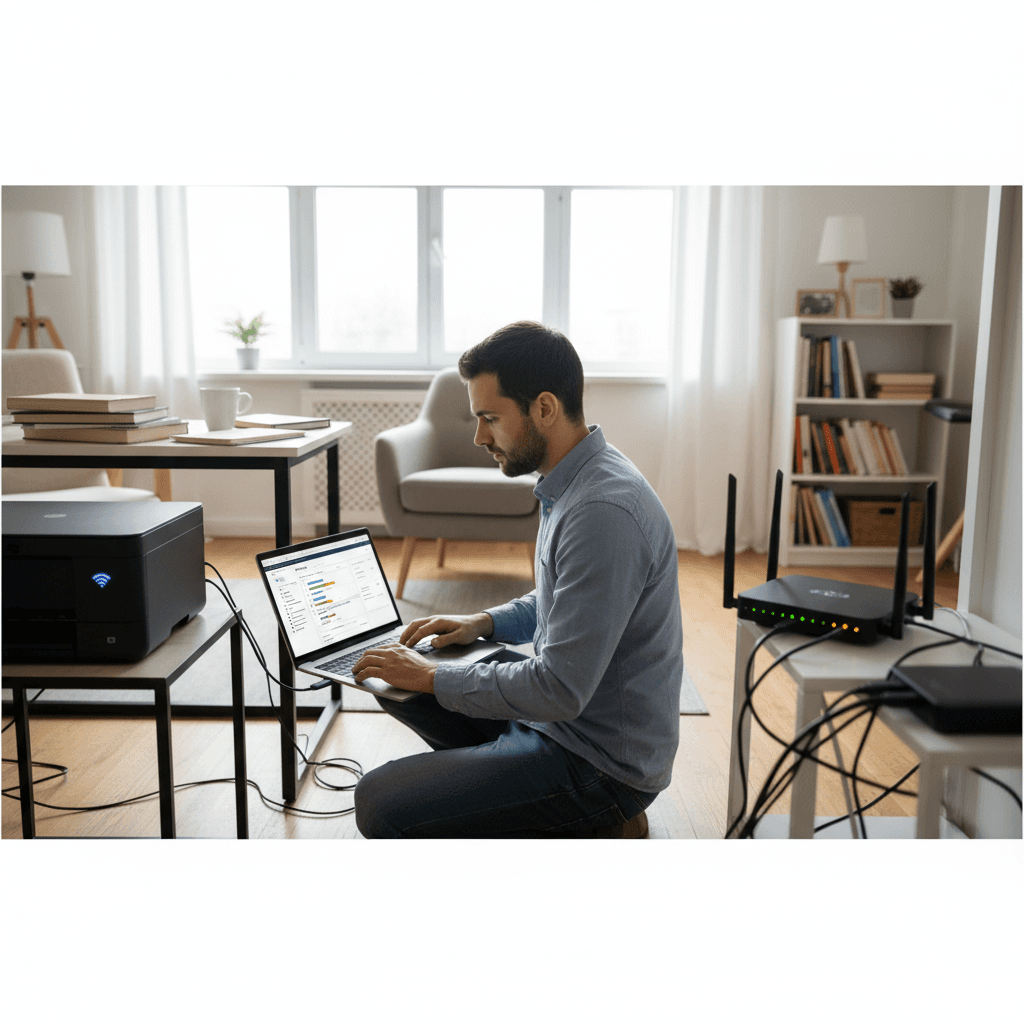
How to Stop Your Printer from Being Visible to Neighbors or Guests
Your wireless printer showing up on other people's devices? Here's how to make it private and secure on your network.
What's Happening
If your printer is appearing on your neighbors' computers or your guests can see it when they connect to your WiFi, it means your printer is broadcasting itself too widely on the network. This isn't just annoying—it's a security risk. Anyone who can see your printer might be able to print to it, access its settings, or even view stored documents. The good news is this is usually caused by simple settings that are easy to fix, and you don't need to be a network expert to lock things down.
Quick Checks (Do These First)
- Check your WiFi network: Make sure your printer is connected to your private network, not a guest network that might be sharing access too broadly.
- Look for WPS or WiFi Direct: These features can make your printer visible beyond your network. Check if they're enabled on your printer's control panel.
- Test visibility: Ask a neighbor or friend with a device not on your WiFi if they can see your printer in their print menu.
Step-by-Step Fixes
Fix 1: Disable WiFi Direct and WPS
Most printers have WiFi Direct, which creates a separate wireless network that anyone nearby can connect to. This is what's making your printer visible to neighbors.
- Go to your printer's control panel or touchscreen
- Navigate to Network Settings or Wireless Settings
- Look for WiFi Direct, Direct Connection, or Wireless Direct
- Turn this feature OFF
- Also look for WPS (Wi-Fi Protected Setup) and disable it if you're not using it
- Save the settings and restart your printer
After disabling WiFi Direct, your printer will only be accessible through your main WiFi network, which is password-protected.
Fix 2: Enable Network Isolation or Guest Network Separation
If guests on your WiFi can see your printer, you need to separate your devices from guest devices at the router level.
- Log into your router's admin page (usually 192.168.1.1 or 192.168.0.1)
- Enter your router's username and password
- Look for Guest Network settings
- Make sure Guest Network Isolation or Client Isolation is enabled
- This prevents guest devices from seeing or accessing devices on your main network
- Connect your printer to your main network, not the guest network
- Give guests access only to the guest network
This creates a wall between your personal devices (including your printer) and anyone visiting your home.
Fix 3: Configure Printer Network Settings for Private Access
You can lock down which devices can access your printer through its web interface.
- Find your printer's IP address (print a network configuration page from the printer's menu)
- Type the IP address into a web browser (like
http://192.168.1.100) - Log into the printer's web interface (check your manual for default password)
- Go to Network Settings or Security
- Look for Access Control or Device Access List
- Enable Access Control and add only your trusted devices by MAC address or IP
- Disable any Bonjour, mDNS, or network discovery features if you don't need them
- Enable PIN/Password printing if available—this requires a code to print
- Save all changes
Fix 4: Update Printer Firmware
Older firmware versions sometimes have security issues that make printers more visible than they should be.
- Access your printer's web interface using its IP address
- Look for Firmware Update, Printer Update, or Support section
- Check for updates and install any available
- Or visit your printer manufacturer's website, enter your model number, and download the latest firmware
- Follow the manufacturer's instructions to update
- After updating, double-check your WiFi Direct and network settings haven't been reset
If Nothing Worked
If your printer is still showing up for neighbors after trying all these fixes, the issue might be with your router's settings or how your network is configured. Some older routers don't properly isolate devices even on separate networks. You might also be dealing with a printer that has cloud printing features enabled, making it discoverable through the manufacturer's service. Check your printer's cloud settings (like HP Smart, Epson Connect, or Canon Cloud) and disable remote printing if you don't use it. In some cases, connecting your printer via USB instead of WiFi is the most secure solution if you only print from one computer.
When to Call a Pro
If you've tried these steps and your printer is still visible to people it shouldn't be, or if you're concerned about security breaches, it's time to get professional help. A tech professional can audit your network security, properly configure VLANs or network segmentation, and ensure your printer and router are secure. This is especially important if you handle sensitive documents or work from home.
Need Professional Help?
If you're in the Tampa Bay area and need hands-on assistance, Geeks in Sneaks provides friendly, on-site tech support in Clearwater, Clearwater Beach, and Dunedin.
Related Topics
Need Professional Help?
If you're still having trouble, our expert technicians can help.
Learn about our printer support serviceMore Printer Issues Fixes
See all Printer Issues fixes →How to Prevent Malware from Abusing Network Printers
Concerned about malware using your printer to spread or spy? Here's how to secure network printers against malicious software and attacks.
How to Prevent Kids or Guests from Printing 100-Page Jobs
Tired of accidental massive print jobs from kids or guests? Here's how to set up quotas, require approval, and control who can print what.
How Often Should You Check for Printer Security Updates?
Printer firmware updates aren't optional—they patch security holes. Here's how often to check, how to update, and how to set up automatic updates.
How to Use Guest Networks or VLANs to Isolate Your Printer
Want to keep your printer on a separate network for security? Learn how to use guest networks and VLANs to isolate printers from your main devices.
How to Reset Forgotten Admin Password on Printer Web Interface
Locked out of your printer's web interface? Here's how to reset the admin password for HP, Canon, Epson, and Brother printers.
How to Reconnect Your Printer After Changing WiFi Password
Changed your WiFi password and now your printer won't connect? Here's how to get it back online in minutes.
Why Printers Lose Settings After a Power Outage
Did a power outage reset your printer to factory defaults? Here's why it happens and how to prevent it from happening again.
Do Firmware Updates Intentionally 'Kill' Third-Party Cartridges
Your third-party cartridges stopped working after a firmware update. Is it a conspiracy, a bug, or intentional? Here's what's really happening.