
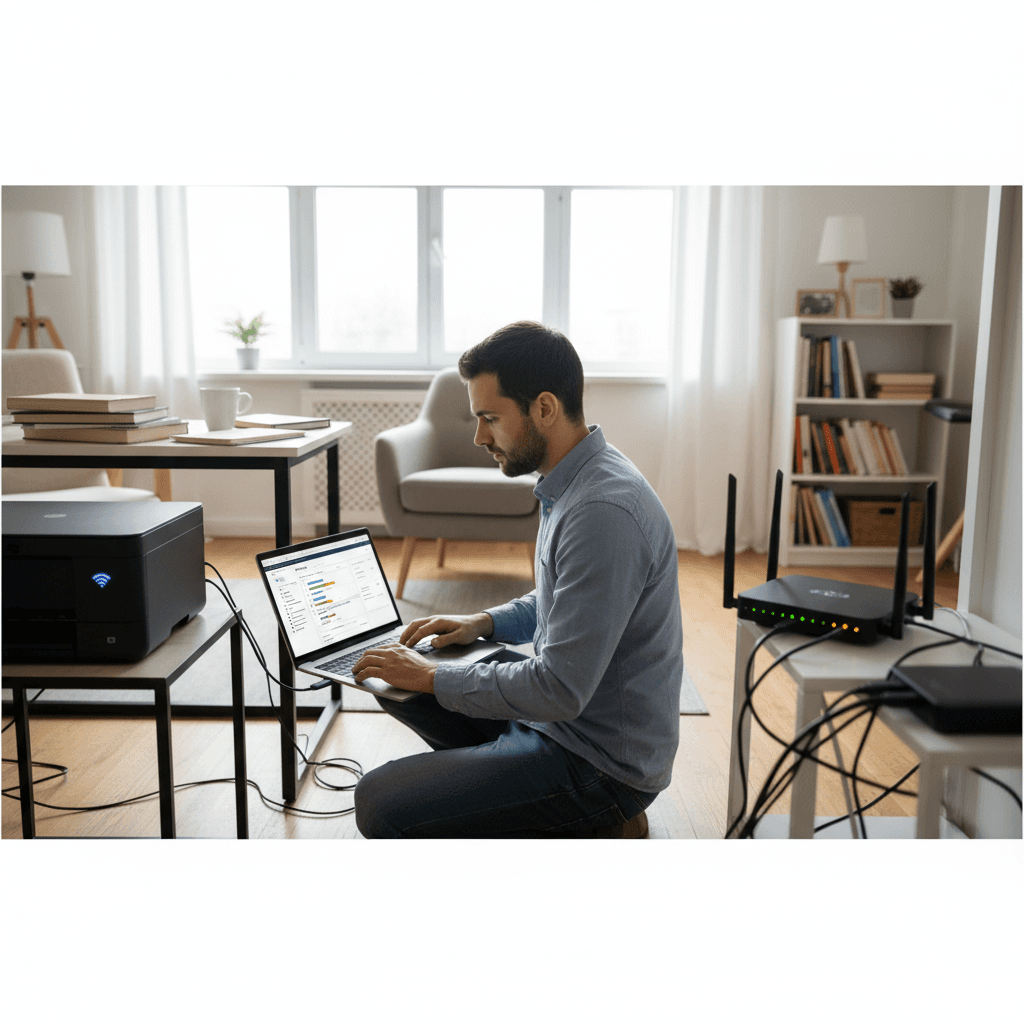
When to Move From USB-Only Printer to Network/Wi-Fi Model
Still plugging in a USB cable every time you print? Here's when upgrading to wireless makes sense and what you gain.
What's Happening
Your printer works fine, but it's connected to your desktop with a USB cable - and you have to be at that specific computer to print. You've heard about wireless printers but wonder if upgrading is worth it or just a luxury. For some people, it's life-changing. For others, USB is perfectly adequate. Let's figure out which camp you're in.
Quick Checks (Do These First)
- How many devices do you print from? Just one computer, or multiple devices?
- Do you print from your phone or tablet? Or only from a computer?
- Is your printer in a convenient location? Or is it in a back room away from where you work?
- Do multiple people need to use the printer? Family members, coworkers?
- How often do you print? Daily or occasionally?
When to Stick With USB
USB Is Fine If:
- You only print from one computer that's next to the printer
- You print rarely (less than once a week)
- You never print from phones or tablets
- You live alone or nobody else needs the printer
- Your printer is old but works perfectly (no reason to replace it just for Wi-Fi)
USB printing is actually more reliable than wireless - there's no network to troubleshoot, no connection drops, no password issues. If your current setup works and you don't feel limited, there's no reason to upgrade.
When Wireless Makes a Huge Difference
Upgrade to Wi-Fi If:
1. You Print From Multiple Devices
If you have a laptop, desktop, tablet, and phone - and you print from any of them - wireless is game-changing. No more emailing documents to yourself or carrying files on a USB drive just to print.
With wireless: Print from your laptop in the living room, your phone at the kitchen table, your tablet in bed. The printer is available to every device on your network.
2. Multiple People Need to Print
In a family or small office, USB means only one person can print - whoever's at the connected computer. Everyone else has to save files, transfer them, and ask that person to print.
With wireless: Everyone prints directly. No middleman, no file transfers, no interrupting each other.
3. You Print From Your Phone
This is the biggest reason people upgrade. Modern life means documents on your phone:
- Boarding passes
- Concert tickets
- Receipts and confirmations
- Photos from your camera roll
- PDFs attached to emails
Without wireless: You have to email it to yourself, open it on the connected computer, then print. Annoying.
With wireless: Open the document on your phone, tap print, done in 10 seconds.
4. Your Printer Is In a Different Room
If your printer is in a home office but you work from your laptop in the living room, wireless means you don't have to get up and carry your laptop to the printer every time.
5. You Work From Multiple Locations in Your Home
Kitchen table, couch, office, bedroom - if you move around with your laptop, wireless printing saves you from having to go to one specific desk to print.
6. You're Replacing Your Printer Anyway
If you're buying a new printer for any reason, get one with Wi-Fi. It costs maybe $20-30 more than USB-only models, and you'll appreciate the flexibility even if you don't think you need it now.
What You Gain With Wireless
- Print from anywhere in your house
- Print from phones and tablets (iOS, Android)
- Print from Chromebooks (which often don't work well with USB printers)
- No cable clutter
- Printer can be anywhere (doesn't have to be next to a computer)
- Guest printing (visitors can print if you give them network access)
- Cloud printing features (print from anywhere via internet with some models)
What You Lose (Potential Downsides)
- Slightly less reliable: Wi-Fi can drop, networks can have issues
- Setup complexity: Connecting to Wi-Fi is harder than plugging in USB
- Security considerations: Network printers are accessible to anyone on your network
- Troubleshooting: More things can go wrong (router issues, network settings, etc.)
The Middle Ground: USB + Network Sharing
If you don't want to buy a new printer but want some wireless benefits, you can share a USB printer over your network:
- Connect the printer via USB to one computer (the "host")
- Enable printer sharing in Windows/Mac settings
- Other computers on the network can print through the host computer
Catch: The host computer must be turned on for others to print. And it doesn't work for phone/tablet printing.
What to Look For in a Wireless Printer
If you're upgrading, get:
- Dual-band Wi-Fi (2.4GHz and 5GHz) for better reliability
- AirPrint support (for Apple devices)
- Google Cloud Print alternative (HP Smart, Epson Connect, etc.)
- Ethernet port as a backup (more reliable than Wi-Fi for stationary printers)
- Wi-Fi Direct (lets you print without joining a network)
Cost Comparison
Wireless doesn't cost much more:
- USB-only inkjet: $50-80
- Wi-Fi inkjet: $70-100
- USB-only laser: $100-150
- Wi-Fi laser: $130-180
The $20-30 difference is worth it if you'll use the wireless features even occasionally.
When to Call a Pro
Setting up wireless printing can be tricky, especially connecting to specific network configurations or troubleshooting connection issues. A professional can set it up so it just works - for all your devices.
Need Professional Help?
If you're in the Tampa Bay area and need hands-on assistance, Geeks in Sneaks provides friendly, on-site tech support in Clearwater, Clearwater Beach, and Dunedin.
Related Topics
Need Professional Help?
If you're still having trouble, our expert technicians can help.
Learn about our printer support serviceMore Printer Issues Fixes
See all Printer Issues fixes →How to Prevent Malware from Abusing Network Printers
Concerned about malware using your printer to spread or spy? Here's how to secure network printers against malicious software and attacks.
How to Prevent Kids or Guests from Printing 100-Page Jobs
Tired of accidental massive print jobs from kids or guests? Here's how to set up quotas, require approval, and control who can print what.
How Often Should You Check for Printer Security Updates?
Printer firmware updates aren't optional—they patch security holes. Here's how often to check, how to update, and how to set up automatic updates.
How to Block Unwanted Cloud and Remote Print Features
Don't want HP ePrint, Canon Cloud, or Epson Connect on your printer? Here's how to disable cloud printing features for better privacy and security.
How to Use Guest Networks or VLANs to Isolate Your Printer
Want to keep your printer on a separate network for security? Learn how to use guest networks and VLANs to isolate printers from your main devices.
How to Reset Forgotten Admin Password on Printer Web Interface
Locked out of your printer's web interface? Here's how to reset the admin password for HP, Canon, Epson, and Brother printers.
How to Securely Dispose of Old Printers with Stored Data
Getting rid of an old printer? Learn how to wipe stored data and dispose of it securely so your personal information doesn't end up in the wrong hands.
Are Scanned or Copied Documents Stored on Your Printer?
Wondering if your printer keeps copies of documents you scan or copy? Here's what gets stored, how to check, and how to clear it.