
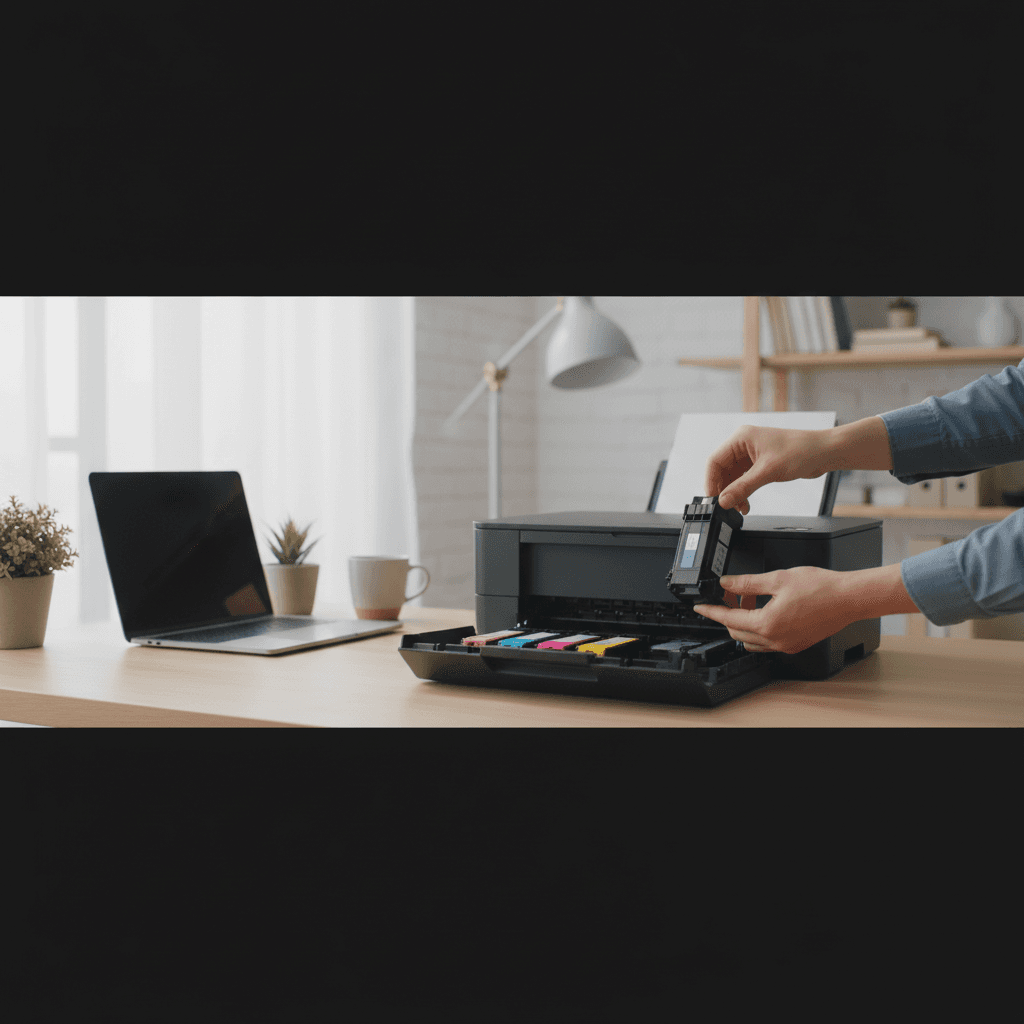
New Cartridge Not Recognized After Replacement
Installed a new cartridge but the printer doesn't see it? This recognition failure has several causes. Here's how to fix it by brand.
What's Happening
You've replaced a cartridge, but the printer acts like nothing is there. It might say "Cartridge Missing," "Install Cartridge," or just show no ink level at all. The cartridge is physically installed, but the printer isn't recognizing it. This is typically a contact or chip communication issue.
Quick Checks (Do These First)
- Is the cartridge fully seated? Push until you hear/feel a click.
- Right cartridge for this printer? Verify model compatibility.
- All protective materials removed? Orange clips, tape, and vent covers.
- Is the slot itself working? Does the previous cartridge work if reinstalled?
Step-by-Step Fixes
For HP Printers
- Remove cartridge and gently clean the gold/copper contacts with a dry lint-free cloth
- Clean the contacts inside the printer carriage too
- Look for any damaged pins in the carriage
- Try the cartridge in a different slot (if color and interchangeable)
- Power cycle: turn off, unplug for 60 seconds, plug in, turn on
For Canon Printers
- Remove and reinstall the cartridge several times (can help seat it properly)
- Clean the chip on the cartridge with a dry cloth
- Check that the cartridge lock lever is fully closed
- Try resetting the printer by unplugging for 2 minutes
For Epson Printers
- Epson cartridges have a specific chip location - make sure it's aligned
- Remove cartridge, press and hold the ink button, then reinstall
- Try inserting the cartridge while the carriage is in the replacement position
- Some Epsons need you to "initialize" ink from the maintenance menu
For Brother Printers
- Brother cartridges need the colored lever released before removal/insertion
- Make sure you're pushing the cartridge all the way in
- Clean the chip and contacts
- Open and close the front cover to trigger a recheck
If Nothing Worked
The cartridge may have a defective chip. Try another cartridge from the same package or exchange it. If multiple cartridges fail, the printer's cartridge slot contacts may be damaged or dirty beyond simple cleaning.
When to Call a Pro
Bent pins or damaged contacts in the cartridge carriage require careful repair. If multiple known-good cartridges aren't recognized, the printer needs hands-on inspection.
Need Professional Help?
If you're in the Tampa Bay area and need hands-on assistance, Geeks in Sneaks provides friendly, on-site tech support in Clearwater, Clearwater Beach, and Dunedin.
Related Topics
Need Professional Help?
If you're still having trouble, our expert technicians can help.
Learn about our printer support serviceMore Printer Issues Fixes
See all Printer Issues fixes →How to Prevent Malware from Abusing Network Printers
Concerned about malware using your printer to spread or spy? Here's how to secure network printers against malicious software and attacks.
How to Prevent Kids or Guests from Printing 100-Page Jobs
Tired of accidental massive print jobs from kids or guests? Here's how to set up quotas, require approval, and control who can print what.
How Often Should You Check for Printer Security Updates?
Printer firmware updates aren't optional—they patch security holes. Here's how often to check, how to update, and how to set up automatic updates.
How to Block Unwanted Cloud and Remote Print Features
Don't want HP ePrint, Canon Cloud, or Epson Connect on your printer? Here's how to disable cloud printing features for better privacy and security.
How to Use Guest Networks or VLANs to Isolate Your Printer
Want to keep your printer on a separate network for security? Learn how to use guest networks and VLANs to isolate printers from your main devices.
How to Securely Dispose of Old Printers with Stored Data
Getting rid of an old printer? Learn how to wipe stored data and dispose of it securely so your personal information doesn't end up in the wrong hands.
Are Scanned or Copied Documents Stored on Your Printer?
Wondering if your printer keeps copies of documents you scan or copy? Here's what gets stored, how to check, and how to clear it.
How to Reconnect Your Printer After Changing WiFi Password
Changed your WiFi password and now your printer won't connect? Here's how to get it back online in minutes.