
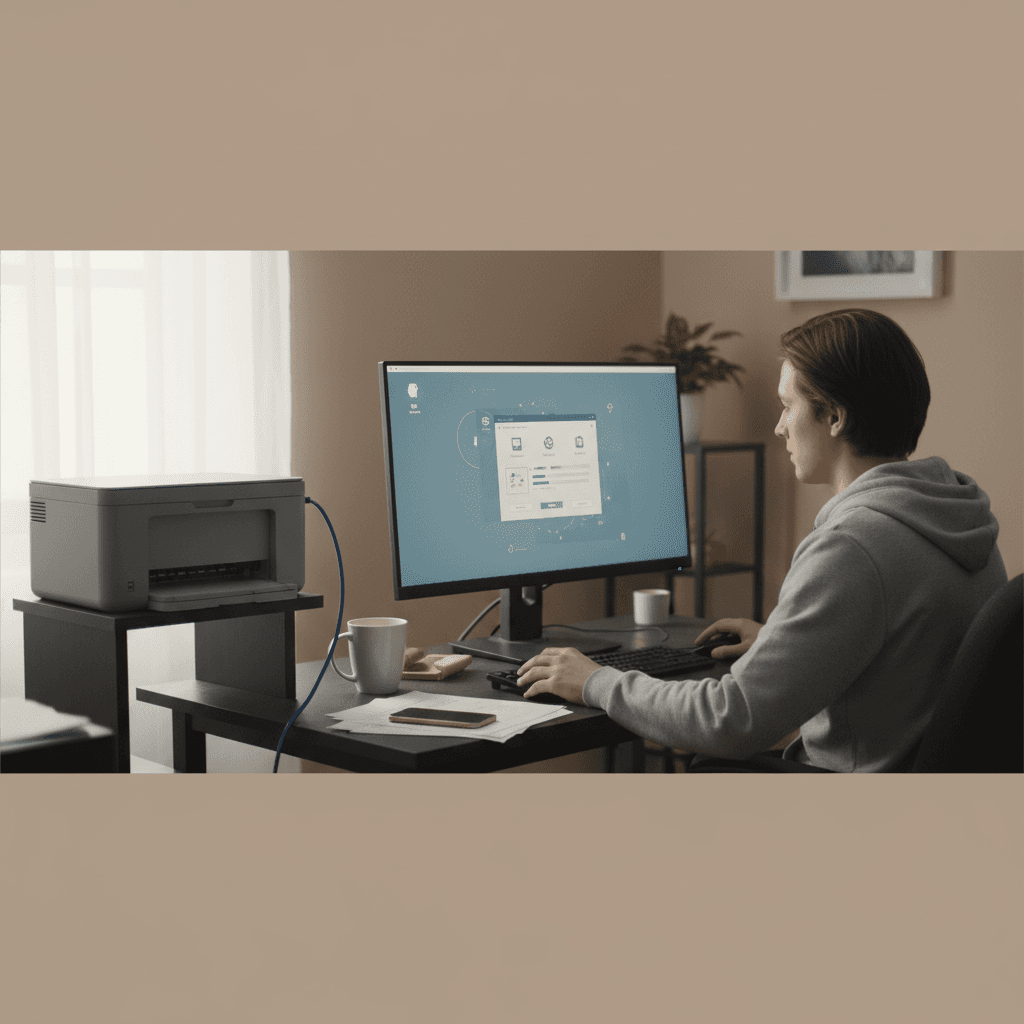
How Often Should You Check for Printer Security Updates?
Printer firmware updates aren't optional—they patch security holes. Here's how often to check, how to update, and how to set up automatic updates.
What's Happening
Most people never think about updating their printer's firmware, but just like your computer's operating system, printer firmware has security vulnerabilities that need patching. Manufacturers regularly release updates to fix bugs, improve performance, and most importantly, close security holes that could be exploited by malware or attackers. Outdated printer firmware is one of the most common weaknesses in home and business networks. The question is: how often should you check for updates, and should you trust automatic updates? This guide answers both.
Quick Checks (Do These First)
- When was your printer's firmware last updated? Check the web interface under "About" or "System Information" to see the current firmware version and date.
- Is automatic update enabled? Check your printer's settings to see if it's set to update automatically or manually.
- Have there been recent major vulnerabilities? Search online for "[your printer model] firmware update 2026" to see if critical patches were recently released.
Step-by-Step Fixes
Fix 1: How Often to Check for Updates
The recommended schedule depends on your environment and risk tolerance.
For Home Users:
- Monthly checks are a good baseline for most people
- Set a reminder on the first of each month to check for printer firmware updates
- This balances security with the time investment required
For Small Business/Home Office:
- Bi-weekly checks (every 2 weeks) if you handle sensitive documents
- Subscribe to manufacturer security bulletins so you're notified of critical updates
For Businesses Handling Sensitive Data (Medical, Legal, Financial):
- Weekly checks or enable automatic updates with testing on a non-critical device first
- Implement a formal patch management policy
- Critical security updates should be applied within 48 hours of release
After Major Security Announcements:
- Immediately check for updates when you hear about printer vulnerabilities in the news
- Examples: PrintNightmare (2021), various printer vulnerabilities announced annually
- These require immediate action, not waiting for your regular schedule
Fix 2: How to Check for Updates Manually
Here's how to check if your printer has available firmware updates.
Method A: Via Printer's Web Interface
- Find your printer's IP address (print a network configuration page from the printer's control panel)
- Type the IP address into a web browser (like
http://192.168.1.100) - Log in with admin credentials
- Navigate to Settings, Maintenance, Tools, or Firmware Update
- Click Check for Updates or Update Now
- If an update is available, the printer will show the version number and changes
- Click Download and Install
- Do not turn off the printer during the update (this can brick the device)
- The printer will restart when the update is complete
Method B: Via Manufacturer's Website
- Go to your printer manufacturer's support site:
- HP: support.hp.com
- Canon: canon.com/support
- Epson: epson.com/support
- Brother: brother.com/support
- Enter your printer model in the search box
- Navigate to Drivers & Downloads or Software & Firmware
- Look for the latest firmware version
- Compare the version number to what's currently on your printer (visible in the printer's web interface under "About" or "System Information")
- If a newer version is available, download it
- Follow the manufacturer's installation instructions (usually uploading the firmware file via the printer's web interface)
Method C: Via Printer's Control Panel
- Some printers can check for updates directly from their touchscreen
- Press Home or Menu
- Navigate to Settings > Maintenance or Printer Update
- Select Check for Updates
- If available, follow on-screen prompts to download and install
Fix 3: Enable Automatic Firmware Updates (With Caution)
Automatic updates ensure you're always protected, but they come with trade-offs.
Pros of Automatic Updates:
- You never forget to update
- Critical security patches are applied immediately
- Less manual work
Cons of Automatic Updates:
- Updates can occasionally introduce bugs or break compatibility
- No chance to test before deploying (important for businesses)
- Privacy concerns: printer may send usage data to manufacturer
- Updates might happen at inconvenient times
How to Enable (if you decide to):
- Access your printer's web interface
- Go to Settings > Firmware Update or Maintenance
- Look for Automatic Updates or Auto-Update
- Enable it and select update frequency (usually "Check daily" or "Check weekly")
- Some printers let you set a time window (like "between 2-4 AM")
- Save settings
Recommended Approach (Best of Both Worlds):
- Enable Automatic Check but keep Automatic Installation disabled
- Printer will notify you when updates are available, but you control when to install
- This gives you awareness without giving up control
Fix 4: Subscribe to Security Bulletins and Alerts
Stay informed about critical vulnerabilities without constantly checking manually.
- Visit your printer manufacturer's security page:
- HP: hp.com/go/printingsecurity
- Canon: Search for "Canon security advisories"
- Epson: epson.com/security
- Brother: Check their support portal for security bulletins
- Sign up for email alerts or RSS feeds for security advisories
- Follow tech security sites like CISA.gov (US Cybersecurity & Infrastructure Security Agency) for alerts about printer vulnerabilities
- Join relevant forums or subreddits (like r/sysadmin) where critical vulnerabilities are discussed
When a critical vulnerability is announced, update immediately rather than waiting for your regular schedule.
Fix 5: Document Your Firmware Versions
Keep track of what firmware is running on your printers so you know what's current.
- Create a simple spreadsheet or note with:
- Printer model
- Current firmware version
- Date last checked
- Date last updated
- Where to download updates (direct link)
- Update this log every time you check or install firmware
- Set a calendar reminder to review the log monthly
This is especially important if you have multiple printers or are managing printers for a small business.
Fix 6: Test Updates on Non-Critical Devices First (Businesses)
For businesses with multiple identical printers, test updates before mass deployment.
- Identify one printer as a "test device"—preferably one that's used but not mission-critical
- When a firmware update is released, install it on the test device first
- Use the printer normally for 2-3 days
- Watch for:
- Print quality issues
- Connectivity problems
- Feature breakage
- Error messages
- If everything works smoothly, deploy the update to remaining printers
- If there are issues, hold off and contact manufacturer support or wait for a fixed version
Fix 7: When NOT to Update
There are rare situations where you might want to delay an update.
- If your printer is working perfectly and the update only adds features you don't need (not security fixes): You can wait
- If you're in the middle of a critical project: Wait until downtime to avoid disruption
- If the update was just released and hasn't been tested by others: For businesses, wait 1-2 weeks and check online forums to see if others report issues
- If your printer is out of warranty and updating has risk: Some very old printers can be bricked by firmware updates. Research carefully first.
Important: Never skip security updates indefinitely. Even if you delay, apply them within a reasonable timeframe (2-4 weeks max for non-critical environments).
If Nothing Worked
If you're unable to update your printer's firmware (maybe it's very old and no longer supported, or updates keep failing), your options are limited. Unsupported printers should be treated as high-security risks. Consider replacing the printer with a newer model that receives regular updates. If replacement isn't immediately possible, isolate the printer on a separate network with strict firewall rules, disable all unnecessary services, and never expose it to the internet. In business environments, unsupported printers should be replaced immediately—the security risk is too high.
When to Call a Pro
For businesses managing multiple printers, implementing a formal patch management system is worth professional help. IT professionals can set up automated update systems, centralized monitoring, and testing protocols to ensure updates are applied safely and consistently across all devices. If you're in a regulated industry (healthcare, finance, legal), professional management isn't optional—it's required for compliance. For home users with concerns about update safety or compatibility, a tech professional can assess your specific situation and recommend the best update strategy for your needs.
Need Professional Help?
If you're in the Tampa Bay area and need hands-on assistance, Geeks in Sneaks provides friendly, on-site tech support in Clearwater, Clearwater Beach, and Dunedin.
Related Topics
Need Professional Help?
If you're still having trouble, our expert technicians can help.
Learn about our printer support serviceMore Printer Issues Fixes
See all Printer Issues fixes →How to Block Unwanted Cloud and Remote Print Features
Don't want HP ePrint, Canon Cloud, or Epson Connect on your printer? Here's how to disable cloud printing features for better privacy and security.
How to Use Guest Networks or VLANs to Isolate Your Printer
Want to keep your printer on a separate network for security? Learn how to use guest networks and VLANs to isolate printers from your main devices.
How to Reset Forgotten Admin Password on Printer Web Interface
Locked out of your printer's web interface? Here's how to reset the admin password for HP, Canon, Epson, and Brother printers.
How to Securely Dispose of Old Printers with Stored Data
Getting rid of an old printer? Learn how to wipe stored data and dispose of it securely so your personal information doesn't end up in the wrong hands.
Are Scanned or Copied Documents Stored on Your Printer?
Wondering if your printer keeps copies of documents you scan or copy? Here's what gets stored, how to check, and how to clear it.
How to Reconnect Your Printer After Changing WiFi Password
Changed your WiFi password and now your printer won't connect? Here's how to get it back online in minutes.
How to Stop Your Printer from Being Visible to Neighbors or Guests
Your wireless printer showing up on other people's devices? Here's how to make it private and secure on your network.
Why Printers Lose Settings After a Power Outage
Did a power outage reset your printer to factory defaults? Here's why it happens and how to prevent it from happening again.