
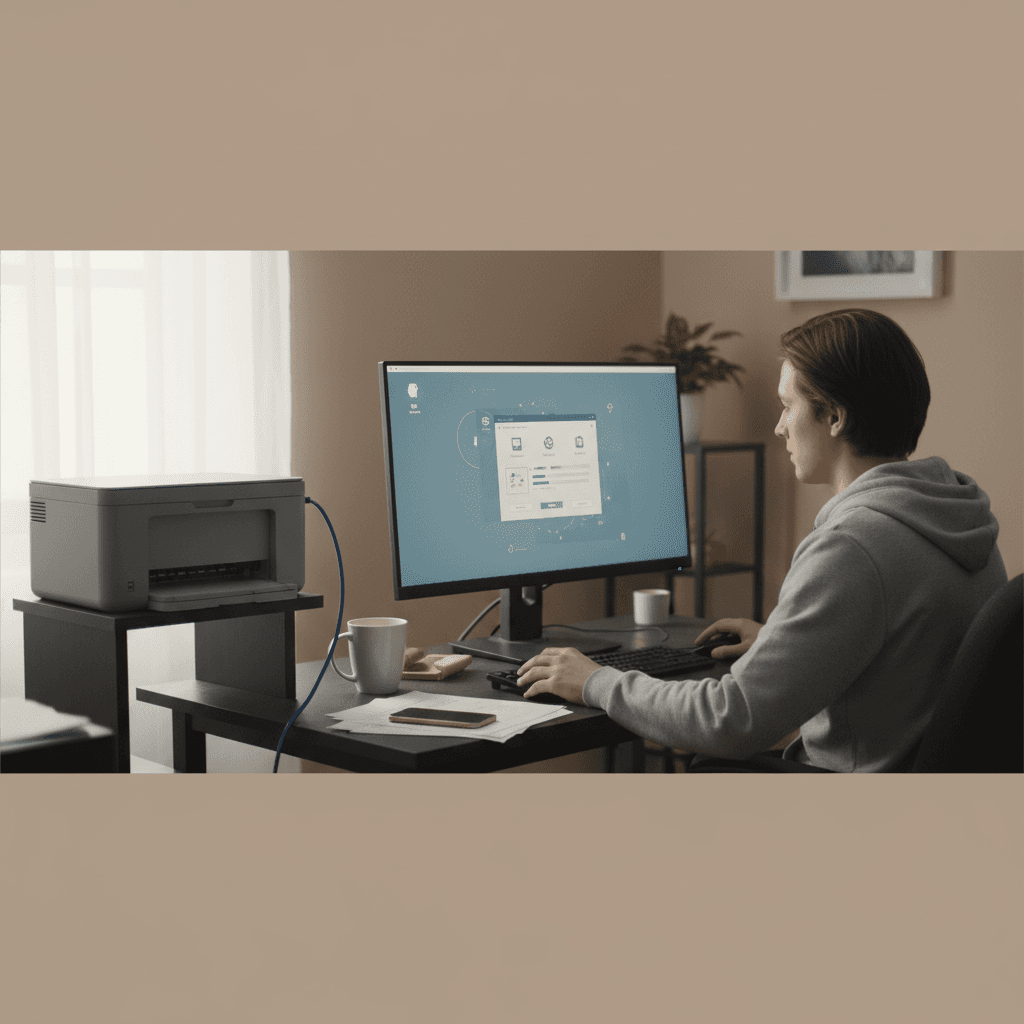
How Often Should You Update Printer Firmware?
Firmware updates can fix bugs and add features, but they can also break things. Here's when to update and when to skip it.
What's Happening
Your printer is nagging you to install a firmware update, or you stumbled across the firmware update option in settings and wonder if you should run it. Firmware updates can improve performance, fix bugs, add features, and patch security holes. But they can also introduce new bugs, break compatibility, or in rare cases, brick your printer entirely. So how do you know when to update and when to leave well enough alone?
Quick Checks (Do These First)
- Is your printer working perfectly right now? If yes, be cautious about updating just because an update exists.
- Are you having a specific problem that release notes say the update fixes? Then yes, update.
- Is the update security-related? These should generally be installed.
- How old is your printer? Newer printers get more frequent updates than old models.
- Are you using third-party ink or toner? Some firmware updates block third-party cartridges.
The General Rule for Firmware Updates
Update If:
- The update fixes a bug you're experiencing. Check the release notes.
- It's a security update. Network printers with security flaws can be exploited.
- You're having connectivity issues and the update mentions WiFi/network improvements.
- The manufacturer recommends it before installing new drivers. Sometimes driver updates require firmware updates first.
- You just bought the printer and it's running old firmware. Getting up to date initially is smart.
Don't Update If:
- Your printer is working perfectly and the update is just "general improvements." If it ain't broke, don't fix it.
- Reviews of the update show it causes new problems. Google "[your printer model] firmware [version]" before updating to see if others are complaining.
- You're using third-party ink/toner and the update mentions "cartridge authentication improvements." That's code for "we're blocking cheap ink."
- Your printer is very old and out of support. Late-life firmware updates are rare and risky.
How to Check for and Install Firmware Updates
Method 1: Through the Printer's Control Panel (Network Printers)
- Press the Settings or Setup button on your printer.
- Navigate to Printer Maintenance, Tools, or Firmware Update. The exact menu varies by model.
- Select "Check for Updates" or "Update Firmware."
- If an update is available, read the description. What does it fix or improve?
- If you decide to proceed, select "Download and Install" or "Update Now."
- Wait. Do not turn off the printer or unplug it during the update. This can brick the printer.
- The printer will restart when done. Print a test page to confirm everything works.
Method 2: Through the Manufacturer's Software (Windows/Mac)
Most printer manufacturers have utility software (HP Smart, Epson Print and Scan, Canon IJ Printer Utility, Brother iPrint&Scan) that can check for and install firmware updates.
- Open the manufacturer's printer utility software. If you don't have it, download it from the manufacturer's website.
- Look for a "Printer Settings," "Tools," or "Maintenance" section.
- Find "Firmware Update" or "Update Printer."
- Click "Check for Updates." The software will contact the manufacturer's server.
- If an update is available, review the release notes.
- Click "Install" or "Update." Make sure the printer is on and connected.
- Do not turn off the printer or computer during the update.
- The printer will restart when finished.
Method 3: Manual Download from Manufacturer Website (Advanced)
For older printers or if automatic updates don't work, you can manually download firmware.
- Go to the manufacturer's support website. (HP, Epson, Canon, Brother, etc.)
- Enter your printer model number. Look for "Downloads," "Drivers," or "Support."
- Find the Firmware section. Download the latest firmware file.
- Read the installation instructions carefully. Some firmware updates are installed via USB, others via the printer's web interface.
- Follow the instructions exactly. Each manufacturer has a different process.
- Do not interrupt the update process.
Firmware Update Best Practices
Before You Update:
- Read the release notes. Know what you're getting. Is it worth the risk?
- Google the update. Search for "[printer model] firmware [version] problems" to see if others have had issues.
- Make sure the printer has stable power. Use a surge protector or UPS. A power outage during a firmware update can destroy the printer.
- Ensure a stable connection. For WiFi printers, use a wired connection if possible for the update. Network interruptions can corrupt the update.
- Close all other programs. Don't print or scan while updating firmware.
During the Update:
- Do not turn off the printer. Even if it seems frozen. Give it at least 15-20 minutes.
- Do not unplug it. Losing power during a firmware update can brick the printer permanently.
- Do not press buttons or send print jobs. Let the update complete undisturbed.
- The printer may restart multiple times. This is normal for some updates.
After the Update:
- Print a test page. Make sure basic printing works.
- Test all functions. Print, scan, copy, WiFi—make sure nothing broke.
- Check settings. Some firmware updates reset settings to defaults. You may need to reconfigure WiFi, paper sizes, etc.
- If something broke, check for a newer update. Sometimes manufacturers quickly release a fix for a bad update.
Automatic vs. Manual Updates
Automatic Updates
Many modern printers can check for and install updates automatically.
Pros:
- Convenient—you don't have to remember
- Ensures you get security patches quickly
- Keeps the printer current with minimal effort
Cons:
- Can install buggy updates before you know they're problematic
- May update at inconvenient times
- Some updates block third-party ink without warning
Recommendation: Turn off automatic updates and check manually every 3-6 months. This gives you control and lets you research updates before installing.
How to Disable Automatic Firmware Updates:
Look in your printer's settings menu (usually under Printer Settings > Firmware Update > Automatic Updates > Off) or in the manufacturer's software preferences.
When Firmware Updates Go Wrong
Common Issues:
- Printer won't turn on after update: May need to be reset or reflashed by a technician.
- WiFi stops working: Reconfigure network settings; they may have been reset.
- Third-party cartridges suddenly don't work: The update blocked them. You may need to buy genuine cartridges or downgrade firmware (difficult).
- New error messages or weird behavior: Check for a newer firmware version that fixes the issue, or contact support.
- Printer seems bricked (won't respond at all): Contact manufacturer support. Some can be recovered with special firmware recovery tools.
Can You Downgrade Firmware?
Usually no, but sometimes yes. Most printers don't officially support firmware downgrades, and manufacturers actively prevent it. However, some tech-savvy users have found ways to downgrade specific models (search YouTube or printer forums for your model).
Risks of downgrading: Can permanently damage the printer, void warranty, and is generally unsupported. Only attempt if you're comfortable with the risk and have found a proven method for your exact model.
Special Considerations
Business/Network Printers
Update more frequently. Network printers are vulnerable to security exploits. Apply security updates promptly, especially if the printer is accessible from the internet.
Using Third-Party Ink or Toner
Be cautious. HP in particular is notorious for firmware updates that block third-party cartridges. Read the release notes carefully and search forums before updating if you rely on third-party consumables.
Older Printers (5+ Years Old)
Updates are rare and usually not necessary. If your old printer is working fine, leave the firmware alone. Updating an old printer rarely provides benefits and can introduce instability.
Just-Released Printers
Initial firmware updates are common and often important. Early production runs sometimes ship with buggy firmware. Updating a brand new printer is usually safe and beneficial.
How Often Should You Check for Updates?
Home Users with Working Printers
Every 6 months. Check for updates twice a year, read the release notes, and only install if there's a clear benefit or security fix.
Business/Network Printers
Monthly or quarterly. Security is more critical for networked printers. Check more often and apply security updates promptly.
If You're Experiencing Problems
Check immediately. Before troubleshooting or calling support, check if a firmware update addresses your issue.
After Buying a New Printer
Check right away. Get the printer up to date out of the box, then settle into a regular check schedule.
The Bottom Line
Don't update just because an update exists. Read the release notes and decide if it's relevant to you.
Do update for security fixes, bug fixes that affect you, or connectivity improvements.
Be cautious if you use third-party ink/toner. Some updates are designed to block non-genuine cartridges.
Never interrupt a firmware update in progress. This can permanently damage the printer.
Check for updates every 6 months for home printers, more often for business/network printers.
If your printer works perfectly, "if it ain't broke, don't fix it" is reasonable advice.
When to Call a Pro
If a firmware update failed and your printer won't turn on or respond, or if you're unsure whether to install an update and need expert advice for your specific situation, a technician can help assess the risk and perform the update safely.
Need Professional Help?
If you're in the Tampa Bay area and need hands-on assistance, Geeks in Sneaks provides friendly, on-site tech support in Clearwater, Clearwater Beach, and Dunedin.
Related Topics
Need Professional Help?
If you're still having trouble, our expert technicians can help.
Learn about our printer support serviceMore Printer Issues Fixes
See all Printer Issues fixes →How to Block Unwanted Cloud and Remote Print Features
Don't want HP ePrint, Canon Cloud, or Epson Connect on your printer? Here's how to disable cloud printing features for better privacy and security.
How to Use Guest Networks or VLANs to Isolate Your Printer
Want to keep your printer on a separate network for security? Learn how to use guest networks and VLANs to isolate printers from your main devices.
How to Reset Forgotten Admin Password on Printer Web Interface
Locked out of your printer's web interface? Here's how to reset the admin password for HP, Canon, Epson, and Brother printers.
How to Securely Dispose of Old Printers with Stored Data
Getting rid of an old printer? Learn how to wipe stored data and dispose of it securely so your personal information doesn't end up in the wrong hands.
Are Scanned or Copied Documents Stored on Your Printer?
Wondering if your printer keeps copies of documents you scan or copy? Here's what gets stored, how to check, and how to clear it.
How to Reconnect Your Printer After Changing WiFi Password
Changed your WiFi password and now your printer won't connect? Here's how to get it back online in minutes.
How to Stop Your Printer from Being Visible to Neighbors or Guests
Your wireless printer showing up on other people's devices? Here's how to make it private and secure on your network.
Why Printers Lose Settings After a Power Outage
Did a power outage reset your printer to factory defaults? Here's why it happens and how to prevent it from happening again.