
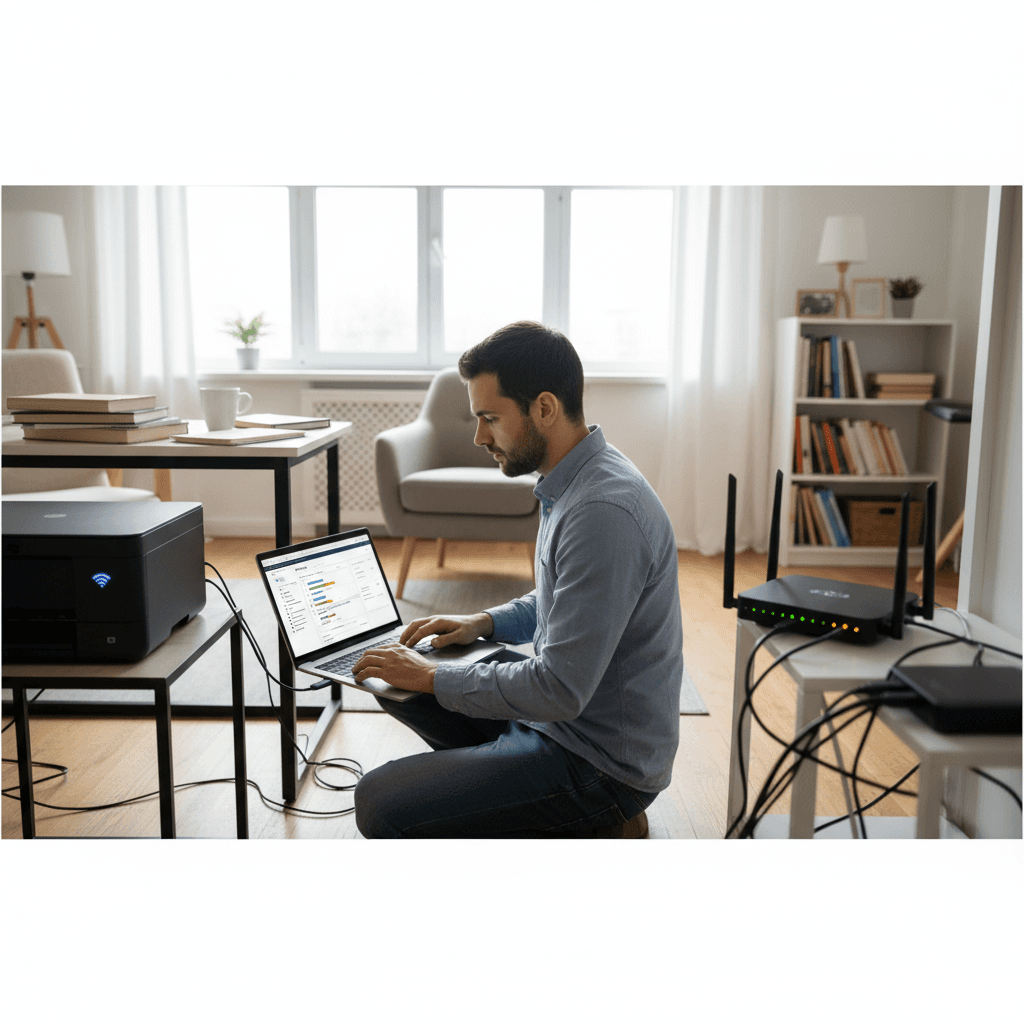
How to Use Guest Networks or VLANs to Isolate Your Printer
Want to keep your printer on a separate network for security? Learn how to use guest networks and VLANs to isolate printers from your main devices.
What's Happening
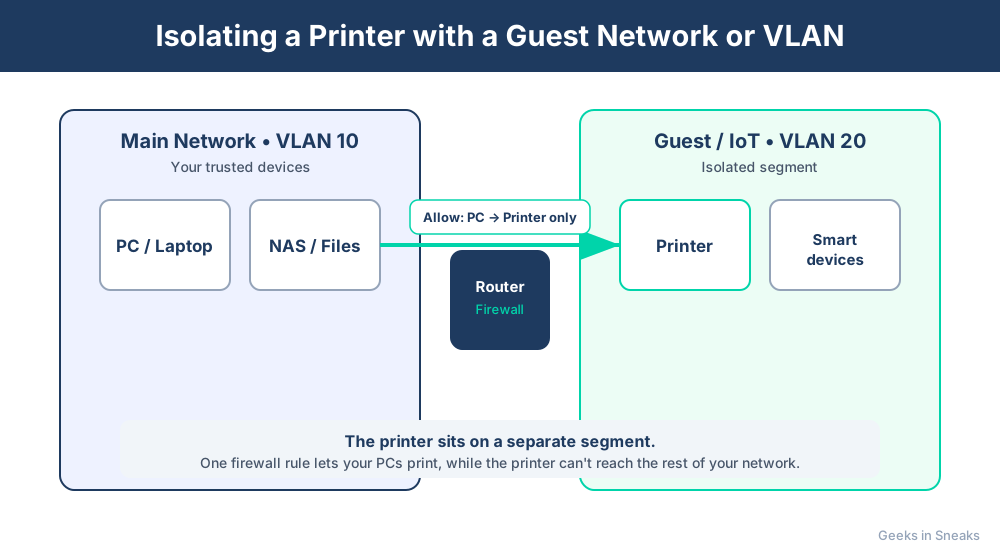
Putting your printer on the same network as your personal computers and phones creates a security risk. If the printer is compromised, malware could potentially spread to other devices. If guests use your WiFi, they might accidentally (or intentionally) access your printer. The solution is network isolation—keeping your printer on a separate network segment that's accessible for printing but isolated from your main devices. This can be done with guest networks (simple) or VLANs (advanced). This guide will show you both approaches so you can choose what works for your technical comfort level.
Quick Checks (Do These First)
- Does your router support guest networks? Most modern routers do—check your router's admin page for a "Guest Network" option.
- Do you need advanced isolation? For basic home security, a guest network is enough. For business or high-security environments, VLANs are better.
- Can your printer connect wirelessly? Network isolation is easiest with WiFi printers. USB printers connected directly to one computer don't need this.
Step-by-Step Fixes
Fix 1: Use Your Router's Guest Network (Easy Method)
Most routers have a guest network feature that creates a separate WiFi network. This is the simplest way to isolate your printer.
- Log into your router's admin page (usually
192.168.1.1or192.168.0.1) - Enter your router's admin username and password
- Look for Guest Network, Guest WiFi, or Guest Access in the menu
- Enable the guest network and give it a name (like "Printer Network" or "IoT Devices")
- Set a strong password for the guest network
- Important: Look for Allow guests to access local network or Client Isolation setting
- You want this partially enabled: guests should be isolated from each other and your main network, but you need your main devices to reach the printer
- Some routers call this "Allow local network access from main network"—enable this
- Save settings and restart your router if prompted
Now connect your printer to the guest network using its WiFi setup wizard. Your main computers can still print to it, but the printer can't access your main network or other devices.
Limitation: Some routers completely isolate the guest network, preventing printing from your main network. If this happens, see Fix 2 or Fix 3.
Fix 2: Configure Router for Selective Guest Network Access
If your router's guest network completely blocks printing from your main network, you need to configure selective access.
- Log into your router's advanced settings
- Go to Guest Network settings
- Look for Access Control or Firewall Rules for the guest network
- Enable Allow access to local resources or Enable mDNS/Bonjour
- This allows device discovery and printing protocols (like IPP, AirPrint) to work across networks
- Alternatively, create a firewall rule that allows traffic from your main network to the printer's IP address on the guest network
- Specifically, allow ports:
- Port 9100 (raw printing)
- Port 631 (IPP/CUPS)
- Port 515 (LPR/LPD)
- Ports 5353 (mDNS for printer discovery)
- Block all other traffic from guest network to main network
This creates a one-way door: your main devices can reach the printer, but nothing on the guest network can access your main network.
Fix 3: Set Up VLANs for True Network Segmentation (Advanced)
VLANs (Virtual Local Area Networks) provide enterprise-level network segmentation. You'll need a router or switch that supports VLANs.
Equipment needed: Managed router/switch with VLAN support (like Ubiquiti EdgeRouter, Netgear managed switches, or enterprise routers)
Setup overview:
- Log into your router or managed switch
- Go to VLAN or Network Segmentation settings
- Create a new VLAN (e.g., VLAN 10 for main network, VLAN 20 for printers/IoT)
- Assign physical ports or WiFi SSIDs to each VLAN
- Configure inter-VLAN routing rules:
- Allow VLAN 10 (main) → VLAN 20 (printer) on printing ports
- Block VLAN 20 (printer) → VLAN 10 (main) on all ports
- Block VLAN 20 → Internet (prevents printer from phoning home)
- Create a separate WiFi SSID for VLAN 20 and connect your printer to it
- Configure your main computers' printer settings to use the printer's IP on VLAN 20
Example VLAN Configuration:
- VLAN 10: Main Network (192.168.10.x) - Your computers, phones, trusted devices
- VLAN 20: IoT/Printer Network (192.168.20.x) - Printers, smart home devices
- VLAN 30: Guest Network (192.168.30.x) - Guest WiFi, fully isolated
Inter-VLAN firewall rules:
- VLAN 10 can initiate connections to VLAN 20 (to print)
- VLAN 20 cannot initiate connections to VLAN 10 (security)
- VLAN 30 cannot reach VLAN 10 or VLAN 20 at all
Fix 4: Use Dedicated Printer Server on Isolated Network
For advanced setups, place a dedicated print server or Raspberry Pi on the isolated printer network to act as a bridge.
- Set up a Raspberry Pi with CUPS (Common Unix Printing System)
- Connect the Pi to both your main network and the printer's isolated network (using two network interfaces or WiFi dongles)
- Configure CUPS to share the printer from the isolated network to your main network
- The Pi acts as a secure gateway—your devices print to the Pi, which forwards jobs to the isolated printer
- The printer itself never touches your main network
This approach is excellent for businesses or home labs but requires Linux knowledge.
Fix 5: Use Firewall Rules for Software-Based Isolation
If you have a router with advanced firewall capabilities (like pfSense, OPNsense, or high-end consumer routers), you can isolate the printer without VLANs.
- Give your printer a static IP address (e.g., 192.168.1.200)
- Create firewall rules:
- Rule 1: Allow your computer's IPs → printer IP on printing ports (9100, 631, 515)
- Rule 2: Block printer IP → all other local IPs (prevents printer from accessing other devices)
- Rule 3: Block or limit printer IP → Internet (prevents cloud services and telemetry)
- Rule 4: Allow printer → local DNS only (so it can resolve local hostnames if needed)
- Save and apply the firewall rules
This keeps the printer on your main network physically but isolated logically—it can only respond to print jobs, not initiate connections.
Fix 6: Simple IoT/Printer Network with Separate Access Point
If you have an extra wireless router or access point, create a physically separate IoT network.
- Configure the second router as an access point
- Give it a different SSID (like "IoT-Network")
- Set up DHCP to assign IPs in a different subnet (e.g., 192.168.50.x)
- Don't route traffic between this network and your main network
- Connect printers and other IoT devices to this network
- For printing from main network:
- Connect computers to both networks (if they have two WiFi adapters), or
- Use a print server as in Fix 4, or
- Manually add the printer by IP address (might work depending on router configuration)
If Nothing Worked
Network isolation can be tricky because it depends heavily on your router's capabilities and how printers discover each other on networks. If your router doesn't support the features needed for guest network printing or VLANs, you might need to upgrade to a better router. Brands like Ubiquiti, Netgear Business, or TP-Link Omada offer affordable options with advanced networking features. Alternatively, if the complexity is overwhelming, you could take a simpler approach: keep the printer on your main network but disable all its cloud features, enable access control/PIN printing, and keep its firmware updated. This provides reasonable security without the networking complexity.
When to Call a Pro
Setting up VLANs and advanced network segmentation requires networking knowledge. If you're managing a business network, handling sensitive data, or just want the peace of mind that it's done right, hiring a professional is a smart investment. They can design a network topology that balances security and usability, configure enterprise-grade equipment, and document everything so you can maintain it. For businesses in regulated industries (medical, legal, financial), proper network segmentation isn't optional—it's required for compliance, and professionals can ensure you meet those standards.
Need Professional Help?
If you're in the Tampa Bay area and need hands-on assistance, Geeks in Sneaks provides friendly, on-site tech support in Clearwater, Clearwater Beach, and Dunedin.
Related Topics
Need Professional Help?
If you're still having trouble, our expert technicians can help.
Learn about our printer support serviceMore Printer Issues Fixes
See all Printer Issues fixes →How to Prevent Kids or Guests from Printing 100-Page Jobs
Tired of accidental massive print jobs from kids or guests? Here's how to set up quotas, require approval, and control who can print what.
How Often Should You Check for Printer Security Updates?
Printer firmware updates aren't optional—they patch security holes. Here's how often to check, how to update, and how to set up automatic updates.
How to Block Unwanted Cloud and Remote Print Features
Don't want HP ePrint, Canon Cloud, or Epson Connect on your printer? Here's how to disable cloud printing features for better privacy and security.
How to Reset Forgotten Admin Password on Printer Web Interface
Locked out of your printer's web interface? Here's how to reset the admin password for HP, Canon, Epson, and Brother printers.
How to Securely Dispose of Old Printers with Stored Data
Getting rid of an old printer? Learn how to wipe stored data and dispose of it securely so your personal information doesn't end up in the wrong hands.
Are Scanned or Copied Documents Stored on Your Printer?
Wondering if your printer keeps copies of documents you scan or copy? Here's what gets stored, how to check, and how to clear it.
How to Reconnect Your Printer After Changing WiFi Password
Changed your WiFi password and now your printer won't connect? Here's how to get it back online in minutes.
Why Printers Lose Settings After a Power Outage
Did a power outage reset your printer to factory defaults? Here's why it happens and how to prevent it from happening again.