
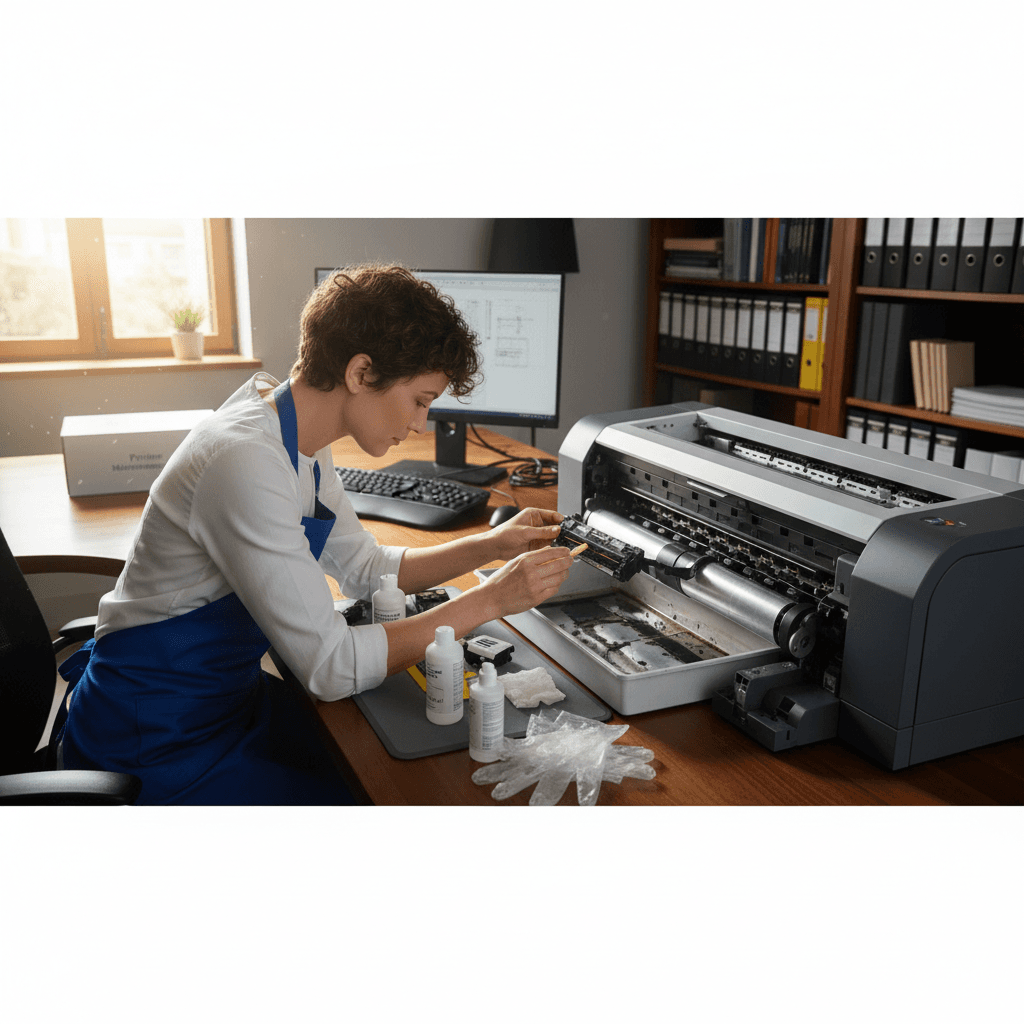
Why Fans and Noises Keep Going Long After Printing Finishes
Your printer sounds like it's still working even though printing finished minutes ago. This cooling cycle is normal and protects your printer.
What's Happening
The page came out fine but the printer keeps running for another minute or two. In a laser printer this is almost always the fuser shedding heat: the fuser bonds toner at temperatures around 350–400°F, and the printer must run its fans to bring that assembly down to a safe idle temperature before it can sleep. Inkjets do a related thing — a short post-job maintenance or capping cycle. The behavior is, by design, a cooldown. The real question isn't why is it still running — it's whether the runtime and the way it ends are normal, or whether the cooldown is failing to complete.
Quick Checks (Do These First)
- Time it. 30 seconds to ~2 minutes after a job is normal. The number alone tells you most of what you need.
- Listen to how it ends. Normal cooldown ramps down — fan speed eases off, then stops. Constant full-speed that just cuts out, or never stops, is the abnormal pattern.
- Rule out work you can't see. Check the print queue and the printer's job history — a queued job, firmware update, or auto-calibration looks identical from across the room.
- Note the room. A hot or enclosed space legitimately lengthens every cooldown.
Normal Cooldown vs. a Real Fault — How to Tell Them Apart
Use the pattern, not just the clock. Normal: runtime scales with the job (a 1-page memo cools fast; a 50-page job runs longer), the fan audibly ramps down before stopping, it always stops, and there are no temperature errors. That's the fuser doing exactly its job. Suspect a fault when any of these hold: the fan runs flat-out at one speed regardless of job size and then cuts off abruptly rather than tapering; it runs 10+ minutes after a single page; it never stops even hours later; you see any over-temperature error code; or there's a hot-electronics or burning smell. The decisive split is does it ramp down and stop on its own? A cooldown that completes — even a long one in a warm room — is the system working. A cooldown that never resolves, or a fan that can't modulate, points at a failing thermistor, a dying fan, or a fuser problem, and that is not a wait-it-out situation.
Step-by-Step Fixes
Fix 1: Confirm It Actually Completes
- Note the time the job finishes.
- Listen for 2–3 minutes for the fan to ramp down and stop.
- If it stops on its own within that window, nothing is wrong — this is the fuser cooling, and no action is needed.
Fix 2: Eliminate Hidden Work
- Clear the print queue on the computer.
- Open the printer's web interface (its IP in a browser) and check for an in-progress update, calibration, or cleaning cycle.
- Disable cloud-print sync if you don't use it — it can trigger background activity that looks like a stuck cooldown.
Fix 3: Restore Proper Airflow
Restricted airflow makes a normal cooldown take much longer because the fan can't move enough air to drop the fuser temperature.
- Power off and unplug.
- Clear dust from vents and fan grilles with compressed air.
- Give the printer 6+ inches of clearance on vented sides; never run it in a closed cabinet.
Fix 4: Check Power/Sleep Settings
- In the printer's energy-saver settings, review the sleep timeout.
- Some models hold fans on until they reach the sleep-state temperature threshold — a longer timeout means a longer audible cooldown, which is still normal behavior, not a fault.
Where DIY Stops — And Why
Waiting, dusting, and checking the queue are the homeowner's whole toolkit here — and they only address the normal case. The moment the pattern says fault, you've hit the wall, and for good reason:
- A fan that can't modulate or never stops usually means a failing cooling fan or a thermistor feeding the printer bad temperature data. The printer can't cool correctly because it can't measure correctly — that's an internal sensor/fan diagnosis, not an airflow fix.
- Any over-temperature error or burning smell points at the fuser or its thermal protection. Continuing to print through that risks fuser damage and is a genuine heat hazard — this is a stop-using-it signal, not a troubleshooting one.
- Telling "long but normal" from "early-stage fuser failure" reliably needs reading the printer's internal temperature/error logs, which a user can't see from the panel. Guessing wrong means either needless worry or running a printer toward an avoidable fuser replacement.
Persistent never-stopping fans, temperature error codes, or any smell of heat are exactly when to bring it to our printer support service rather than keep printing on a cooling system that may already be failing.
Need Professional Help?
If you're in the Tampa Bay area and need hands-on assistance, Geeks in Sneaks provides friendly, on-site tech support in Clearwater, Clearwater Beach, and Dunedin.
Related Topics
Need Professional Help?
If you're still having trouble, our expert technicians can help.
Learn about our printer support serviceMore Printer Issues Fixes
See all Printer Issues fixes →How to Prevent Malware from Abusing Network Printers
Concerned about malware using your printer to spread or spy? Here's how to secure network printers against malicious software and attacks.
How to Prevent Kids or Guests from Printing 100-Page Jobs
Tired of accidental massive print jobs from kids or guests? Here's how to set up quotas, require approval, and control who can print what.
How Often Should You Check for Printer Security Updates?
Printer firmware updates aren't optional—they patch security holes. Here's how often to check, how to update, and how to set up automatic updates.
How to Block Unwanted Cloud and Remote Print Features
Don't want HP ePrint, Canon Cloud, or Epson Connect on your printer? Here's how to disable cloud printing features for better privacy and security.
How to Use Guest Networks or VLANs to Isolate Your Printer
Want to keep your printer on a separate network for security? Learn how to use guest networks and VLANs to isolate printers from your main devices.
How to Reset Forgotten Admin Password on Printer Web Interface
Locked out of your printer's web interface? Here's how to reset the admin password for HP, Canon, Epson, and Brother printers.
How to Securely Dispose of Old Printers with Stored Data
Getting rid of an old printer? Learn how to wipe stored data and dispose of it securely so your personal information doesn't end up in the wrong hands.
Are Scanned or Copied Documents Stored on Your Printer?
Wondering if your printer keeps copies of documents you scan or copy? Here's what gets stored, how to check, and how to clear it.