
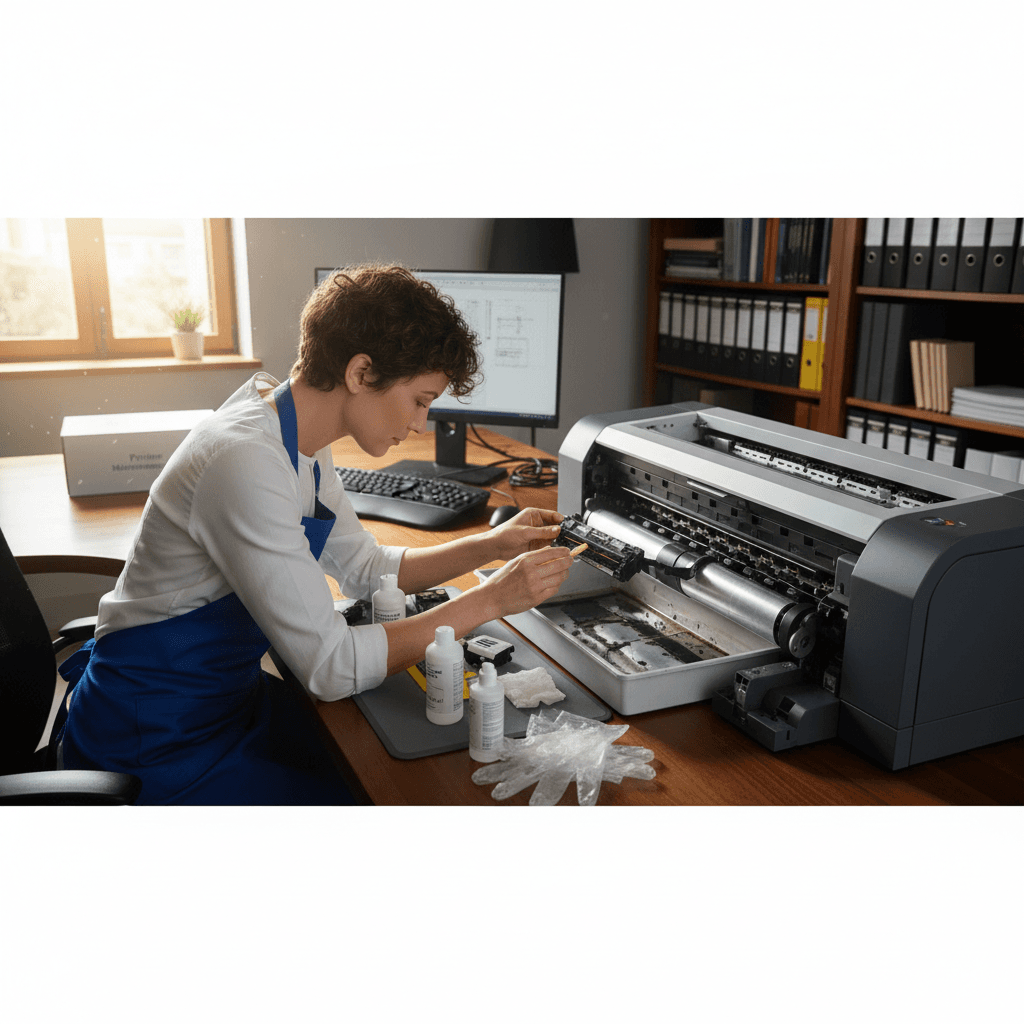
Ghost Jams - Printer Reports Jam But No Paper Is Stuck
Your printer claims there's a paper jam, but you can't find any paper stuck inside? These phantom jams are usually sensor issues. Here's how to fix them.
What's Happening
You've opened every door, checked every corner, and there's absolutely no paper jammed inside. Yet your printer stubbornly insists there's a jam and refuses to print. These "ghost jams" or phantom jam errors happen when the printer's paper sensors detect a problem that isn't really there - or when something is blocking the sensors.
Quick Checks (Do These First)
- Look for tiny paper fragments. Even a small piece the size of a fingernail can trigger jam sensors.
- Are all doors and covers fully closed? Some printers detect open doors as jams.
- Have you turned it off and on? Sometimes sensors just need a reset.
- Is there dust buildup inside? Dust can interfere with optical sensors.
Step-by-Step Fixes
Fix 1: Complete Paper Path Inspection
- Turn off and unplug the printer
- Remove all paper from trays
- Open every accessible panel and door
- Use a flashlight to look through the entire paper path
- Check behind the toner/ink cartridges - paper can hide there
- Look in the fuser area (back of printer) - use caution, it may be hot
- Check the output area and any duplexer unit
Fix 2: Clean the Paper Sensors
Most paper sensors are small optical eyes that can get dusty:
- Locate small black or clear rectangular windows along the paper path
- Gently clean them with a dry, lint-free cloth
- Use compressed air to blow dust out of sensor areas
- Don't use liquids on sensors unless manufacturer recommends it
Fix 3: Reset the Printer Completely
- Turn off the printer
- Unplug it from power (not just turn off)
- Wait 60 seconds
- If your printer has a battery backup, remove the power cord for longer
- Plug back in and power on
- Let the printer go through its full startup sequence
Fix 4: Remove and Reinstall the Toner/Drum
- Open the front or top panel
- Remove the toner cartridge and drum unit
- Check underneath for any stuck paper
- Reinstall carefully, making sure everything clicks into place
- Close all panels firmly
If Nothing Worked
The paper sensors themselves may be failing or have a loose connection. Check for any firmware updates that might address sensor calibration issues. Some printers have a sensor test or calibration option in the service menu.
When to Call a Pro
Persistent ghost jams after thorough cleaning usually indicate a failing sensor or control board issue. These are repairable but require disassembly and testing. If the printer is relatively new, it might be covered under warranty.
Need Professional Help?
If you're in the Tampa Bay area and need hands-on assistance, Geeks in Sneaks provides friendly, on-site tech support in Clearwater, Clearwater Beach, and Dunedin.
Related Topics
Need Professional Help?
If you're still having trouble, our expert technicians can help.
Learn about our printer support serviceMore Printer Issues Fixes
See all Printer Issues fixes →How to Prevent Malware from Abusing Network Printers
Concerned about malware using your printer to spread or spy? Here's how to secure network printers against malicious software and attacks.
How to Prevent Kids or Guests from Printing 100-Page Jobs
Tired of accidental massive print jobs from kids or guests? Here's how to set up quotas, require approval, and control who can print what.
How to Block Unwanted Cloud and Remote Print Features
Don't want HP ePrint, Canon Cloud, or Epson Connect on your printer? Here's how to disable cloud printing features for better privacy and security.
How to Use Guest Networks or VLANs to Isolate Your Printer
Want to keep your printer on a separate network for security? Learn how to use guest networks and VLANs to isolate printers from your main devices.
How to Reset Forgotten Admin Password on Printer Web Interface
Locked out of your printer's web interface? Here's how to reset the admin password for HP, Canon, Epson, and Brother printers.
How to Securely Dispose of Old Printers with Stored Data
Getting rid of an old printer? Learn how to wipe stored data and dispose of it securely so your personal information doesn't end up in the wrong hands.
Are Scanned or Copied Documents Stored on Your Printer?
Wondering if your printer keeps copies of documents you scan or copy? Here's what gets stored, how to check, and how to clear it.
How to Reconnect Your Printer After Changing WiFi Password
Changed your WiFi password and now your printer won't connect? Here's how to get it back online in minutes.