
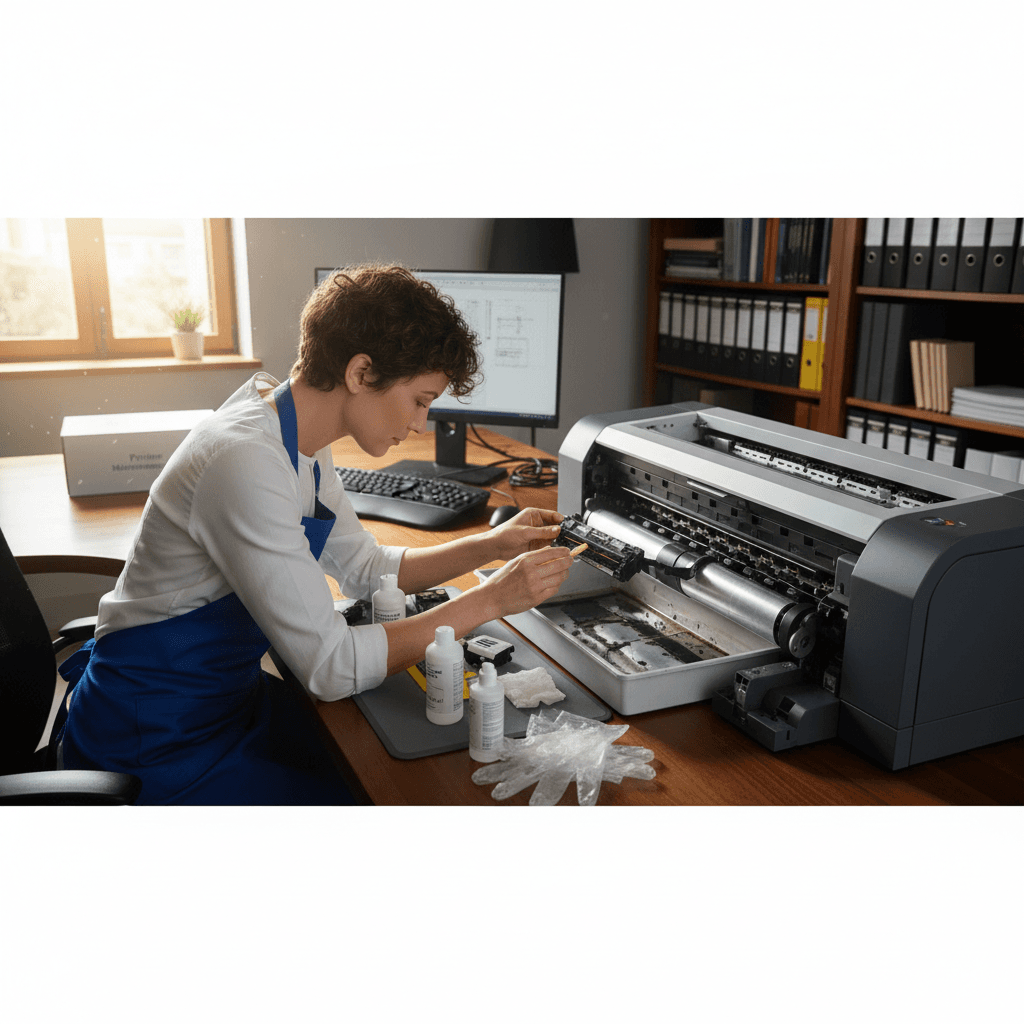
How to Clean Printer Rollers to Prevent Jams and Misfeeds
Dirty rollers are a leading cause of paper jams and misfeeds. Here's how to clean them properly and prevent frustrating paper feeding issues.
What's Happening
Your printer keeps jamming, feeding multiple sheets at once, or grabbing paper crooked. The culprit is usually dirty or worn rollers. Over time, paper dust, ink residue, and oils from your hands build up on the rubber rollers that grab and feed paper. When rollers get too dirty or smooth, they lose grip and paper feeding goes haywire. The good news is cleaning them is straightforward and can save you from constant jams.
Quick Checks (Do These First)
- When did this start? Sudden problems after hundreds of clean prints suggest dirty rollers.
- Are you using cheap or dusty paper? Low-quality paper creates more dust and residue.
- Is it feeding multiple sheets? Classic sign of slippery rollers.
- Does paper go in crooked? Uneven grip from dirty or worn rollers.
- Have you printed thousands of pages? Rollers wear out over time and may need replacement, not just cleaning.
What You'll Need
- Lint-free cloths (microfiber works great, or coffee filters)
- Distilled water (tap water can leave mineral deposits)
- Isopropyl alcohol (91% or higher) for tough residue
- Rubber rejuvenator or roller cleaner (optional but helpful for laser printers)
- Flashlight to see inside the printer
- Gloves (optional, keeps skin oils off rollers)
Step-by-Step: Cleaning Inkjet Printer Rollers
Step 1: Access the Rollers
- Turn off the printer and unplug it. Safety first, and you need it to be still.
- Remove all paper from the input tray. You need clear access.
- Open the rear access door if your printer has one. Many inkjets have a back panel that opens for jam clearing—this gives you access to the rollers.
- If there's no rear access, look from the input tray. You can often reach the pickup rollers from the top where paper loads.
Step 2: Locate the Rollers
There are usually three sets of rollers:
- Pickup rollers: At the bottom of the paper tray, these grab the top sheet
- Feed rollers: Pull paper through the printer
- Output rollers: Push finished prints into the output tray
You want to clean all of them, but pickup rollers are the most critical.
Step 3: Clean the Rollers
- Dampen a lint-free cloth with distilled water. It should be damp, not dripping wet.
- Gently wipe the rubber rollers. Rotate them as you clean to get the entire surface. If the printer is unplugged, you can often turn them by hand.
- For stubborn residue, use isopropyl alcohol. Dampen a fresh cloth with alcohol and wipe the rollers. This cuts through ink and grime better than water.
- Use a dry lint-free cloth to remove moisture. Rollers should be dry before you use the printer.
- Let the printer sit open for 10-15 minutes. Make sure everything is completely dry.
Step 4: Test
- Reload paper. Use clean, good-quality paper for the test.
- Plug in and turn on the printer.
- Print a test page. Does it feed smoothly?
- Print 5-10 more pages. Make sure feeding is consistent.
Step-by-Step: Cleaning Laser Printer Rollers
Laser printers have more robust rollers, but they also pick up more toner dust and paper debris.
Step 1: Access the Rollers
- Turn off and unplug the printer.
- Remove the toner cartridge. This gives you access to the paper path.
- Locate the pickup rollers. They're usually in the paper tray assembly. Some printers have a removable roller assembly you can pull out.
Step 2: Clean
- Use a dry cloth first to remove loose dust and toner. Don't spread it around by getting it wet.
- Dampen a cloth with isopropyl alcohol. For laser printers, alcohol is better than water because it evaporates quickly and cuts through toner residue.
- Wipe the rollers thoroughly. Turn them to clean the entire surface.
- For heavily dirty rollers, use a rubber rejuvenator. This is a special cleaner that also restores some grip to aged rubber. Apply a small amount to a cloth and wipe the rollers.
- Dry completely. Use a dry cloth and let air dry for 15 minutes.
Step 3: Test
- Reinstall the toner cartridge.
- Load paper and turn on the printer.
- Print 10-20 test pages. Laser printers often need a few pages to settle after maintenance.
Advanced Technique: Deep Cleaning Removable Rollers
Some printers (especially HP LaserJets and some Brother models) have removable pickup roller assemblies. If your printer has this:
- Consult your manual for how to remove the pickup roller assembly. It usually slides or snaps out.
- Wash it thoroughly with warm water and mild soap. Scrub gently with a soft brush.
- Rinse completely with distilled water. No soap residue.
- Dry completely (let it air dry for a few hours). Must be bone dry before reinstalling.
- Reinstall and test.
This deep clean can revive rollers that just wiping won't fix.
How Often to Clean Rollers
Light Home Use (Less than 500 pages/month)
Every 6 months or when you notice feeding issues. Home printers don't get dirty fast.
Moderate Use (500-2000 pages/month)
Every 3 months. Regular cleaning prevents problems before they start.
Heavy Use (Business/Office, 2000+ pages/month)
Monthly. High-volume printing creates a lot of paper dust and wear.
After a Paper Jam
Always clean the rollers after clearing a major jam. Jams often leave paper debris and ink/toner residue on rollers, which causes more jams.
When Cleaning Doesn't Help
If you've cleaned the rollers and you're still getting jams, misfeeds, or multi-feeds, the rollers may be worn out.
Signs Rollers Need Replacement:
- Rubber is shiny and smooth instead of slightly textured. They've lost their grip.
- Rollers are cracked or brittle. Old age or heat damage.
- Cleaning helped for a few days but problems came back. Temporary improvement means they're too far gone.
- You've printed tens of thousands of pages. Rollers are consumables and do wear out.
Replacement Costs:
- Pickup roller kits: $10-30 for most printers
- Professional replacement: $50-100 including labor
Roller replacement is usually worth it for printers over $200. For cheap printers, it may cost almost as much as buying new.
Preventing Roller Issues
1. Use Good Quality Paper
Cheap, dusty paper is the enemy of clean rollers. Mid-grade paper (like Hammermill or HP branded paper) produces much less dust and lasts longer in the printer.
2. Keep Paper Clean and Dry
Store paper in its wrapper or a closed drawer. Dusty, humid, or curled paper causes feeding problems and dirties rollers faster.
3. Don't Overfill the Paper Tray
Overstuffing causes the printer to grab multiple sheets, which wears rollers faster and creates jams.
4. Fan the Paper Before Loading
Fanning the stack separates sheets and reduces multi-feeds, which puts less stress on rollers.
5. Clean Your Printer's Exterior
Dust on the outside eventually gets inside. Wipe down your printer monthly and keep it in a relatively clean environment.
What NOT to Do
- Don't use paper towels. They leave lint that makes problems worse.
- Don't use harsh chemicals. Acetone, bleach, or strong solvents can damage rubber rollers.
- Don't get water inside the electronics. Clean rollers only, and use damp (not wet) cloths.
- Don't force rollers to turn. If they don't rotate easily, you might be turning the wrong part.
- Don't skip drying time. Wet rollers will slip and cause jams.
The Bottom Line
Dirty rollers are one of the most common and easily fixable causes of paper jams. A quick cleaning every few months keeps your printer feeding smoothly and can extend its life significantly. If cleaning doesn't fix persistent feeding issues, the rollers may need replacement, but that's still cheaper than a new printer.
When to Call a Pro
If you're uncomfortable opening your printer, if cleaning didn't help, or if you need roller replacement and don't want to DIY it, a technician can service your printer quickly and make sure everything is working correctly.
Need Professional Help?
If you're in the Tampa Bay area and need hands-on assistance, Geeks in Sneaks provides friendly, on-site tech support in Clearwater, Clearwater Beach, and Dunedin.
Related Topics
Need Professional Help?
If you're still having trouble, our expert technicians can help.
Learn about our printer support serviceMore Printer Issues Fixes
See all Printer Issues fixes →How to Prevent Malware from Abusing Network Printers
Concerned about malware using your printer to spread or spy? Here's how to secure network printers against malicious software and attacks.
How to Prevent Kids or Guests from Printing 100-Page Jobs
Tired of accidental massive print jobs from kids or guests? Here's how to set up quotas, require approval, and control who can print what.
How to Block Unwanted Cloud and Remote Print Features
Don't want HP ePrint, Canon Cloud, or Epson Connect on your printer? Here's how to disable cloud printing features for better privacy and security.
How to Use Guest Networks or VLANs to Isolate Your Printer
Want to keep your printer on a separate network for security? Learn how to use guest networks and VLANs to isolate printers from your main devices.
How to Reset Forgotten Admin Password on Printer Web Interface
Locked out of your printer's web interface? Here's how to reset the admin password for HP, Canon, Epson, and Brother printers.
How to Securely Dispose of Old Printers with Stored Data
Getting rid of an old printer? Learn how to wipe stored data and dispose of it securely so your personal information doesn't end up in the wrong hands.
Are Scanned or Copied Documents Stored on Your Printer?
Wondering if your printer keeps copies of documents you scan or copy? Here's what gets stored, how to check, and how to clear it.
How to Reconnect Your Printer After Changing WiFi Password
Changed your WiFi password and now your printer won't connect? Here's how to get it back online in minutes.