
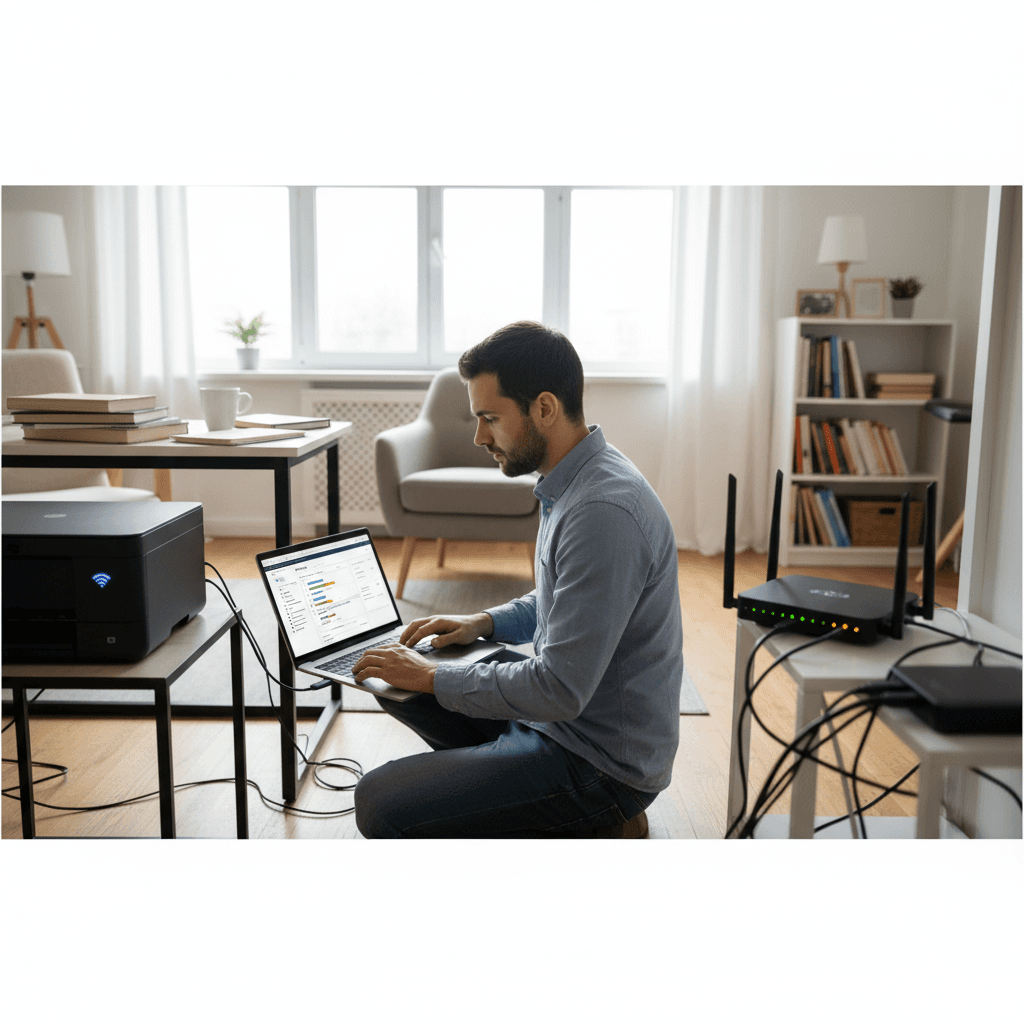
Router Firmware Update Broke Printer Connection
Printer stopped working right after router update? Firmware updates can change settings. Here's how to restore printer connectivity.
What's Happening
A router firmware update can rewrite the exact things a printer depends on to stay connected. Printers connect once, then cling to a saved network profile and an IP address — they don't gracefully re-discover the network the way a phone does. When an update changes the SSID, the security mode, the DHCP range, or quietly enables features like Smart Connect or AP Isolation, the printer's saved settings no longer match reality and it simply drops off. Almost every fix below is really about finding which setting the update changed and re-aligning the printer to it.
Quick Checks (Do These First)
- Can other devices still connect? If phones and laptops are fine, the update changed something printer-specific (band, isolation, IP). If nothing connects, it's a broader router problem — fix that first.
- Did the SSID or password revert to default? Some updates reset Wi-Fi credentials to the label on the router. The printer is still trying the old ones.
- Can you reach the router admin page? You'll need it to compare what the update changed.
- Print a network status page from the printer. It shows the IP and SSID the printer still thinks it should use — compare that to the router's current settings.
The One Setting That Causes This Most Often
Before re-running Wi-Fi setup, check one thing: the 2.4GHz radio and how the router presents the bands. Most printers — especially anything more than a couple of years old — are 2.4GHz-only. Firmware updates frequently re-enable "Smart Connect" / "Band Steering," which merges 2.4GHz and 5GHz under one SSID and lets the router decide which band a device gets. A 2.4GHz-only printer handed a 5GHz-flavored connection just fails silently, even though the password is right and every other device is fine. This single behavior explains a large share of post-update printer dropouts. Verify the 2.4GHz band is enabled and, ideally, split the bands into separate SSIDs (e.g. a distinct "...-2.4G" name) so the printer can be pinned to 2.4GHz directly. Confirm this before resetting anything — a factory reset that re-runs setup against a Smart Connect SSID will reconnect and then drop again, sending you in circles.
Step-by-Step Fixes
Fix 1: Reconcile the Router Settings First
Fix the network before touching the printer, or you'll just reconnect it to a setup that's still wrong.
- Log into the router (typically
192.168.1.1). - Confirm the 2.4GHz band is enabled; split bands into separate SSIDs if Smart Connect/Band Steering is on.
- Verify AP Isolation / Client Isolation is OFF — if an update turned it on, the printer connects but is invisible to your computers.
- Check the security mode. A jump to WPA3-only can lock out older printers; set WPA2/WPA3 mixed if available.
Fix 2: Reconnect the Printer to Wi-Fi
- On the printer, forget the saved network if it allows it.
- Run Wi-Fi setup again and select the correct SSID — the 2.4GHz one specifically if you split the bands.
- Re-enter the password (use the current one, in case the update reset it).
Fix 3: Fix the IP Mismatch
If the update changed the DHCP range, a printer with a static IP is now stranded outside it, and Windows is still pointing at the old address.
- Compare the printer's IP (from its status page) against the router's current DHCP range.
- Either move the printer back into range, or — better — set a DHCP reservation on the router so the printer keeps a fixed address that survives the next update.
- Update the printer port in Windows to the correct current IP.
Fix 4: Network Reset the Printer (Only After Fix 1)
- Reset the printer's network settings to clear stale cached config.
- Re-run Wi-Fi setup against the corrected router settings.
- Remove and re-add the printer in Windows so it binds to the right IP.
Where DIY Stops — And Why
Reconnecting Wi-Fi is straightforward. The parts that strand people after a firmware update are not:
- An update that changed the network model, not just a setting. A firmware version that flipped on Smart Connect, changed the DHCP scheme, or altered how isolation works affects every device, not only the printer. Untangling "what did this update actually change" across the whole network is a different job than reconnecting one device.
- Genuine update-introduced incompatibility. Some firmware versions break older devices outright, and the real fix is a clean rollback to prior firmware without losing the rest of the configuration — a step that can lock you out of the router if done wrong.
- Making it survive the next update. Keeping a printer connected long-term — split SSIDs, DHCP reservations, the right security mode — is a network configuration job, not a one-time reconnect, and getting it durable is the difference between fixing it once and doing this again every update.
If the update fundamentally changed how the network behaves and reconnecting one device won't hold, that's the point to bring it to our printer support service to get the network reconfigured so every device works together — and stays that way.
Need Professional Help?
If you're in the Tampa Bay area and need hands-on assistance, Geeks in Sneaks provides friendly, on-site tech support in Clearwater, Clearwater Beach, and Dunedin.
Related Topics
Need Professional Help?
If you're still having trouble, our expert technicians can help.
Learn about our printer support serviceMore Printer Issues Fixes
See all Printer Issues fixes →How to Prevent Malware from Abusing Network Printers
Concerned about malware using your printer to spread or spy? Here's how to secure network printers against malicious software and attacks.
How to Prevent Kids or Guests from Printing 100-Page Jobs
Tired of accidental massive print jobs from kids or guests? Here's how to set up quotas, require approval, and control who can print what.
How to Block Unwanted Cloud and Remote Print Features
Don't want HP ePrint, Canon Cloud, or Epson Connect on your printer? Here's how to disable cloud printing features for better privacy and security.
How to Use Guest Networks or VLANs to Isolate Your Printer
Want to keep your printer on a separate network for security? Learn how to use guest networks and VLANs to isolate printers from your main devices.
How to Reset Forgotten Admin Password on Printer Web Interface
Locked out of your printer's web interface? Here's how to reset the admin password for HP, Canon, Epson, and Brother printers.
How to Securely Dispose of Old Printers with Stored Data
Getting rid of an old printer? Learn how to wipe stored data and dispose of it securely so your personal information doesn't end up in the wrong hands.
Are Scanned or Copied Documents Stored on Your Printer?
Wondering if your printer keeps copies of documents you scan or copy? Here's what gets stored, how to check, and how to clear it.
How to Reconnect Your Printer After Changing WiFi Password
Changed your WiFi password and now your printer won't connect? Here's how to get it back online in minutes.