
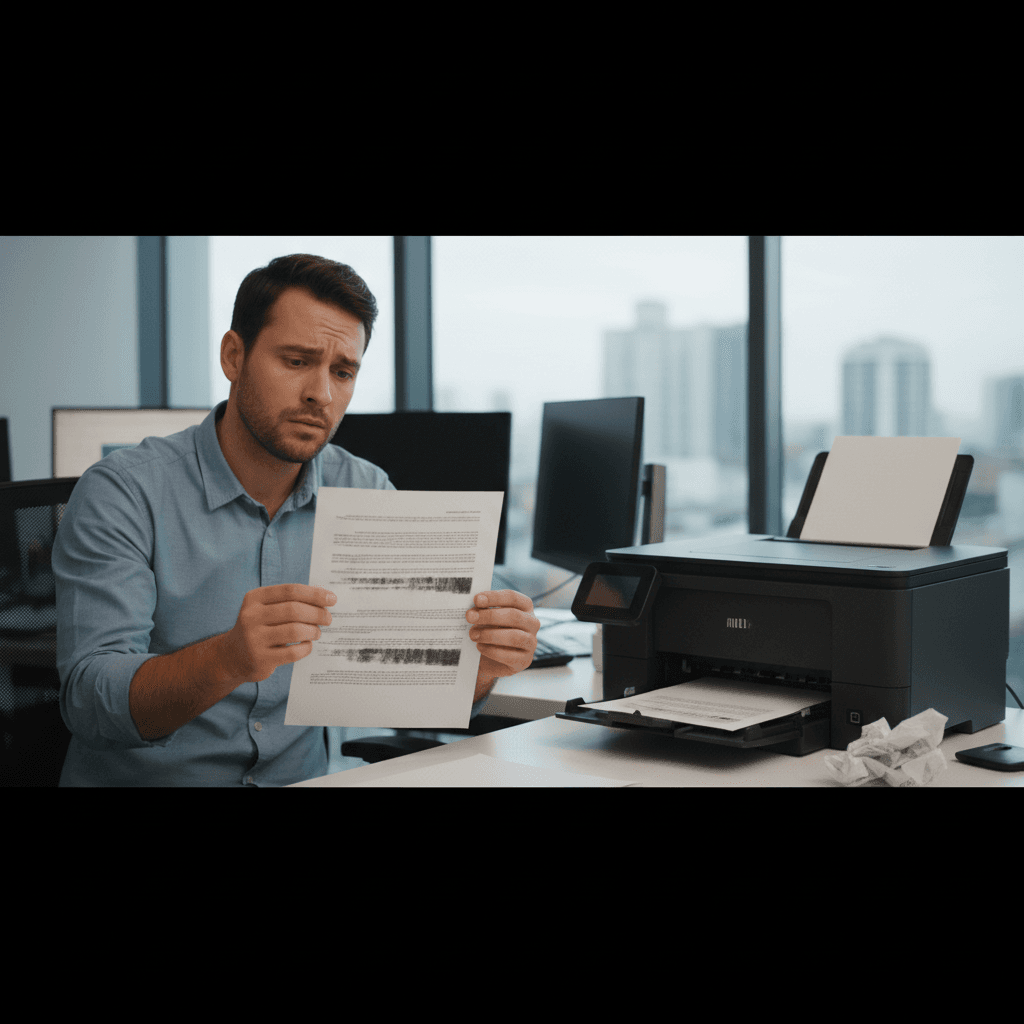
Colors Look Washed Out or Wrong
Prints coming out with weird colors or looking washed out? Color problems can be settings, cartridges, or calibration. Here's how to fix them.
What's Happening
The colors in your prints don't match what you see on screen. Maybe everything has a weird tint, skin tones look green, blues are purple, or the whole print looks faded and washed out. Color matching between screens and printers is notoriously tricky, but there are fixes that get you closer to accurate color.
Quick Checks (Do These First)
- Is one color completely missing? That cartridge may be empty or clogged.
- Are you using the right paper? Paper type dramatically affects color.
- What are your quality settings? Draft mode affects color accuracy.
- Is it washed out or off-color? Different causes, different fixes.
- Print from a different app - does the problem persist?
Step-by-Step Fixes
Fix 1: Check Ink/Toner Levels
- Check the ink or toner levels for all cartridges
- If any color is low, replace that cartridge
- Even "low" cartridges can cause color issues before they're empty
- For best color, keep all cartridges at reasonable levels
Fix 2: Run Printhead Cleaning (Inkjets)
- Access printer maintenance
- Run the cleaning cycle
- Print a nozzle check pattern
- Make sure all colors are printing evenly
- Repeat if colors are still missing or faint
Fix 3: Check Color Settings
- In print properties, look for Color or Color Management
- Make sure color printing is enabled (not grayscale)
- Try "Automatic" color settings first
- If available, select "sRGB" as the color space
- Avoid "Let Application Manage Colors" unless you know what you're doing
Fix 4: Match Paper Type to Settings
- Select the correct paper type in print settings
- Plain paper = Plain Paper setting
- Photo paper = Photo Paper setting
- This adjusts ink coverage for proper color saturation
If Nothing Worked
Try printing from a web browser or a different application - the issue might be with how your primary app handles color. For critical color work (photography, design), you may need to calibrate your monitor so it matches what printers can actually produce.
When to Call a Pro
Significant color shifts that persist after new cartridges and cleaning could indicate printhead problems (inkjet) or color calibration issues that require professional tools to diagnose. For commercial or photography work, professional calibration may be worth the investment.
Need Professional Help?
If you're in the Tampa Bay area and need hands-on assistance, Geeks in Sneaks provides friendly, on-site tech support in Clearwater, Clearwater Beach, and Dunedin.
Related Topics
Need Professional Help?
If you're still having trouble, our expert technicians can help.
Learn about our printer support serviceMore Printer Issues Fixes
See all Printer Issues fixes →How to Prevent Malware from Abusing Network Printers
Concerned about malware using your printer to spread or spy? Here's how to secure network printers against malicious software and attacks.
How to Prevent Kids or Guests from Printing 100-Page Jobs
Tired of accidental massive print jobs from kids or guests? Here's how to set up quotas, require approval, and control who can print what.
How Often Should You Check for Printer Security Updates?
Printer firmware updates aren't optional—they patch security holes. Here's how often to check, how to update, and how to set up automatic updates.
How to Block Unwanted Cloud and Remote Print Features
Don't want HP ePrint, Canon Cloud, or Epson Connect on your printer? Here's how to disable cloud printing features for better privacy and security.
How to Use Guest Networks or VLANs to Isolate Your Printer
Want to keep your printer on a separate network for security? Learn how to use guest networks and VLANs to isolate printers from your main devices.
How to Reset Forgotten Admin Password on Printer Web Interface
Locked out of your printer's web interface? Here's how to reset the admin password for HP, Canon, Epson, and Brother printers.
How to Securely Dispose of Old Printers with Stored Data
Getting rid of an old printer? Learn how to wipe stored data and dispose of it securely so your personal information doesn't end up in the wrong hands.
Are Scanned or Copied Documents Stored on Your Printer?
Wondering if your printer keeps copies of documents you scan or copy? Here's what gets stored, how to check, and how to clear it.