
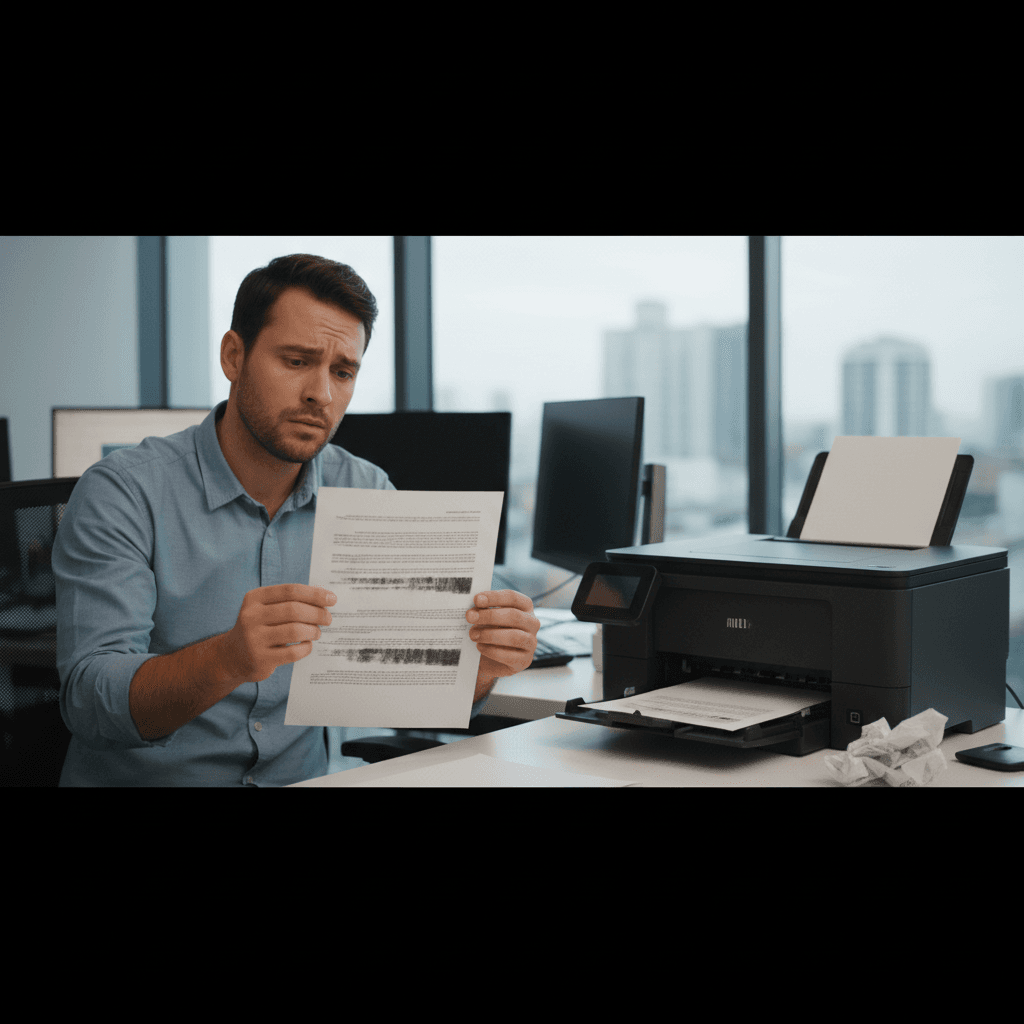
How to Fix Prints Looking Bad When Scans and Copies Look Fine
Your scans and copies look perfect but prints from your computer look terrible, and we'll help you diagnose and fix the root cause.
What's Happening
Here's a confusing situation: you make a copy on your all-in-one printer and it looks great. You scan a document and it's crystal clear. But when you print something from your computer, it comes out faded, blurry, or with wrong colors. This tells us something important—the printer's hardware (scanner, print engine, ink system) is working fine. The problem is in how your computer is sending data to the printer, which could be driver issues, wrong settings, or corrupted files.
Quick Checks (Do These First)
- Print a test page from the printer itself – Use the printer's menu to print a diagnostic page (no computer involved)
- Check ink levels – Low ink affects printing but not scanning/copying
- Try a different file – Print a simple text document and a photo to see if the issue is file-specific
- Check print preview – Make sure the document looks correct on your screen before printing
Step-by-Step Fixes
Fix 1: Reset Printer Driver to Default Settings
Corrupted or incorrect driver settings are the most common culprit.
- Open Settings > Devices > Printers & scanners
- Click your printer and select Manage
- Click Printing preferences
- Look for a Restore Defaults or Reset button (location varies by manufacturer)
- Click it, then Apply and OK
- Try printing a test document
This resets any wonky settings that may have been accidentally changed.
Fix 2: Change Print Quality Settings
Your driver may be set to draft or low-quality mode.
- Click File > Print in your document
- Click Printer Properties or Preferences
- Look for Quality, Print Quality, or Graphics settings
- Change from "Draft" or "Fast" to Best or High Quality
- If there's a DPI setting, try 600 DPI or higher
- For photos, make sure Photo Enhancement or similar features are enabled
- Click OK and print again
Fix 3: Check Color Management and Profile Settings
Incorrect color profiles can make prints look washed out or wrong-colored.
- In your print dialog, click Printer Properties
- Look for a Color or Advanced tab
- Find Color Management or ICM/Image Color Matching
- Try changing between ICM (let Windows handle color) and Application Managed
- Make sure Color is selected, not Grayscale
- If there's a color profile dropdown, select sRGB or your printer's default profile
- Click OK and test print
Fix 4: Reinstall Printer Driver Completely
A corrupted driver installation can cause strange printing issues.
- Open Settings > Devices > Printers & scanners
- Click your printer
- Click Remove device
- Confirm the removal
- Restart your computer
- Go to your printer manufacturer's website
- Download the latest full feature driver for your model
- Run the installer and follow all prompts
- Restart again
- Print a test document
This gives you a clean driver installation without any corrupted settings.
Fix 5: Test with Different Software
The problem might be application-specific.
- Open Notepad or WordPad
- Type a simple sentence
- Print it and observe quality
- Open Paint or Windows Photos
- Open an image file
- Print it
If these print fine but your usual apps don't:
- Update the problematic application
- Check the app's print settings (many apps have their own quality settings)
- Try exporting to PDF first, then printing the PDF
Fix 6: Run Printer Cleaning and Alignment
Even though copies look good, the print path from PC might use different mechanisms.
- Open Settings > Devices > Printers & scanners
- Click your printer > Manage
- Click Open printer queue
- Click Printer in the menu bar > Properties
- Find Maintenance, Services, or Utility tab
- Run Clean Print Heads or Nozzle Check
- Also run Align Print Heads or Print Head Alignment
- Print a test page after maintenance completes
If Nothing Worked
If print quality issues persist but the printer's own test page (printed without computer involvement) looks perfect, the issue is definitely in your computer's communication with the printer. Try these advanced checks: print from a different computer to see if the issue follows the printer or stays with the original computer (this tells you if it's a driver/OS issue or printer issue). Check if Windows is forcing color management or print settings through system policies. Look for any third-party print management software that might be interfering.
When to Call a Pro
If you've reinstalled drivers and prints still look bad but copies look perfect, there may be a firmware issue with how the printer processes data from computers. If you need color-accurate printing for business or photography and can't get colors to match between screen and print, professional color calibration may be needed. If the problem appeared after a Windows update and nothing fixes it, there may be a system-level conflict requiring advanced troubleshooting.
Need Professional Help?
If you're in the Tampa Bay area and need hands-on assistance, Geeks in Sneaks provides friendly, on-site tech support in Clearwater, Clearwater Beach, and Dunedin.
Related Topics
Need Professional Help?
If you're still having trouble, our expert technicians can help.
Learn about our printer support serviceMore Printer Issues Fixes
See all Printer Issues fixes →How to Prevent Malware from Abusing Network Printers
Concerned about malware using your printer to spread or spy? Here's how to secure network printers against malicious software and attacks.
How to Prevent Kids or Guests from Printing 100-Page Jobs
Tired of accidental massive print jobs from kids or guests? Here's how to set up quotas, require approval, and control who can print what.
How Often Should You Check for Printer Security Updates?
Printer firmware updates aren't optional—they patch security holes. Here's how often to check, how to update, and how to set up automatic updates.
How to Block Unwanted Cloud and Remote Print Features
Don't want HP ePrint, Canon Cloud, or Epson Connect on your printer? Here's how to disable cloud printing features for better privacy and security.
How to Use Guest Networks or VLANs to Isolate Your Printer
Want to keep your printer on a separate network for security? Learn how to use guest networks and VLANs to isolate printers from your main devices.
How to Reset Forgotten Admin Password on Printer Web Interface
Locked out of your printer's web interface? Here's how to reset the admin password for HP, Canon, Epson, and Brother printers.
How to Securely Dispose of Old Printers with Stored Data
Getting rid of an old printer? Learn how to wipe stored data and dispose of it securely so your personal information doesn't end up in the wrong hands.
Are Scanned or Copied Documents Stored on Your Printer?
Wondering if your printer keeps copies of documents you scan or copy? Here's what gets stored, how to check, and how to clear it.