
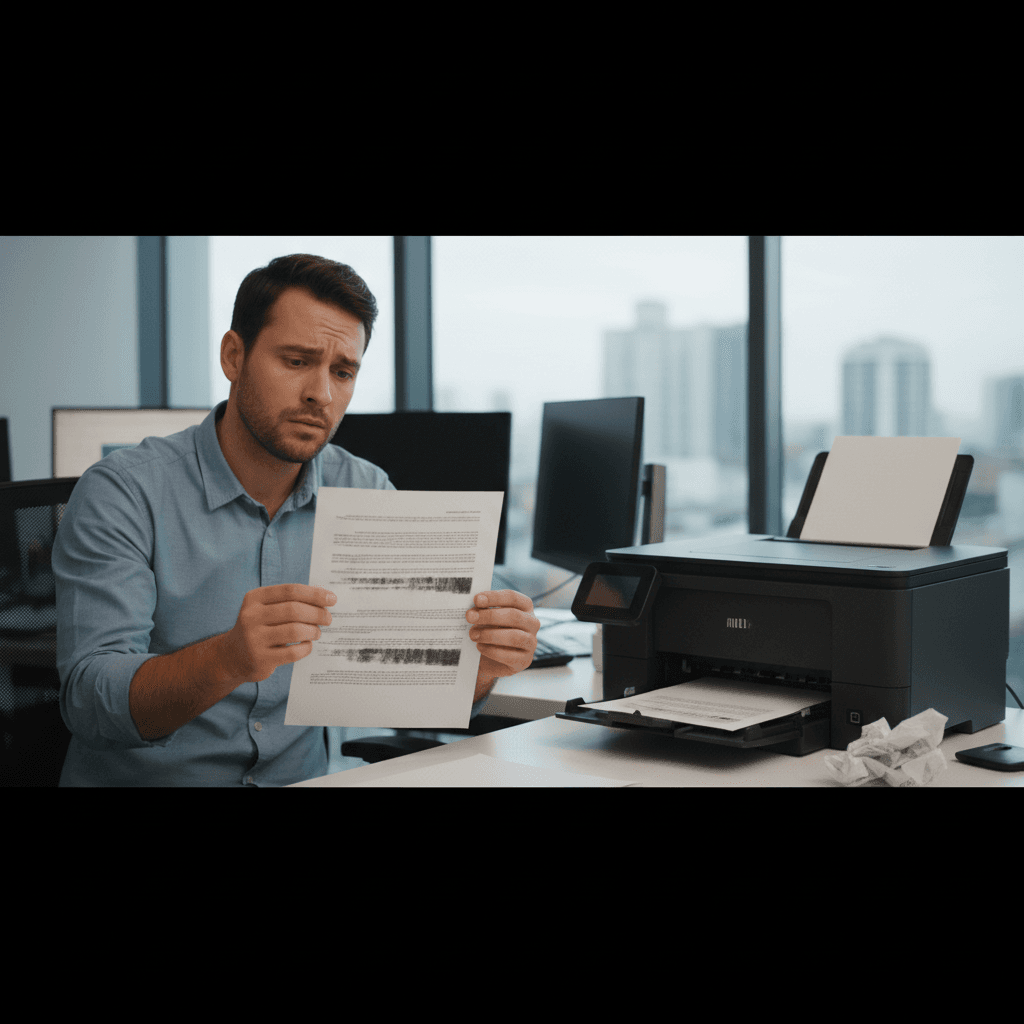
Blurry or Out-of-Focus Printed Text
Text looking fuzzy or blurry on your prints? This could be alignment, resolution, or paper issues. Here's how to get sharp, crisp text again.
What's Happening
Your printed text looks soft, fuzzy, or like it's slightly out of focus. Edges that should be sharp and crisp are blurry or doubled. This makes documents hard to read and looks unprofessional. Blurry prints typically result from alignment issues, incorrect settings, or paper/ink interaction problems.
Quick Checks (Do These First)
- Is the blur consistent or random? Consistent blur suggests alignment; random suggests movement.
- What resolution are you printing at? Low resolution causes pixelation and blur.
- What type of paper are you using? Wrong paper can cause ink to bleed.
- Did you recently move or bump the printer? Alignment can shift.
- Is it only certain colors that look blurry? This indicates a specific cartridge issue.
Step-by-Step Fixes
Fix 1: Align the Printhead/Cartridges
- Access printer maintenance settings
- Find "Align Cartridges" or "Printhead Alignment"
- Run the automatic alignment
- Follow any on-screen prompts to complete the process
- Print a test page to check results
Fix 2: Check Print Resolution
- In your print settings, look for Quality or Resolution
- Select a higher resolution (300 dpi minimum for text, 600+ for quality)
- Avoid Draft mode for documents that matter
- For important documents, use Normal or High quality
Fix 3: Use the Right Paper
- For inkjet printers, use inkjet-compatible paper
- For laser printers, use laser-compatible paper
- Avoid glossy photo paper for text documents
- Standard 20-24 lb paper works best for everyday text
Fix 4: Clean the Printhead or Lens
- For inkjets: Run the printhead cleaning utility
- For lasers: Gently clean the scanner glass and lens inside
- Dust on laser components can cause focus issues
- Use a dry, lint-free cloth
If Nothing Worked
Check if the blur happens from all applications or just one - some programs export at low resolution. Also try printing a simple document from Notepad to rule out source file issues. If the original image is low resolution, the print will be too.
When to Call a Pro
Persistent blur after alignment and settings checks may indicate physical damage - bent printhead carriers, loose belts, or worn components that allow movement during printing. These mechanical issues require hands-on repair.
Need Professional Help?
If you're in the Tampa Bay area and need hands-on assistance, Geeks in Sneaks provides friendly, on-site tech support in Clearwater, Clearwater Beach, and Dunedin.
Related Topics
Need Professional Help?
If you're still having trouble, our expert technicians can help.
Learn about our printer support serviceMore Printer Issues Fixes
See all Printer Issues fixes →How to Prevent Malware from Abusing Network Printers
Concerned about malware using your printer to spread or spy? Here's how to secure network printers against malicious software and attacks.
How to Prevent Kids or Guests from Printing 100-Page Jobs
Tired of accidental massive print jobs from kids or guests? Here's how to set up quotas, require approval, and control who can print what.
How Often Should You Check for Printer Security Updates?
Printer firmware updates aren't optional—they patch security holes. Here's how often to check, how to update, and how to set up automatic updates.
How to Block Unwanted Cloud and Remote Print Features
Don't want HP ePrint, Canon Cloud, or Epson Connect on your printer? Here's how to disable cloud printing features for better privacy and security.
How to Use Guest Networks or VLANs to Isolate Your Printer
Want to keep your printer on a separate network for security? Learn how to use guest networks and VLANs to isolate printers from your main devices.
How to Reset Forgotten Admin Password on Printer Web Interface
Locked out of your printer's web interface? Here's how to reset the admin password for HP, Canon, Epson, and Brother printers.
How to Securely Dispose of Old Printers with Stored Data
Getting rid of an old printer? Learn how to wipe stored data and dispose of it securely so your personal information doesn't end up in the wrong hands.
Are Scanned or Copied Documents Stored on Your Printer?
Wondering if your printer keeps copies of documents you scan or copy? Here's what gets stored, how to check, and how to clear it.