
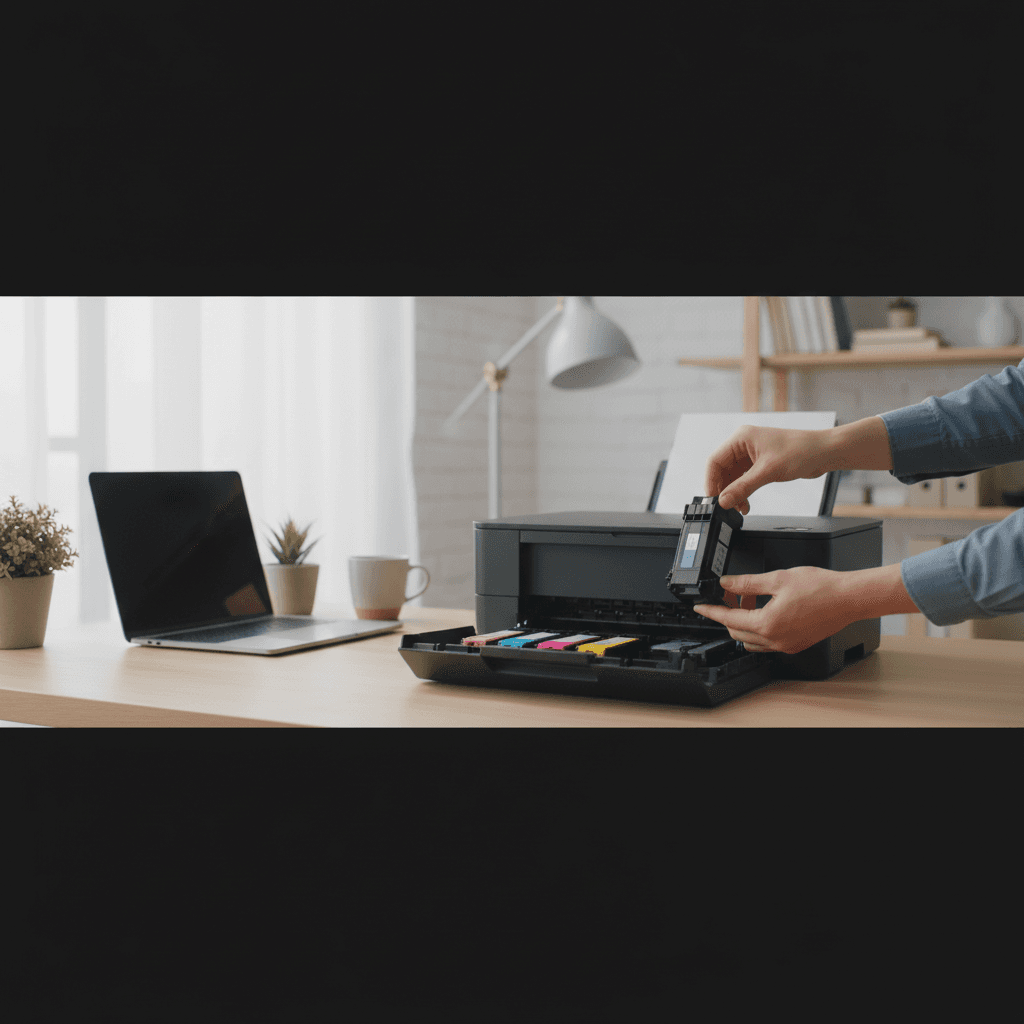
Why Printer Shows 'Low Ink' So Early
Getting low ink warnings when your cartridge should have plenty left? You're not imagining it—printers often warn you way too early.
What's Happening
You just replaced your ink cartridge a few weeks ago, and already your printer is flashing "low ink" warnings. It feels impossibly early, and you're right to be suspicious. Testing by PCWorld revealed that most ink cartridges still contain anywhere from 8% to 45% of their ink when the low ink warning first appears. Printer manufacturers build in these early warnings for various reasons, some legitimate and some less so. Understanding why this happens can help you decide whether to replace the cartridge immediately or keep printing.
Quick Checks (Do These First)
- Check actual print quality - If prints still look perfect, you likely have plenty of ink left regardless of the warning.
- Review your recent print jobs - Did you print lots of photos or graphics? These consume far more ink than text.
- Look at the cartridge itself - If it's transparent, you may be able to see actual ink levels.
- Check if the warning is new - First low ink warning? You probably have weeks left. Critical warning? Time to replace soon.
Step-by-Step Fixes
Fix 1: Keep Printing Until Quality Degrades
The safest approach is to ignore early warnings and let print quality be your guide.
- When you see the first "low ink" warning, note the date but take no action
- Continue printing normally
- Inspect each printed page for quality issues like streaking, fading, or missing colors
- Only replace the cartridge when you see consistent quality problems
- Keep a spare cartridge on hand so you're not caught without one
Most users can continue printing for weeks or even months after the first low ink warning appears.
Fix 2: Understand How Your Printer Measures Ink
Different printers use different methods to estimate ink levels, and some are more accurate than others.
- Chip-based systems - Count pages or dots printed; can't detect actual ink remaining
- Optical sensors - More accurate but still estimate based on averages
- Weight sensors - Rare but most accurate
- Check your printer manual to see which system yours uses
- Chip-based systems are least reliable and trigger earliest warnings
Canon printers, for example, estimate ink levels based on page counts since the last cartridge change, not actual ink remaining.
Fix 3: Reset the Cartridge Chip (If Safe)
Some third-party cartridges or refills don't reset their chips properly, causing false low ink warnings.
- Remove the cartridge from the printer
- Look for a small chip on the side or back of the cartridge
- Clean the chip contacts gently with a lint-free cloth
- Reinsert the cartridge firmly to ensure good contact
- Some printers offer a "reset ink levels" option in their settings
Warning: Never force chip resets on cartridges that are actually low, as this can damage print heads from running dry.
Fix 4: Disable Low Ink Warnings (Use Cautiously)
Some printers allow you to disable or override low ink warnings.
- Access your printer's settings through its control panel or web interface
- Look for "Supplies Status," "Cartridge Settings," or similar
- Find the option to disable low ink warnings or alerts
- Enable "Continue printing" or "Override" mode
- Important: Monitor print quality closely when warnings are disabled
Running a cartridge completely dry can damage ink jet print heads, which are expensive to replace.
If Nothing Worked
If you're getting low ink warnings immediately after installing a brand new cartridge, the chip may not have reset properly. Try removing and reinserting it, or the cartridge itself might be defective and eligible for warranty replacement. Some printers also reject third-party cartridges entirely—if you recently switched from OEM to compatible cartridges, your printer may need a firmware setting changed or may not accept them at all due to recent firmware updates.
When to Call a Pro
You shouldn't need professional help for low ink warnings, but if your printer refuses to print even with brand new cartridges, shows "cartridge not recognized" errors, or displays conflicting messages about ink levels, there might be a deeper issue with the printer's chip reader or logic board. These problems require diagnostic tools and expertise beyond basic troubleshooting. Additionally, if you've tried multiple new cartridges and all show immediate low ink warnings, the printer itself may have a hardware fault.
Need Professional Help?
If you're in the Tampa Bay area and need hands-on assistance, Geeks in Sneaks provides friendly, on-site tech support in Clearwater, Clearwater Beach, and Dunedin.
Related Topics
Need Professional Help?
If you're still having trouble, our expert technicians can help.
Learn about our printer support serviceMore Printer Issues Fixes
See all Printer Issues fixes →How to Prevent Malware from Abusing Network Printers
Concerned about malware using your printer to spread or spy? Here's how to secure network printers against malicious software and attacks.
How to Prevent Kids or Guests from Printing 100-Page Jobs
Tired of accidental massive print jobs from kids or guests? Here's how to set up quotas, require approval, and control who can print what.
How Often Should You Check for Printer Security Updates?
Printer firmware updates aren't optional—they patch security holes. Here's how often to check, how to update, and how to set up automatic updates.
How to Block Unwanted Cloud and Remote Print Features
Don't want HP ePrint, Canon Cloud, or Epson Connect on your printer? Here's how to disable cloud printing features for better privacy and security.
How to Use Guest Networks or VLANs to Isolate Your Printer
Want to keep your printer on a separate network for security? Learn how to use guest networks and VLANs to isolate printers from your main devices.
How to Reset Forgotten Admin Password on Printer Web Interface
Locked out of your printer's web interface? Here's how to reset the admin password for HP, Canon, Epson, and Brother printers.
How to Securely Dispose of Old Printers with Stored Data
Getting rid of an old printer? Learn how to wipe stored data and dispose of it securely so your personal information doesn't end up in the wrong hands.
Are Scanned or Copied Documents Stored on Your Printer?
Wondering if your printer keeps copies of documents you scan or copy? Here's what gets stored, how to check, and how to clear it.