
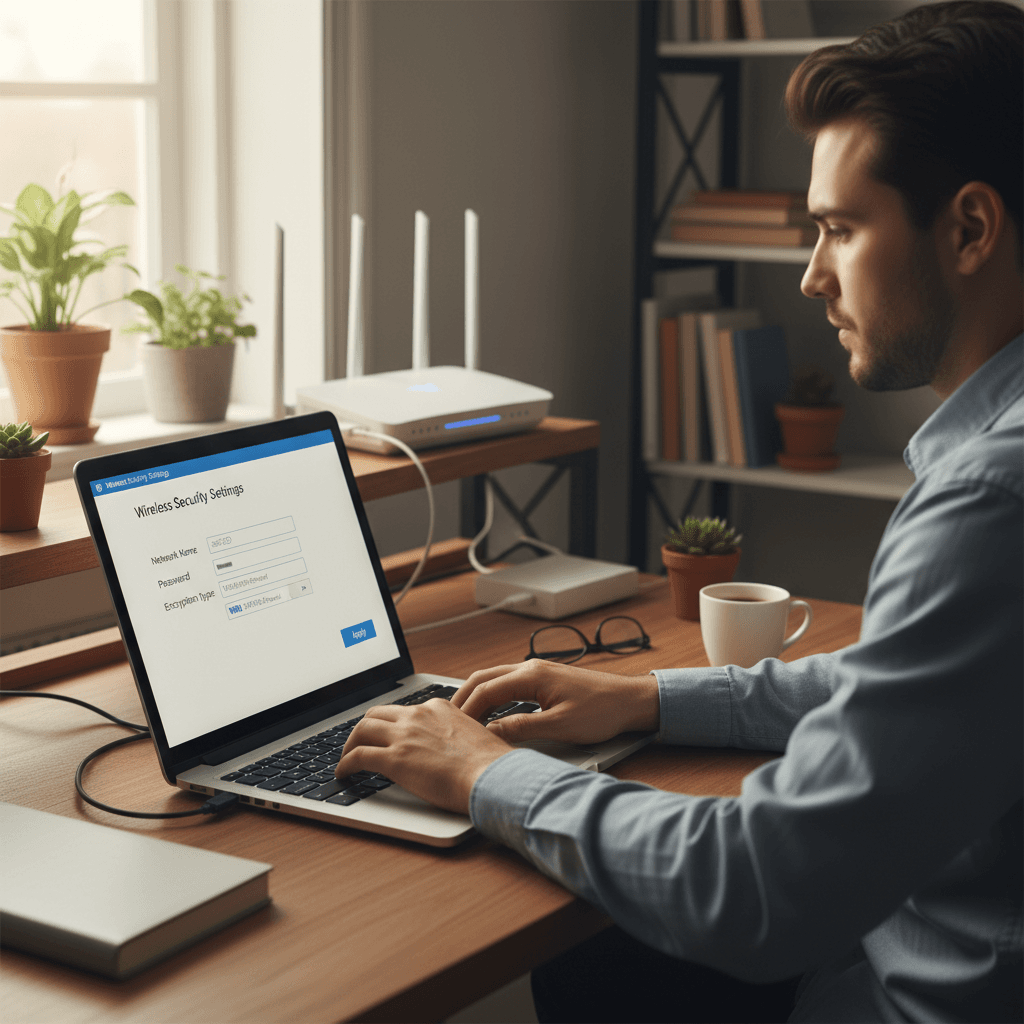
How to Find Unknown Devices on Your Wi-Fi Network
Seeing devices you don't recognize on your Wi-Fi network can be alarming, but we'll show you how to identify them and secure your connection.
What's Happening
You've checked your router's admin page or app and noticed devices connected to your Wi-Fi that you don't recognize. Maybe there's a mysterious "Android-Device" or "Unknown-XX:XX" in the list. This is unsettling because you don't know if it's a neighbor piggybacking on your connection or something you forgot about. Don't panic - we'll help you figure out what these devices are and how to lock down your network.
Quick Checks (Do These First)
- Count your devices. Make a mental list of everything that connects to Wi-Fi: phones, tablets, laptops, smart TVs, streaming boxes, game consoles, smart speakers, thermostats, security cameras, and smart plugs.
- Check MAC addresses. Look at the last few digits of the MAC address - if it starts with certain patterns (like Samsung, Apple, Amazon), that's a big clue.
- Turn devices off one by one. Power off devices you recognize and watch which items disappear from the connected list.
- Look for duplicate names. Sometimes devices reconnect and appear twice with slightly different names.
- Check for guest network connections. If you enabled a guest network, those devices show up too.
Step-by-Step Fixes
Fix 1: Use the Router's Device List to Identify Devices
- Log into your router's admin page (usually at
192.168.1.1or192.168.0.1) - Find the section called "Connected Devices," "Device List," "DHCP Clients," or "Attached Devices"
- Look at the device names and MAC addresses (the XX:XX:XX format numbers)
- Use a MAC address lookup tool online - search for "MAC address lookup" and paste the first 6 characters
- This will tell you the manufacturer (Apple, Samsung, Google, etc.) which helps narrow it down
- Write down the MAC addresses of devices you can't identify
Fix 2: Turn Off Devices to See What Disappears
- Keep the router's device list open on your screen
- Go around your home and unplug or turn off Wi-Fi on devices you know about
- Refresh the device list after each one
- When a mystery device disappears, you've found what it is
- Make a note of which physical device matches which MAC address or name
- This is tedious but effective - you'll eventually identify everything
Fix 3: Change Your Wi-Fi Password and Reconnect Only Known Devices
- In your router settings, find the "Wireless" or "Wi-Fi" section
- Change your Wi-Fi password to something strong and unique (at least 12 characters, mix of letters, numbers, symbols)
- Click Save - this will boot everyone off the network
- Now reconnect your devices one at a time using the new password
- As you reconnect each one, check the router's device list to confirm it appears
- If something reconnects that you didn't manually connect, you've found an intruder
Fix 4: Enable MAC Address Filtering (Advanced Security)
- In router settings, look for "MAC Filtering" or "Access Control"
- Enable the whitelist mode (only allowed devices can connect)
- Add the MAC addresses of your known, trusted devices
- Save the settings
- Only devices on your approved list will be able to connect, even with the password
- Note: You'll need to update this list whenever you get a new device
If Nothing Worked
If you're still seeing mystery devices after changing your password, check if your router has WPS (Wi-Fi Protected Setup) enabled - this can let devices connect without the password. Also check if you have any port forwarding rules or DMZ settings that might be allowing external access. Some routers also show wired ethernet connections in the device list, so check if you have anything plugged in via cable that you forgot about.
When to Call a Pro
If you've identified an actual intruder on your network, or if devices keep appearing even after you've changed passwords and locked things down, there may be a security issue that needs expert attention. Your router might be compromised, or there could be other vulnerabilities.
Need Professional Help?
If you're in the Tampa Bay area and need hands-on assistance securing your network, Geeks in Sneaks provides friendly, on-site tech support in Clearwater, Clearwater Beach, and Dunedin.
Related Topics
Need Professional Help?
If you're still having trouble, our expert technicians can help.
Learn about our network repair serviceMore Router & WiFi Fixes
See all Router & WiFi fixes →Business-Grade vs Consumer Routers for Home Use
Considering a business-grade router for your home? Find out if the premium price delivers real benefits for residential use.
Buying Used or Refurbished Routers: Safe or Risky?
Tempted to save money with a used router? Learn the real security risks and when buying secondhand is safe versus when it's dangerous.
How Long Should a Router Last? When to Replace Yours
Your router is a few years old and you're wondering if it's time to replace it. Learn the typical lifespan and warning signs it's failing.
Gaming Routers: Real Benefits vs Marketing Hype
Wondering if a gaming router is worth the premium price? We separate the real performance benefits from marketing gimmicks.
Renting ISP Equipment vs Buying Your Own: Real Cost Comparison
Paying monthly rental fees for your modem and router? Find out how much you could save by buying your own equipment.
Matching Router Capabilities to Your Internet Speed Tier
Have gigabit internet but not getting those speeds? Your router might be the bottleneck. Learn how to match equipment to your plan.
What to Look for When Buying a Home Router in 2026
Shopping for a new router can be overwhelming with all the technical specs and marketing claims—here's what actually matters in 2026.
When to Move from Single Router to Mesh WiFi System
Dead zones and weak WiFi in parts of your home? Find out if it's time to upgrade from a traditional router to a mesh system.