
How Often Should You Change Your Wi-Fi Password?
Wondering if you should change your Wi-Fi password regularly? Here's what security experts actually recommend and when you really need to update it.
What's Happening
You're trying to be security-conscious and wondering if you need to change your Wi-Fi password on a regular schedule. Maybe you heard you should change it every 90 days, or maybe you haven't changed it since you set up your router three years ago. The truth is less black-and-white than you might think, and we'll help you figure out the right approach for your situation.
Quick Checks (Do These First)
- How strong is your current password? If it's at least 16 characters with random letters, numbers, and symbols, it's very strong.
- Have you shared it with anyone temporarily? House guests, dog sitters, contractors who needed internet access?
- Is it written down somewhere visible? On a sticky note by your desk, or saved in an unencrypted document?
- Do you have unknown devices on your network? Check your router's connected devices list.
- Is your router firmware up to date? Old firmware can have security holes.
The Real Answer: It Depends
When You DON'T Need to Change It Regularly
If your Wi-Fi password is very strong (16+ characters, random, complex) and you haven't shared it with anyone, you don't need to change it on a schedule. Modern security experts actually recommend keeping a strong password instead of rotating weak ones. Here's why:
- Changing passwords regularly often leads people to create weaker, predictable passwords
- You might write it down in insecure places if you change it often
- A truly strong password is nearly impossible to crack, even over years
- The hassle of reconnecting dozens of devices isn't worth it without a good reason
When You SHOULD Change It Immediately
Change your Wi-Fi password right away if any of these apply:
- You shared it with someone who shouldn't have permanent access - guests, former roommates, ex-partners, contractors
- You found unknown devices on your network - someone might be using your connection without permission
- Your current password is weak - short, simple, or based on dictionary words
- You're using the default password from the router - these are publicly known and easy targets
- You've had a security breach - malware on a device, phishing incident, or other compromise
- You wrote it somewhere that others could access - posted online, shared in unsecure messages
Step-by-Step: How to Change Your Wi-Fi Password
Step 1: Create a Strong New Password
- Use at least 16 characters (longer is better)
- Mix uppercase letters, lowercase letters, numbers, and symbols
- Make it random - don't use personal information or common words
- Consider using a passphrase of 4-5 random words:
Purple!Elephant7Jumps#Backwards - Save it in a password manager or write it down and keep it physically secure
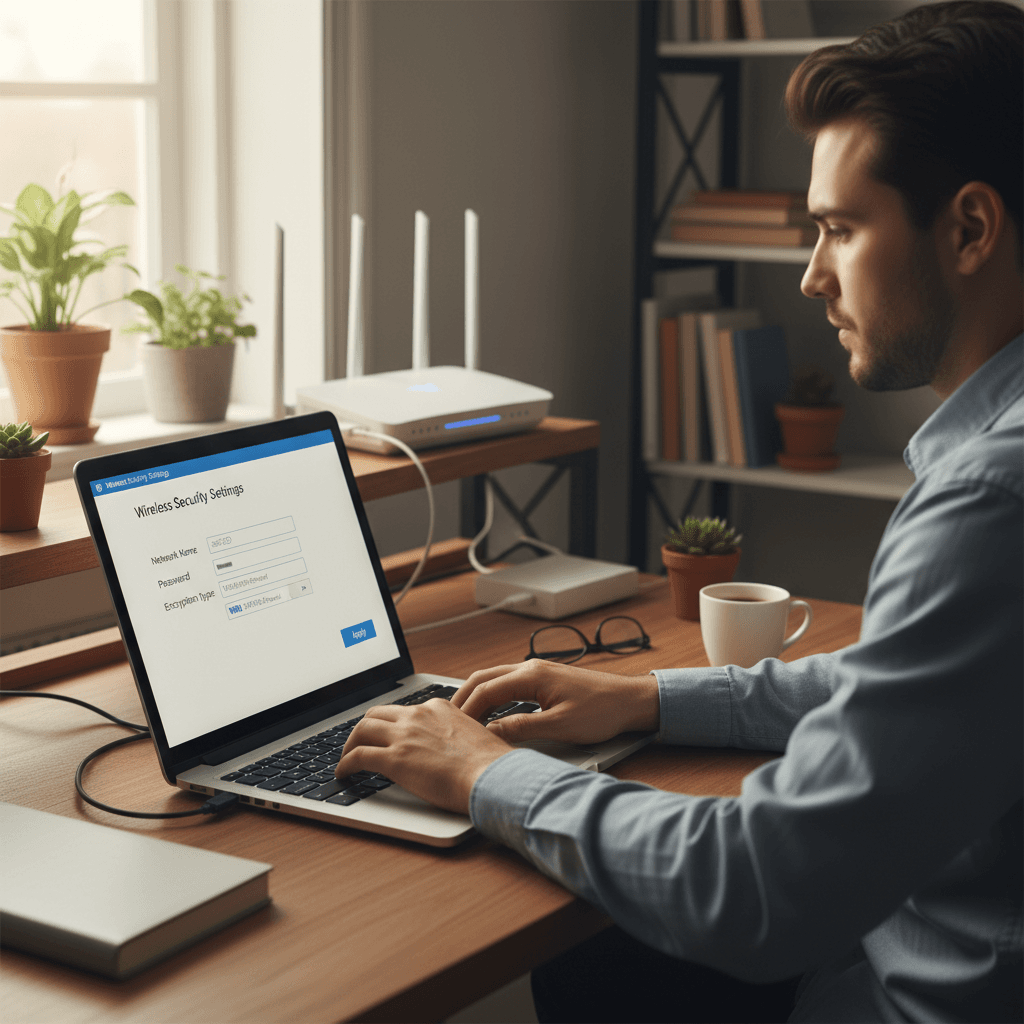
Step 2: Update Your Router Settings
- Open a web browser and go to your router's admin page (usually
192.168.1.1or192.168.0.1) - Log in with your admin credentials (not your Wi-Fi password - this is different)
- Find the Wireless or Wi-Fi Settings section
- Locate the Password, Passphrase, or PSK (Pre-Shared Key) field
- Enter your new strong password
- Make sure encryption is set to WPA2 or WPA3 (not WEP or WPA)
- Save or Apply the changes
Step 3: Reconnect Your Devices
- All devices will be disconnected when you save the new password
- On each device, forget the old network and reconnect with the new password
- On phones/tablets: Go to Wi-Fi settings, tap your network, choose "Forget," then reconnect
- This is tedious but only needs to happen when you actually change the password
The Best Practice Schedule
Here's a practical schedule that balances security and convenience:
- Strong password, never shared: No need to change unless there's a specific reason
- Strong password, shared occasionally: Change it a day or two after guests leave
- Moderate password: Change it every 6-12 months, or upgrade to a strong one and leave it
- Weak or default password: Change it TODAY to a strong one
If You're Still Worried
Instead of changing your password on a schedule, focus on these more effective security measures: enable WPA3 encryption if your router supports it, disable WPS (Wi-Fi Protected Setup), keep your router firmware updated, use a guest network for visitors and IoT devices, and enable MAC address filtering if you want extra control over who connects.
When to Call a Pro
If you're concerned about network security but aren't comfortable configuring router settings, or if you suspect someone has compromised your network, professional help can give you peace of mind. A tech can audit your security settings and make sure everything is properly locked down.
Need Professional Help?
If you're in the Tampa Bay area and want an expert to review your network security, Geeks in Sneaks provides friendly, on-site tech support in Clearwater, Clearwater Beach, and Dunedin.
Related Topics
Need Professional Help?
If you're still having trouble, our expert technicians can help.
Learn about our network repair serviceMore Router & WiFi Fixes
See all Router & WiFi fixes →Business-Grade vs Consumer Routers for Home Use
Considering a business-grade router for your home? Find out if the premium price delivers real benefits for residential use.
Buying Used or Refurbished Routers: Safe or Risky?
Tempted to save money with a used router? Learn the real security risks and when buying secondhand is safe versus when it's dangerous.
How Long Should a Router Last? When to Replace Yours
Your router is a few years old and you're wondering if it's time to replace it. Learn the typical lifespan and warning signs it's failing.
Gaming Routers: Real Benefits vs Marketing Hype
Wondering if a gaming router is worth the premium price? We separate the real performance benefits from marketing gimmicks.
Renting ISP Equipment vs Buying Your Own: Real Cost Comparison
Paying monthly rental fees for your modem and router? Find out how much you could save by buying your own equipment.
Matching Router Capabilities to Your Internet Speed Tier
Have gigabit internet but not getting those speeds? Your router might be the bottleneck. Learn how to match equipment to your plan.
What to Look for When Buying a Home Router in 2026
Shopping for a new router can be overwhelming with all the technical specs and marketing claims—here's what actually matters in 2026.
When to Move from Single Router to Mesh WiFi System
Dead zones and weak WiFi in parts of your home? Find out if it's time to upgrade from a traditional router to a mesh system.