
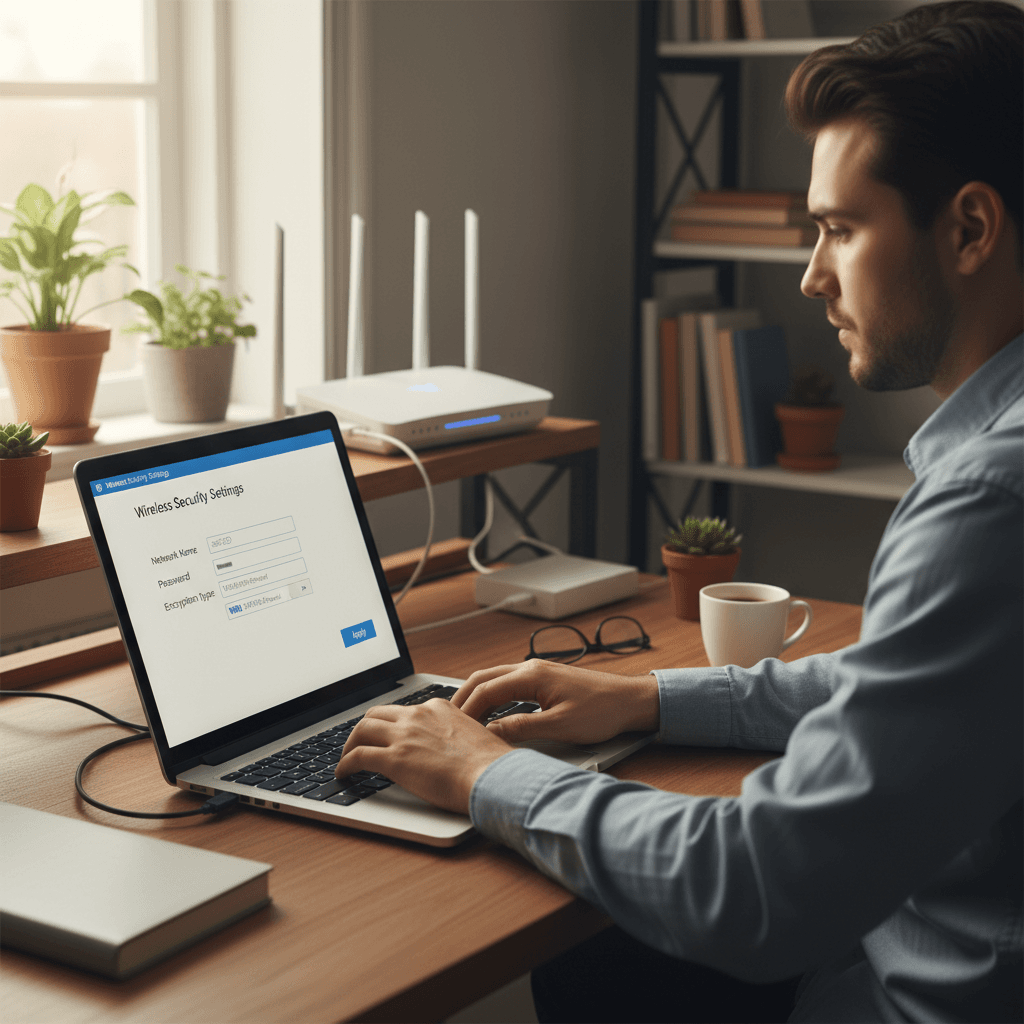
How to Stop Neighbors from Using Your Wi-Fi Without Permission
If someone is piggybacking on your Wi-Fi connection without permission, here's how to kick them off and keep them out for good.
What's Happening
Your internet has been slower than usual, or you've discovered unknown devices on your network. You suspect (or know) that a neighbor is using your Wi-Fi without asking. This isn't just annoying - it can slow down your connection, eat up your bandwidth, and potentially expose your network to security risks. The good news is that you can lock them out permanently with just a few settings changes.
Quick Checks (Do These First)
- Confirm someone is actually there. Log into your router and check the connected devices list - look for devices you don't recognize.
- Check if you shared your password. Did you give your Wi-Fi password to someone and forget? Check with family members too.
- Look at your network name. Is your network still using the default name from the manufacturer? That makes you a target.
- Check your encryption type. In router settings, make sure you're using WPA2 or WPA3, not WEP or "Open."
- See if WPS is enabled. WPS lets devices connect with a button press - disable it in router settings.
Step-by-Step Fixes
Fix 1: Change Your Wi-Fi Password Immediately
- Log into your router by typing
192.168.1.1or192.168.0.1into your browser - Enter your admin username and password (if you never changed it, check the sticker on the router)
- Navigate to the Wireless or Wi-Fi Settings section
- Find the field labeled "Password," "Passphrase," or "Pre-Shared Key"
- Create a strong new password - at least 16 characters with uppercase, lowercase, numbers, and symbols
- Make it random - don't use personal info, addresses, or common words
- Click Save or Apply - this will disconnect everyone immediately
- Reconnect your own devices with the new password
Fix 2: Change Your Network Name (SSID)
- While you're in the router settings, find the "Network Name" or "SSID" field
- Change it to something unique that doesn't identify you personally
- Avoid using your name, address, or anything that reveals who you are
- Don't taunt neighbors with names like "Stop Stealing My WiFi" - just be anonymous
- Save the changes
- Your network will reappear with the new name - reconnect your devices
Fix 3: Disable WPS (Wi-Fi Protected Setup)
- In your router's admin interface, look for "WPS Settings" or "Wi-Fi Protected Setup"
- Turn off or disable WPS completely
- WPS has known security vulnerabilities that let people crack your password
- It's convenient but not worth the risk
- Save the setting
Fix 4: Enable MAC Address Filtering
- Find "MAC Filtering," "Access Control," or "Device Whitelist" in router settings
- Make a list of MAC addresses for all your legitimate devices (found in the connected devices list)
- Enable MAC filtering and set it to "Allow" or "Whitelist" mode
- Add each of your device's MAC addresses to the approved list
- Save the settings
- Now only your pre-approved devices can connect, even if someone has your password
Fix 5: Update Your Router's Firmware
- In router settings, find "Firmware Update," "Router Update," or "Administration"
- Check for updates and install any available firmware
- Updated firmware patches security holes that neighbors might be exploiting
- Some routers have an auto-update option - enable it if available
If Nothing Worked
If you've changed everything and someone still gets in, your router might be compromised at a deeper level. Try a full factory reset of the router (hold the reset button for 10+ seconds), then set up your network fresh with a strong password. If the problem persists, your router may have a serious security flaw and should be replaced.
When to Call a Pro
If you're not comfortable accessing router settings, or if you've locked yourself out trying to make changes, it's worth getting professional help. Network security is important, and a tech can ensure everything is properly configured.
Need Professional Help?
If you're in the Tampa Bay area and want expert help securing your network, Geeks in Sneaks provides friendly, on-site tech support in Clearwater, Clearwater Beach, and Dunedin.
Related Topics
Need Professional Help?
If you're still having trouble, our expert technicians can help.
Learn about our network repair serviceMore Router & WiFi Fixes
See all Router & WiFi fixes →Business-Grade vs Consumer Routers for Home Use
Considering a business-grade router for your home? Find out if the premium price delivers real benefits for residential use.
Buying Used or Refurbished Routers: Safe or Risky?
Tempted to save money with a used router? Learn the real security risks and when buying secondhand is safe versus when it's dangerous.
How Long Should a Router Last? When to Replace Yours
Your router is a few years old and you're wondering if it's time to replace it. Learn the typical lifespan and warning signs it's failing.
Gaming Routers: Real Benefits vs Marketing Hype
Wondering if a gaming router is worth the premium price? We separate the real performance benefits from marketing gimmicks.
Renting ISP Equipment vs Buying Your Own: Real Cost Comparison
Paying monthly rental fees for your modem and router? Find out how much you could save by buying your own equipment.
Matching Router Capabilities to Your Internet Speed Tier
Have gigabit internet but not getting those speeds? Your router might be the bottleneck. Learn how to match equipment to your plan.
What to Look for When Buying a Home Router in 2026
Shopping for a new router can be overwhelming with all the technical specs and marketing claims—here's what actually matters in 2026.
When to Move from Single Router to Mesh WiFi System
Dead zones and weak WiFi in parts of your home? Find out if it's time to upgrade from a traditional router to a mesh system.