
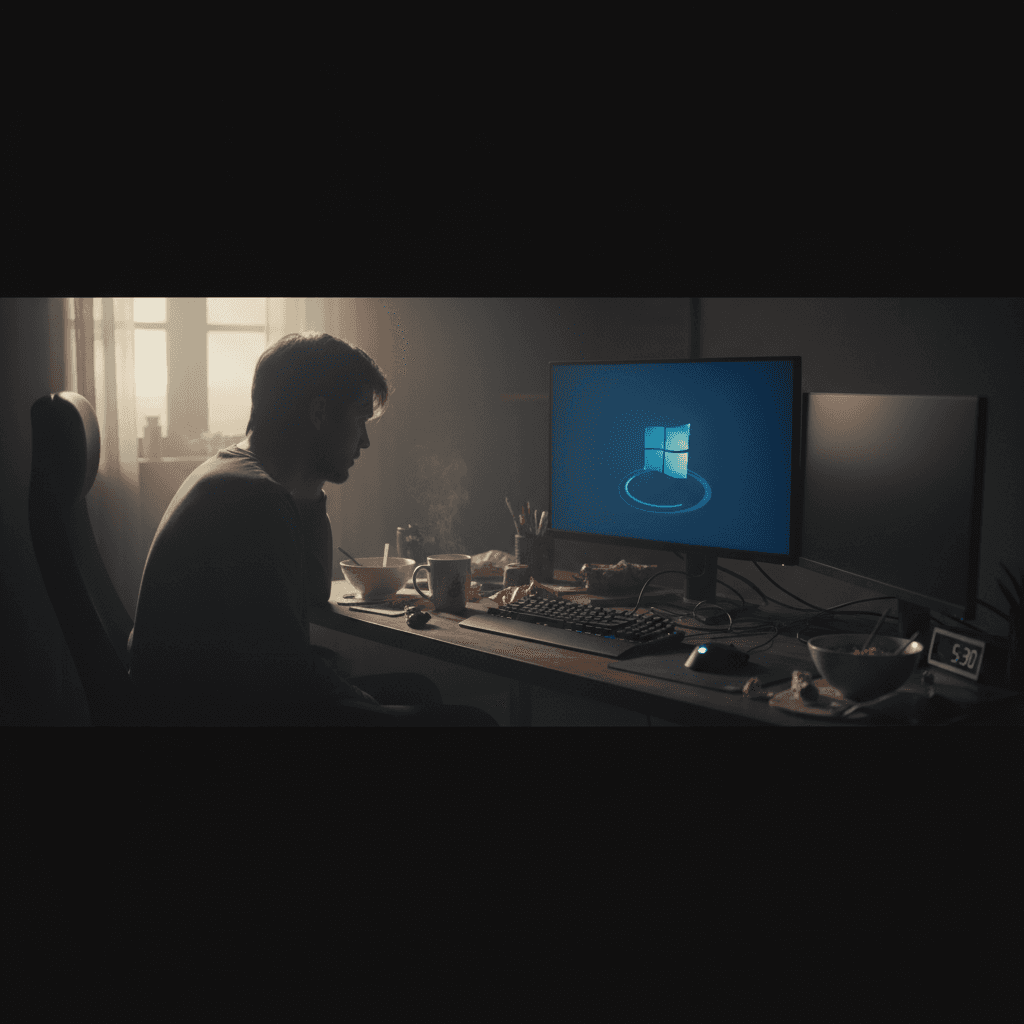
How to Fix Windows Stuck on 'Working on Updates'
Computer frozen on the 'Working on updates, don't turn off your PC' screen? Here's how to safely recover and complete the update.
What's Happening
Your computer is displaying the "Working on updates, don't turn off your PC" message, and it's been sitting there for hours without any progress. The percentage might be stuck, or the screen might just show the spinning dots endlessly. This is incredibly frustrating, especially when you need to use your computer, but there's usually a safe way to recover.
First, take a breath. This is common, and in most cases, your files and data are safe. Let's get you unstuck.
Quick Checks
Before taking any action, check these things:
- How long has it been stuck? - Major Windows updates can legitimately take 2-4 hours on older computers. If it's been less than 3 hours and you see disk activity (flashing hard drive light), it might still be working.
- Is the percentage changing? - If you see percentages incrementing, even slowly, the update is progressing.
- Can you see disk activity? - Look for a blinking light on your computer case. If it's flashing, Windows is doing something.
- Is the computer hot or loud? - If fans are running hard, the CPU is working, which means it's not completely frozen.
Step-by-Step Fixes
Fix 1: Wait It Out (Seriously)
This might sound frustrating, but patience is actually the first fix. Many people interrupt updates too early and cause more problems.
- If it's been less than 3 hours, wait longer
- Keep your computer plugged in to power
- Don't close the laptop lid or put it to sleep
- Check back every hour
- If you see any progress at all (percentage change, new messages), let it continue
Most "stuck" updates eventually complete if given enough time, especially on computers with traditional hard drives (not SSDs) or limited RAM.
Fix 2: Force Restart (Use with Caution)
If it's been stuck for more than 4 hours with absolutely no progress, no disk activity, and the same percentage frozen, you may need to force restart.
- Press and hold the physical power button for 10 seconds until the computer turns off
- Wait 30 seconds
- Press the power button again to turn it back on
- Windows will likely say "We couldn't complete the updates" and will undo changes
- This can take another 20-60 minutes - let it finish
- Once you're back at the login screen, sign in normally
Important: Only use this as a last resort. Force restarting during updates can occasionally cause system corruption, though Windows is pretty good at recovering.
Fix 3: Boot into Safe Mode and Fix Update Issues
If your computer won't boot normally after a forced restart, you can access Safe Mode to repair the problem.
- When the computer starts, if you see a "Preparing Automatic Repair" or "Diagnosing your PC" screen, wait for it to load
- Click Advanced options > Troubleshoot > Advanced options
- Select Startup Settings and click Restart
- Press 4 or F4 to boot into Safe Mode
- Once in Safe Mode, open Settings > Windows Update and try running the update again, or use System Restore to go back to before the update
Fix 4: Use System Restore
If the update created problems and your system is unstable, restore it to a working state.
- Search for "Create a restore point" in the Start menu
- Click System Protection tab
- Click System Restore
- Choose a restore point from before the problematic update
- Follow the wizard to restore your system
- After restoration, you can try installing the update again (or wait for the next one)
If Nothing Worked
If you're still stuck or experiencing boot problems after trying the above:
- Access Windows Recovery - If the computer won't boot, force restart it 3 times in a row and Windows should automatically boot into Recovery Mode where you can access repair tools
- Use installation media - Create a Windows installation USB on another computer and use it to access Startup Repair or System Restore
- Check hardware - Updates can fail or hang if your hard drive is failing or if you have bad RAM
When to Call a Pro
Seek professional help if:
- You can't get past the stuck update screen even after multiple restart attempts
- You're seeing Blue Screen errors after forcing a restart
- The computer won't boot at all, even into Safe Mode or Recovery
- You're getting error messages about corrupted system files
- You're not comfortable working with recovery tools or you have critical data at risk
A technician can use advanced recovery tools, check for hardware failures, and ensure your data is backed up before attempting more aggressive fixes.
Need Professional Help?
If you're in the Tampa Bay area and need hands-on assistance, Geeks in Sneaks provides friendly, on-site tech support in Clearwater, Clearwater Beach, and Dunedin.
Related Topics
Need Professional Help?
If you're still having trouble, our expert technicians can help.
Learn about our pc repair serviceMore Windows Problems Fixes
See all Windows Problems fixes →Should I Worry About Windows Event Errors?
Found errors and warnings in Event Viewer and worried something is wrong? Here's the truth about Windows event logs and what you actually need to fix.
How Long Should a Windows PC Last?
Wondering if your PC is getting too old? Here's the realistic lifespan of Windows computers and when it's time to upgrade versus repair.
Why Does My Cursor Freeze Momentarily?
Mouse cursor stuttering or freezing for a second or two randomly? Here's what causes it and how to fix the annoying micro-freezes.
Is It Normal for Disk to Be Slow After Boot?
Computer sluggish for the first few minutes after starting up? Learn why this happens, when it's normal, and how to speed up your post-boot experience.
Is 80°C CPU Temperature Dangerous?
Worried about your CPU hitting 80°C? Here's the truth about CPU temperatures, what's safe, and when you actually need to be concerned.
Why Does My Fan Spin Up Randomly?
Computer fan suddenly revving up for no apparent reason? Here's why it happens, when it's normal, and when you should be concerned.
Are Windows Updates Really Necessary?
Wondering if you can skip those annoying Windows updates? Here's what you need to know about why updates matter and what happens if you ignore them.
Why Is Windows Search Using So Much Disk?
Windows Search Indexer maxing out your disk usage at 100%? Here's why it happens and how to fix it without losing search functionality.