

Is 80°C CPU Temperature Dangerous?
Worried about your CPU hitting 80°C? Here's the truth about CPU temperatures, what's safe, and when you actually need to be concerned.
Is 80°C CPU Temperature Dangerous?
You installed a temperature monitoring program, glanced at it while gaming or working on something intensive, and your heart skipped a beat: 80°C. That seems really hot. Is your CPU about to melt? Should you shut everything down immediately?
Take a breath. In 2026, 80°C is not the danger zone it might seem to be. Modern CPUs are built to withstand temperatures that would have been alarming a decade ago. Let's talk about what's actually safe.
Quick Answer: 80°C Is Usually Fine
Here's what you need to know right now:
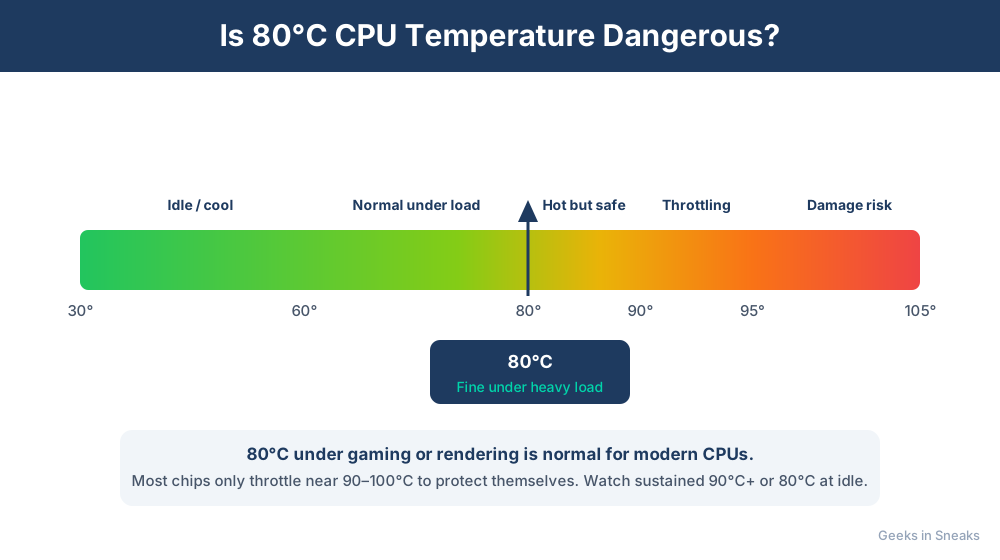
During heavy load (gaming, rendering, video editing): 80°C is completely normal and safe for most modern CPUs. This is within designed operating parameters.
At idle (just browsing or doing light work): 80°C at idle indicates a serious cooling problem that needs immediate attention.
The real danger zone: Most modern CPUs safely operate up to 100°C. They'll throttle themselves to prevent damage if they get too hot. 80°C leaves plenty of thermal headroom.
Understanding Modern CPU Temperatures
CPU temperature tolerance has changed dramatically over the past decade. What was once considered dangerously hot is now routine operating temperature.
Safe Temperature Ranges in 2026
Here are the generally accepted safe ranges for modern CPUs:
- Idle (nothing demanding running): 30-50°C
- Light use (web browsing, office work): 40-60°C
- Heavy use (gaming, video editing, rendering): 65-85°C
- Maximum safe temperature: Most CPUs can handle up to 95-100°C
Intel sets the thermal throttling temperature to 100°C for many of its processors. AMD's Ryzen CPUs are also designed to safely operate up to 95°C. A peak core temperature of 83°C is a normal operating temperature under load.
Why Modern CPUs Run Hotter
Modern processors run hotter than older ones for several reasons:
Higher performance: More cores, higher clock speeds, and increased power draw all generate more heat.
Smaller manufacturing processes: Transistors packed more densely together generate heat in a smaller space, creating higher local temperatures.
Better thermal protection: Modern CPUs have sophisticated thermal management that lets them safely operate at higher temperatures without damage.
Manufacturers design these chips knowing they'll hit 80°C or higher during demanding workloads. The cooling solutions and power delivery systems are built accordingly.
When 80°C Is Normal
You shouldn't worry about 80°C temperatures in these situations:
Gaming
Gaming pushes your CPU hard, especially in CPU-intensive games like strategy games, simulation games, or titles with lots of NPCs and physics calculations. Temperatures between 70°C and 80°C on most modern CPUs are typical and safe during gaming sessions.
Content Creation
Video rendering, photo editing with lots of layers and effects, 3D modeling and rendering, and compiling code can all push CPUs to 80°C or higher. This is normal for workloads where your CPU is being pushed to its limits.
Stress Testing
If you're running stress tests like Prime95, Cinebench, or AIDA64, seeing 80°C+ is expected. These programs intentionally max out your CPU to test stability and thermal limits.
Laptop Use
Laptops typically run hotter than desktops due to space constraints and smaller cooling solutions. 80°C under load is very common for laptops and generally not concerning.
When 80°C Is a Problem
However, 80°C can indicate cooling issues in certain contexts:
At Idle or Light Use
If your CPU hits 80°C while you're just browsing the web, watching videos, or doing office work, something is wrong. You likely have:
- Dust-clogged heatsink or fans
- Failed or failing CPU cooler
- Dried-out thermal paste
- Improperly mounted cooler
- Background processes using excessive CPU (possibly malware)
80°C while idle is pretty bad and almost guarantees something is wrong with your cooling solution.
Sustained High Temperatures
If your CPU sits at 80°C+ for hours on end during normal use, even if that use is intensive, you might want to improve your cooling. While not immediately dangerous, consistently high temperatures above 80°C may lead to reduced longevity of the CPU.
Better cooling will allow your CPU to boost to higher speeds more often, giving you better performance.
What Happens When CPUs Get Too Hot
Modern CPUs won't just overheat and die. They have multiple layers of protection:
Thermal Throttling
When a CPU reaches its maximum safe temperature (typically 95-100°C), it automatically reduces its clock speed to generate less heat. This causes performance to drop noticeably, but it prevents damage.
You'll notice slowdowns, stuttering in games, or applications taking longer to complete tasks. This is the CPU protecting itself.
Emergency Shutdown
If thermal throttling can't bring temperatures down, the system will shut down entirely to prevent hardware damage. This is a last resort that only happens if cooling has completely failed.
Long-Term Degradation
While modern CPUs can safely operate at high temperatures, running at peak temperatures constantly can accelerate degradation over years. A CPU running at 85°C 24/7 might have a shorter lifespan than one running at 70°C, though both will likely outlast the useful life of the rest of your system.
How to Lower CPU Temperatures
If you want to bring temperatures down from 80°C, here are effective solutions:
Solution 1: Clean Your Computer
Dust is the number one cause of elevated temperatures:
- Shut down and unplug your computer
- Open the case (desktop) or access vents (laptop)
- Use compressed air to blow dust out of heatsinks, fans, and vents
- Pay special attention to the CPU heatsink fins and fan blades
- For laptops, professional cleaning may be necessary to access internal components
Cleaning can drop temperatures by 10-20°C on dusty systems.
Solution 2: Replace Thermal Paste
Thermal paste degrades over time, typically needing replacement every 3-5 years:
- Remove the CPU cooler
- Clean off old thermal paste with isopropyl alcohol (90%+ concentration)
- Apply a small amount of new thermal paste (pea-sized drop or thin line)
- Remount the cooler firmly
This is moderately technical. If you're uncomfortable doing it, have a professional handle it. Fresh thermal paste can lower temps by 5-15°C on older systems.
Solution 3: Improve Case Airflow
Better airflow helps heat escape:
- Ensure your case has adequate intake and exhaust fans
- Remove any obstructions blocking vents
- Consider adding more case fans if your case supports them
- Ensure cables are managed and not blocking airflow paths
Solution 4: Upgrade Your CPU Cooler
If you're using the stock cooler that came with your CPU, upgrading to a better aftermarket cooler can make a dramatic difference:
- Air coolers: Tower coolers from brands like Noctua, be quiet!, or Cooler Master can reduce temps by 15-25°C compared to stock coolers
- Liquid coolers: All-in-one (AIO) liquid coolers offer excellent cooling, though they're more expensive and complex
Solution 5: Adjust Power Settings
If cooling improvements aren't an option (like on laptops), you can reduce CPU power limits:
- Use manufacturer software (like Intel XTU or Ryzen Master) to undervolt or reduce power limits
- In Windows, use a power plan that doesn't allow 100% CPU usage constantly
- For laptops, use battery saver or balanced mode instead of high-performance mode when plugged in
This sacrifices some performance for lower temperatures.
Monitoring Your Temperatures
Good monitoring helps you understand if your temperatures are concerning:
Recommended software:
- HWInfo64 (comprehensive, detailed)
- Core Temp (simple, lightweight)
- MSI Afterburner (includes GPU monitoring)
- Manufacturer software (like Ryzen Master for AMD or Intel XTU for Intel)
Check both average temperatures during normal use and peak temperatures during intensive tasks. If averages are good but you see occasional spikes to 80°C that quickly drop back down, that's normal behavior.
The Bottom Line
80°C is no longer considered dangerously hot for modern CPUs—it's now completely normal during heavy workloads like gaming or content creation. Focus less on the number and more on your system's behavior. If your PC is running well without thermal throttling or shutdowns, your cooling is adequate.
That said, cooler is generally better for performance and longevity. If you can easily improve your cooling setup, it's worth doing—but 80°C under load is not an emergency.
Concerned About Your PC's Temperature?
If your computer is running hot, experiencing thermal throttling, or shutting down due to overheating, Geeks in Sneaks can diagnose and fix the problem. We'll clean your system, replace thermal paste, upgrade cooling if needed, and ensure your PC runs at safe temperatures.
Our services include: Complete thermal diagnostics, professional cleaning and dust removal, thermal paste replacement, cooling system upgrades, and temperature monitoring setup.
Related Topics
Need Professional Help?
If you're still having trouble, our expert technicians can help.
Learn about our pc repair serviceMore Windows Problems Fixes
See all Windows Problems fixes →Why Does My Cursor Freeze Momentarily?
Mouse cursor stuttering or freezing for a second or two randomly? Here's what causes it and how to fix the annoying micro-freezes.
Are Windows Updates Really Necessary?
Wondering if you can skip those annoying Windows updates? Here's what you need to know about why updates matter and what happens if you ignore them.
Why Is Windows Search Using So Much Disk?
Windows Search Indexer maxing out your disk usage at 100%? Here's why it happens and how to fix it without losing search functionality.
Is High RAM Usage a Problem in Windows?
Seeing 70% or 80% RAM usage in Task Manager? Before you panic, read this to understand when high RAM usage is normal and when it's actually a problem.
Creating a Recovery Drive Before Disaster Strikes
A Windows recovery drive can save you when your PC won't boot. Learn how to create one now before you need it.
Why Does Windows Take So Long to Shut Down?
If your Windows PC takes forever to shut down, you're not alone—and there are several simple fixes you can try right now.
How Often to Update Drivers (and Which Ones to Leave Alone)
Driver updates can fix problems or create them. Learn which drivers to update, which to leave alone, and how to update safely without breaking your PC.
Managing Local vs Microsoft Accounts in Windows
Confused about local accounts vs Microsoft accounts in Windows? Learn the differences, which to use, and how to switch between them.