
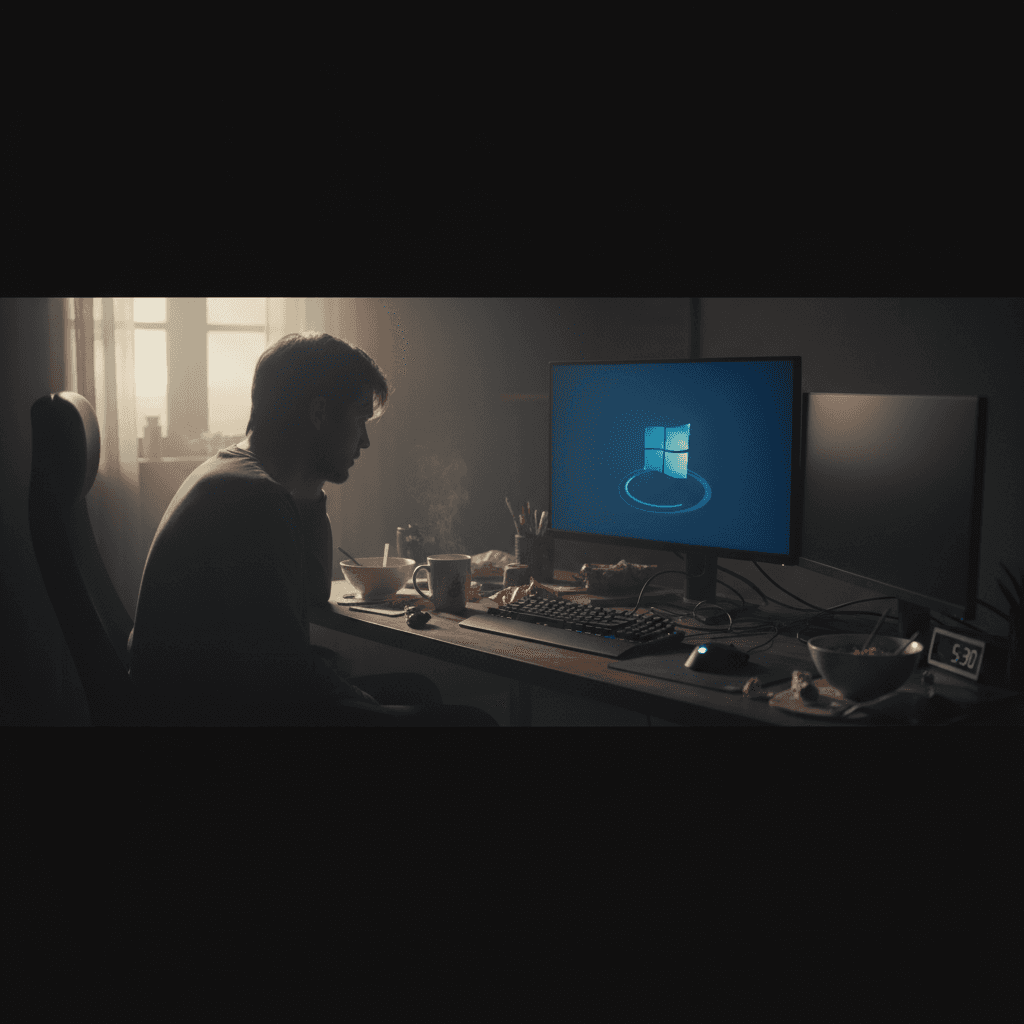
Power outages causing file system or boot issues
Power went out and now Windows won't boot or files are missing? Here's how to repair file system damage from unexpected shutdowns.
What Happens During a Power Outage?
When power suddenly cuts out while your computer is running, Windows doesn't get a chance to properly close files, save data, or shut down cleanly. This can corrupt the file system (the structure Windows uses to organize files on your hard drive), damage Windows system files, or leave your hard drive in an inconsistent state that prevents booting.
You might see errors like "Operating System Not Found," "BOOTMGR is missing," files that won't open, or Windows getting stuck on the loading screen. Sometimes Windows will automatically run repairs, but often you need to manually fix the damage.
Quick Fix: Let Windows Repair Itself
When you restart after a power outage, Windows often automatically starts Automatic Repair. Let it run - don't interrupt it. It will say "Diagnosing your PC" or "Attempting repairs." This process can take 15-45 minutes.
If Automatic Repair succeeds, Windows will boot normally. If it fails, you'll see options like "Advanced options" or "Startup Repair." Click Startup Repair and let it try to fix boot problems automatically. This fixes most power outage issues without further intervention.
Detailed Fix Steps
Method 1: Run Check Disk
Power outages can corrupt the file system. Check Disk scans and repairs these errors.
If Windows boots:
- Press Windows + X and select Windows Terminal (Admin) or Command Prompt (Admin)
- Type
chkdsk C: /f /rand press Enter (replace C: with your Windows drive letter if different) - You'll see "Cannot lock drive" - type Y to schedule the scan for next restart
- Restart your computer
- The scan will run before Windows starts (takes 30 minutes to 2 hours)
- Let it complete without interruption
If Windows won't boot:
- Boot from a Windows installation USB or recovery disk
- Select Repair your computer > Troubleshoot > Command Prompt
- Type
chkdsk C: /f /rand press Enter - Wait for the scan to complete
- Type
exitand restart your computer
Method 2: Rebuild Boot Configuration
Power outages can corrupt the boot files that Windows needs to start.
- Boot from Windows installation media (USB or DVD)
- Select Repair your computer > Troubleshoot > Command Prompt
- Type these commands one at a time, pressing Enter after each:
bootrec /fixmbr
bootrec /fixboot
bootrec /scanos
bootrec /rebuildbcd
- If you see "Total identified Windows installations: 1," type Y to add it
- Type
exitand restart your computer
This rebuilds the boot configuration database and fixes most "BOOTMGR is missing" or "Operating System Not Found" errors.
Method 3: Repair System Files
If Windows boots but behaves strangely, system files might be corrupted.
- Right-click Start and select Windows Terminal (Admin) or Command Prompt (Admin)
- Type
sfc /scannowand press Enter - Wait for the scan to complete (15-30 minutes)
- If corruption is found and can't be fixed, run
DISM /Online /Cleanup-Image /RestoreHealth - After DISM completes, run
sfc /scannowagain - Restart your computer
Method 4: Restore Previous Version of Files
If specific files won't open or are corrupted after the power outage, Windows might have automatic backups.
- Navigate to the folder containing the corrupted file
- Right-click the file and select Properties
- Click the Previous Versions tab
- If versions are available, select the most recent one before the power outage
- Click Restore
This only works if System Protection (System Restore) was enabled before the outage. For future protection, enable it: Settings > System > About > System protection > Configure > Turn on system protection.
Method 5: Use System Restore
If Windows is booting but behaving badly, System Restore can roll back to before the power outage.
- Press Windows + R, type
rstrui.exe, and press Enter - Click Next
- Check "Show more restore points" if available
- Select a restore point from before the power outage
- Click Next, then Finish
- Your computer will restart and restore Windows to that point
Your personal files won't be affected, but programs installed after that restore point will need to be reinstalled.
Method 6: Check Hard Drive Health
Power outages can damage hard drives, especially older mechanical drives. Check if your drive is failing.
- Download CrystalDiskInfo (free) from crystalmark.info
- Install and run it
- Look at the Health Status
- If it says "Caution" or "Bad," your drive is failing and needs replacement soon
- Immediately back up your important files
SSDs handle power loss better than mechanical hard drives, but both can be damaged by repeated sudden shutdowns.
If That Didn't Work
If Windows still won't boot after trying these methods:
- Try booting in Safe Mode: restart and press F8 repeatedly, or use installation media > Repair > Troubleshoot > Advanced options > Startup Settings > Restart > press 4 for Safe Mode.
- From Safe Mode, run Check Disk and System File Checker again.
- If you can't boot even to Safe Mode, your Windows installation might be too corrupted. You may need to reinstall Windows.
- Before reinstalling, try accessing files from a Linux live USB to back up your data.
When to Call a Professional
If you hear clicking, beeping, or grinding noises from your hard drive after a power outage, stop using it immediately and call a professional. These sounds indicate physical damage, and continued use can make data recovery impossible.
Also, if you have critical data that wasn't backed up and you can't access it after trying these repairs, professional data recovery services can often retrieve files even from damaged drives - but DIY attempts can make recovery harder or impossible.
PC Won't Boot After Power Outage?
Geeks in Sneaks can repair file system damage, rebuild boot files, recover data from corrupted drives, and get your computer running again after power outages. We can also set up battery backup to prevent future issues.
Related Topics
Need Professional Help?
If you're still having trouble, our expert technicians can help.
Learn about our pc repair serviceMore Windows Problems Fixes
See all Windows Problems fixes →Should I Worry About Windows Event Errors?
Found errors and warnings in Event Viewer and worried something is wrong? Here's the truth about Windows event logs and what you actually need to fix.
How Long Should a Windows PC Last?
Wondering if your PC is getting too old? Here's the realistic lifespan of Windows computers and when it's time to upgrade versus repair.
Why Does My Cursor Freeze Momentarily?
Mouse cursor stuttering or freezing for a second or two randomly? Here's what causes it and how to fix the annoying micro-freezes.
Is It Normal for Disk to Be Slow After Boot?
Computer sluggish for the first few minutes after starting up? Learn why this happens, when it's normal, and how to speed up your post-boot experience.
Is 80°C CPU Temperature Dangerous?
Worried about your CPU hitting 80°C? Here's the truth about CPU temperatures, what's safe, and when you actually need to be concerned.
Why Does My Fan Spin Up Randomly?
Computer fan suddenly revving up for no apparent reason? Here's why it happens, when it's normal, and when you should be concerned.
Are Windows Updates Really Necessary?
Wondering if you can skip those annoying Windows updates? Here's what you need to know about why updates matter and what happens if you ignore them.
Why Is Windows Search Using So Much Disk?
Windows Search Indexer maxing out your disk usage at 100%? Here's why it happens and how to fix it without losing search functionality.