
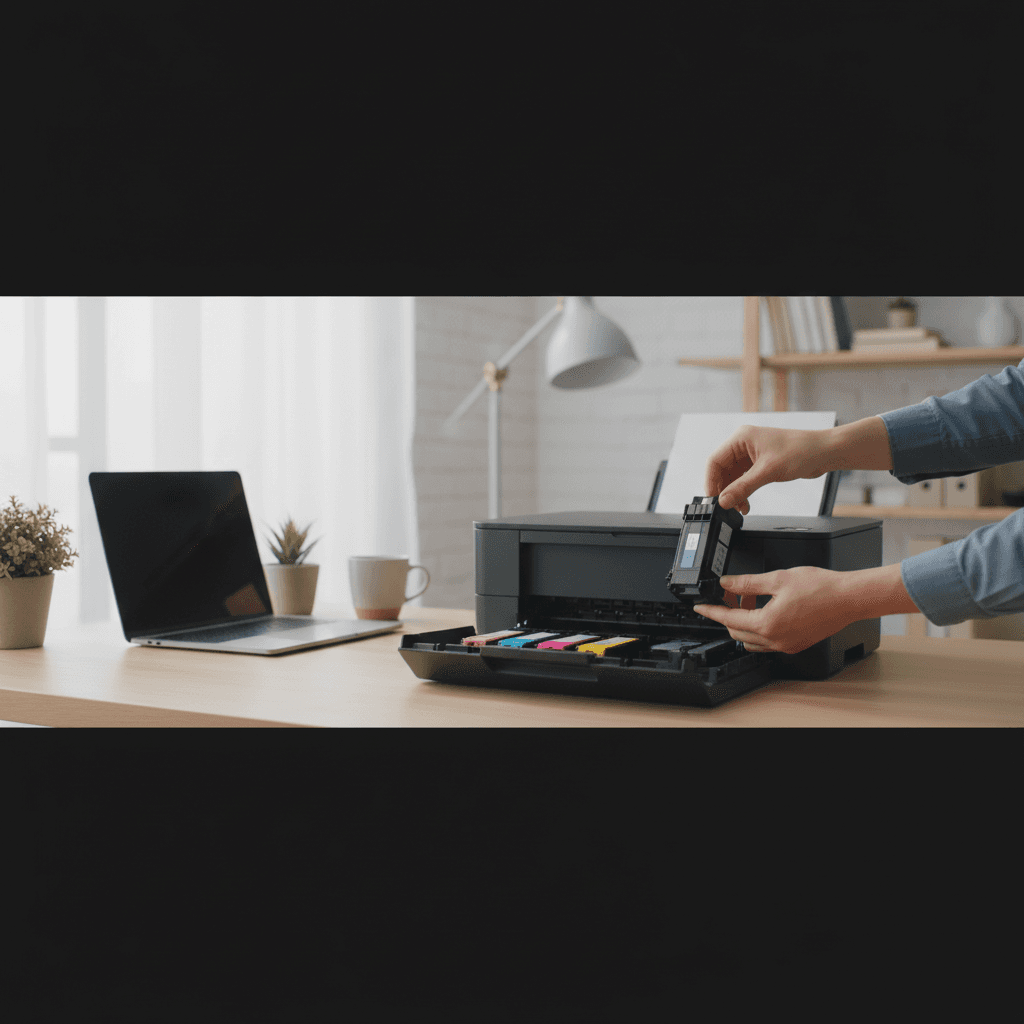
How to Prevent Ink from Drying When You Don't Print Often
Printing only a few times a month? Here's how to keep your inkjet's printheads from drying out and save money on wasted ink.
What's Happening
You only print a few times a month, but every time you try, you end up wasting half your ink running cleaning cycles because the printhead has dried out. Or worse, the ink is so dried up that even cleaning cycles don't help, and you need a new printhead or printer. This is the curse of occasional inkjet users—the printer works great when you use it regularly, but let it sit for a few weeks and suddenly it's clogged. Here's how to break that cycle.
Quick Checks (Do These First)
- How long has it been since you printed? More than 2 weeks and you're at risk.
- Do you leave the printer on or off? Both have pros and cons.
- What type of ink does your printer use? Dye-based dries faster than pigment.
- Is your environment very dry? Low humidity speeds up ink drying.
- Are you using genuine or third-party ink? Some cheap inks dry out faster.
The Core Problem
Inkjet printheads have microscopic nozzles that spray tiny droplets of liquid ink. When ink sits still in those nozzles for weeks, the water content evaporates and the pigment/dye solidifies, creating a clog. Once clogged, ink can't flow through, and you get streaks, missing colors, or nothing at all.
Timeline:
- 1 week: Usually fine, minimal evaporation
- 2-3 weeks: Risk zone, nozzles may start to clog
- 4+ weeks: High risk, cleaning cycles may not work
- 2-3 months: Likely permanent damage, replacement needed
Step-by-Step: Preventing Dry-Out
Solution 1: Print Something Every Week (The Best Fix)
The absolute best way to prevent ink drying is regular use.
- Set a weekly reminder on your phone or calendar. Every Sunday, Wednesday, whatever works.
- Print one full-color test page. Don't just print black and white—you need to exercise all the ink colors.
- Use a test page that uses all colors. Print a photo, a color document, or use your printer's built-in test pattern (usually in Maintenance settings).
- This takes 30 seconds and uses maybe 10 cents of ink. Compare that to a $40 printhead replacement.
Why this works: Moving fresh ink through the nozzles prevents dried ink from building up. It's like running water through pipes to keep them clear.
Solution 2: Leave the Printer On (Let It Maintain Itself)
Most inkjet printers run automatic maintenance cycles when left on. These cycles move small amounts of ink through the printhead to keep it moist.
- Leave the printer plugged in and turned on (or in standby/sleep mode). Don't unplug it or use a power strip that cuts power.
- The printer will run small maintenance cycles every few days. You might hear it whirr for a few seconds at random times. This is good.
- It uses small amounts of ink, but prevents major clogs. The maintenance uses less ink than manual cleaning cycles.
Downsides: Uses a bit of electricity (usually 1-5 watts in sleep mode, negligible) and some ink for maintenance. But it's worth it if you print infrequently.
Don't do this if: You print less than once a month. At that point, you're wasting more ink on automatic maintenance than you'd use printing.
Solution 3: Use "Park" or Storage Mode (For Long Breaks)
If you know you won't print for a month or more (vacation, seasonal use, etc.), properly preparing the printer can prevent damage.
- Check if your printer has a "storage mode" or "shipping mode." Some Epson and Canon printers have this feature. It seals the printhead to prevent drying.
- If no storage mode, run a printhead cleaning cycle before storing. This fills the printhead with fresh ink.
- Immediately after the cleaning cycle, turn off the printer properly using the power button. This parks the printhead in a sealed position.
- Cover the printer with a dust cover or plastic bag. This reduces air circulation and slows evaporation.
- When you return, run another cleaning cycle before printing. This clears any partial clogs that formed.
This can extend safe storage from 2-3 weeks to 4-6 weeks.
Solution 4: Switch to Pigment-Based or EcoTank Printers
If you're buying a new printer and know you print infrequently, choose one that's more tolerant of sitting idle.
Best choices for infrequent users:
- Epson EcoTank series: Uses refillable ink tanks with pigment-based ink that's less prone to drying. The large ink supply also means less pressure to use it quickly.
- Canon PIXMA G-series (MegaTank): Similar to EcoTank, refillable tanks and better ink formulations.
- HP Smart Tank: Another tank-based option.
Why these help: Pigment-based inks dry out slower than dye-based. Plus, with huge ink reserves, the ink doesn't sit in cartridges aging for months before you install it.
Avoid: Cheap consumer inkjets with small cartridges and dye-based ink. These are designed for frequent use.
Solution 5: Remove and Seal Cartridges (Advanced, Not Recommended for Most)
Some people remove ink cartridges and seal them in plastic bags when not in use. This can work but is risky.
How to do it (if you must):
- Remove cartridges according to your printer's manual.
- Place each cartridge in a small plastic bag with a damp paper towel (not touching the cartridge). This maintains humidity.
- Seal the bag and store in a cool, dark place.
- Reinstall when needed and run a cleaning cycle.
Risks:
- Introducing air bubbles when reinstalling
- Printhead drying out even more without cartridges installed
- Chip errors or printer refusing to recognize re-inserted cartridges
- Time-consuming and annoying
Verdict: More trouble than it's worth for most people. Just print weekly instead.
What to Do If Ink Has Already Dried
Step 1: Run Cleaning Cycles
- Run a normal cleaning cycle. Printer settings > Maintenance > Head Cleaning.
- Wait 5 minutes and print a nozzle check. See if it improved.
- If still clogged, run one more cleaning cycle. Wait 5 minutes, check again.
- If still no improvement, run a deep cleaning cycle. This uses a lot of ink but is more thorough.
- Wait 30 minutes after deep cleaning. Let the ink soak in.
- Print a nozzle check. Hopefully it's better.
Don't run more than 3 cycles in one day. If it's not working, you need a different approach.
Step 2: Let It Sit Overnight
Sometimes dried ink needs time to absorb fresh ink from cleaning cycles.
- After running a deep cleaning cycle, turn off the printer. Leave it overnight.
- The next morning, turn it on and print a nozzle check. Don't run another cleaning yet—just check.
- Often, clogs that seemed permanent will have cleared. If not, now try another cleaning cycle.
Step 3: Manual Cleaning (For Removable Printheads)
If your printer has a removable printhead (Canon PIXMA, some HP models), you can manually clean it.
- Remove the printhead assembly. Follow your printer's manual.
- Soak the nozzle plate in a shallow dish of warm distilled water. Just enough to cover the nozzles, not the whole printhead.
- Let it soak for 2-3 hours. This dissolves dried ink.
- Gently blot (don't wipe) with a lint-free cloth.
- Let it air dry completely (several hours).
- Reinstall and run a cleaning cycle.
This can revive printheads that cleaning cycles couldn't fix.
Step 4: Printhead Replacement or New Printer
If nothing works, the printhead is probably permanently clogged.
- Replacement printheads: $30-80 for Canon, HP. Epson printheads are built into the printer (not replaceable).
- New printer: $80-300+ depending on your needs.
Do the math: For a cheap printer, buying new is often smarter than replacing the printhead.
Tips to Make Ink Last Longer Between Uses
1. Use Draft or Economy Mode for Non-Critical Prints
This uses less ink, so your cartridges last longer even with weekly test prints.
2. Print in Color Even If You Mostly Print B&W
If you only print black text, the color inks still dry out. Print something in color weekly to keep all nozzles active.
3. Keep the Room at Moderate Humidity
Very dry air (below 30% humidity) speeds up ink evaporation. If you live in a dry climate, a humidifier in the room can help.
4. Buy Fresh Ink
Old ink cartridges (sitting in a warehouse or on a shelf for years) are more likely to dry out quickly. Buy from reputable sellers with good turnover.
5. Store Spare Cartridges Properly
Keep unopened cartridges in a cool, dark place (not a hot garage). Sealed in their original packaging is best.
Should You Consider a Laser Printer Instead?
If you print less than once a month, an inkjet might not be the right choice. Laser printers don't have the drying-out problem because they use powder toner instead of liquid ink.
Laser printer pros:
- Toner doesn't dry out, ever
- Can sit unused for months without issues
- Lower cost per page for text printing
- Faster print speeds
Laser printer cons:
- Higher upfront cost ($150-300 for basic models)
- Poor photo quality compared to inkjets
- Color lasers are expensive
Best for: People who print text documents occasionally, don't need photo quality, and are tired of dried-out ink.
Real Talk: The Inkjet Trap
Printer manufacturers know that occasional users waste a lot of ink on cleaning cycles and dried printheads. They sell printers cheap and make money on ink. If you print infrequently, you're essentially paying for ink that evaporates instead of printing.
Options:
- Commit to weekly printing (set a reminder, do it religiously)
- Switch to a tank-based inkjet (EcoTank, MegaTank) where wasted ink is less expensive
- Switch to a laser printer (if you don't need color or photo quality)
- Use a print shop for occasional needs (if you really only print 2-3 times a year, it might be cheaper to not own a printer)
The Bottom Line
Print something in full color every week, even if you don't need to. This is the single best way to prevent ink drying. Set a reminder and stick to it.
If you can't commit to weekly printing, leave the printer on so it can run automatic maintenance. This uses some ink, but less than manual cleaning cycles.
For very infrequent users (monthly or less), consider switching to a laser printer or tank-based inkjet. Traditional cartridge inkjets are a bad match for occasional printing.
If ink has already dried, try cleaning cycles, overnight soaking, and manual cleaning before giving up.
When to Call a Pro
If you've tried everything and your printer is still clogged, or if you need help deciding between repair and replacement, a technician can assess the damage and recommend the most cost-effective solution.
Need Professional Help?
If you're in the Tampa Bay area and need hands-on assistance, Geeks in Sneaks provides friendly, on-site tech support in Clearwater, Clearwater Beach, and Dunedin.
Related Topics
Need Professional Help?
If you're still having trouble, our expert technicians can help.
Learn about our printer support serviceMore Printer Issues Fixes
See all Printer Issues fixes →How to Prevent Malware from Abusing Network Printers
Concerned about malware using your printer to spread or spy? Here's how to secure network printers against malicious software and attacks.
How to Prevent Kids or Guests from Printing 100-Page Jobs
Tired of accidental massive print jobs from kids or guests? Here's how to set up quotas, require approval, and control who can print what.
How Often Should You Check for Printer Security Updates?
Printer firmware updates aren't optional—they patch security holes. Here's how often to check, how to update, and how to set up automatic updates.
How to Block Unwanted Cloud and Remote Print Features
Don't want HP ePrint, Canon Cloud, or Epson Connect on your printer? Here's how to disable cloud printing features for better privacy and security.
How to Use Guest Networks or VLANs to Isolate Your Printer
Want to keep your printer on a separate network for security? Learn how to use guest networks and VLANs to isolate printers from your main devices.
How to Reset Forgotten Admin Password on Printer Web Interface
Locked out of your printer's web interface? Here's how to reset the admin password for HP, Canon, Epson, and Brother printers.
How to Securely Dispose of Old Printers with Stored Data
Getting rid of an old printer? Learn how to wipe stored data and dispose of it securely so your personal information doesn't end up in the wrong hands.
Are Scanned or Copied Documents Stored on Your Printer?
Wondering if your printer keeps copies of documents you scan or copy? Here's what gets stored, how to check, and how to clear it.