

How to Fix Windows Defender Won't Turn On
Can't turn on Windows Defender or Real-time protection? Here are proven fixes to get your Windows security working again.
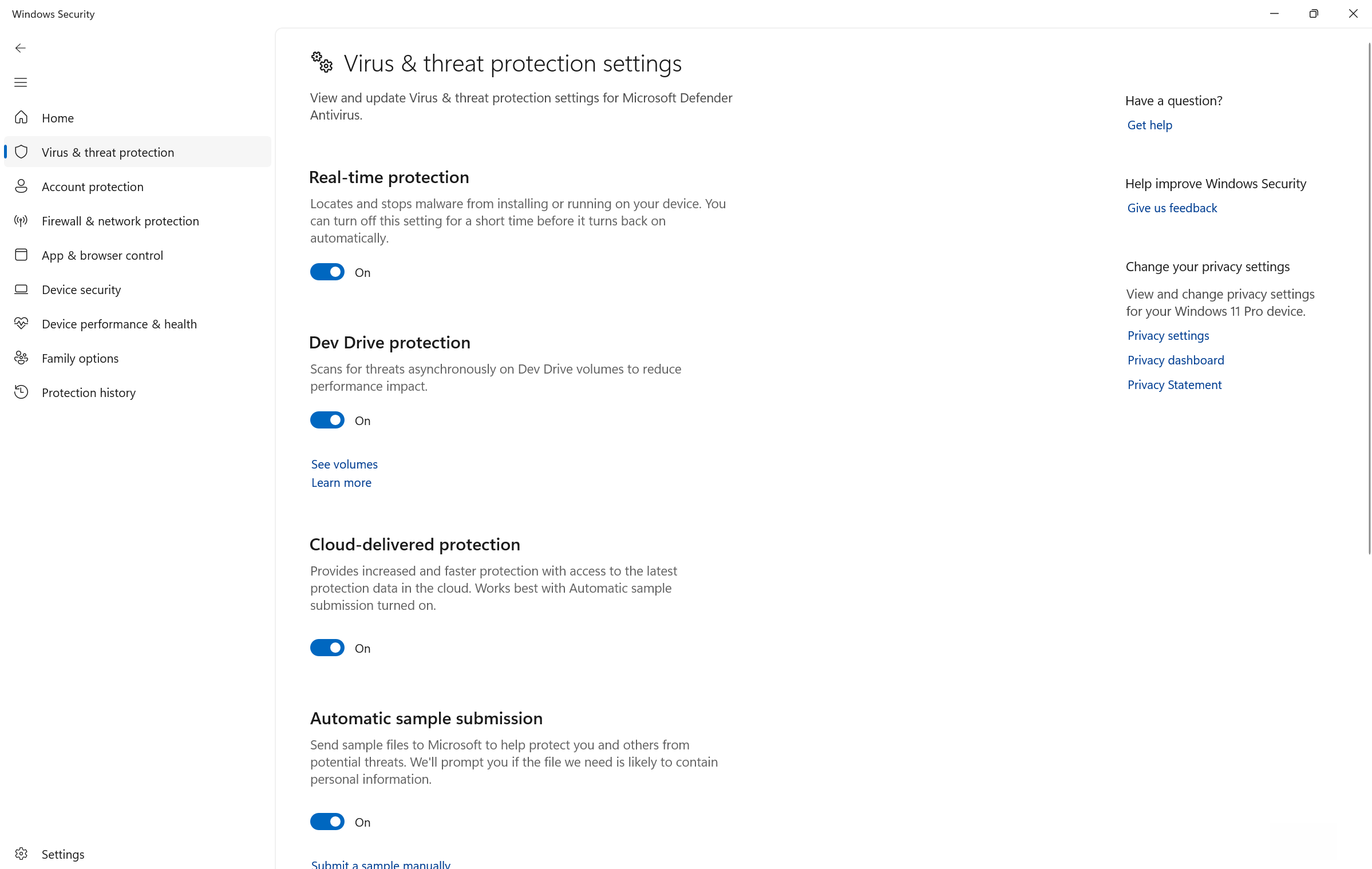
What's Happening
Microsoft Defender refuses to turn on, or the Real-time protection toggle flips back to Off the moment you set it. The reason this is confusing is that Defender doesn't have a single on/off switch — it's gated by three independent layers, and any one of them can hold it down. Windows deliberately stands Defender down whenever it detects an active third-party antivirus, so a half-removed Norton or McAfee leaves the system thinking another product is in charge. Below that, Defender depends on a chain of Windows services, and on top of everything, a Group Policy or registry key can hard-disable it regardless of the toggle. Almost every fix below is really about identifying which of those three layers is the one saying no.
Quick Checks (Do These First)
- Open Windows Security > Virus & threat protection > Manage settings and try toggling Real-time protection to On. If it sticks, you're done.
- Read the exact message. "This setting is managed by your administrator" points to Group Policy or the registry. "The service couldn't be started" points to the service layer. "Virus protection is turned off" with no managed-by note usually points to a third-party AV.
- Go to Settings > Apps > Installed apps and look for any antivirus (Norton, McAfee, AVG, Avast, Kaspersky). If one is present, that is almost certainly the cause — go straight to Fix 1.
The Decision That Saves You an Hour
Don't run all seven fixes blindly — the error text tells you exactly which layer is blocking Defender, and each layer needs a different tool:
- "Managed by your administrator," toggle greyed out → a Group Policy or registry key is forcing Defender off. Skip the service steps; go to Fix 3 (policy) and Fix 5 (registry). On Windows Home there is no Group Policy editor, so it is almost always the registry.
- "The service couldn't be started" or an error code → the service chain is broken. Go to Fix 2, then Fix 4 to repair the files those services load.
- Toggle flips back instantly, no "managed by" text → something is actively re-disabling it: either leftover third-party AV (Fix 1) or malware. If you removed an AV and it still flips, treat it as a possible infection and run an offline scan before anything else.
A policy-locked Defender will never respond to a service restart, and a broken service will never respond to a policy edit. Match the tool to the message first.
Complete Fix Steps
Step 1: Fully Remove Any Third-Party Antivirus
Windows disables Defender automatically when it detects another active antivirus. A normal uninstall often leaves a driver or service behind that still registers as "active," so Defender stays off.
- Go to Settings > Apps > Installed apps and uninstall any Norton, McAfee, AVG, Avast, Kaspersky, or similar product.
- Restart, then download and run the official removal tool for that specific vendor (each major AV publishes one) to clear leftover drivers a normal uninstall misses.
- Restart again and try enabling Defender.
You can run third-party AV instead of Defender if you prefer — but never both, and the old one must be completely gone for Defender to come back.
Step 2: Restart the Windows Security Services
- Press
Windows + R, typeservices.msc, press Enter. - For each of these — Microsoft Defender Antivirus Service, Security Center, and Windows Update — right-click > Properties, set Startup type to Automatic, and click Start if it's stopped.
- Apply, OK, and restart the computer.
Step 3: Clear the Group Policy Block
Group Policy can hard-disable Defender. This editor exists only on Windows Pro, Enterprise, and Education — on Home, skip to Step 5.
- Press
Windows + R, typegpedit.msc. - Go to Computer Configuration > Administrative Templates > Windows Components > Microsoft Defender Antivirus.
- Set Turn off Microsoft Defender Antivirus to Not Configured or Disabled.
- Under the Real-time Protection subfolder, set Turn off real-time protection to Not Configured or Disabled.
Step 4: Repair System Files
- Open Terminal (Admin).
- Run
sfc /scannowand wait (10–30 minutes). - If it can't repair everything, run
DISM /Online /Cleanup-Image /RestoreHealth, thensfc /scannowagain. - Restart and retry Defender.
Step 5: Check the Registry Keys
Malware most often disables Defender through the registry, and this is the usual culprit on Windows Home. Editing the registry incorrectly can break Windows — change only the values named below.
- Press
Windows + R, typeregedit. - Go to
HKEY_LOCAL_MACHINE\\SOFTWARE\\Policies\\Microsoft\\Windows Defender. If DisableAntiSpyware exists and is 1, set it to 0. - Go to
HKEY_LOCAL_MACHINE\\SOFTWARE\\Microsoft\\Windows Defender\\Real-Time Protection. If DisableRealtimeMonitoring is 1, set it to 0. - Restart.
Step 6: Update Windows
- Settings > Windows Update > Check for updates.
- Install everything, especially security updates, and restart.
Step 7: Repair or Reset the Windows Security App
- Settings > Apps > Installed apps, find Windows Security, click the three dots > Advanced options.
- Click Repair first (no data loss). If that fails, click Reset.
- Restart.
If Defender still won't run, the strongest move is a Microsoft Defender Offline scan (Virus & threat protection > Scan options) — it reboots and scans before Windows loads, which catches malware that blocks Defender while Windows is running.
Where DIY Stops — And Why
If you've matched the right tool to the error and cleared the obvious blocks but Defender still won't stay on, you've hit a wall — and it's not because you missed a step. Past this point it's usually one of these, and none is fixed by toggling settings:
- An active infection re-disabling Defender — a key reappears or the toggle flips the moment you fix it because malware is running and undoing your changes in real time. Cleaning this safely means scanning from outside the running OS and verifying nothing reinstalls, not just deleting one registry value.
- Deep system-file corruption SFC/DISM can't repair — when the component store itself is damaged, Defender's services have nothing intact to load, and an in-place repair install or worse is needed.
- A managed or domain-joined machine — if this is a work computer, the policy locking Defender is being pushed from elsewhere and is intentionally not yours to override. That belongs with whoever administers it.
Telling an actively-undoing infection apart from plain corruption is the diagnostic step a homeowner has no clean tools for — and running unprotected while you guess is the part that turns an annoyance into a real problem. If you're local, that's the point worth handing off.
Need Expert Help?
Windows Defender issues can indicate deeper system problems or malware infections. Geeks in Sneaks can diagnose why Defender won't turn on, remove any infections preventing it from working, repair system files, and ensure your PC is fully protected. Schedule a visit and we'll get your security working properly.
Related Topics
Need Professional Help?
If you're still having trouble, our expert technicians can help.
Learn about our pc repair serviceMore Windows Problems Fixes
See all Windows Problems fixes →Should I Worry About Windows Event Errors?
Found errors and warnings in Event Viewer and worried something is wrong? Here's the truth about Windows event logs and what you actually need to fix.
How Long Should a Windows PC Last?
Wondering if your PC is getting too old? Here's the realistic lifespan of Windows computers and when it's time to upgrade versus repair.
Why Does My Cursor Freeze Momentarily?
Mouse cursor stuttering or freezing for a second or two randomly? Here's what causes it and how to fix the annoying micro-freezes.
Is It Normal for Disk to Be Slow After Boot?
Computer sluggish for the first few minutes after starting up? Learn why this happens, when it's normal, and how to speed up your post-boot experience.
Is 80°C CPU Temperature Dangerous?
Worried about your CPU hitting 80°C? Here's the truth about CPU temperatures, what's safe, and when you actually need to be concerned.
Why Does My Fan Spin Up Randomly?
Computer fan suddenly revving up for no apparent reason? Here's why it happens, when it's normal, and when you should be concerned.
Are Windows Updates Really Necessary?
Wondering if you can skip those annoying Windows updates? Here's what you need to know about why updates matter and what happens if you ignore them.
Why Is Windows Search Using So Much Disk?
Windows Search Indexer maxing out your disk usage at 100%? Here's why it happens and how to fix it without losing search functionality.