
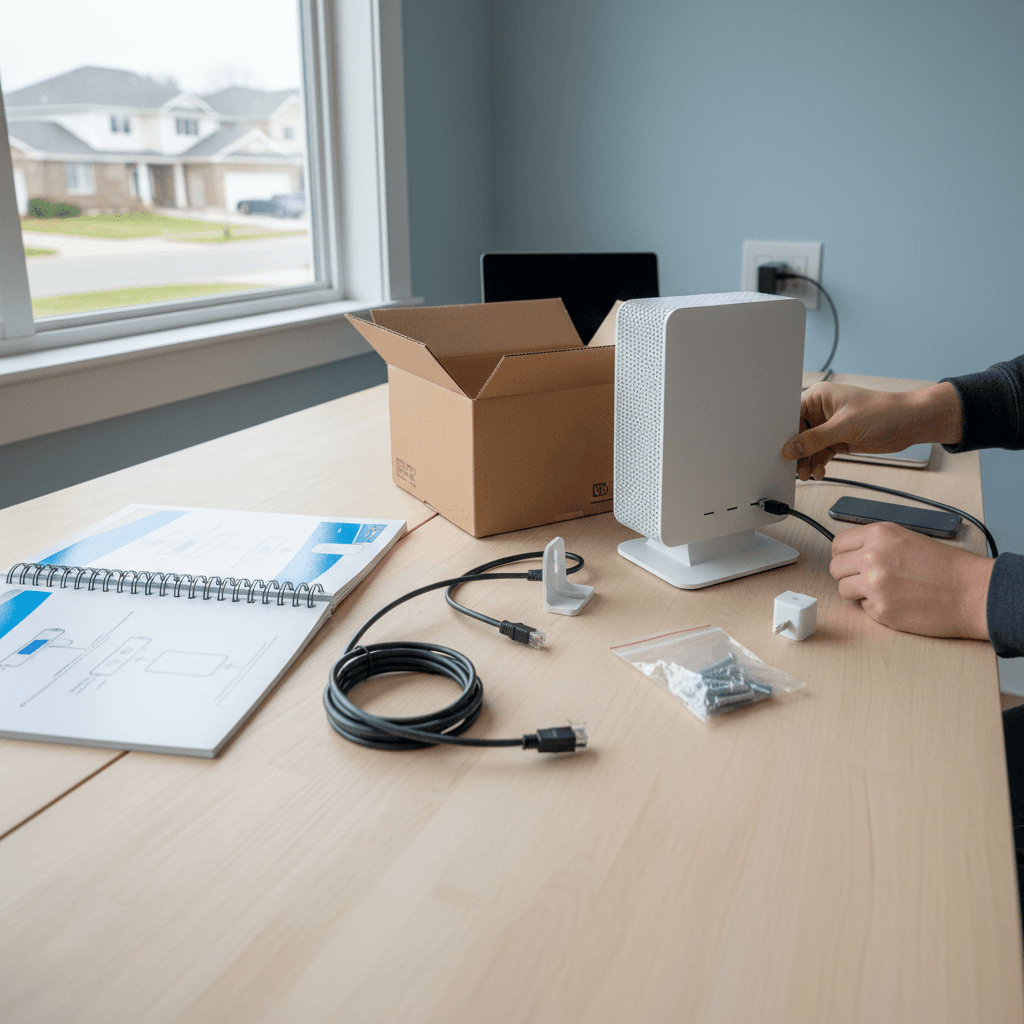
When Scheduled Automatic Reboots Make Sense
Should you set up automatic router reboots? Learn when scheduled restarts help and when they might cause more problems than they solve.
What's Happening
You've heard about setting your router to automatically reboot on a schedule, and you're wondering if it's worth the effort. Some routers have this feature built-in, while others need additional setup. The truth is that automatic reboots can be helpful in specific situations, but they're not for everyone.
Quick Checks (Do These First)
- Does your router have built-in scheduling? Check your router's admin page under maintenance or advanced settings.
- Are you experiencing regular issues? If your internet works perfectly, you might not need automatic reboots at all.
- Do you work from home? Scheduled reboots need careful timing if you're on calls all day.
- Is your router older than 3 years? Older routers benefit more from scheduled maintenance.
Step-by-Step Fixes
Fix 1: Set Up Scheduled Reboots for Older Routers
Routers that are 3+ years old often develop memory leaks and benefit from regular reboots:
- Log into your router admin page (usually 192.168.1.1 or 192.168.0.1)
- Look for "Administration," "Maintenance," or "Advanced" settings
- Find "Reboot Schedule" or "Auto Reboot" options
- Set it to reboot at 3-4 AM when no one is using the internet
- Choose weekly (Sundays work well) or monthly depending on your usage
- Save settings and test by waiting for the scheduled time
This prevents the gradual slowdowns that older routers experience.
Fix 2: Use a Smart Plug for Routers Without Built-in Scheduling
If your router doesn't have automatic reboot features, a smart plug does the job:
- Get a reliable smart plug (TP-Link Kasa or similar)
- Plug your router's power into the smart plug
- Open the smart plug's app on your phone
- Set up a schedule to turn off for 2 minutes, then back on
- Choose a low-traffic time like 3 AM on Sunday mornings
- Test it once during the day to make sure it works correctly
This gives you automatic reboots without needing router firmware support.
Fix 3: Skip Automatic Reboots for Modern, High-End Routers
If you have a router from the last 2 years that cost $150+, you probably don't need scheduled reboots:
- Modern routers (Wi-Fi 6/6E) have better memory management
- They're designed to run for months without rebooting
- Only reboot when you notice actual problems
- Or stick with monthly manual reboots during firmware updates
High-quality routers are stable enough that scheduled reboots add little benefit.
Fix 4: Use Scheduled Reboots for Business or Work-From-Home Setups
If your home network supports remote work or a home business, scheduled maintenance prevents problems:
- Choose the least disruptive time (Saturday night or Sunday early morning)
- Set up weekly reboots to ensure Monday morning connectivity
- Document the schedule so family members know about brief outages
- Consider rebooting other network equipment on the same schedule
Preventive maintenance beats scrambling to fix issues during important calls.
If Nothing Worked
If you set up automatic reboots but still experience regular problems, the reboots aren't addressing the real issue. You might have ISP problems, a dying router, interference issues, or inadequate hardware for your needs. Automatic reboots are a band-aid, not a cure for failing equipment.
When to Call a Pro
If you're relying on daily automatic reboots just to keep your network functional, something is seriously wrong. It's time to diagnose the underlying problem rather than masking symptoms with constant restarts.
Need Professional Help?
If your network needs constant attention, Geeks in Sneaks provides friendly, on-site tech support in Clearwater, Clearwater Beach, and Dunedin. We'll find the real problem.
Related Topics
Need Professional Help?
If you're still having trouble, our expert technicians can help.
Learn about our network repair serviceMore Router & WiFi Fixes
See all Router & WiFi fixes →Business-Grade vs Consumer Routers for Home Use
Considering a business-grade router for your home? Find out if the premium price delivers real benefits for residential use.
Buying Used or Refurbished Routers: Safe or Risky?
Tempted to save money with a used router? Learn the real security risks and when buying secondhand is safe versus when it's dangerous.
Gaming Routers: Real Benefits vs Marketing Hype
Wondering if a gaming router is worth the premium price? We separate the real performance benefits from marketing gimmicks.
Renting ISP Equipment vs Buying Your Own: Real Cost Comparison
Paying monthly rental fees for your modem and router? Find out how much you could save by buying your own equipment.
Matching Router Capabilities to Your Internet Speed Tier
Have gigabit internet but not getting those speeds? Your router might be the bottleneck. Learn how to match equipment to your plan.
What to Look for When Buying a Home Router in 2026
Shopping for a new router can be overwhelming with all the technical specs and marketing claims—here's what actually matters in 2026.
When to Move from Single Router to Mesh WiFi System
Dead zones and weak WiFi in parts of your home? Find out if it's time to upgrade from a traditional router to a mesh system.
Dual-Band vs Tri-Band Router: Who Actually Needs It?
Wondering if a tri-band router is worth the extra cost? We'll break down the real differences and help you decide what's right for your home.