
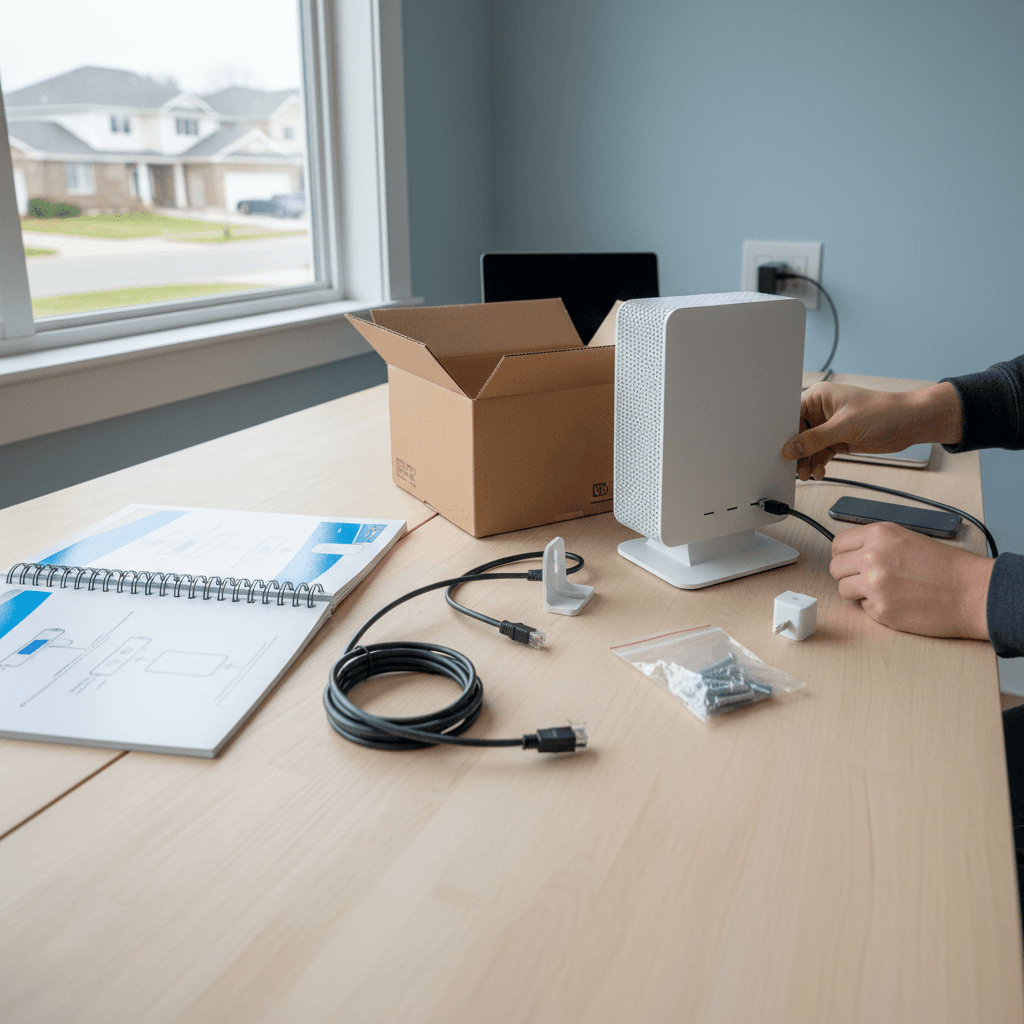
How to Block Specific Devices from Wi-Fi at Bedtime
Want to automatically disconnect kids' devices at bedtime? Here's how to schedule access restrictions on your router for better sleep habits.
What's Happening
You want to enforce bedtime rules by automatically blocking your kids' phones, tablets, or game consoles from accessing Wi-Fi at certain hours. Maybe they're staying up too late scrolling social media, or you just want to ensure devices are charging overnight instead of being used. Most routers have scheduling features that let you set up automatic access restrictions, and once configured, they enforce themselves without you having to play internet police every night.
Quick Checks (Do These First)
- Can they use cellular data? Blocking Wi-Fi won't help if they switch to mobile data - you'll need device-level controls too.
- Do you know each device's MAC address? You'll need to identify devices specifically to block them individually.
- Check if your router has scheduling features. Look for "Access Schedule," "Parental Controls," or "Time Restrictions" in settings.
- Consider device-level Screen Time. iOS and Android have built-in downtime features that work even off Wi-Fi.
- Are you blocking the right devices? Make sure you're not accidentally blocking your own work laptop.
Step-by-Step Fixes
Fix 1: Use Router's Parental Control Schedule
- Log into your router at
192.168.1.1or192.168.0.1 - Find "Parental Controls," "Access Control," or "Time Restrictions"
- Look for "Schedule" or "Access Schedule" options
- Select the device you want to block (identify it by name or MAC address)
- Set the blocked hours - for example, 9:00 PM to 7:00 AM on school nights
- Some routers let you set different schedules for weekdays vs. weekends
- Save the schedule
- The router will automatically block that device during the specified times
Fix 2: Create an Access Schedule in the Router App
- Many modern routers have better scheduling features in their mobile apps
- Open your router's app (TP-Link Tether, Google Home, Netgear Nighthawk, Asus Router, etc.)
- Find the device in your device list
- Look for "Schedule," "Bedtime," or "Pause Access" options
- Set bedtime hours for each child's devices
- Some apps let you create profiles like "Kids' Devices" and apply the same schedule to multiple devices
- Save and enable the schedule
Fix 3: Use MAC Address Filtering with Time-Based Rules
- If your router doesn't have parental controls, use MAC filtering with firewall rules
- In router settings, find the "Connected Devices" list
- Note the MAC address of each device you want to block (looks like AA:BB:CC:DD:EE:FF)
- Go to "Access Control," "MAC Filtering," or "Firewall Rules"
- Create a rule that blocks the MAC addresses
- Look for "Schedule" or "Time-based" rule options
- Set the rule to active only during bedtime hours
- Save the rule - devices will be blocked during those times
Fix 4: Set Up Profiles for Each Child (Mesh Routers)
- If you have a mesh system (Google WiFi, Eero, Orbi), use profile features
- In the app, create a profile for each child
- Assign their devices to their profile
- Set bedtime and school time schedules for each profile
- You can pause all devices in a profile with one tap
- Some systems even let kids "earn" extra time or request extensions
Fix 5: Manually Pause Devices When Needed
- If schedules feel too rigid, many router apps let you manually pause devices
- Open the app, find the device, and tap "Pause" or "Block"
- Internet is cut off immediately for that device
- Unpause when appropriate
- This gives you flexibility without requiring schedules
- Great for enforcing "finish homework first" rules
Fix 6: Combine Router Controls with Device-Level Screen Time
- For the most effective solution, use both router blocking AND device controls
- On iPhones/iPads: Settings > Screen Time > Downtime - set hours when only allowed apps work
- On Android: Google Family Link app - set bedtime and downtime hours
- On Windows: Microsoft Family Safety - set screen time limits
- This way even if they somehow bypass the router (mobile data, etc.), device limits still apply
- It also controls app usage, not just internet access
Fix 7: Set Router to Disable Wi-Fi Completely During Hours
- If you want everyone (adults too) to disconnect at a certain time, disable Wi-Fi entirely
- In router settings, look for "Wireless Schedule" or "Wi-Fi On/Off Schedule"
- Set Wi-Fi to turn off at, say, 11:00 PM and back on at 6:00 AM
- This forces a digital sunset for the whole house
- Wired devices can still connect if needed
- Great for reducing late-night usage across the board
What About Workarounds?
Tech-savvy kids will try to bypass restrictions:
- Cellular data: Blocks Wi-Fi but they use mobile data - use device-level controls
- MAC address spoofing: Advanced users can change their MAC address - requires constant monitoring
- VPNs: Won't help them bypass MAC blocking, but can bypass URL filters
- Using someone else's device: Lock down guest devices or don't share Wi-Fi passwords
The most effective approach combines router controls, device-level Screen Time, and clear family rules.
If Nothing Worked
If your router lacks scheduling features, it might be time to upgrade to a model with robust parental controls. Look for routers marketed toward families, like Netgear Circle, Gryphon, or systems with built-in Disney Circle. Mesh systems from Google, Eero, and Amazon Eero also have excellent scheduling and pausing features.
When to Call a Pro
If you're struggling to set up schedules, identify devices, or your kids keep finding workarounds, professional help can set up a comprehensive solution. A tech can configure router controls, device-level restrictions, and show you monitoring tools so you know what's working.
Need Professional Help?
If you're in the Tampa Bay area and want expert help setting up parental controls and device schedules, Geeks in Sneaks provides friendly, on-site tech support in Clearwater, Clearwater Beach, and Dunedin.
Related Topics
Need Professional Help?
If you're still having trouble, our expert technicians can help.
Learn about our network repair serviceMore Router & WiFi Fixes
See all Router & WiFi fixes →Business-Grade vs Consumer Routers for Home Use
Considering a business-grade router for your home? Find out if the premium price delivers real benefits for residential use.
Buying Used or Refurbished Routers: Safe or Risky?
Tempted to save money with a used router? Learn the real security risks and when buying secondhand is safe versus when it's dangerous.
How Long Should a Router Last? When to Replace Yours
Your router is a few years old and you're wondering if it's time to replace it. Learn the typical lifespan and warning signs it's failing.
Gaming Routers: Real Benefits vs Marketing Hype
Wondering if a gaming router is worth the premium price? We separate the real performance benefits from marketing gimmicks.
Renting ISP Equipment vs Buying Your Own: Real Cost Comparison
Paying monthly rental fees for your modem and router? Find out how much you could save by buying your own equipment.
Matching Router Capabilities to Your Internet Speed Tier
Have gigabit internet but not getting those speeds? Your router might be the bottleneck. Learn how to match equipment to your plan.
What to Look for When Buying a Home Router in 2026
Shopping for a new router can be overwhelming with all the technical specs and marketing claims—here's what actually matters in 2026.
When to Move from Single Router to Mesh WiFi System
Dead zones and weak WiFi in parts of your home? Find out if it's time to upgrade from a traditional router to a mesh system.