
VPN on Your Router vs VPN on Each Device: Which Is Better?
You can install a VPN at the router level or on individual devices - here's how to decide which approach works best for your needs.
What's Happening
You want to use a VPN for privacy or to access geo-restricted content, and you're trying to decide whether to install it on your router (protecting everything connected to your network) or on individual devices (like your laptop and phone). Each approach has real advantages and drawbacks. Let's break down which makes sense for you.
Quick Checks (Do These First)
- Check if your router supports VPN. Look for "VPN client" support in your router's features. Many newer ASUS, Netgear, and Linksys models have it built in.
- Verify your VPN provider supports routers. Not all do. Check their website for router setup guides.
- Consider your internet speed. Router VPNs can slow down your connection more than device-level VPNs on newer hardware.
- Count your devices. If you have 15+ devices, router-level might be simpler. Just a few devices? Individual installations work fine.
VPN on Router: Pros and Cons
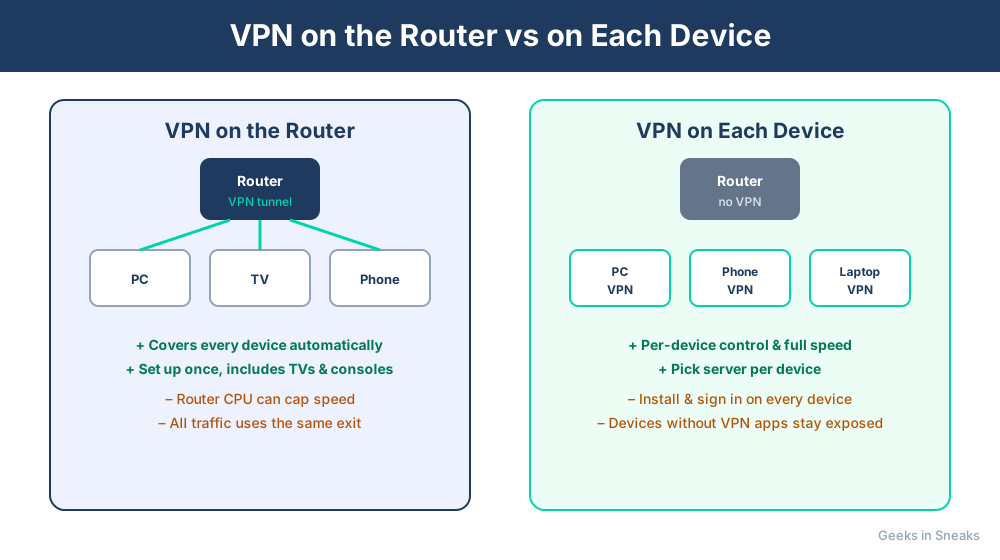
Advantages of Router-Level VPN
- Protects everything automatically. Every device connected to your WiFi goes through the VPN without individual setup.
- Protects devices that can't run VPN apps. Smart TVs, game consoles, and IoT devices get VPN protection.
- No need to remember to turn it on. It's always on for your whole network.
- Doesn't count against device limits. Looks like one connection to your VPN provider, even if you have 20 devices.
- Centralized management. Change servers or settings in one place instead of on every device.
Disadvantages of Router-Level VPN
- Everything is routed through the VPN. Can't easily use local services or banking apps that block VPNs.
- Slower speeds. Most router processors are slower at VPN encryption than modern phones/laptops.
- Can't choose different servers per device. Your laptop and TV use the same VPN server.
- More complex setup. Requires router configuration knowledge and compatible firmware.
- Affects guests too. Anyone using your WiFi goes through the VPN whether they want to or not.
VPN on Individual Devices: Pros and Cons
Advantages of Device-Level VPN
- Better performance. Modern devices have hardware acceleration for encryption.
- Flexible control. Turn VPN on/off easily. Use different servers for different purposes.
- Easy to set up. Just install an app and log in.
- Split tunneling. Many VPN apps let you choose which apps use the VPN and which don't.
- Works everywhere. Your laptop's VPN works at home, at coffee shops, on hotel WiFi.
Disadvantages of Device-Level VPN
- Doesn't protect all devices. Your smart TV, printer, and IoT devices aren't protected.
- Must install on each device. Can be tedious with many devices.
- Easy to forget. You have to remember to turn it on when you need it.
- Uses device resources. VPN app runs in the background using battery and processing power.
- Counts against connection limits. Most VPN plans limit simultaneous connections (usually 5-10).
Step-by-Step: Setting Up Router VPN
Fix 1: Check Router Compatibility
- Log into your router's admin page
- Look for VPN or VPN Client in the menu
- If you see it, note which protocols are supported (OpenVPN, WireGuard, PPTP, L2TP)
- If you don't see VPN client options, check if your router can install custom firmware like DD-WRT or AsusWRT-Merlin
Fix 2: Get VPN Configuration Files
- Log into your VPN provider's website
- Look for "Router Setup" or "Manual Configuration"
- Download the OpenVPN configuration file (.ovpn) or WireGuard config for the server location you want
- Also download or copy your VPN username and password (often different from your account login)
Fix 3: Configure VPN on Router
- In your router's VPN client section, click Add Profile or New Connection
- Select OpenVPN or whichever protocol your router and VPN support
- Upload the .ovpn configuration file, or manually enter server address, port, and credentials
- Enter your VPN username and password
- Enable Start on Boot so the VPN connects automatically
- Save settings and click Connect
- Wait 30-60 seconds for connection to establish
Fix 4: Verify VPN Is Working
- On your computer, disconnect from the VPN app if you have one running
- Visit whatismyip.com or similar
- The IP address and location should match your VPN server's location, not your actual location
- Do a DNS leak test at dnsleaktest.com to make sure DNS queries also go through the VPN
If Nothing Worked
Some routers require specific firmware versions for VPN to work. Check your router manufacturer's support site for the latest firmware. If your router doesn't support VPN and you don't want to replace it, consider a hybrid approach: use router VPN for devices that can't run apps (smart TV, game console) by setting up a second SSID with VPN, and use device-level VPN for computers and phones.
When to Call a Pro
Setting up a router VPN with proper DNS leak protection, kill switches, and split tunneling can get technical fast. If you need VPN for privacy-critical work or want a complex setup with different VPN servers for different VLANs, professional configuration ensures it's done right without compromising your real IP address.
Need Professional Help?
If you're in the Tampa Bay area, Geeks in Sneaks provides friendly, on-site tech support in Clearwater, Clearwater Beach, and Dunedin. We can set up VPN solutions tailored to your privacy and access needs.
Related Topics
Need Professional Help?
If you're still having trouble, our expert technicians can help.
Learn about our network repair serviceMore Router & WiFi Fixes
See all Router & WiFi fixes →Business-Grade vs Consumer Routers for Home Use
Considering a business-grade router for your home? Find out if the premium price delivers real benefits for residential use.
Buying Used or Refurbished Routers: Safe or Risky?
Tempted to save money with a used router? Learn the real security risks and when buying secondhand is safe versus when it's dangerous.
How Long Should a Router Last? When to Replace Yours
Your router is a few years old and you're wondering if it's time to replace it. Learn the typical lifespan and warning signs it's failing.
Gaming Routers: Real Benefits vs Marketing Hype
Wondering if a gaming router is worth the premium price? We separate the real performance benefits from marketing gimmicks.
Renting ISP Equipment vs Buying Your Own: Real Cost Comparison
Paying monthly rental fees for your modem and router? Find out how much you could save by buying your own equipment.
Matching Router Capabilities to Your Internet Speed Tier
Have gigabit internet but not getting those speeds? Your router might be the bottleneck. Learn how to match equipment to your plan.
What to Look for When Buying a Home Router in 2026
Shopping for a new router can be overwhelming with all the technical specs and marketing claims—here's what actually matters in 2026.
When to Move from Single Router to Mesh WiFi System
Dead zones and weak WiFi in parts of your home? Find out if it's time to upgrade from a traditional router to a mesh system.