
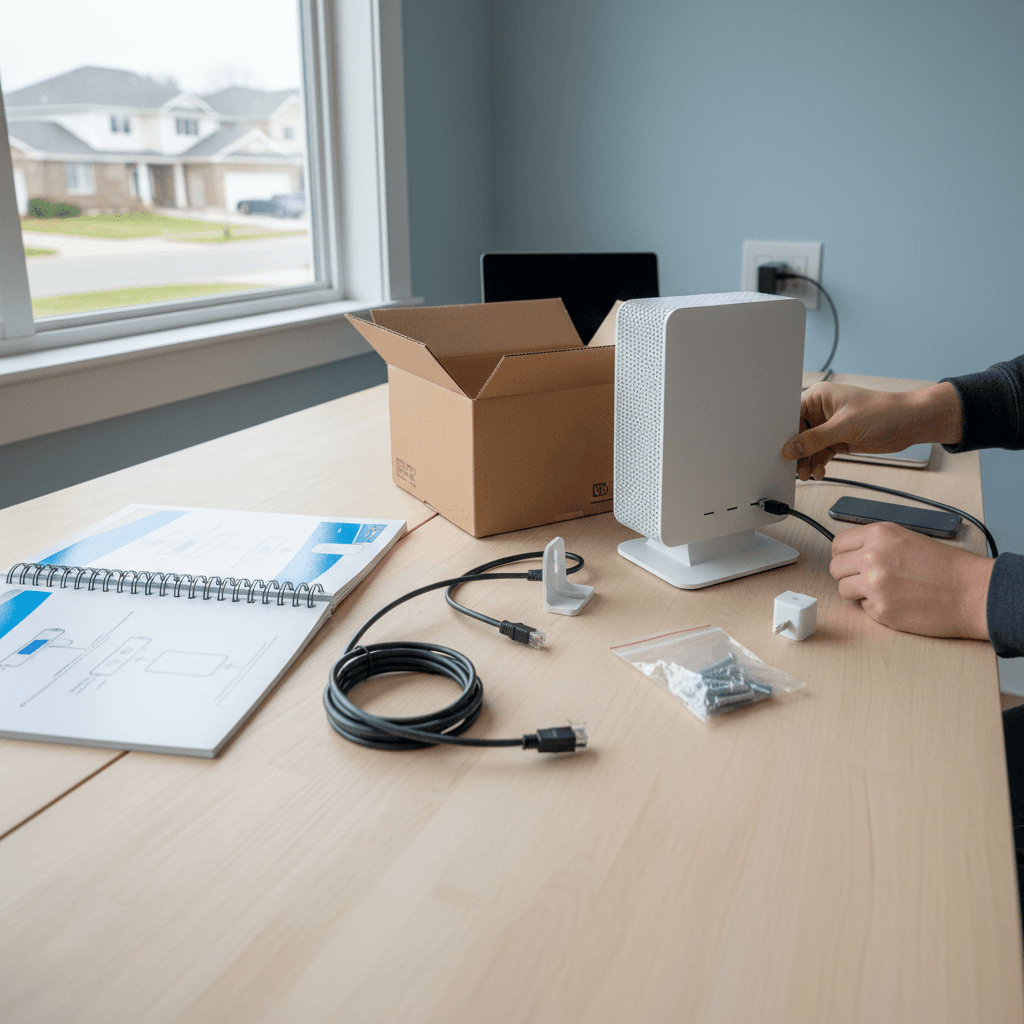
How to Set Up a Separate SSID for Work Devices
Keep work and personal devices on separate WiFi networks for better security and network management - here's how to set it up.
What's Happening
You work from home and want to keep your work laptop and devices separate from your personal network. Maybe your employer requires it, or you just want better security and organization. Creating a separate SSID (WiFi network name) for work devices is a smart move. It can improve security, make network management easier, and even help you troubleshoot issues.
Quick Checks (Do These First)
- Check if your router supports multiple SSIDs. Most modern routers allow 2-4 separate WiFi networks. Look in your router settings for "Guest Network" or "Multiple SSIDs."
- Know your employer's requirements. Some companies have specific network security requirements. Check with IT before setting up.
- Plan your network names. Decide what to call each network (like "Home" and "Work" or "Smith-Family" and "Smith-Office").
- Consider wired connections. If your work devices are desktop computers, Ethernet is always better than WiFi for work.
Step-by-Step Fixes
Fix 1: Create a Second SSID (Simple Method)
Most routers make this easy with guest network features.
- Log into your router's admin interface
- Look for Guest Network or Wireless > Guest Network
- Enable the Guest Network
- Set the SSID name (like "YourName-Work")
- Set a strong password (different from your main network)
- Choose whether to enable Guest Isolation (this prevents work devices from seeing personal devices - usually a good idea)
- Save settings
- The new network should appear in your WiFi list immediately
Fix 2: Create a Proper Separate Network (Advanced Method)
For better control, create a completely separate network with its own subnet.
- In router settings, go to Wireless or WiFi Settings
- Look for Add New Network, Multiple SSIDs, or Virtual Access Point
- Create a new SSID with a clear name
- Under network settings, assign it to a different subnet
- Main network: 192.168.1.x
- Work network: 192.168.2.x
- Enable DHCP for the work network so devices get IPs automatically
- Set the DHCP range (like 192.168.2.100 to 192.168.2.200)
- Save and apply settings
Fix 3: Configure Isolation and Firewall Rules
Control what traffic can flow between networks.
- Go to Firewall or Access Control settings
- Create a rule to block traffic from work network to personal network
- Allow work network to access the internet (WAN)
- Optionally: Allow personal network to access work network (so you can print to a work printer from your phone)
- Enable Client Isolation on the work network if available (prevents work devices from seeing each other)
- Save firewall rules
Fix 4: Set QoS Priority for Work Traffic
Make sure work video calls don't lag when someone is streaming Netflix.
- Navigate to QoS (Quality of Service) or Traffic Management
- Enable QoS
- Set your internet speed (download and upload - use speedtest.net to check)
- Create a priority rule for your work network SSID or subnet
- Set it to High Priority or Voice/Video
- Alternatively, prioritize specific applications (Zoom, Teams, etc.)
- Save QoS settings
Fix 5: Connect Work Devices and Test
Verify everything works as expected.
- Connect your work laptop/phone to the new work WiFi
- Test internet connectivity - open a browser and visit websites
- Try accessing work resources (VPN, company servers, etc.)
- From a work device, try to ping a personal device's IP - it should fail (if isolation is enabled)
- Test video calls to ensure quality is good with QoS enabled
- If everything works, connect all work devices to the work network
If Nothing Worked
If your router doesn't support multiple SSIDs or proper network isolation, you have a few options. You could buy a second router dedicated to work and connect it to your main router (though this creates a double NAT situation). Or you could upgrade to a better router that supports VLANs and multiple networks properly. For serious work-from-home setups, investing in a business-grade router pays off.
When to Call a Pro
If your employer has strict security requirements, requires VPN configurations, or you need to comply with regulations like HIPAA, professional network setup is worth it. Misconfigured network isolation can create security vulnerabilities. A network tech can ensure everything is properly segmented, secured, and optimized.
Need Professional Help?
If you're in the Tampa Bay area, Geeks in Sneaks provides friendly, on-site tech support in Clearwater, Clearwater Beach, and Dunedin. We can set up secure work-from-home networks that meet business requirements.
Related Topics
Need Professional Help?
If you're still having trouble, our expert technicians can help.
Learn about our network repair serviceMore Router & WiFi Fixes
See all Router & WiFi fixes →Business-Grade vs Consumer Routers for Home Use
Considering a business-grade router for your home? Find out if the premium price delivers real benefits for residential use.
Buying Used or Refurbished Routers: Safe or Risky?
Tempted to save money with a used router? Learn the real security risks and when buying secondhand is safe versus when it's dangerous.
How Long Should a Router Last? When to Replace Yours
Your router is a few years old and you're wondering if it's time to replace it. Learn the typical lifespan and warning signs it's failing.
Gaming Routers: Real Benefits vs Marketing Hype
Wondering if a gaming router is worth the premium price? We separate the real performance benefits from marketing gimmicks.
Renting ISP Equipment vs Buying Your Own: Real Cost Comparison
Paying monthly rental fees for your modem and router? Find out how much you could save by buying your own equipment.
Matching Router Capabilities to Your Internet Speed Tier
Have gigabit internet but not getting those speeds? Your router might be the bottleneck. Learn how to match equipment to your plan.
What to Look for When Buying a Home Router in 2026
Shopping for a new router can be overwhelming with all the technical specs and marketing claims—here's what actually matters in 2026.
When to Move from Single Router to Mesh WiFi System
Dead zones and weak WiFi in parts of your home? Find out if it's time to upgrade from a traditional router to a mesh system.