
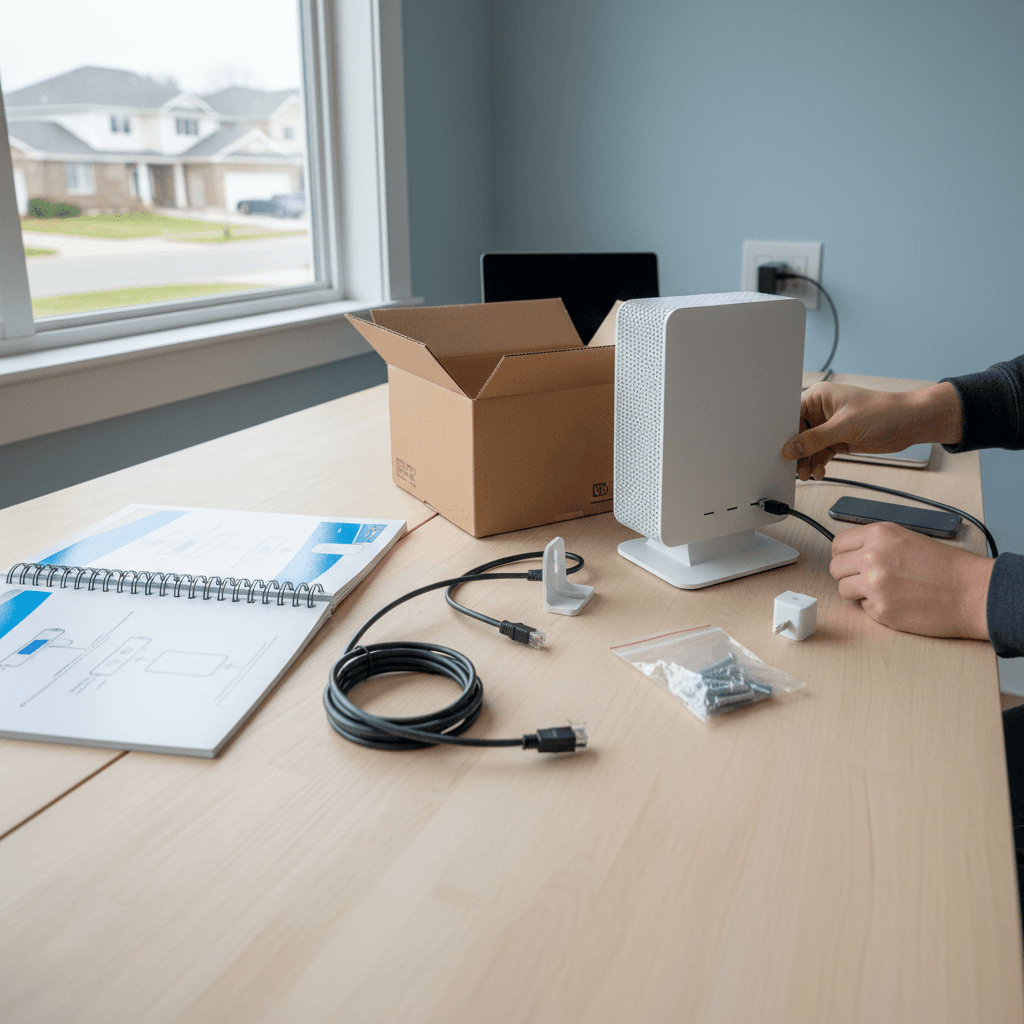
How to Use Your Own Router with an ISP Gateway in Bridge Mode
ISP-provided routers often have limited features - here's how to put your ISP gateway in bridge mode and use your own better router.
What's Happening
Your internet provider gave you a combination modem/router (gateway), but it has terrible WiFi range, limited settings, or you just want to use your own higher-quality router. Bridge mode is the answer. It turns your ISP gateway into just a modem, letting your own router handle all the networking. Here's how to set it up properly.
Quick Checks (Do These First)
- Confirm your gateway supports bridge mode. Google "[your ISP model number] bridge mode" to verify. Most do, but some don't.
- Have your ISP login handy. You might need account credentials to access gateway settings. They're usually on a sticker on the device.
- Have your own router ready. Make sure it's configured with a password and WiFi name before you switch over.
- Know that you'll lose ISP WiFi. In bridge mode, the ISP gateway won't broadcast WiFi anymore - your router handles it all.
Step-by-Step Fixes
Fix 1: Set Up Your New Router First
Configure your router before putting the ISP gateway in bridge mode so you're ready to go.
- Connect your new router to power and your computer via Ethernet
- Access the router's setup page (usually printed on the router, like 192.168.0.1 or tplinkwifi.net)
- Set your WiFi name (SSID) and password
- Configure any other settings you want (guest network, parental controls, etc.)
- Leave it powered on but not connected to the internet yet
Fix 2: Put the ISP Gateway in Bridge Mode
This is the main step - converting your ISP device from router to simple modem.
- Connect to your ISP gateway (WiFi or Ethernet)
- Open a web browser and go to the gateway's admin page (common addresses: 192.168.1.1, 192.168.0.1, 10.0.0.1)
- Log in with the credentials on the gateway's sticker (or call your ISP if you changed them and forgot)
- Look for settings like Gateway Mode, Bridge Mode, or Advanced Settings
- Select Enable Bridge Mode or Disable Router Mode
- If asked which Ethernet port to use, pick port 1
- Save changes - the gateway will restart
Fix 3: Connect Your Router to the Gateway
Now physically connect everything together.
- Take an Ethernet cable and connect one end to port 1 on your ISP gateway
- Connect the other end to the WAN or Internet port on your router (usually yellow or blue, labeled differently)
- Wait 2-3 minutes for everything to boot up
- Check your router's status lights - the internet light should be solid or green
- Try connecting to your new WiFi network from your phone or laptop
Fix 4: Verify Everything Works
Test your setup to make sure you're actually getting internet through your new router.
- Connect to your new WiFi network
- Open a web browser and visit a website to confirm internet works
- Log into your router's admin page
- Check the WAN or Internet status page - it should show a public IP address from your ISP
- Run a speed test to make sure you're getting your full internet speed
If Nothing Worked
Some ISPs have restrictions on bridge mode or require you to call them to enable it. Comcast/Xfinity and AT&T sometimes need a tech support call. If you're stuck in double NAT (both devices acting as routers), that's a sign bridge mode didn't activate. You can check by logging into your router and seeing if the WAN IP starts with 192.168 or 10.0 - that means you're getting a local IP from the gateway instead of a public one.
When to Call a Pro
If your ISP equipment doesn't support bridge mode or you're dealing with fiber installations where the ONT (optical network terminal) is separate from the router, the setup can be more complex. Business internet connections with static IPs also require special configuration. A networking professional can sort this out and ensure optimal performance.
Need Professional Help?
If you're in the Tampa Bay area, Geeks in Sneaks provides friendly, on-site tech support in Clearwater, Clearwater Beach, and Dunedin. We can set up your network equipment properly and optimize your WiFi coverage.
Related Topics
Need Professional Help?
If you're still having trouble, our expert technicians can help.
Learn about our network repair serviceMore Router & WiFi Fixes
See all Router & WiFi fixes →Business-Grade vs Consumer Routers for Home Use
Considering a business-grade router for your home? Find out if the premium price delivers real benefits for residential use.
Buying Used or Refurbished Routers: Safe or Risky?
Tempted to save money with a used router? Learn the real security risks and when buying secondhand is safe versus when it's dangerous.
How Long Should a Router Last? When to Replace Yours
Your router is a few years old and you're wondering if it's time to replace it. Learn the typical lifespan and warning signs it's failing.
Gaming Routers: Real Benefits vs Marketing Hype
Wondering if a gaming router is worth the premium price? We separate the real performance benefits from marketing gimmicks.
Renting ISP Equipment vs Buying Your Own: Real Cost Comparison
Paying monthly rental fees for your modem and router? Find out how much you could save by buying your own equipment.
Matching Router Capabilities to Your Internet Speed Tier
Have gigabit internet but not getting those speeds? Your router might be the bottleneck. Learn how to match equipment to your plan.
What to Look for When Buying a Home Router in 2026
Shopping for a new router can be overwhelming with all the technical specs and marketing claims—here's what actually matters in 2026.
When to Move from Single Router to Mesh WiFi System
Dead zones and weak WiFi in parts of your home? Find out if it's time to upgrade from a traditional router to a mesh system.