
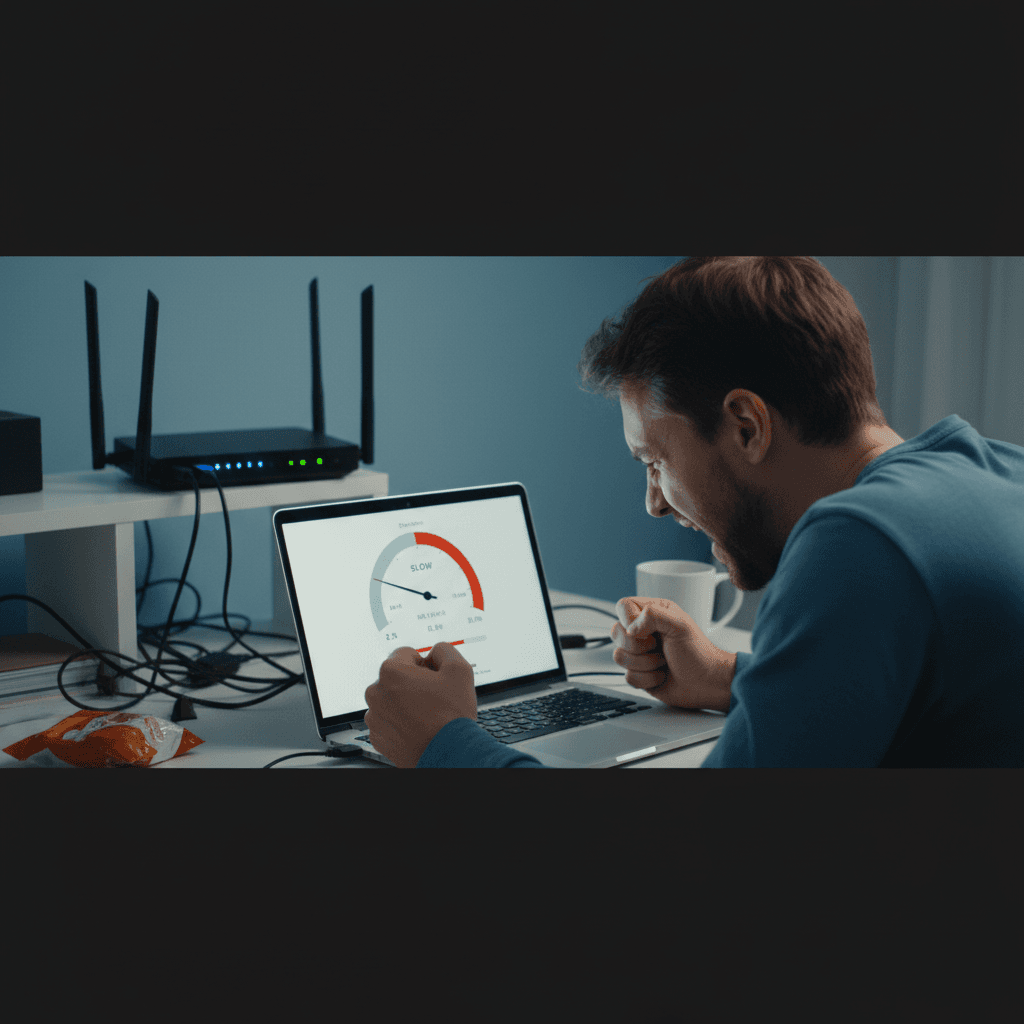
How to Track Which Device Is Using the Most Bandwidth
Your internet feels slow and you want to know which device is hogging all the bandwidth - here's how to monitor network usage on your router.
What's Happening
Your internet connection feels sluggish, videos are buffering, and you suspect someone or something is using up all your bandwidth. Maybe it's your teenager streaming 4K videos, a rogue device downloading massive files, or a smart device going haywire. You want to see exactly which device is using the most data so you can do something about it. Most routers have tools to monitor this, and we'll show you how to find them.
Quick Checks (Do These First)
- Check connected devices count. Log into your router and see how many devices are connected - more than you expected?
- Look for obvious culprits. Is someone streaming 4K video? Running a video call? Downloading games?
- Check your internet speed first. Go to speedtest.net - if your speed is normal, the problem might not be bandwidth.
- See if anyone is uploading. Cloud backups, photo syncs, and video uploads can saturate your connection.
- Check the time of day. Peak hours (6-10pm) can mean slower speeds from your ISP, not your devices.
Step-by-Step Fixes
Fix 1: Use Your Router's Built-in Traffic Monitor
- Log into your router at
192.168.1.1or192.168.0.1 - Look for "Traffic Monitor," "Traffic Meter," "Bandwidth Monitor," or "Statistics"
- Many modern routers show real-time bandwidth usage per device
- You'll see a list of connected devices with their current upload/download speeds
- Sort by bandwidth usage to see which device is using the most
- Note the device name or MAC address of the top user
- Some routers also show historical data - check graphs for patterns
Fix 2: Enable QoS (Quality of Service) Monitoring
- QoS settings often include bandwidth monitoring features
- In router settings, find "QoS," "Quality of Service," or "Traffic Control"
- Enable QoS if it's not already on
- Look for bandwidth monitoring or statistics within the QoS section
- This often gives more detailed per-device breakdowns
- You can also set bandwidth limits per device here (more on that below)
Fix 3: Check Your Router's Mobile App
- Most modern routers (especially mesh systems) have mobile apps with great monitoring
- Download your router's app: TP-Link Tether, Netgear Nighthawk, Google Home, Asus Router, etc.
- Log in with your router credentials
- Look for "Devices," "Insights," or "Network Map"
- Many apps show real-time bandwidth usage with nice visual graphs
- Some even send alerts when a device uses excessive bandwidth
Fix 4: Use Third-Party Monitoring Software (Advanced)
- If your router lacks monitoring features, install GlassWire, NetWorx, or BitMeter OS on your PC
- These programs monitor all network traffic on your computer
- They won't show other devices' usage, but they'll tell you if YOUR computer is the problem
- For whole-network monitoring, consider setting up a Raspberry Pi with Pi-hole or ntopng
- This is advanced but gives you complete network visibility
Fix 5: Set Bandwidth Limits for Heavy Users
- Once you've identified the bandwidth hog, you can limit it
- In router settings, find "QoS," "Bandwidth Control," or "Rate Limiting"
- Select the device using too much bandwidth
- Set a maximum download and/or upload speed for that device
- For example, limit a streaming device to 10 Mbps so it doesn't starve other devices
- Save the settings and monitor to see if overall performance improves
Fix 6: Prioritize Critical Devices with QoS
- Instead of limiting heavy users, prioritize devices that need reliable speeds
- In QoS settings, set priority levels: High, Medium, Low
- Set your work laptop, video call devices, or gaming console to High priority
- Set streaming devices, smart TVs, and bulk downloaders to Low priority
- The router will ensure high-priority devices get bandwidth first
- Save and test - your critical devices should feel faster
Fix 7: Schedule Heavy Downloads for Off-Hours
- If you've identified that backups or updates are the problem, schedule them differently
- Set cloud backups (OneDrive, Google Drive, iCloud) to run overnight
- Configure Windows Updates to download between 2am-6am
- Tell family members to download large games or movies when no one else is using the internet
- Some routers have scheduling features in QoS - use them to enforce this
Common Bandwidth Hogs
Here's what typically uses the most bandwidth:
- 4K video streaming: 15-25 Mbps per stream
- Cloud backups: Can saturate your upload speed for hours
- Video calls: 2-5 Mbps, but upload-heavy
- Game downloads: Large files, but only when actively downloading
- Security cameras: Constantly uploading can use 1-2 Mbps each
- Torrents/P2P: Will use every bit of bandwidth available
If Nothing Worked
If your router has no bandwidth monitoring features and you need this capability, consider upgrading to a router with better traffic management. Mesh systems like Eero, Google Nest WiFi, and Netgear Orbi have excellent apps with detailed device monitoring. Alternatively, if speeds are slow across all devices even with nothing running, the problem might be your ISP or a faulty router/modem.
When to Call a Pro
If you've identified excessive bandwidth usage but can't figure out what's causing it, or if you suspect malware or a compromised device, professional help can diagnose the issue. Network monitoring can reveal problems like botnet infections, crypto miners, or misconfigured devices that you might miss.
Need Professional Help?
If you're in the Tampa Bay area and need expert help monitoring your network and optimizing performance, Geeks in Sneaks provides friendly, on-site tech support in Clearwater, Clearwater Beach, and Dunedin.
Related Topics
Need Professional Help?
If you're still having trouble, our expert technicians can help.
Learn about our network repair serviceMore Router & WiFi Fixes
See all Router & WiFi fixes →Business-Grade vs Consumer Routers for Home Use
Considering a business-grade router for your home? Find out if the premium price delivers real benefits for residential use.
Buying Used or Refurbished Routers: Safe or Risky?
Tempted to save money with a used router? Learn the real security risks and when buying secondhand is safe versus when it's dangerous.
How Long Should a Router Last? When to Replace Yours
Your router is a few years old and you're wondering if it's time to replace it. Learn the typical lifespan and warning signs it's failing.
Gaming Routers: Real Benefits vs Marketing Hype
Wondering if a gaming router is worth the premium price? We separate the real performance benefits from marketing gimmicks.
Renting ISP Equipment vs Buying Your Own: Real Cost Comparison
Paying monthly rental fees for your modem and router? Find out how much you could save by buying your own equipment.
Matching Router Capabilities to Your Internet Speed Tier
Have gigabit internet but not getting those speeds? Your router might be the bottleneck. Learn how to match equipment to your plan.
What to Look for When Buying a Home Router in 2026
Shopping for a new router can be overwhelming with all the technical specs and marketing claims—here's what actually matters in 2026.
When to Move from Single Router to Mesh WiFi System
Dead zones and weak WiFi in parts of your home? Find out if it's time to upgrade from a traditional router to a mesh system.