
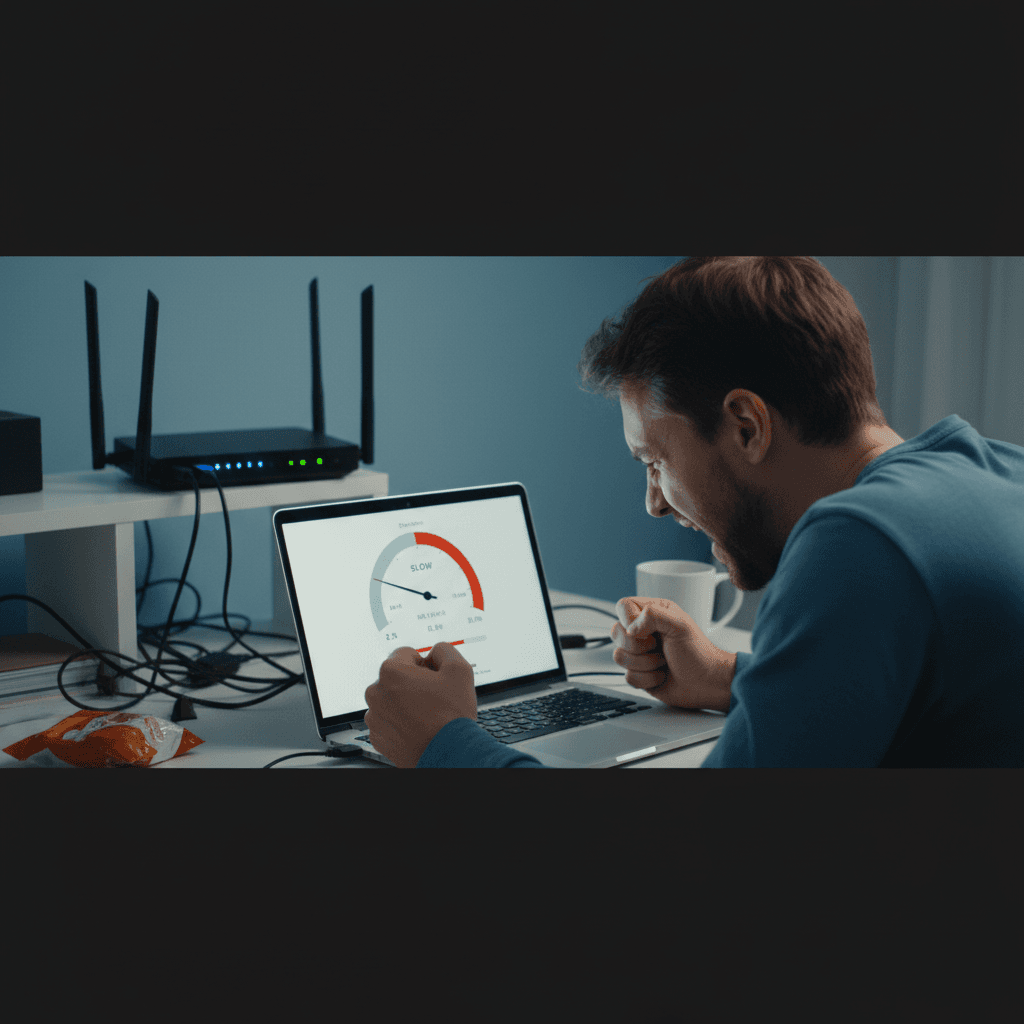
How to Fix Too Many Devices Connected to Your WiFi Router
Your WiFi is crawling because too many devices are fighting for bandwidth - here's how to prioritize what matters and speed things up.
What's Happening
Every phone, tablet, laptop, smart TV, security camera, and smart bulb counts as a connected device. When you've got 20+ devices all competing for your router's attention, things slow to a crawl. Pages take forever to load, video calls freeze, and everyone in the house is complaining. This is one of the most common modern WiFi problems, and the good news is you have options.
Quick Checks (Do These First)
- Count your devices. Open your router's admin page and check the connected devices list - you might be surprised how many are connected.
- Look for bandwidth hogs. Smart TVs streaming 4K, cloud backups, and security cameras use massive amounts of data.
- Check for unauthorized users. Is your neighbor using your WiFi? Look for unfamiliar device names.
- Reboot your router. Sometimes a quick restart clears congestion and speeds things up temporarily.
Step-by-Step Fixes
Fix 1: Disconnect Devices You're Not Using
- Log into your router's admin page (usually
192.168.1.1or192.168.0.1) - Find the Connected Devices or Device List section
- Look for devices you don't recognize or aren't actively using
- Kick them off the network or block them from reconnecting
- Turn off WiFi on devices that don't need it right now (old tablets, guest devices, etc.)
Fix 2: Set Up Quality of Service (QoS)
QoS lets you prioritize important traffic like video calls over less critical stuff like software updates.
- In your router settings, find QoS or Traffic Prioritization
- Enable QoS
- Set priority levels: High for video calls and gaming, Medium for streaming, Low for downloads and backups
- Some routers let you prioritize specific devices - put work computers and video call devices at the top
- Save settings and reboot your router
Fix 3: Create a Guest Network for Less Important Devices
- In your router settings, find Guest Network or Multiple SSIDs
- Enable a guest network with a different name
- Set bandwidth limits on the guest network (like 50% of total speed)
- Move smart home devices, security cameras, and guest devices to this network
- Keep your main network for computers, phones, and work devices
Fix 4: Switch to 5 GHz for Newer Devices
- Check if your router broadcasts both 2.4 GHz and 5 GHz networks
- Connect laptops, phones, and tablets to the 5 GHz network (it's faster but shorter range)
- Leave smart home devices, printers, and older gadgets on 2.4 GHz
- This spreads the load across both bands instead of crowding one
If Nothing Worked
If you've got 30+ devices and you've optimized everything you can, your router might simply be overwhelmed. Budget routers typically handle 15-25 devices well, while higher-end models can manage 40-50. Consider upgrading to a router with better processing power, or add a mesh WiFi system to distribute the load. Also check if your internet plan itself is too slow for your household - you might need to upgrade your bandwidth.
When to Call a Pro
If you're not comfortable diving into router settings, or if you've tried everything and things are still crawling, professional help can save you hours of frustration. A tech can analyze your network traffic, optimize your setup, and recommend the right hardware for your needs.
Need Professional Help?
If you're in the Tampa Bay area and need hands-on assistance, Geeks in Sneaks provides friendly, on-site tech support in Clearwater, Clearwater Beach, and Dunedin.
Related Topics
Need Professional Help?
If you're still having trouble, our expert technicians can help.
Learn about our network repair serviceMore Router & WiFi Fixes
See all Router & WiFi fixes →Business-Grade vs Consumer Routers for Home Use
Considering a business-grade router for your home? Find out if the premium price delivers real benefits for residential use.
Buying Used or Refurbished Routers: Safe or Risky?
Tempted to save money with a used router? Learn the real security risks and when buying secondhand is safe versus when it's dangerous.
How Long Should a Router Last? When to Replace Yours
Your router is a few years old and you're wondering if it's time to replace it. Learn the typical lifespan and warning signs it's failing.
Gaming Routers: Real Benefits vs Marketing Hype
Wondering if a gaming router is worth the premium price? We separate the real performance benefits from marketing gimmicks.
Renting ISP Equipment vs Buying Your Own: Real Cost Comparison
Paying monthly rental fees for your modem and router? Find out how much you could save by buying your own equipment.
Matching Router Capabilities to Your Internet Speed Tier
Have gigabit internet but not getting those speeds? Your router might be the bottleneck. Learn how to match equipment to your plan.
What to Look for When Buying a Home Router in 2026
Shopping for a new router can be overwhelming with all the technical specs and marketing claims—here's what actually matters in 2026.
When to Move from Single Router to Mesh WiFi System
Dead zones and weak WiFi in parts of your home? Find out if it's time to upgrade from a traditional router to a mesh system.