
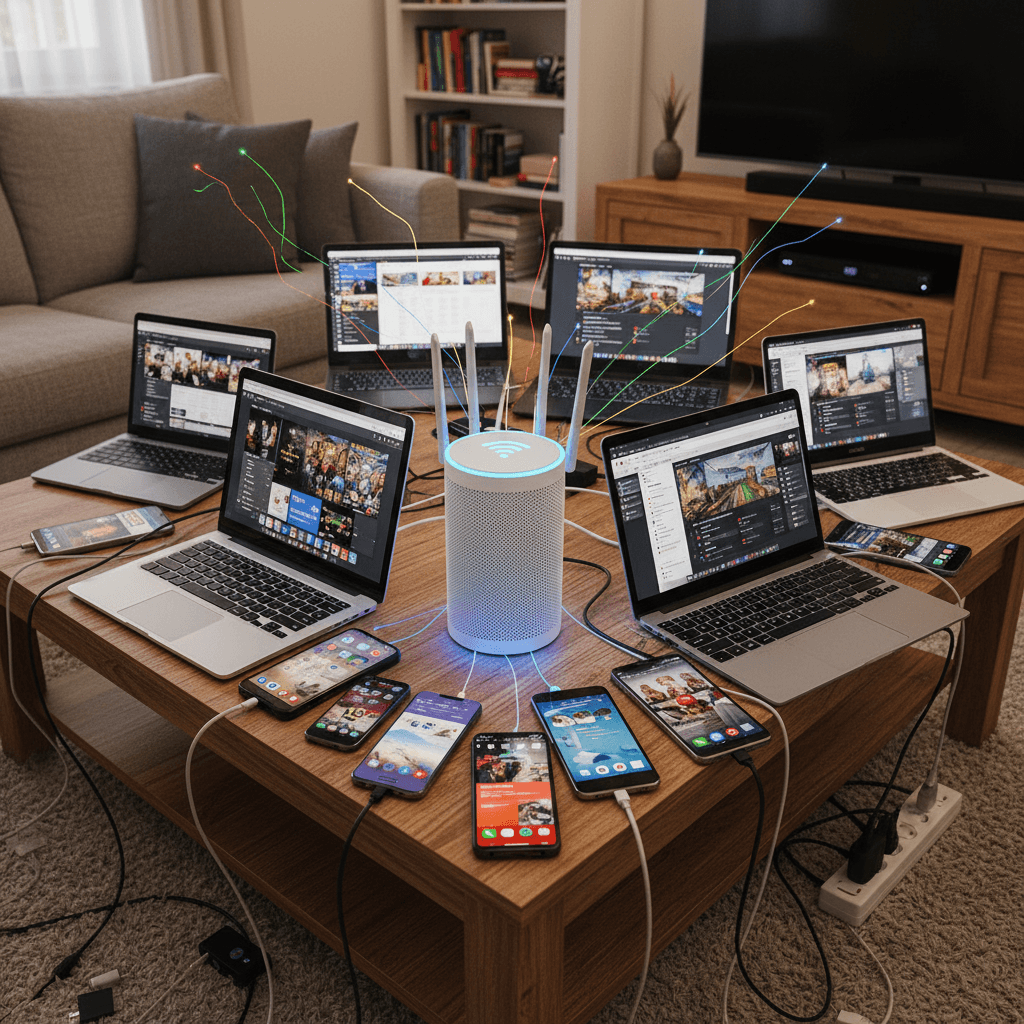
How Many Devices Can One Home Router Realistically Handle?
Wondering if your router can handle all your phones, tablets, smart home devices, and laptops? Here's what you need to know about WiFi device limits.
What's Happening
You're adding more devices to your network every year - phones, tablets, laptops, smart TVs, security cameras, smart lights, thermostats, doorbells, and more. At some point, things start to slow down or devices randomly disconnect. You're wondering: is there actually a limit? Short answer: yes. Long answer: it depends on your router's quality, your internet speed, and what those devices are actually doing. Let's break down realistic limits and when you need to upgrade.
Quick Checks (Do These First)
- Count your devices. Log into your router admin page and check the connected devices list. You might be surprised - it's often 20-30+ devices.
- What kind of router do you have? A $50 budget router vs. a $300 WiFi 6 router have vastly different capabilities.
- Are devices actually active? A phone sitting idle uses almost no bandwidth. A 4K camera uploading 24/7 is a different story.
- Check router CPU/memory. Some routers show their CPU usage in admin settings - if it's pegged at 100%, you're overwhelming it.
Realistic Device Limits by Router Type
Budget Router ($50-100)
Typically supports: 15-25 devices comfortably
- Usually has a 1 GHz single-core processor and 128-256 MB RAM
- Starts struggling when you hit 20+ devices, especially if several are streaming or uploading
- Fine for a small apartment with 1-2 people
- Examples: Basic TP-Link, Netgear N300/N600 series
Mid-Range Router ($100-200)
Typically supports: 25-40 devices comfortably
- Dual-core processor, 512 MB RAM
- Better at handling multiple simultaneous connections
- Can manage a typical household with IoT devices, streaming, and work-from-home needs
- Examples: ASUS RT-AC68U, TP-Link Archer A7/AX50
High-End Router ($200-400)
Typically supports: 40-75 devices comfortably
- Quad-core processor, 512 MB-1 GB RAM
- WiFi 6 support with better efficiency for crowded networks
- Advanced features like MU-MIMO and OFDMA that help manage multiple devices
- Examples: ASUS RT-AX88U, Netgear Nighthawk RAX80
Mesh System ($300-600)
Typically supports: 75-150+ devices across multiple nodes
- Distributed processing across multiple access points
- Better coverage means devices maintain faster connections
- Designed for larger homes with many devices
- Examples: Eero Pro 6, Google Nest WiFi Pro, UniFi Dream Machine
It's Not Just About Total Devices
What Matters More Than Count:
1. Bandwidth Usage Per Device
- 10 smart bulbs = minimal impact (they barely use any data)
- 1 security camera uploading 4K = massive impact (uses 8-15 Mbps constantly)
- Quality matters more than quantity
2. Simultaneous Active Connections
- 20 devices connected but idle = fine
- 5 devices all streaming 4K video at once = router struggles
- It's about what devices are doing RIGHT NOW, not total count
3. Your Internet Plan Speed
- 100 Mbps plan with 50 devices = everyone fights for scraps
- 500 Mbps plan with 50 devices = plenty to go around
- Your internet speed is often the bottleneck before your router is
Signs Your Router Is Overwhelmed
- Devices randomly disconnect and reconnect
- New devices can't connect even with correct password
- Web pages load slowly even when speed test shows good speeds
- Router feels hot to the touch or needs frequent reboots
- Specific devices drop when you add a new one (you're hitting the limit)
- Router admin page becomes slow or unresponsive
How to Maximize Device Capacity
Fix 1: Separate Devices by Band
- Put IoT devices (smart home stuff) on 2.4 GHz
- Put phones, laptops, tablets on 5 GHz
- This balances load across both radios instead of crowding one
Fix 2: Use Wired Connections Where Possible
- Connect smart TVs, gaming consoles, and desktop PCs via Ethernet
- Frees up WiFi capacity for devices that must be wireless
- Wired devices don't contribute to WiFi congestion
Fix 3: Disable Devices You Don't Use
- Turn off WiFi on old tablets/phones you don't use anymore
- Disconnect smart devices you never actually use
- Every idle connection uses a tiny bit of router resources
Fix 4: Upgrade to WiFi 6
- WiFi 6 routers handle crowded networks much better
- Features like OFDMA let the router talk to multiple devices simultaneously
- Target Wake Time saves power and reduces congestion for IoT devices
Fix 5: Add a Second Access Point or Mesh Node
- Split your devices across multiple access points
- Each AP can handle its own set of devices
- Doubles or triples your effective device capacity
When to Upgrade Your Router
If you have 30+ devices and a router older than 4-5 years, it's time to upgrade. If you're adding smart home devices regularly and notice performance degradation, don't wait until things break completely. A modern WiFi 6 router with good specs will future-proof you for years. For households with 50+ devices, consider a mesh system or dedicated access points.
When to Call a Pro
If you're setting up a complex network with dozens of IoT devices, security cameras, and work-from-home equipment, a professional can design a proper network architecture. They can set up VLANs to segment device types, configure proper QoS for critical devices, and recommend the right hardware for your specific needs. Don't cobble together consumer gear if you're running what's essentially a small business network.
Need Professional Help?
If you're in the Tampa Bay area and need hands-on assistance, Geeks in Sneaks provides friendly, on-site tech support in Clearwater, Clearwater Beach, and Dunedin.
Related Topics
Need Professional Help?
If you're still having trouble, our expert technicians can help.
Learn about our network repair serviceMore Router & WiFi Fixes
See all Router & WiFi fixes →Business-Grade vs Consumer Routers for Home Use
Considering a business-grade router for your home? Find out if the premium price delivers real benefits for residential use.
Buying Used or Refurbished Routers: Safe or Risky?
Tempted to save money with a used router? Learn the real security risks and when buying secondhand is safe versus when it's dangerous.
How Long Should a Router Last? When to Replace Yours
Your router is a few years old and you're wondering if it's time to replace it. Learn the typical lifespan and warning signs it's failing.
Gaming Routers: Real Benefits vs Marketing Hype
Wondering if a gaming router is worth the premium price? We separate the real performance benefits from marketing gimmicks.
Renting ISP Equipment vs Buying Your Own: Real Cost Comparison
Paying monthly rental fees for your modem and router? Find out how much you could save by buying your own equipment.
Matching Router Capabilities to Your Internet Speed Tier
Have gigabit internet but not getting those speeds? Your router might be the bottleneck. Learn how to match equipment to your plan.
What to Look for When Buying a Home Router in 2026
Shopping for a new router can be overwhelming with all the technical specs and marketing claims—here's what actually matters in 2026.
When to Move from Single Router to Mesh WiFi System
Dead zones and weak WiFi in parts of your home? Find out if it's time to upgrade from a traditional router to a mesh system.