
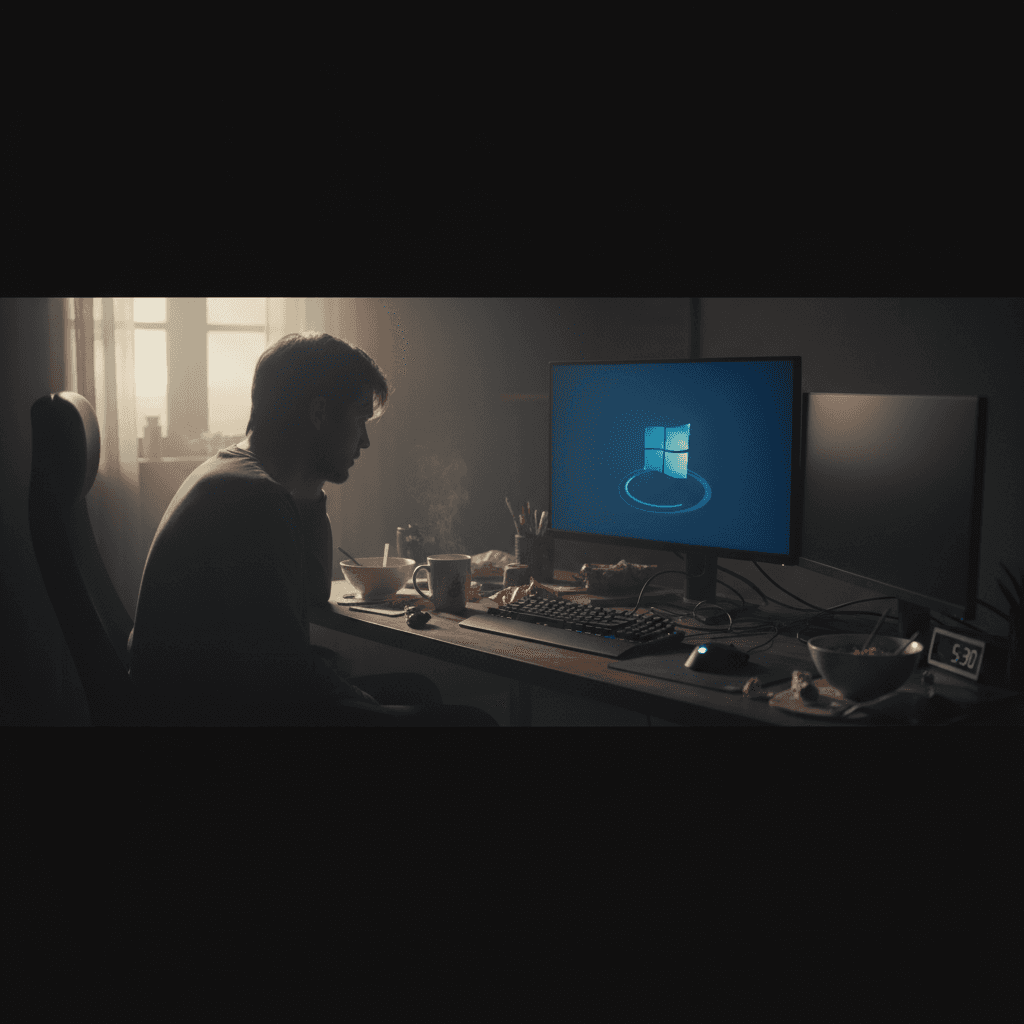
How to Fix Random Restarts with No Obvious Error
Your PC keeps restarting by itself without warning or error messages. Here's how to find the cause and stop the unexpected reboots.
What's Happening
You're in the middle of something and suddenly - boom - your computer restarts itself. No warning, no error message, no blue screen. It just shuts down and boots back up like nothing happened. Random restarts are particularly annoying because you lose unsaved work and can't easily figure out what's wrong. These unexpected reboots can have several causes, from power issues to overheating to Windows settings, but most are fixable.
Quick Checks (Do These First)
- Check if it's actually overheating - Touch the computer. If it's very hot, overheating protection might be causing automatic shutdowns.
- Make sure all cables are secure - A loose power cable can cause sudden power interruptions that look like restarts.
- Note when it happens - If restarts only occur during gaming or video editing, it's likely a power supply or heat issue.
Step-by-Step Fixes
Fix 1: Disable Automatic Restart on System Failure
Windows automatically restarts when certain errors occur, hiding the actual error message. Let's turn that off so we can see what's happening:
- Press
Windows + Xand select System - Scroll down and click Advanced system settings on the right
- Under the Advanced tab, click Settings in the Startup and Recovery section
- Under System failure, uncheck the box that says Automatically restart
- Click OK to save
Now if there's an error causing the restart, you'll see a blue screen with error codes instead of an automatic reboot. Write down the error code and search for it online.
Fix 2: Check Windows Event Viewer for Clues
Windows logs all system events, including what happens before unexpected restarts:
- Press
Windows + Xand select Event Viewer - Expand Windows Logs and click System
- Look for red error icons around the time of your last restart
- Common culprits include "Kernel-Power" (power issues), "Critical" errors, or driver failures
- Double-click errors to read details
- Search online for any error codes you find
Fix 3: Update All Drivers (Especially Graphics)
Faulty drivers, particularly graphics drivers, can cause system crashes:
- Press
Windows + Xand select Device Manager - Expand Display adapters
- Right-click your graphics card and select Update driver
- Choose Search automatically for drivers
- Also update Network adapters and Chipset drivers
- Restart after updates complete
For Nvidia or AMD graphics cards, visit their websites directly for the latest drivers rather than relying on Windows Update.
Fix 4: Test for Overheating
Overheating protection causes automatic shutdowns that look like random restarts:
- Download free software like HWMonitor or Core Temp
- Run the program and monitor temperatures during normal use
- Watch especially during the activities that usually cause restarts
- If CPU temps exceed 85°C (185°F) or GPU temps exceed 90°C (194°F), you have an overheating problem
- Clean all vents and fans with compressed air
- Make sure the computer has good ventilation and isn't in an enclosed space
Fix 5: Check Power Supply
An insufficient or failing power supply can cause random restarts, especially during demanding tasks:
- If you have a desktop, make sure the power cable is firmly connected at both ends
- Try a different wall outlet or power strip
- For laptops, try using only AC power (remove the battery if possible) to see if restarts stop
- Listen for unusual noises from the power supply when restarts occur
Desktop power supplies can fail over time, especially if they're undersized for your system.
Fix 6: Scan for Malware
Some malware causes system instability and random reboots:
- Press
Windows + Ito open Settings - Go to Privacy & Security > Windows Security
- Click Virus & threat protection
- Select Scan options and choose Full scan
- Click Scan now and wait for completion
- Remove any detected threats and restart
Fix 7: Disable Fast Startup
Fast Startup can cause conflicts with power management:
- Press
Windows + R, typepowercfg.cpl, press Enter - Click Choose what the power buttons do
- Click Change settings that are currently unavailable
- Uncheck Turn on fast startup (recommended)
- Click Save changes
If Nothing Worked
If restarts continue, you might be dealing with hardware failure. Faulty RAM is a common cause - run Windows Memory Diagnostic (search for it in the Start menu) to test your memory. Failing hard drives can also cause restarts, as can a dying motherboard or power supply. If your computer is more than 4-5 years old, hardware failure becomes increasingly likely. Before assuming hardware failure, try creating a new Windows user account and see if restarts still occur there - sometimes corrupted user profiles cause these issues.
When to Call a Pro
You should seek professional help if: the memory diagnostic found errors, Event Viewer shows hardware errors, restarts happen multiple times per day, the computer won't stay on long enough to troubleshoot, or you suspect power supply or motherboard issues. Testing and replacing internal hardware components requires expertise and diagnostic tools. Also, if you've followed all these steps and still can't identify the cause, a professional can run advanced hardware diagnostics that aren't available to typical users.
Need Professional Help?
If you're in the Tampa Bay area and need hands-on assistance, Geeks in Sneaks provides friendly, on-site tech support in Clearwater, Clearwater Beach, and Dunedin.
Related Topics
Need Professional Help?
If you're still having trouble, our expert technicians can help.
Learn about our pc repair serviceMore Windows Problems Fixes
See all Windows Problems fixes →Should I Worry About Windows Event Errors?
Found errors and warnings in Event Viewer and worried something is wrong? Here's the truth about Windows event logs and what you actually need to fix.
How Long Should a Windows PC Last?
Wondering if your PC is getting too old? Here's the realistic lifespan of Windows computers and when it's time to upgrade versus repair.
Why Does My Cursor Freeze Momentarily?
Mouse cursor stuttering or freezing for a second or two randomly? Here's what causes it and how to fix the annoying micro-freezes.
Is It Normal for Disk to Be Slow After Boot?
Computer sluggish for the first few minutes after starting up? Learn why this happens, when it's normal, and how to speed up your post-boot experience.
Is 80°C CPU Temperature Dangerous?
Worried about your CPU hitting 80°C? Here's the truth about CPU temperatures, what's safe, and when you actually need to be concerned.
Why Does My Fan Spin Up Randomly?
Computer fan suddenly revving up for no apparent reason? Here's why it happens, when it's normal, and when you should be concerned.
Are Windows Updates Really Necessary?
Wondering if you can skip those annoying Windows updates? Here's what you need to know about why updates matter and what happens if you ignore them.
Why Is Windows Search Using So Much Disk?
Windows Search Indexer maxing out your disk usage at 100%? Here's why it happens and how to fix it without losing search functionality.