
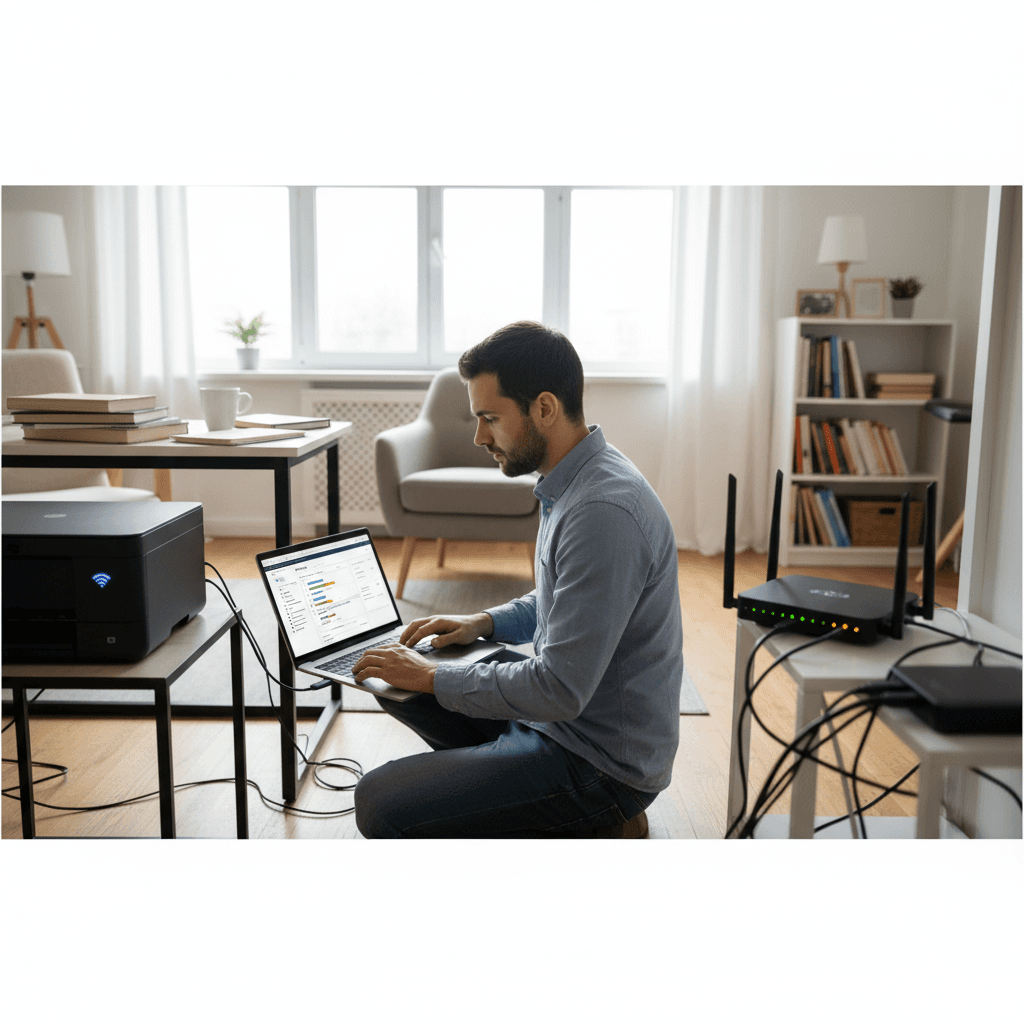
Printer Works on One Computer But Not Another
Your printer works fine from one PC but refuses to print from another? This usually comes down to drivers or network settings. Here's how to fix it.
What's Happening
You've got a printer that works perfectly from your laptop, but when you try to print from your desktop (or vice versa), nothing happens. Or maybe it worked on both computers last week, but now one of them just won't cooperate. This inconsistency is maddening, but it tells us the printer itself is fine - the problem is between that specific computer and the printer.
Quick Checks (Do These First)
- Are both computers on the same network? For network printers, they must be on the same Wi-Fi or wired network.
- Is the printer showing as installed? Go to Settings > Printers & scanners on the problem computer.
- Is the correct printer selected? The problem computer might be trying to print to a different device.
- Did Windows recently update? Updates often break printer drivers.
Step-by-Step Fixes
Fix 1: Reinstall the Printer on the Problem Computer
- On the computer that won't print, go to Settings > Bluetooth & devices > Printers & scanners
- If the printer appears, click it and select Remove
- Restart the computer
- Go back to Printers & scanners and click Add device
- Wait for Windows to find and install the printer
- Try printing a test page
Fix 2: Install the Driver from Manufacturer's Website
Windows generic drivers often cause problems. Get the real driver:
- Go to your printer manufacturer's website (HP, Canon, Epson, Brother)
- Search for your exact printer model
- Download the full driver package (not just the basic driver)
- Run the installer and follow the prompts
- Restart and test printing
Fix 3: Check Network Printer Discovery
- Make sure network discovery is on: Settings > Network & internet > Advanced network settings > Advanced sharing settings
- Turn on Network discovery and File and printer sharing
- Try adding the printer again
Fix 4: Add Printer by IP Address
If Windows can't find the printer automatically:
- Find your printer's IP address (usually in the printer's network settings menu)
- Go to Settings > Printers & scanners > Add device
- Click Add manually (or "The printer I want isn't listed")
- Select Add a printer using TCP/IP address
- Enter the printer's IP address
- Let Windows find the correct driver
If Nothing Worked
If it's a shared printer connected to another computer, make sure sharing is enabled on the host computer. Also check that Windows Firewall isn't blocking printer sharing - you may need to allow "File and Printer Sharing" through the firewall.
When to Call a Pro
If you've reinstalled drivers and the printer still won't work from one computer, there might be a deeper Windows issue, firewall configuration, or network problem. Complex home and office networks sometimes need professional setup.
Need Professional Help?
If you're in the Tampa Bay area and need hands-on assistance, Geeks in Sneaks provides friendly, on-site tech support in Clearwater, Clearwater Beach, and Dunedin.
Related Topics
Need Professional Help?
If you're still having trouble, our expert technicians can help.
Learn about our printer support serviceMore Printer Issues Fixes
See all Printer Issues fixes →How to Prevent Malware from Abusing Network Printers
Concerned about malware using your printer to spread or spy? Here's how to secure network printers against malicious software and attacks.
How to Prevent Kids or Guests from Printing 100-Page Jobs
Tired of accidental massive print jobs from kids or guests? Here's how to set up quotas, require approval, and control who can print what.
How Often Should You Check for Printer Security Updates?
Printer firmware updates aren't optional—they patch security holes. Here's how often to check, how to update, and how to set up automatic updates.
How to Block Unwanted Cloud and Remote Print Features
Don't want HP ePrint, Canon Cloud, or Epson Connect on your printer? Here's how to disable cloud printing features for better privacy and security.
How to Use Guest Networks or VLANs to Isolate Your Printer
Want to keep your printer on a separate network for security? Learn how to use guest networks and VLANs to isolate printers from your main devices.
How to Reset Forgotten Admin Password on Printer Web Interface
Locked out of your printer's web interface? Here's how to reset the admin password for HP, Canon, Epson, and Brother printers.
How to Securely Dispose of Old Printers with Stored Data
Getting rid of an old printer? Learn how to wipe stored data and dispose of it securely so your personal information doesn't end up in the wrong hands.
Are Scanned or Copied Documents Stored on Your Printer?
Wondering if your printer keeps copies of documents you scan or copy? Here's what gets stored, how to check, and how to clear it.