
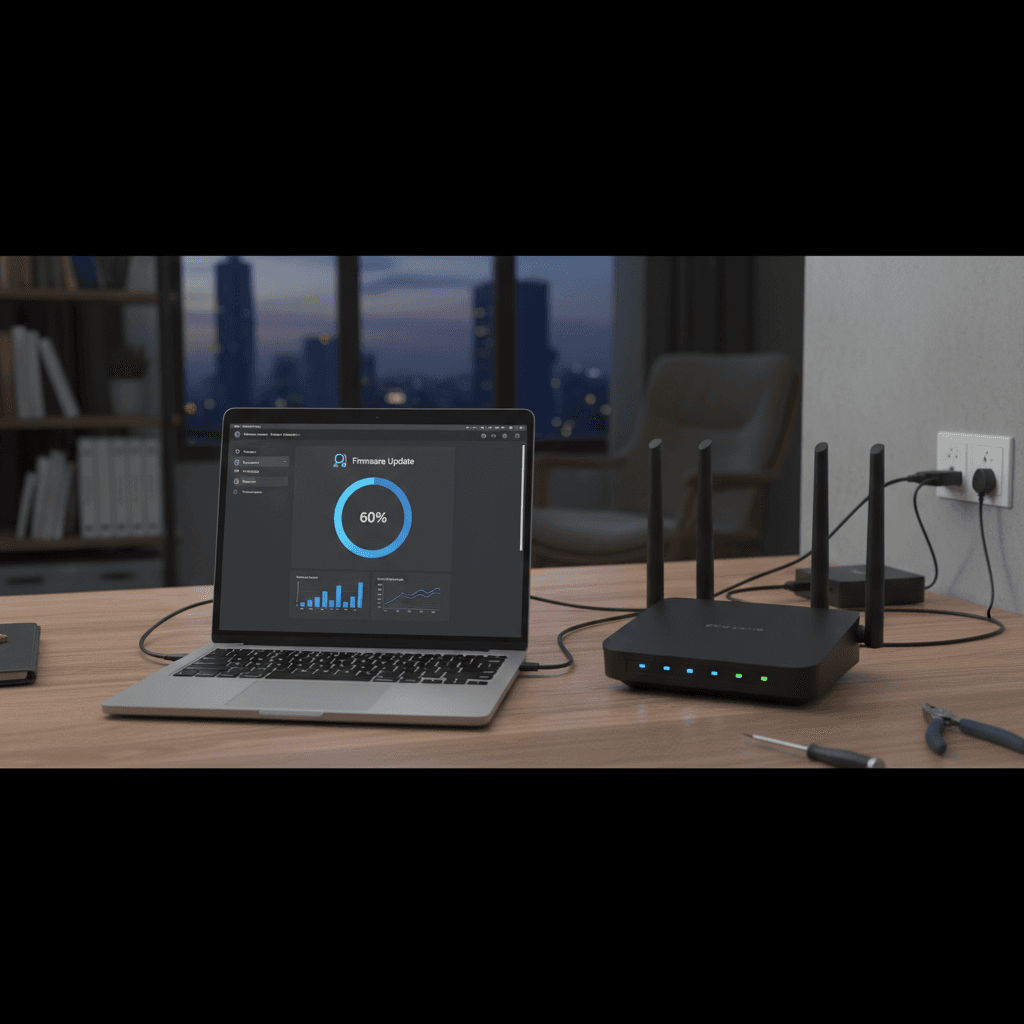
How to Fix Not Updating Router Firmware for Years
Your router firmware is years out of date, leaving you vulnerable to security exploits and missing performance improvements - here's how to update it.
What's Happening
Your router has been running the same firmware since you bought it years ago. You're missing critical security patches, bug fixes, and performance improvements. Old firmware leaves you vulnerable to known exploits - hackers literally target routers with outdated firmware because they're easy to compromise. If you can't remember the last time you updated your router (or never have), you need to fix this now.
Quick Checks (Do These First)
- Check current firmware version. Log into router settings and find "Firmware Version" or "System Information."
- Write down your router model number. Look on the label on the router itself - you'll need this exact model.
- Verify internet connection is stable. Don't update firmware with a flaky connection - it can brick your router.
- Know your router admin password. You'll need it to access settings and apply updates.
Step-by-Step Fixes
Fix 1: Update Through Router's Built-in Update Feature (Easiest)
- Log into your router admin panel (usually
192.168.1.1or192.168.0.1) - Navigate to Administration, System, or Advanced Settings
- Look for Firmware Update, Router Update, or Software Update
- Click Check for Updates or Update Now
- If an update is available, click Download and Install
- Wait patiently - do NOT turn off the router or disconnect during update (typically 5-10 minutes)
- Router will reboot automatically when done
- Log back in and verify new firmware version
Important: Don't interrupt the update process. If power cuts out during update, your router could be permanently damaged.
Fix 2: Manual Firmware Download and Upload (Most Common Method)
- On your computer, go to your router manufacturer's support website
- Find the Downloads or Support section
- Enter your exact router model number (check the label on router)
- Download the latest firmware file (.bin, .img, or .chk file typically)
- Save it somewhere easy to find (like Desktop)
- Log into your router admin panel
- Go to Administration > Firmware Update
- Click Browse or Choose File
- Select the firmware file you downloaded
- Click Upload or Update
- Wait for the update to complete - router will reboot
- Verify the new version after reboot
Fix 3: Enable Automatic Updates (Set It and Forget It)
- After updating to the latest firmware, stay in the update settings
- Look for Automatic Updates, Auto Update, or Firmware Auto-Update
- Enable this feature
- Set update time to early morning (like 3 AM) when you're not using internet
- Some routers let you choose update frequency - weekly checks are good
- Save settings
- Router will now update itself when new firmware is available
Not all routers support auto-updates, but if yours does, definitely enable it.
Fix 4: Update Router from Mobile App (If Available)
- Many newer routers (Netgear, TP-Link, ASUS) have companion mobile apps
- Download your router manufacturer's app (check your router's documentation)
- Connect your phone to your home Wi-Fi
- Open the app and log in
- Look for Router Settings or System
- Tap Firmware Update or similar option
- Follow the app's instructions to update
- This is often easier than using the web interface
If Nothing Worked
If your router is so old that there are no firmware updates available anymore, that's a sign it's time to replace it. Manufacturers typically only support routers for 3-5 years with updates. If your router is from before 2019, strongly consider upgrading - it's not just about security, newer routers are faster, have better range, and support modern Wi-Fi standards. If the update fails or router won't boot after update, try a factory reset (hold reset button for 30 seconds).
When to Call a Pro
If you're nervous about bricking your router, have a complex network setup that you don't want to reconfigure, or if your router is acting as a business gateway, getting professional help for the firmware update ensures nothing goes wrong. Techs can also backup your configuration before updating so everything can be restored exactly.
Need Professional Help?
If you're in the Tampa Bay area and want help updating your router firmware safely or need advice on upgrading to a new router, Geeks in Sneaks provides friendly, on-site tech support in Clearwater, Clearwater Beach, and Dunedin.
Related Topics
Need Professional Help?
If you're still having trouble, our expert technicians can help.
Learn about our network repair serviceMore Router & WiFi Fixes
See all Router & WiFi fixes →Business-Grade vs Consumer Routers for Home Use
Considering a business-grade router for your home? Find out if the premium price delivers real benefits for residential use.
Buying Used or Refurbished Routers: Safe or Risky?
Tempted to save money with a used router? Learn the real security risks and when buying secondhand is safe versus when it's dangerous.
How Long Should a Router Last? When to Replace Yours
Your router is a few years old and you're wondering if it's time to replace it. Learn the typical lifespan and warning signs it's failing.
Gaming Routers: Real Benefits vs Marketing Hype
Wondering if a gaming router is worth the premium price? We separate the real performance benefits from marketing gimmicks.
Renting ISP Equipment vs Buying Your Own: Real Cost Comparison
Paying monthly rental fees for your modem and router? Find out how much you could save by buying your own equipment.
Matching Router Capabilities to Your Internet Speed Tier
Have gigabit internet but not getting those speeds? Your router might be the bottleneck. Learn how to match equipment to your plan.
When to Move from Single Router to Mesh WiFi System
Dead zones and weak WiFi in parts of your home? Find out if it's time to upgrade from a traditional router to a mesh system.
Dual-Band vs Tri-Band Router: Who Actually Needs It?
Wondering if a tri-band router is worth the extra cost? We'll break down the real differences and help you decide what's right for your home.