
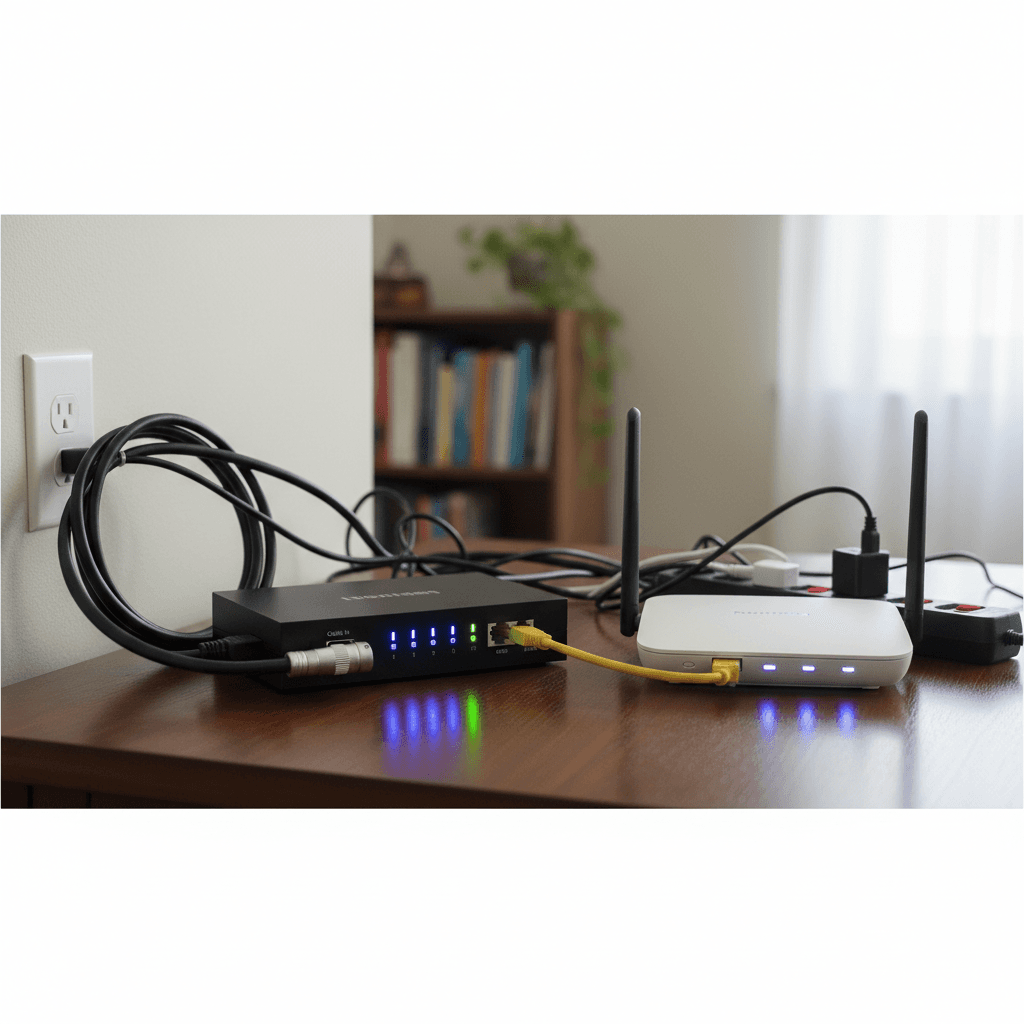
How to Fix ISP Modem/Router Combo vs Your Own Router Confusion
You have both an ISP-provided combo unit and your own router, causing double NAT, conflicts, and connectivity issues - here's how to set them up properly.
What's Happening
Your internet provider gave you a modem/router combo unit, but you also want to use your own router (maybe it's newer, has better WiFi, or you already owned it). Now you've got two routers fighting for control, causing slow speeds, devices that can't connect, online gaming problems, or confusing network setups. This "double NAT" situation happens all the time, and it's fixable. You need to either use one device or put the ISP's combo unit into "bridge mode" so your router can do all the work.
Quick Checks (Do These First)
- Identify what you have. Is the ISP device just a modem, or does it have WiFi? If it has WiFi, it's a combo unit.
- Are you seeing two WiFi networks? One from the ISP device and one from your router?
- Check how they're connected. Is your router plugged into the ISP device, or are they separate?
- Note your symptoms. Slow speeds, gaming issues, or VPN problems are classic double NAT signs.
- Test speeds directly. Connect a computer directly to the ISP device via Ethernet and run a speed test - this tells you if the ISP connection is good.
Step-by-Step Fixes
Fix 1: Understanding Your Setup Options
First, let's clarify your three options:
- Option A: Use only the ISP combo unit (retire your router)
- Option B: Use only your router (put ISP device in bridge mode)
- Option C: Use both in access point mode (advanced)
We recommend Option B if your router is newer or better than the ISP device. Your router will handle WiFi and routing while the ISP device just passes through the internet connection.
Fix 2: Put ISP Combo Unit Into Bridge Mode (Recommended)
Bridge mode disables the router functions in your ISP device, letting your router take over completely.
General steps (specific steps vary by provider):
- Connect a computer directly to the ISP combo unit via Ethernet
- Log into the ISP device's admin page:
- Common addresses: 192.168.0.1, 192.168.1.1, 10.0.0.1
- Login is usually on a label on the device
- Look for settings labeled:
- Bridge Mode
- Passthrough Mode
- Modem Mode
- Router Function: Disable
- Enable bridge mode and save
- The device will restart - wait 2-3 minutes
- Connect your router's WAN/Internet port to the ISP device
- Power cycle both: unplug for 30 seconds, plug ISP device first, wait 2 minutes, then plug in your router
- Your router should now get the public IP address and handle all network functions
Fix 3: Provider-Specific Bridge Mode Instructions
Each ISP has slightly different steps. Here are common ones:
Xfinity/Comcast:
- Log into 10.0.0.1
- Go to Gateway > At a Glance
- Click Bridge Mode and enable it
- Alternatively, use the Xfinity app: Go to Account > Manage Internet > Gateway > Bridge Mode
Spectrum:
- Log into 192.168.1.1 or 192.168.0.1
- Username:
admin/ Password:password(or check device label) - Go to Router Mode or Advanced Settings
- Select Disabled or Bridge Mode
AT&T:
- AT&T calls it "IP Passthrough"
- Log into 192.168.1.254
- Go to Settings > LAN > DHCP
- Set Allocation Mode to Passthrough
- Select Passthrough Mode and choose DHCP-fixed
- Select your router's MAC address from the dropdown
Can't find bridge mode? Call your ISP and ask them to enable it remotely or for specific instructions.
Fix 4: Disable WiFi on ISP Combo Unit (Alternative)
If you can't enable bridge mode but want to use your own router, at least disable the ISP device's WiFi to reduce conflicts.
- Log into the ISP combo device
- Find Wireless Settings or WiFi Settings
- Turn OFF WiFi for both 2.4GHz and 5GHz bands
- Save and restart
- Connect your router to the ISP device via Ethernet (WAN port on your router to LAN port on ISP device)
- Your router will now be the only WiFi source (though you'll still have double NAT)
Note: This doesn't eliminate double NAT, but it reduces confusion and interference.
Fix 5: Configure Your Router for Double NAT Setup
If you must keep both devices active, optimize your router for this situation:
- Log into your router settings
- Change your router's LAN IP to a different subnet:
- If ISP device uses 192.168.1.x, change your router to 192.168.2.1
- If ISP device uses 192.168.0.x, change your router to 192.168.1.1
- Enable UPnP (Universal Plug and Play) on both devices
- If gaming or using VPN:
- Enable DMZ on the ISP device
- Point DMZ to your router's WAN IP address
- This forwards all traffic to your router
Fix 6: Use Only the ISP Device (Simplest Option)
If your ISP combo unit is actually good (newer models from Xfinity, AT&T Fiber, etc. are decent), just use it.
- Disconnect your personal router completely
- Log into the ISP device
- Configure WiFi network name and password to your preference
- Enable all security features
- Save monthly rental fee if you don't need the extra router
When this makes sense: The ISP device is new, covers your home adequately, and you don't have special needs like VPN, home server, or advanced parental controls.
Fix 7: Replace ISP Combo with Just a Modem
The ultimate solution is to use your own modem (if your ISP allows) and your own router.
- Check your ISP's approved modem list (usually on their website)
- Buy a compatible modem (DOCSIS 3.1 for cable, DSL modem for DSL, or none needed for fiber)
- Call your ISP to activate the new modem with your account
- Return the ISP combo unit and stop paying rental fees ($10-15/month)
- Connect your router to the modem
Benefits: No bridge mode needed, no double NAT, full control, and you stop paying equipment rental fees (pays for itself in 6-12 months).
If Nothing Worked
If you're still having connectivity issues after setting up bridge mode or choosing one device, the problem might not be the double NAT. Test speeds at different points: directly from the ISP device, from your router, and on WiFi. Run tracert 8.8.8.8 in Command Prompt to see the routing path. If you see three or more hops before leaving your local network, something is misconfigured.
When to Call a Pro
Network configuration can be tricky, especially with ISP-specific quirks. If you need reliable internet for work, don't spend days troubleshooting. A tech can properly configure bridge mode, set up your equipment, optimize settings for gaming/VPN/streaming, and ensure you're getting the speeds you pay for. For businesses, proper network setup is critical and worth professional installation.
Need Professional Help?
If you're in the Tampa Bay area and need hands-on assistance, Geeks in Sneaks provides friendly, on-site tech support in Clearwater, Clearwater Beach, and Dunedin.
Related Topics
Need Professional Help?
If you're still having trouble, our expert technicians can help.
Learn about our network repair serviceMore Router & WiFi Fixes
See all Router & WiFi fixes →Business-Grade vs Consumer Routers for Home Use
Considering a business-grade router for your home? Find out if the premium price delivers real benefits for residential use.
Buying Used or Refurbished Routers: Safe or Risky?
Tempted to save money with a used router? Learn the real security risks and when buying secondhand is safe versus when it's dangerous.
How Long Should a Router Last? When to Replace Yours
Your router is a few years old and you're wondering if it's time to replace it. Learn the typical lifespan and warning signs it's failing.
Gaming Routers: Real Benefits vs Marketing Hype
Wondering if a gaming router is worth the premium price? We separate the real performance benefits from marketing gimmicks.
Renting ISP Equipment vs Buying Your Own: Real Cost Comparison
Paying monthly rental fees for your modem and router? Find out how much you could save by buying your own equipment.
Matching Router Capabilities to Your Internet Speed Tier
Have gigabit internet but not getting those speeds? Your router might be the bottleneck. Learn how to match equipment to your plan.
What to Look for When Buying a Home Router in 2026
Shopping for a new router can be overwhelming with all the technical specs and marketing claims—here's what actually matters in 2026.
When to Move from Single Router to Mesh WiFi System
Dead zones and weak WiFi in parts of your home? Find out if it's time to upgrade from a traditional router to a mesh system.