
How to Fix Windows Taking Forever to Boot
Is your Windows PC taking several minutes to start up? Learn the proven fixes to speed up your boot time from minutes to seconds.
What's Happening
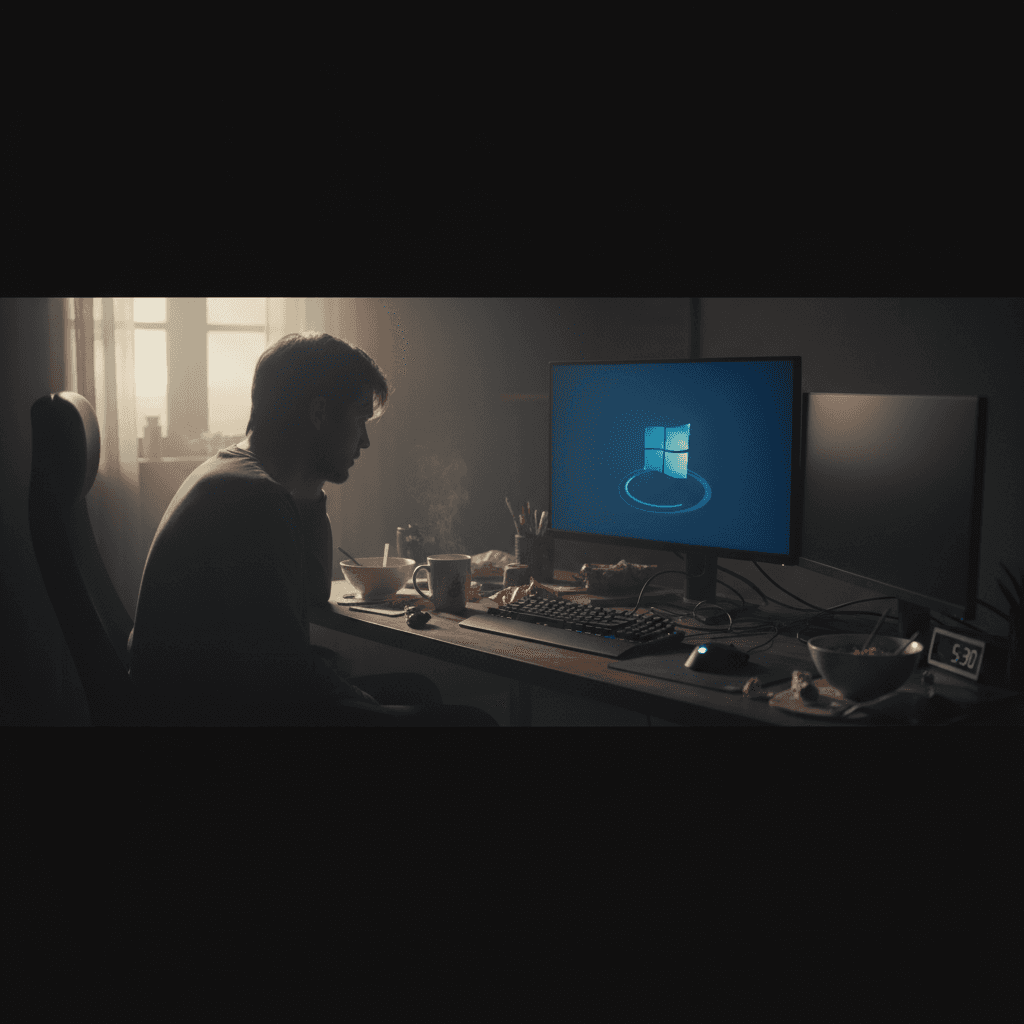
You press the power button and wait. And wait. And wait some more. Your Windows PC is taking way longer to boot than it should, sometimes several minutes just to reach the login screen. This is frustrating, especially when you need to get something done quickly. The good news is that slow boot times are usually fixable with a few tweaks, and you don't need to be a tech expert to do it.
Quick Checks (Do These First)
- Restart your computer - Sometimes a simple restart can clear temporary issues causing slow boots.
- Check if Windows is updating - Right after an update, Windows runs background tasks that can slow things down for 20-30 minutes. Let it finish.
- Look at the motherboard logo time - If your PC sits at the manufacturer logo for a long time before showing the Windows logo, that's a hardware/BIOS issue, not Windows.
Step-by-Step Fixes
Fix 1: Disable Startup Programs
The number one cause of slow boot times is too many programs trying to start with Windows. Here's how to fix it:
- Press
Ctrl + Shift + Escto open Task Manager - Click the Startup tab at the top
- Look at the Startup impact column - anything marked "High" is slowing you down
- Select programs you don't need immediately (like Spotify, Zoom, Adobe updaters)
- Click the Disable button at the bottom right
- Restart your computer and check the boot time
Don't worry about disabling these programs - they'll still work when you open them manually. They just won't start automatically anymore.
Fix 2: Toggle Fast Startup
This sounds backwards, but Windows Fast Startup can actually cause slow boots for some systems. Try turning it off:
- Press
Windows + R, typecontrol panel, and press Enter - Click Power Options
- Click Choose what the power buttons do on the left
- Click Change settings that are currently unavailable at the top
- Uncheck Turn on fast startup (recommended)
- Click Save changes and restart
If this makes things worse, come back and turn it back on.
Fix 3: Run Disk Cleanup and Check for Issues
Temporary files and disk errors can slow down startup. Clean them up:
- Press
Windows + S, typedisk cleanup, and open it - Select your C: drive and click OK
- Check all boxes and click Clean up system files
- After cleanup finishes, press
Windows + Xand select Terminal (Admin) or Command Prompt (Admin) - Type
sfc /scannowand press Enter - Let it run completely (this takes 10-20 minutes)
- Restart when finished
Fix 4: Adjust Visual Effects
Windows animations look nice but can slow down older computers:
- Press
Windows + S, typeperformance, and select Adjust the appearance and performance of Windows - Select Adjust for best performance
- Or select Custom and uncheck animations you don't need
- Click Apply and OK
Fix 5: Update Windows and Drivers
Outdated software can cause compatibility issues that slow boot times:
- Press
Windows + Ito open Settings - Go to Windows Update
- Click Check for updates
- Install any available updates
- Also click Advanced options > Optional updates to update drivers
- Restart after updates finish
If Nothing Worked
If you've tried everything above and your PC still boots slowly, consider these possibilities: Your hard drive might be failing (especially if it's an old mechanical drive), you may have malware running in the background, or your computer might just be too old to run the latest Windows efficiently. If your PC is several years old and still using a traditional hard drive (HDD) instead of a solid-state drive (SSD), upgrading to an SSD is the single best improvement you can make - it can reduce boot times from minutes to 15-30 seconds.
When to Call a Pro
You should get professional help if: your computer is making clicking or grinding noises during startup, boot times are getting progressively worse each week, you see error messages during boot, or you've tried all the fixes above and nothing helped. These could indicate hardware failure that requires replacement. Also, if you're not comfortable opening Device Manager or using Command Prompt, it's better to have someone help than risk making things worse.
Need Professional Help?
If you're in the Tampa Bay area and need hands-on assistance, Geeks in Sneaks provides friendly, on-site tech support in Clearwater, Clearwater Beach, and Dunedin.
Related Topics
Need Professional Help?
If you're still having trouble, our expert technicians can help.
Learn about our pc repair serviceMore Windows Problems Fixes
See all Windows Problems fixes →Should I Worry About Windows Event Errors?
Found errors and warnings in Event Viewer and worried something is wrong? Here's the truth about Windows event logs and what you actually need to fix.
How Long Should a Windows PC Last?
Wondering if your PC is getting too old? Here's the realistic lifespan of Windows computers and when it's time to upgrade versus repair.
Why Does My Cursor Freeze Momentarily?
Mouse cursor stuttering or freezing for a second or two randomly? Here's what causes it and how to fix the annoying micro-freezes.
Is 80°C CPU Temperature Dangerous?
Worried about your CPU hitting 80°C? Here's the truth about CPU temperatures, what's safe, and when you actually need to be concerned.
Why Does My Fan Spin Up Randomly?
Computer fan suddenly revving up for no apparent reason? Here's why it happens, when it's normal, and when you should be concerned.
Are Windows Updates Really Necessary?
Wondering if you can skip those annoying Windows updates? Here's what you need to know about why updates matter and what happens if you ignore them.
Is High RAM Usage a Problem in Windows?
Seeing 70% or 80% RAM usage in Task Manager? Before you panic, read this to understand when high RAM usage is normal and when it's actually a problem.
Creating a Recovery Drive Before Disaster Strikes
A Windows recovery drive can save you when your PC won't boot. Learn how to create one now before you need it.