
Windows services failing to start
Getting errors that Windows services failed to start? Here's how to diagnose and fix critical service startup failures.
What's Happening
A Windows service won't start, so something visible breaks — printing, Bluetooth, Windows Update, audio — or you get "The service did not respond in a timely fashion." A service is just a background program Windows launches on its own, and it can fail to start for one of four distinct reasons, not one: a service it depends on isn't running, its startup type is wrong, the files it loads are corrupt, or the account it runs as has lost the rights it needs. These look identical from the outside — a feature simply doesn't work — but each needs a different fix, and trying the wrong one wastes time. The whole job is identifying which of the four is true, and Event Viewer is what tells you.
Quick Checks (Do These First)
- Try a manual start first.
Windows + R>services.msc, find the service, right-click > Start. If it starts and the error code it throws is written down, you're halfway there. - Get the real name and error from Event Viewer. Right-click Start > Event Viewer > Windows Logs > System, find the red Error entries. They name the exact service and the failure reason — don't guess.
- Note whether one service or many failed. One service is usually local; several at once points at something deeper (covered at the end).
Let the Failure Message Pick the Method
The Event Viewer entry isn't just noise — its wording maps almost directly to which of the four causes you have:
- "Dependency service failed to start" / Error 1068 → it's not this service that's broken; something it relies on didn't come up. Go to Method 1 (dependencies). Fixing the service directly does nothing.
- "Logon failure" / Error 1069 / mentions an account → the service's logon account lost rights. Go to Method 4 (service account). Restarting it just fails the same way.
- "The system cannot find the file specified" / Error 2 / Error 1053 timeout → the binary it loads is missing or corrupt. Go to Method 3 (SFC/DISM).
- Service is simply set to Manual/Disabled, no error → it was never told to start. Go to Method 2 (startup type).
A dependency failure will never respond to a file repair, and a permissions failure will never respond to a startup-type change. Read the message, pick the matching method, and skip the other three.
Detailed Fix Steps
Method 1: Fix Service Dependencies
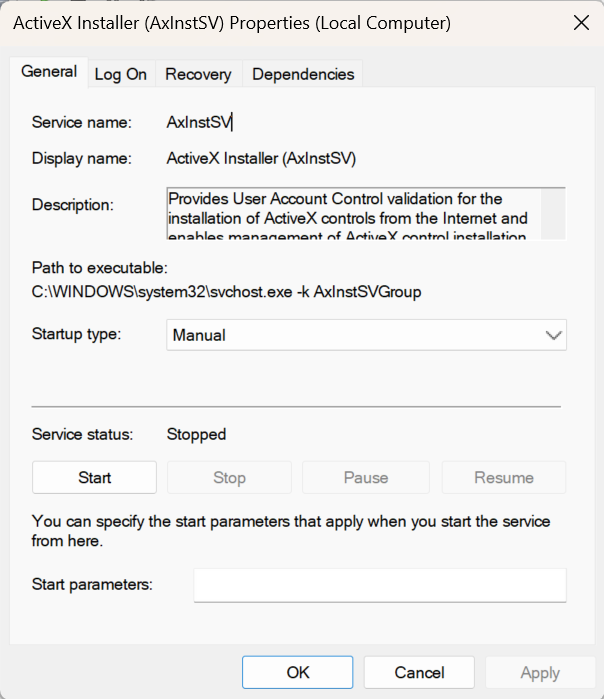
services.msc> double-click the failing service > Dependencies tab.- For each item under "This service depends on…", find it in the list, set Startup type to Automatic, and Start it.
- Once every dependency is running, start the original service.
Method 2: Set the Correct Startup Type
- Double-click the service > set Startup type to Automatic (or Automatic (Delayed Start) for heavy services).
- Apply, click Start, OK, and reboot to confirm it comes up on its own.
Method 3: Repair Corrupt System Files
- Open Terminal (Admin).
sfc /scannow(15–30 min). If it can't fix everything, runDISM /Online /Cleanup-Image /RestoreHealth, thensfc /scannowagain.- Restart and recheck the service.
Method 4: Fix the Service Logon Account
- Double-click the service > Log On tab.
- If "This account" is selected and failing, switch to Local System account and Apply. (Print Spooler in particular must run as Local System.)
Method 5: Targeted Fixes for the Usual Suspects
Windows Update — in an admin prompt: net stop wuauserv, net stop bits, ren C:\\Windows\\SoftwareDistribution SoftwareDistribution.old, net start wuauserv, net start bits.
Print Spooler — stop the service, delete everything in C:\\Windows\\System32\\spool\\PRINTERS, restart it (a single stuck job blocks every print).
Audio — restart Windows Audio and Windows Audio Endpoint Builder together; the second feeds the first.
Method 6: Scan for Malware
- Windows Security > Virus & threat protection > Scan options > Full scan. Malware commonly disables security and update services to hide; if those specific services keep dying, scan before anything else.
If That Didn't Work
- Safe Mode test: if the service starts in Safe Mode but not normally, a third-party program is interfering — chase startup apps.
- Try a new Windows user account; if it works there, your profile is corrupt, not the service.
- Last resort: an in-place upgrade repair after DISM.
Where DIY Stops — And Why
If the right method for your error message still leaves the service dead — or several core services fail together — you've hit the wall, and the remaining causes don't bend to a settings change:
- Registry or ACL damage — when the keys that define a service, or the permissions on them, are corrupt, the service has no valid definition to load. Repairing this means editing the registry and security descriptors precisely; a wrong change here can leave Windows unbootable, which is exactly why it's past DIY.
- A failing drive corrupting service binaries — if many unrelated services fail at once, or they fail again right after a repair, the disk writing those files may be dying. That needs a drive health check, and continuing to run on it risks the rest of your data.
- An infection actively re-disabling services — services that won't stay started because something keeps stopping them need to be cleaned from outside the running system, not just restarted.
Telling registry damage apart from a dying drive apart from active malware is the diagnostic step a homeowner has no clean tools for — and a service failure that locks you out of login, the network, or business software is the kind of downtime where guessing is the expensive option. If you're local, that's the point worth handing off.
Services Won't Start?
Geeks in Sneaks can diagnose and repair Windows service failures, fix permission issues, and restore critical functionality. We'll identify why services are failing and implement the right fix to get Windows working properly again.
Related Topics
Need Professional Help?
If you're still having trouble, our expert technicians can help.
Learn about our pc repair serviceMore Windows Problems Fixes
See all Windows Problems fixes →How Long Should a Windows PC Last?
Wondering if your PC is getting too old? Here's the realistic lifespan of Windows computers and when it's time to upgrade versus repair.
Why Does My Cursor Freeze Momentarily?
Mouse cursor stuttering or freezing for a second or two randomly? Here's what causes it and how to fix the annoying micro-freezes.
Is 80°C CPU Temperature Dangerous?
Worried about your CPU hitting 80°C? Here's the truth about CPU temperatures, what's safe, and when you actually need to be concerned.
Why Does My Fan Spin Up Randomly?
Computer fan suddenly revving up for no apparent reason? Here's why it happens, when it's normal, and when you should be concerned.
Are Windows Updates Really Necessary?
Wondering if you can skip those annoying Windows updates? Here's what you need to know about why updates matter and what happens if you ignore them.
Why Is Windows Search Using So Much Disk?
Windows Search Indexer maxing out your disk usage at 100%? Here's why it happens and how to fix it without losing search functionality.
Is High RAM Usage a Problem in Windows?
Seeing 70% or 80% RAM usage in Task Manager? Before you panic, read this to understand when high RAM usage is normal and when it's actually a problem.
Why Does Windows Take So Long to Shut Down?
If your Windows PC takes forever to shut down, you're not alone—and there are several simple fixes you can try right now.