
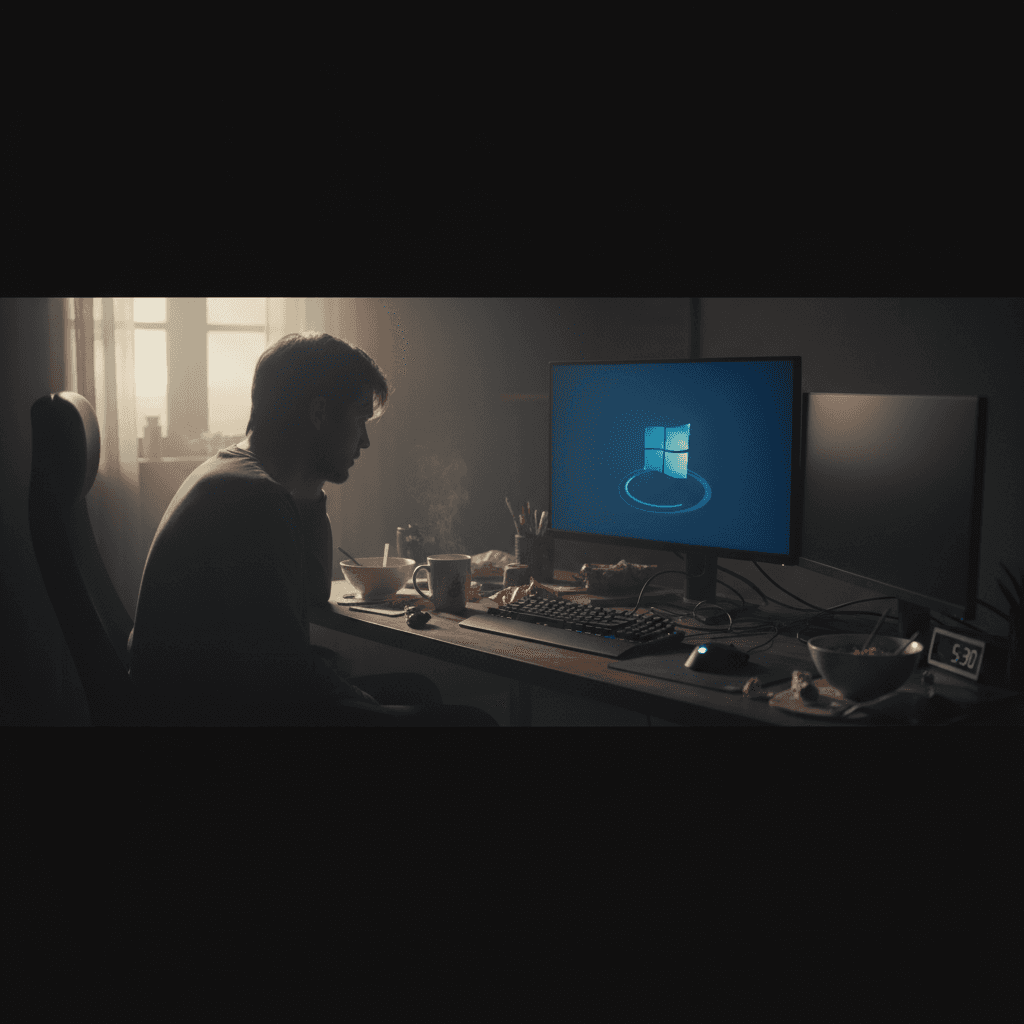
Why Does Windows Take So Long to Shut Down?
If your Windows PC takes forever to shut down, you're not alone—and there are several simple fixes you can try right now.
Why Does Windows Take So Long to Shut Down?
You've had a long day, you're ready to power down your computer, you click 'Shut Down'... and then you wait. And wait. And wait some more. If your Windows PC is taking several minutes to shut down instead of the usual few seconds, you're experiencing one of the most common—and most frustrating—Windows issues.
The good news? This problem is usually fixable without calling in a professional. Let's walk through what's happening and how to get your shutdown time back to normal.
Quick Fix: Check What's Running
Before diving into complex solutions, try this simple fix first:
- Press
Ctrl + Shift + Escto open Task Manager - Look at the list of running programs and processes
- Close any programs you don't need right now
- Try shutting down again
If you have dozens of browser tabs open, multiple programs running, or background apps doing updates, Windows has to close all of these gracefully before it can shut down. Sometimes, simply closing unnecessary programs can solve the problem immediately.
Why Slow Shutdowns Happen
Windows needs to complete several tasks before it can power off: it saves your work, closes all running programs, stops system services, and clears temporary data from memory. This complex sequence can get stuck or slow down for several reasons.
Common Causes
Too many background programs: System utilities, update checkers, and apps that sync with cloud services all need time to close properly.
Windows updates pending: If Windows has downloaded updates that need to install during shutdown, this can add significant time to the process.
Fast Startup feature: Ironically, the 'Fast Startup' feature designed to speed up your boot time can sometimes slow down shutdown.
Programs not responding: If a program hangs or freezes, Windows waits a set amount of time (usually 20 seconds) before forcing it to close.
Corrupted system files: Damaged Windows files can cause the shutdown process to take longer as the system tries to work around errors.
Step-by-Step Solutions
Solution 1: Disable Fast Startup
This is often the most effective fix:
- Open Control Panel and search for 'Power Options'
- Click 'Choose what the power buttons do' on the left side
- Click 'Change settings that are currently unavailable' at the top
- Uncheck 'Turn on fast startup (recommended)'
- Click 'Save changes'
Fast Startup can interfere with the normal shutdown process, especially on older computers or those with certain hardware configurations.
Solution 2: Adjust Shutdown Wait Time
You can tell Windows to wait less time for programs to close:
- Press
Windows + R, typeregedit, and press Enter - Navigate to:
HKEY_LOCAL_MACHINE\SYSTEM\CurrentControlSet\Control - Find 'WaitToKillServiceTimeout' and double-click it
- Change the value from 20000 to 5000 (5 seconds instead of 20)
- Click OK and restart your computer
This tells Windows to force-close unresponsive programs after 5 seconds instead of waiting 20 seconds. Use caution with this approach—setting it too low might prevent programs from saving your work properly.
Solution 3: Run the Power Troubleshooter
Windows includes a built-in tool that can fix common power-related issues:
- Open Settings and go to Update & Security
- Click 'Troubleshoot' in the left menu
- Select 'Additional troubleshooters'
- Click 'Power' and then 'Run the troubleshooter'
- Follow the on-screen instructions
Solution 4: Check for Windows Updates
Sometimes the problem is caused by a bug that Microsoft has already fixed:
- Open Settings and click 'Update & Security'
- Click 'Check for updates'
- Install any available updates
- Restart your computer
Microsoft has fixed several shutdown-related bugs in recent updates, including one involving USB Type-C drivers that caused a 60-second delay.
If That Didn't Work
If your shutdown is still slow after trying the above solutions, consider these additional steps:
Run a malware scan: Viruses and malware can interfere with the shutdown process. Use Windows Defender or your preferred antivirus software to run a full system scan.
Check your disk for errors: Open File Explorer, right-click your C: drive, select Properties, go to the Tools tab, and click 'Check' under Error checking.
Perform a clean boot: This starts Windows with minimal drivers and startup programs to identify if a third-party program is causing the issue. Search 'msconfig' in the Start menu, go to the Services tab, check 'Hide all Microsoft services,' then click 'Disable all.'
When to Call a Professional
Most slow shutdown issues can be fixed with the solutions above. However, you should consider professional help if:
- Your computer takes more than 10 minutes to shut down consistently
- You see error messages or blue screens during shutdown
- Your hard drive makes clicking or grinding noises during shutdown
- None of the above solutions make any difference
These could be signs of failing hardware, like a dying hard drive or memory problems, which require professional diagnosis and repair.
Need Expert Help?
If your Windows PC is still taking forever to shut down—or if you're dealing with other frustrating performance issues—Geeks in Sneaks can help. Our technicians can diagnose the problem quickly and get your computer running smoothly again.
We offer: Complete PC diagnostics, Windows optimization, hardware upgrades, and virus removal. We come to you, so you don't have to unplug everything and haul your computer to a shop.
Related Topics
Need Professional Help?
If you're still having trouble, our expert technicians can help.
Learn about our pc repair serviceMore Windows Problems Fixes
See all Windows Problems fixes →Why Does My Cursor Freeze Momentarily?
Mouse cursor stuttering or freezing for a second or two randomly? Here's what causes it and how to fix the annoying micro-freezes.
Why Does My Fan Spin Up Randomly?
Computer fan suddenly revving up for no apparent reason? Here's why it happens, when it's normal, and when you should be concerned.
Are Windows Updates Really Necessary?
Wondering if you can skip those annoying Windows updates? Here's what you need to know about why updates matter and what happens if you ignore them.
Why Is Windows Search Using So Much Disk?
Windows Search Indexer maxing out your disk usage at 100%? Here's why it happens and how to fix it without losing search functionality.
Is High RAM Usage a Problem in Windows?
Seeing 70% or 80% RAM usage in Task Manager? Before you panic, read this to understand when high RAM usage is normal and when it's actually a problem.
Creating a Recovery Drive Before Disaster Strikes
A Windows recovery drive can save you when your PC won't boot. Learn how to create one now before you need it.
How Often to Update Drivers (and Which Ones to Leave Alone)
Driver updates can fix problems or create them. Learn which drivers to update, which to leave alone, and how to update safely without breaking your PC.
Managing Local vs Microsoft Accounts in Windows
Confused about local accounts vs Microsoft accounts in Windows? Learn the differences, which to use, and how to switch between them.