
Why Speed Tests Vary So Much Between Devices
Getting wildly different speed test results on your phone, laptop, and tablet? This is completely normal, and here's why it happens.
What's Happening
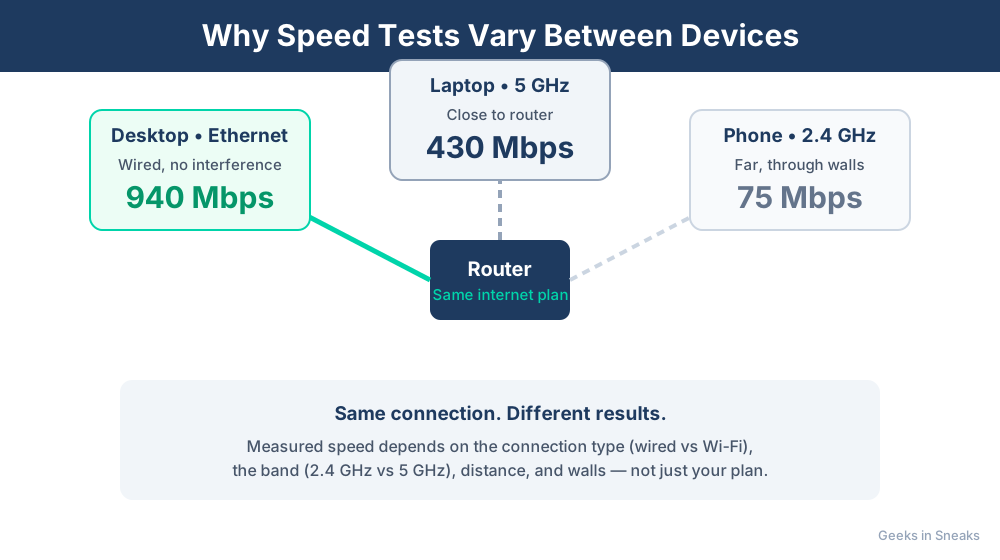
You run a speed test on your laptop and get 200 Mbps. Then you test your phone in the same spot and get 80 Mbps. Your tablet shows 150 Mbps. What's going on? Is your router broken? Actually, this variation is completely normal and happens for several technical reasons. We'll explain why different devices get different speeds and when you should actually worry.
Quick Checks (Do These First)
- Test from the same location. Moving even 10 feet can change results significantly.
- Close background apps. Downloads, updates, or cloud syncing will lower your test results.
- Check what Wi-Fi band you're on. 5 GHz is faster than 2.4 GHz (check in your device's Wi-Fi settings).
- Test multiple times on each device. One test isn't reliable - run 3-5 tests and average them.
- Make sure no one else is using the network. Streaming or gaming on other devices will affect results.
Step-by-Step Fixes
Understanding Why This Happens
Different devices get different speeds for legitimate reasons:
Reason 1: Different Wi-Fi Capabilities
Not all devices have the same Wi-Fi hardware. Here's what matters:
- Wi-Fi generation: A phone with Wi-Fi 6 (802.11ax) will be faster than a laptop with Wi-Fi 5 (802.11ac)
- Number of antennas: Devices with 2x2 or 3x3 MIMO get better speeds than 1x1 devices
- Chipset quality: Budget devices often have cheaper Wi-Fi chips that perform worse
Your new laptop might have Wi-Fi 6E while your tablet from 2019 only has Wi-Fi 5. That alone can create a 50-100 Mbps difference.
Reason 2: Device Processing Power
Running a speed test requires processing power. If your device is older or has a slow processor, it might not be able to handle maximum speeds even if the Wi-Fi connection can deliver them. Your phone's CPU has to decrypt the Wi-Fi signal, process the data, and run the speed test app - all at once.
Reason 3: Operating System Differences
Windows, macOS, iOS, and Android all handle Wi-Fi differently:
- Some operating systems are more aggressive about power saving, which can throttle Wi-Fi speeds
- Different OS versions have different Wi-Fi drivers and optimizations
- Some devices automatically switch between 2.4 GHz and 5 GHz bands
How to Get More Consistent Results
- Test each device in the exact same location (mark the spot with tape)
- Run tests at the same time of day to avoid network congestion
- Restart each device before testing to clear background processes
- Use the same speed test service on all devices (try Fast.com or Speedtest.net)
- Test with a wired connection on devices that support it - this gives you a baseline
When to Actually Worry
Variation between devices is normal, but watch for these red flags:
- All devices are getting less than 50% of your plan speed - even when testing near the router
- One device used to be fast and suddenly isn't - could indicate a driver or hardware issue
- Wired speeds are slow too - suggests a modem or ISP problem, not Wi-Fi
- Brand new device is slower than old ones - might need driver updates or have a defect
If Nothing Worked
If one specific device consistently gets terrible speeds compared to others, the issue is probably with that device - not your router. Try updating the device's Wi-Fi drivers (on computers) or resetting network settings (on phones and tablets). On Windows, go to Device Manager, find your network adapter, and check for driver updates. On phones, try Settings > General > Reset > Reset Network Settings.
When to Call a Pro
If all your devices are getting speeds way below what you're paying for, or if troubleshooting one problematic device isn't working, it might be time for professional help. Network issues can be complex when multiple factors are at play.
Need Professional Help?
If you're in the Tampa Bay area and need hands-on assistance, Geeks in Sneaks provides friendly, on-site tech support in Clearwater, Clearwater Beach, and Dunedin.
Related Topics
Need Professional Help?
If you're still having trouble, our expert technicians can help.
Learn about our network repair serviceMore Router & WiFi Fixes
See all Router & WiFi fixes →Business-Grade vs Consumer Routers for Home Use
Considering a business-grade router for your home? Find out if the premium price delivers real benefits for residential use.
Buying Used or Refurbished Routers: Safe or Risky?
Tempted to save money with a used router? Learn the real security risks and when buying secondhand is safe versus when it's dangerous.
How Long Should a Router Last? When to Replace Yours
Your router is a few years old and you're wondering if it's time to replace it. Learn the typical lifespan and warning signs it's failing.
Gaming Routers: Real Benefits vs Marketing Hype
Wondering if a gaming router is worth the premium price? We separate the real performance benefits from marketing gimmicks.
Renting ISP Equipment vs Buying Your Own: Real Cost Comparison
Paying monthly rental fees for your modem and router? Find out how much you could save by buying your own equipment.
Matching Router Capabilities to Your Internet Speed Tier
Have gigabit internet but not getting those speeds? Your router might be the bottleneck. Learn how to match equipment to your plan.
What to Look for When Buying a Home Router in 2026
Shopping for a new router can be overwhelming with all the technical specs and marketing claims—here's what actually matters in 2026.
When to Move from Single Router to Mesh WiFi System
Dead zones and weak WiFi in parts of your home? Find out if it's time to upgrade from a traditional router to a mesh system.