
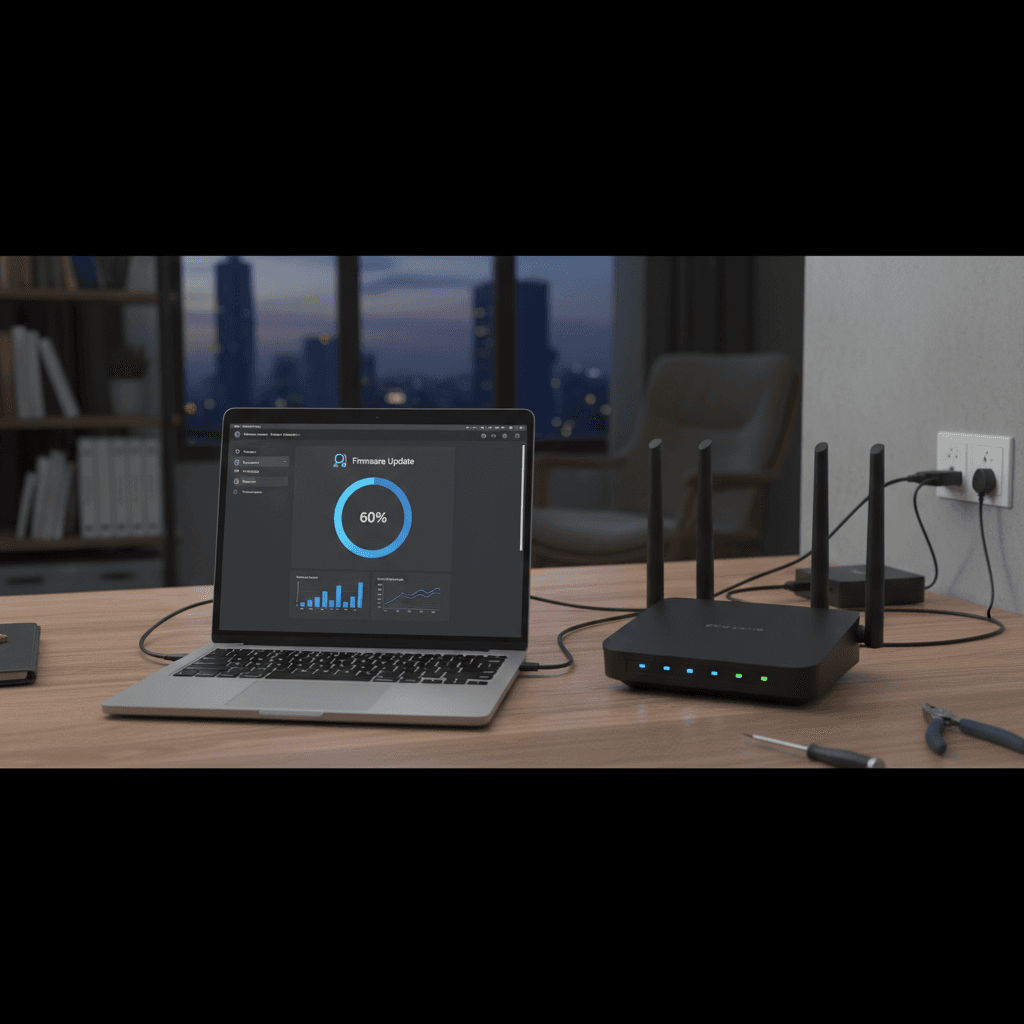
Why Routers Need Firmware Updates Like Phones/PCs
Your router has been sitting in the corner for 3 years without updates. Here's why that's a problem and how to keep it current.
What's Happening
You update your phone regularly, install Windows updates on your computer, but your router? It's been running the same software since the day you bought it three years ago. Many people don't realize that routers need updates too - and ignoring them can lead to security vulnerabilities, performance problems, and compatibility issues with newer devices. Let's talk about why router firmware updates matter and how to keep your router current.
Quick Checks (Do These First)
- Check when your router was last updated. Log into the admin panel (usually 192.168.1.1 or 192.168.0.1) and look for firmware version and date.
- See if auto-updates are enabled. Many modern routers can update themselves automatically.
- Know your router's model and brand. Check the label on the bottom or back of the device.
- Verify your router is still supported. Manufacturers typically support models for 3-5 years after release.
- Back up your router settings before updating (most admin panels have an export/backup option).
Step-by-Step Fixes
Why Router Firmware Updates Matter
Your router is essentially a specialized computer that runs software (called firmware). Just like your phone or PC, this software needs regular updates:
Reason 1: Security Vulnerabilities
This is the most critical reason to update:
- Routers are constant targets for hackers because they control access to your entire network
- New vulnerabilities are discovered regularly in router software
- Unpatched routers can be hijacked for botnets, used to spy on your traffic, or serve as entry points to your devices
- Major vulnerabilities like KRACK (Wi-Fi), FragAttacks, and others have affected millions of routers
An outdated router is like leaving your front door unlocked. You might get lucky, but eventually someone will try the handle.
Reason 2: Performance Improvements
Firmware updates often include optimizations:
- Better Wi-Fi performance through improved channel selection and band steering
- Reduced dropped connections by fixing bugs in the wireless stack
- Improved range and stability through transmit power and timing optimizations
- Better handling of many devices - important as smart home devices multiply
Reason 3: Compatibility with New Devices and Standards
Technology evolves, and firmware updates help your router keep up:
- Support for newer Wi-Fi features that devices expect
- Compatibility with new operating systems (new iPhone or Android versions)
- IPv6 improvements as the internet transitions from IPv4
- IoT device support as smart home devices become more common
Reason 4: Bug Fixes
Early firmware releases often have bugs that get fixed over time:
- Random disconnections
- Web interface crashes
- DHCP issues (devices not getting IP addresses)
- Problems with specific ISPs or modem models
How to Update Your Router Firmware
Method 1: Check for Built-in Updates (Easiest)
- Open a web browser and enter your router's IP address (usually
192.168.1.1,192.168.0.1, or printed on the router) - Log in with admin credentials (default is often admin/admin or admin/password, unless you changed it)
- Look for sections called: "Firmware Update," "Software Update," "System Update," or "Administration"
- Click Check for Updates or similar button
- If an update is available, click Download or Install
- Do not unplug or turn off the router during the update - this can brick it
- The router will restart when finished (takes 5-10 minutes)
Method 2: Enable Automatic Updates
Many modern routers support automatic updates:
- In your router's admin panel, look for "Automatic Updates" or "Auto-Update"
- Enable the option
- Some routers let you choose when updates happen (like overnight)
- The router will download and install updates automatically
Recommended brands with good auto-update: Google/Nest WiFi, Eero, Ubiquiti, newer TP-Link and Netgear models.
Method 3: Manual Firmware Download (For Older Routers)
- Find your router's exact model number (on the label)
- Go to the manufacturer's support website
- Search for your model and navigate to the "Downloads" or "Support" section
- Download the latest firmware file (usually a .bin or .img file)
- Log into your router's admin panel
- Find the "Firmware Update" or "Manual Update" section
- Upload the file you downloaded
- Wait for the update to complete (do not interrupt)
How Often Should You Update?
- Check for updates monthly if your router doesn't auto-update
- Update immediately if a security vulnerability is announced for your model
- Enable auto-updates if available and supported by your router
- Check after buying new devices that won't connect properly
What If Your Router Is Too Old to Update?
Manufacturers typically support routers for 3-5 years. After that, firmware updates stop:
- If your router is 5+ years old and no longer receiving updates, it's time to replace it
- Unsupported routers become security risks as new vulnerabilities emerge
- Newer routers also offer better performance, Wi-Fi 6, and improved device handling
Good replacement brands with long support: Asus (often 5+ years), Ubiquiti, Netgear, TP-Link Archer series.
Common Update Problems
Update Failed or Router Won't Boot After Update:
- Unplug router for 30 seconds, plug back in
- Try a hard reset (hold reset button for 10+ seconds)
- Some routers have recovery modes - check manufacturer documentation
- Contact manufacturer support - they may be able to recover it
Can't Find Update Option:
- Very old routers might not have web-based updates
- Check the manufacturer's website for specific instructions for your model
- Some ISP-provided routers are updated remotely by the ISP
If Nothing Worked
If your router's firmware update fails repeatedly or if your router is no longer supported by the manufacturer, it's probably time for a replacement. Modern routers offer significant improvements in security, speed, and features. Look for models with automatic updates and at least Wi-Fi 5 (preferably Wi-Fi 6) support.
When to Call a Pro
If you're uncomfortable accessing your router's admin panel, or if an update failed and your router is now non-functional, professional help can either recover the router or help you choose and set up an appropriate replacement. Router updates are usually safe, but when they go wrong, expert assistance can save the device.
Need Professional Help?
If you're in the Tampa Bay area and need assistance updating your router or choosing a new one, Geeks in Sneaks provides friendly, on-site tech support in Clearwater, Clearwater Beach, and Dunedin.
Related Topics
Need Professional Help?
If you're still having trouble, our expert technicians can help.
Learn about our network repair serviceMore Router & WiFi Fixes
See all Router & WiFi fixes →Business-Grade vs Consumer Routers for Home Use
Considering a business-grade router for your home? Find out if the premium price delivers real benefits for residential use.
Buying Used or Refurbished Routers: Safe or Risky?
Tempted to save money with a used router? Learn the real security risks and when buying secondhand is safe versus when it's dangerous.
How Long Should a Router Last? When to Replace Yours
Your router is a few years old and you're wondering if it's time to replace it. Learn the typical lifespan and warning signs it's failing.
Gaming Routers: Real Benefits vs Marketing Hype
Wondering if a gaming router is worth the premium price? We separate the real performance benefits from marketing gimmicks.
Renting ISP Equipment vs Buying Your Own: Real Cost Comparison
Paying monthly rental fees for your modem and router? Find out how much you could save by buying your own equipment.
Matching Router Capabilities to Your Internet Speed Tier
Have gigabit internet but not getting those speeds? Your router might be the bottleneck. Learn how to match equipment to your plan.
What to Look for When Buying a Home Router in 2026
Shopping for a new router can be overwhelming with all the technical specs and marketing claims—here's what actually matters in 2026.
When to Move from Single Router to Mesh WiFi System
Dead zones and weak WiFi in parts of your home? Find out if it's time to upgrade from a traditional router to a mesh system.