
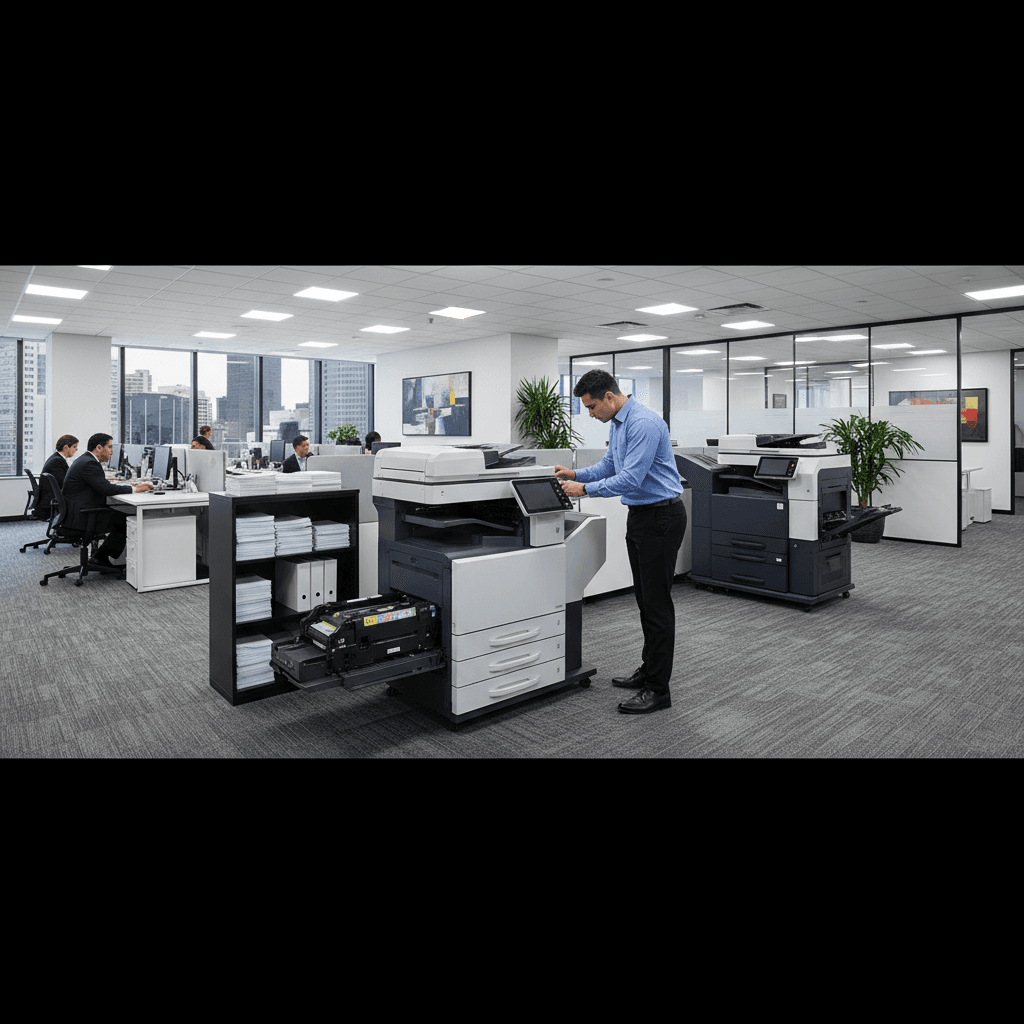
Why Printers Lose Settings After a Power Outage
Did a power outage reset your printer to factory defaults? Here's why it happens and how to prevent it from happening again.
What's Happening
The power went out, and when it came back on, your printer no longer remembers your network settings, default print preferences, or custom configurations. Everything has been reset to factory defaults, and you need to set it all up again. This is frustrating but not uncommon. Printers store settings in NVRAM (Non-Volatile Random Access Memory), which is supposed to retain data even without power. However, sudden power loss, power surges, or aging NVRAM chips can cause data corruption or complete loss of stored settings.
Quick Checks (Do These First)
- Try a simple power cycle - Sometimes turning the printer fully off and on again restores settings after a glitch.
- Check if only some settings were lost - If just network settings are gone, the issue may be specific rather than complete NVRAM failure.
- Look for error codes - Some printers display specific NVRAM error codes (like HP's "68 Error") that indicate chip problems.
- Review power protection - Is your printer plugged into a surge protector or directly into the wall?
Step-by-Step Fixes
Fix 1: Restore Settings Manually
If this is a one-time occurrence after a power outage, you may just need to reconfigure.
- Reconnect the printer to your WiFi network through the printer's control panel
- Re-enter any custom settings like default paper size, print quality preferences, or energy saving modes
- If you have a network printer, you may need to reconfigure IP address settings
- Check that printer drivers on your computer still recognize the printer
- Print a test page to confirm everything is working
Keep a photo or written record of your important printer settings so you can quickly restore them if this happens again.
Fix 2: Perform an NVRAM Reset
Sometimes partial data corruption can be fixed by intentionally resetting NVRAM and starting fresh.
- Turn off the printer and unplug it from power
- Wait 60 seconds to allow capacitors to fully discharge
- For HP LaserJets: Hold down the "Go" or "Resume" button while powering on
- For other brands, check your manual for the specific NVRAM reset procedure
- The printer will restore factory defaults
- Reconfigure all settings from scratch
A controlled NVRAM reset can sometimes clear corrupted data that's causing persistent problems.
Fix 3: Protect Against Future Power Issues
Prevention is better than repeatedly reconfiguring your printer.
- Purchase a quality surge protector rated for electronics (at least 1000 joules)
- Better yet, use an uninterruptible power supply (UPS) for your printer
- A UPS provides battery backup during brief power outages and surge protection
- Even a small UPS ($50-80) can keep a printer alive during short outages
- This prevents both data corruption and potential hardware damage from power surges
- Place the UPS where it has good ventilation and won't be tripped over
A UPS is especially important if you live in an area with frequent power fluctuations or storms.
Fix 4: Update Printer Firmware
Firmware updates sometimes include fixes for NVRAM stability issues.
- Visit your printer manufacturer's support website
- Enter your printer's model number
- Download the latest firmware update
- Follow installation instructions carefully
- Do not interrupt the update process or turn off the printer during installation
- After updating, reconfigure your settings again
Some firmware updates specifically address memory management and power loss recovery issues.
If Nothing Worked
If your printer loses settings after every power cycle or repeatedly displays NVRAM error codes, the NVRAM chip itself may have failed. This can happen with age or after repeated power surges. In some printer models, NVRAM is part of the main logic board, making replacement expensive. Check if your printer is still under warranty—NVRAM failure is typically covered. If the printer is old and out of warranty, the cost of logic board replacement may exceed the value of buying a new printer.
When to Call a Pro
If you've tried NVRAM resets and the printer continues to lose settings, or if error codes persist, professional diagnosis is needed. Technicians have tools to test NVRAM chips and determine if replacement is possible. For business-critical printers where downtime is expensive, professional repair may be worthwhile even for older units. Also consider professional help if you're uncomfortable performing firmware updates or NVRAM resets, as mistakes during these procedures can render the printer inoperable.
Need Professional Help?
If you're in the Tampa Bay area and need hands-on assistance, Geeks in Sneaks provides friendly, on-site tech support in Clearwater, Clearwater Beach, and Dunedin.
Related Topics
Need Professional Help?
If you're still having trouble, our expert technicians can help.
Learn about our printer support serviceMore Printer Issues Fixes
See all Printer Issues fixes →How to Prevent Malware from Abusing Network Printers
Concerned about malware using your printer to spread or spy? Here's how to secure network printers against malicious software and attacks.
How to Prevent Kids or Guests from Printing 100-Page Jobs
Tired of accidental massive print jobs from kids or guests? Here's how to set up quotas, require approval, and control who can print what.
How Often Should You Check for Printer Security Updates?
Printer firmware updates aren't optional—they patch security holes. Here's how often to check, how to update, and how to set up automatic updates.
How to Block Unwanted Cloud and Remote Print Features
Don't want HP ePrint, Canon Cloud, or Epson Connect on your printer? Here's how to disable cloud printing features for better privacy and security.
How to Use Guest Networks or VLANs to Isolate Your Printer
Want to keep your printer on a separate network for security? Learn how to use guest networks and VLANs to isolate printers from your main devices.
How to Reset Forgotten Admin Password on Printer Web Interface
Locked out of your printer's web interface? Here's how to reset the admin password for HP, Canon, Epson, and Brother printers.
How to Securely Dispose of Old Printers with Stored Data
Getting rid of an old printer? Learn how to wipe stored data and dispose of it securely so your personal information doesn't end up in the wrong hands.
Are Scanned or Copied Documents Stored on Your Printer?
Wondering if your printer keeps copies of documents you scan or copy? Here's what gets stored, how to check, and how to clear it.