
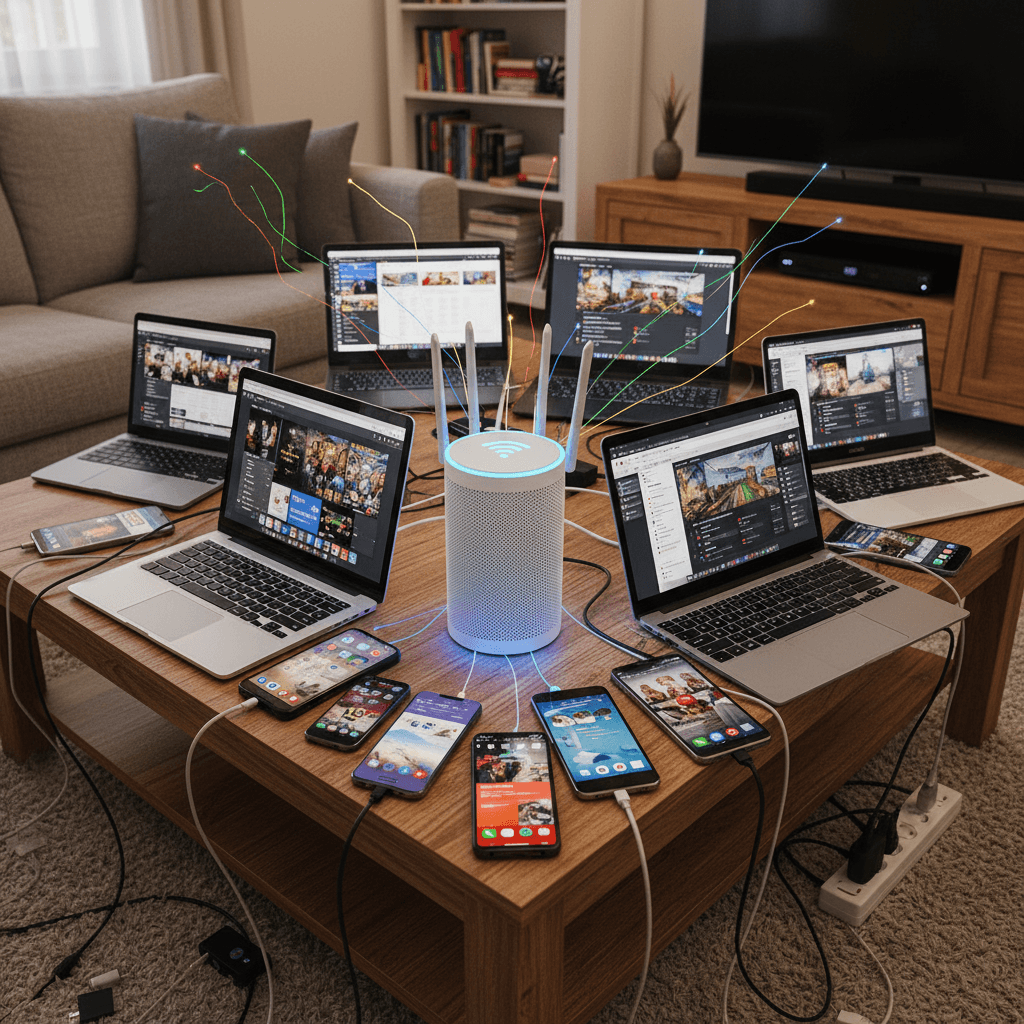
How to Use Separate Networks for Smart Home Devices
Improve your network security and performance by setting up separate Wi-Fi networks for your smart home devices - here's the complete guide.
What's Happening
You have a growing collection of smart home devices - thermostats, cameras, smart plugs, light bulbs, door locks - and you've heard that keeping them on a separate network is more secure. Or maybe your main network is getting crowded and you want better performance. Setting up separate networks (also called network segmentation) is one of the best security practices for modern homes, and it's easier than you might think.
Quick Checks (Do These First)
- Does your router support guest networks? Most modern routers have at least one guest network option.
- How many smart devices do you have? Count everything: cameras, thermostats, smart speakers, lights, switches, locks.
- Do you need devices to talk to each other? Some smart home setups require devices on the same network.
- Do you control devices from your phone? Make sure your setup allows phone-to-device communication.
- Check if your router supports VLANs. Advanced routers can create multiple isolated networks.
Why Separate Networks Matter
Smart home devices are notoriously insecure. Many have weak security, rarely get updates, and can be exploited by hackers. If someone compromises your smart light bulb, you don't want them to access your laptop or phone on the same network. Separate networks create walls between your trusted devices and your IoT devices, limiting the damage if something gets hacked.
Step-by-Step Fixes
Fix 1: Set Up a Guest Network for IoT Devices
- Log into your router's admin interface at
192.168.1.1or192.168.0.1 - Find the "Guest Network" or "Guest Wi-Fi" section
- Enable the guest network
- Give it a name like "SmartHome" or "IoT-Devices" (make it descriptive for you)
- Set a strong password - different from your main network
- Look for an option like "Allow guests to access local network" or "Client Isolation"
- Make sure client isolation is ENABLED - this prevents devices on the guest network from seeing your main network
- Save the settings
- Now reconnect all your smart home devices to this new guest network
Fix 2: Create a Dedicated 2.4GHz Network for IoT
- Many smart devices only work on 2.4GHz (not 5GHz)
- In router settings, check if you can enable separate 2.4GHz and 5GHz networks
- Give them different names: "HomeNetwork-5G" and "SmartHome-2.4G"
- This naturally separates your devices - modern laptops/phones use 5GHz, IoT uses 2.4GHz
- You can still manage both networks from your devices that support dual-band
Fix 3: Set Up VLANs (Advanced, for Capable Routers)
- If your router supports VLANs (Virtual LANs), this is the most secure option
- Access Advanced Settings or Network Configuration
- Create a new VLAN (usually VLAN 2 or VLAN 10)
- Assign this VLAN to a specific SSID for your IoT devices
- Configure firewall rules to block VLAN-to-VLAN traffic (IoT can't access main network)
- Allow the VLAN to access the internet
- This requires networking knowledge - follow your router's specific VLAN guide
Fix 4: Configure Your Smart Devices on the New Network
- Go through each smart device and reconnect it to your IoT network
- Use each device's app to change the Wi-Fi network in settings
- For devices without apps, you may need to factory reset and set them up fresh
- Keep a list of which devices are on which network
- Your phone/tablet will need to connect to the IoT network temporarily to set up devices
Fix 5: Manage Devices from Your Main Network (Compatibility Check)
- Most smart home apps work through the cloud, so this won't be an issue
- Your phone on the main network talks to the manufacturer's cloud, which talks to your device
- Test each device to make sure it's still controllable
- If a device requires local network access, you may need to adjust firewall rules
- Smart home hubs (like SmartThings, Hubitat) may need to stay on the main network
Fix 6: Set Up Firewall Rules for Limited Access (Advanced)
- In router settings, find "Firewall" or "Access Control"
- Create rules that allow specific devices on the IoT network to communicate with specific devices on the main network
- For example, allow your smart home hub on the main network to access IoT devices
- Block everything else
- This gives you control while maintaining security
What About Performance?
Separating networks can actually improve performance. IoT devices often create lots of small network traffic that can clog up your main network. By putting them on a guest network, your laptop and phone get cleaner bandwidth. Just make sure your router can handle multiple SSIDs - older routers might struggle.
If Nothing Worked
If your router doesn't support guest networks or VLANs, consider upgrading to a more modern router. Look for routers that advertise IoT security features or network segmentation. Mesh network systems often have excellent IoT network options built in. If you have specific smart home devices that refuse to work when isolated, check their documentation - some require specific ports to be opened.
When to Call a Pro
Setting up network segmentation can get complex, especially if you have advanced smart home setups, security cameras, or NAS devices. If you're not comfortable with networking concepts like VLANs and firewall rules, or if you want everything set up optimally from the start, professional help is worthwhile.
Need Professional Help?
If you're in the Tampa Bay area and want expert help setting up secure, segmented networks for your smart home, Geeks in Sneaks provides friendly, on-site tech support in Clearwater, Clearwater Beach, and Dunedin.
Related Topics
Need Professional Help?
If you're still having trouble, our expert technicians can help.
Learn about our network repair serviceMore Router & WiFi Fixes
See all Router & WiFi fixes →Business-Grade vs Consumer Routers for Home Use
Considering a business-grade router for your home? Find out if the premium price delivers real benefits for residential use.
Buying Used or Refurbished Routers: Safe or Risky?
Tempted to save money with a used router? Learn the real security risks and when buying secondhand is safe versus when it's dangerous.
How Long Should a Router Last? When to Replace Yours
Your router is a few years old and you're wondering if it's time to replace it. Learn the typical lifespan and warning signs it's failing.
Gaming Routers: Real Benefits vs Marketing Hype
Wondering if a gaming router is worth the premium price? We separate the real performance benefits from marketing gimmicks.
Renting ISP Equipment vs Buying Your Own: Real Cost Comparison
Paying monthly rental fees for your modem and router? Find out how much you could save by buying your own equipment.
Matching Router Capabilities to Your Internet Speed Tier
Have gigabit internet but not getting those speeds? Your router might be the bottleneck. Learn how to match equipment to your plan.
What to Look for When Buying a Home Router in 2026
Shopping for a new router can be overwhelming with all the technical specs and marketing claims—here's what actually matters in 2026.
When to Move from Single Router to Mesh WiFi System
Dead zones and weak WiFi in parts of your home? Find out if it's time to upgrade from a traditional router to a mesh system.