

How to Stop Windows Telemetry and Data Collection
Concerned about how much data Windows sends to Microsoft? Here's how to minimize or stop Windows telemetry and reduce data collection.
What Is Windows Telemetry?
Windows telemetry is the diagnostic and usage data that Windows continuously sends to Microsoft. This includes information about your hardware, system performance, app usage, crash reports, and even some of your activities. Microsoft claims this data helps improve Windows, fix bugs, and enhance security—but many users are uncomfortable with the amount of data being collected.
The challenge is that Windows doesn't make it easy to completely disable telemetry, especially in Windows 11 Home edition. However, you can significantly reduce data collection with the right settings and tools. This guide shows you how to minimize telemetry across all Windows editions.
Important note: Some basic diagnostic data is required for Windows to function properly, including Windows Update and security features. Complete elimination isn't possible (or recommended), but you can dramatically reduce what's sent.
Quick Fix: Basic Telemetry Reduction
For immediate privacy improvement without advanced tools:
- Press Windows + I to open Settings
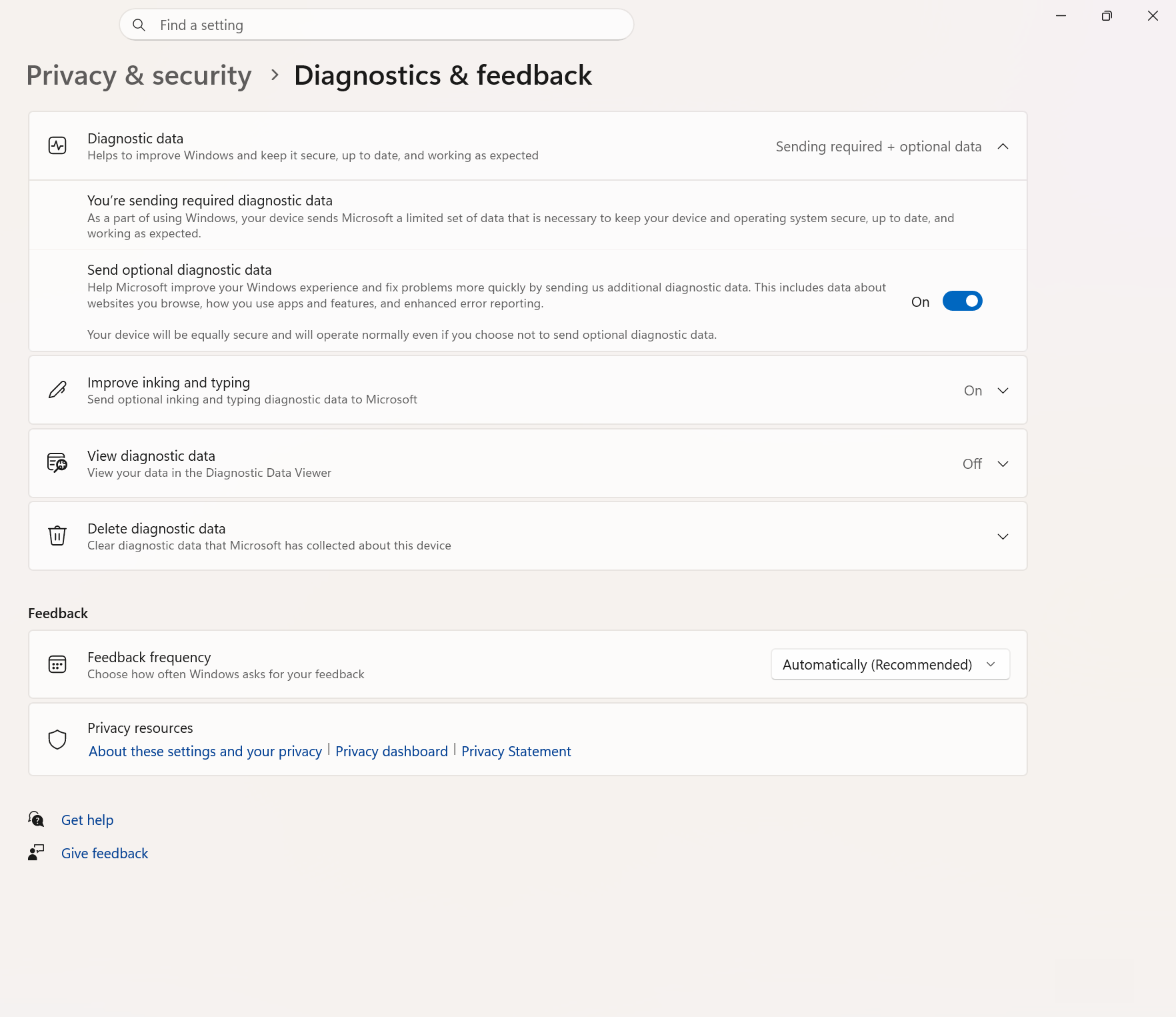
- Go to Privacy & security > Diagnostics & feedback
- Under "Diagnostic data," select "Required diagnostic data" (the minimum setting)
- Toggle OFF "Send optional diagnostic data"
- Toggle OFF "Improve inking and typing"
- Toggle OFF "Tailored experiences"
- Click "Delete" under "Delete diagnostic data"
This reduces telemetry to the minimum required level and clears previously collected data. For Windows 11 Home users, this is the furthest you can go without third-party tools.
Understanding Telemetry Levels
Windows has different telemetry levels (available in Pro/Enterprise editions via Group Policy):
- Security (Enterprise only): Minimal data for security features only
- Required (Basic): Essential data for Windows to operate safely and stay updated
- Enhanced: Additional data about Windows usage, performance, and reliability
- Full (Optional): Everything including app usage, browsing data, and detailed diagnostics
Windows 11 Home is locked to "Required" as the minimum. Pro and Enterprise can reduce to "Security" level.
Disable Telemetry on Windows 11 Pro/Enterprise
If you have Windows 11 Pro, Enterprise, or Education, you can use Group Policy for deeper control:
Method 1: Group Policy Editor
- Press Windows + R, type
gpedit.msc, and press Enter - Navigate to: Computer Configuration > Administrative Templates > Windows Components > Data Collection and Preview Builds
- Double-click "Allow Diagnostic Data" (or "Allow Telemetry" in Windows 10)
- Select "Enabled"
- In the dropdown, choose:
- "Diagnostic data off (not recommended)" for complete disable (may break some features)
- "Send required diagnostic data" for minimum collection
- Click "Apply" then "OK"
- Restart your computer
Warning: Setting telemetry to "off" can cause issues with Windows Update, Microsoft Store, and troubleshooting tools. "Required" is usually the best balance.
Additional Group Policy Settings
While in Group Policy Editor, configure these related settings:
- In the same location (Data Collection and Preview Builds), find and Disable these policies:
- "Allow device name to be sent in Windows diagnostic data"
- "Limit dump collection"
- "Limit diagnostic log collection"
- Navigate to: Computer Configuration > Administrative Templates > Windows Components > Windows Error Reporting
- Enable "Disable Windows Error Reporting"
Disable Telemetry on Windows 11 Home (Registry Method)
Windows 11 Home doesn't include Group Policy Editor, but you can modify the registry:
Warning: Editing the registry incorrectly can cause system issues. Back up your registry first (File > Export in Registry Editor).
- Press Windows + R, type
regedit, and press Enter - Navigate to:
HKEY_LOCAL_MACHINE\SOFTWARE\Policies\Microsoft\Windows\DataCollection - If the "DataCollection" key doesn't exist, right-click "Windows" and select New > Key, name it "DataCollection"
- Right-click in the right pane, select New > DWORD (32-bit) Value
- Name it
AllowTelemetry - Double-click it and set the value:
- 0 = Security (Enterprise only, may cause issues on Home)
- 1 = Required diagnostic data (recommended for Home)
- Click OK and close Registry Editor
- Restart your computer
Disable Specific Telemetry Services
Several Windows services handle telemetry. Disabling these reduces data collection:
- Press Windows + R, type
services.msc, and press Enter - Find and disable these services (right-click > Properties, set Startup type to "Disabled," click Stop if running):
- "Connected User Experiences and Telemetry" (DiagTrack)
- "Windows Error Reporting Service"
- "dmwappushservice" (if present)
- Click Apply then OK for each
- Restart your computer
Note: Disabling these services may prevent some troubleshooting and error reporting features from working.
Block Telemetry via Hosts File
You can block Windows from connecting to Microsoft's telemetry servers:
- Open Notepad as Administrator (right-click Notepad > Run as administrator)
- Click File > Open and navigate to:
C:\Windows\System32\drivers\etc - Change file type to "All Files" and open the "hosts" file
- Add these lines at the bottom (blocks common telemetry domains):
127.0.0.1 vortex.data.microsoft.com
127.0.0.1 vortex-win.data.microsoft.com
127.0.0.1 telecommand.telemetry.microsoft.com
127.0.0.1 telecommand.telemetry.microsoft.com.nsatc.net
127.0.0.1 oca.telemetry.microsoft.com
127.0.0.1 sqm.telemetry.microsoft.com
127.0.0.1 watson.telemetry.microsoft.com
127.0.0.1 redir.metaservices.microsoft.com
127.0.0.1 choice.microsoft.com
127.0.0.1 df.telemetry.microsoft.com
127.0.0.1 reports.wes.df.telemetry.microsoft.com
127.0.0.1 wes.df.telemetry.microsoft.com
127.0.0.1 services.wes.df.telemetry.microsoft.com
127.0.0.1 sqm.df.telemetry.microsoft.com
127.0.0.1 telemetry.microsoft.com
127.0.0.1 watson.ppe.telemetry.microsoft.com
127.0.0.1 telemetry.appex.bing.net
127.0.0.1 telemetry.urs.microsoft.com
127.0.0.1 telemetry.appex.bing.net:443
127.0.0.1 settings-sandbox.data.microsoft.com
127.0.0.1 vortex-sandbox.data.microsoft.com
127.0.0.1 survey.watson.microsoft.com
127.0.0.1 watson.live.com
127.0.0.1 watson.microsoft.com
127.0.0.1 statsfe2.ws.microsoft.com
127.0.0.1 corpext.msitadfs.glbdns2.microsoft.com
127.0.0.1 compatexchange.cloudapp.net
127.0.0.1 cs1.wpc.v0cdn.net
127.0.0.1 a-0001.a-msedge.net
127.0.0.1 statsfe2.update.microsoft.com.akadns.net
127.0.0.1 sls.update.microsoft.com.akadns.net
127.0.0.1 fe2.update.microsoft.com.akadns.net
127.0.0.1 diagnostics.support.microsoft.com
127.0.0.1 corp.sts.microsoft.com
127.0.0.1 statsfe1.ws.microsoft.com
127.0.0.1 pre.footprintpredict.com
127.0.0.1 i1.services.social.microsoft.com
127.0.0.1 i1.services.social.microsoft.com.nsatc.net
127.0.0.1 feedback.windows.com
127.0.0.1 feedback.microsoft-hohm.com
127.0.0.1 feedback.search.microsoft.com
- Save and close the file
- Restart your computer
Caution: Blocking these domains may interfere with some Windows features. Test your system after making changes.
Use Third-Party Privacy Tools
Several reputable tools automate telemetry reduction:
O&O ShutUp10++ (Recommended)
- Free tool from O&O Software
- User-friendly interface with recommended settings
- Works on Windows 10 and 11
- Download from oo-software.com
- Run the tool, apply recommended settings with one click
Windows Privacy Dashboard (WPD)
- Open-source privacy tool
- Lets you configure telemetry settings in a centralized interface
- Download from wpd.app
Important: Only use well-known, reputable tools. Some "privacy" tools are actually malware or contain unwanted software.
Additional Privacy Settings
Beyond telemetry, configure these related privacy options:
- Disable activity history: Settings > Privacy & security > Activity history
- Turn off advertising ID: Settings > Privacy & security > General
- Disable Cortana: Via Group Policy or third-party tools
- Stop web results in Start menu: Via registry or Group Policy
- Disable Windows Feedback: Settings > Privacy & security > Diagnostics & feedback > Feedback frequency: Never
- Review app permissions: Settings > Privacy & security and go through each permission category
What You Might Break
Disabling telemetry can affect these features:
- Windows Update: May have issues downloading or installing updates (usually still works with "Required" setting)
- Microsoft Store: Some apps might not download properly
- Troubleshooters: Built-in troubleshooting tools may not work
- Error reporting: Crash reports won't be sent to Microsoft
- Some personalization features: Suggestions and recommendations will stop
Most users find these trade-offs acceptable for increased privacy. If you encounter issues, you can always re-enable telemetry.
Verify Telemetry Is Reduced
After making changes, verify they're working:
- Open Task Manager (Ctrl+Shift+Esc)
- Look for "Connected User Experiences and Telemetry" process—it should be disabled
- Use a network monitoring tool like GlassWire or Wireshark to verify reduced connections to Microsoft servers
- Check Settings > Privacy & security > Diagnostics & feedback to confirm your chosen telemetry level
When to Call a Pro
Consider professional help if:
- You're managing privacy for a business and need compliance with regulations
- You want to implement network-level blocking (firewall rules, Pi-hole DNS filtering)
- You're experiencing issues after modifying telemetry settings
- You need to audit exactly what data is being sent
- You're not comfortable editing the registry or Group Policy
- You want a comprehensive privacy setup including VPN and DNS configuration
IT professionals can implement enterprise-level privacy controls and ensure your system remains functional while minimizing data collection.
Need Expert Help?
Configuring telemetry and privacy settings can be complex, and mistakes can break Windows features. Geeks in Sneaks can audit your Windows privacy settings, implement comprehensive telemetry reduction without breaking functionality, and set up network-level privacy tools for complete protection. Schedule a visit for expert privacy configuration.
Related Topics
Need Professional Help?
If you're still having trouble, our expert technicians can help.
Learn about our pc repair serviceMore Windows Problems Fixes
See all Windows Problems fixes →Should I Worry About Windows Event Errors?
Found errors and warnings in Event Viewer and worried something is wrong? Here's the truth about Windows event logs and what you actually need to fix.
How Long Should a Windows PC Last?
Wondering if your PC is getting too old? Here's the realistic lifespan of Windows computers and when it's time to upgrade versus repair.
Why Does My Cursor Freeze Momentarily?
Mouse cursor stuttering or freezing for a second or two randomly? Here's what causes it and how to fix the annoying micro-freezes.
Is It Normal for Disk to Be Slow After Boot?
Computer sluggish for the first few minutes after starting up? Learn why this happens, when it's normal, and how to speed up your post-boot experience.
Is 80°C CPU Temperature Dangerous?
Worried about your CPU hitting 80°C? Here's the truth about CPU temperatures, what's safe, and when you actually need to be concerned.
Why Does My Fan Spin Up Randomly?
Computer fan suddenly revving up for no apparent reason? Here's why it happens, when it's normal, and when you should be concerned.
Are Windows Updates Really Necessary?
Wondering if you can skip those annoying Windows updates? Here's what you need to know about why updates matter and what happens if you ignore them.
Why Is Windows Search Using So Much Disk?
Windows Search Indexer maxing out your disk usage at 100%? Here's why it happens and how to fix it without losing search functionality.