
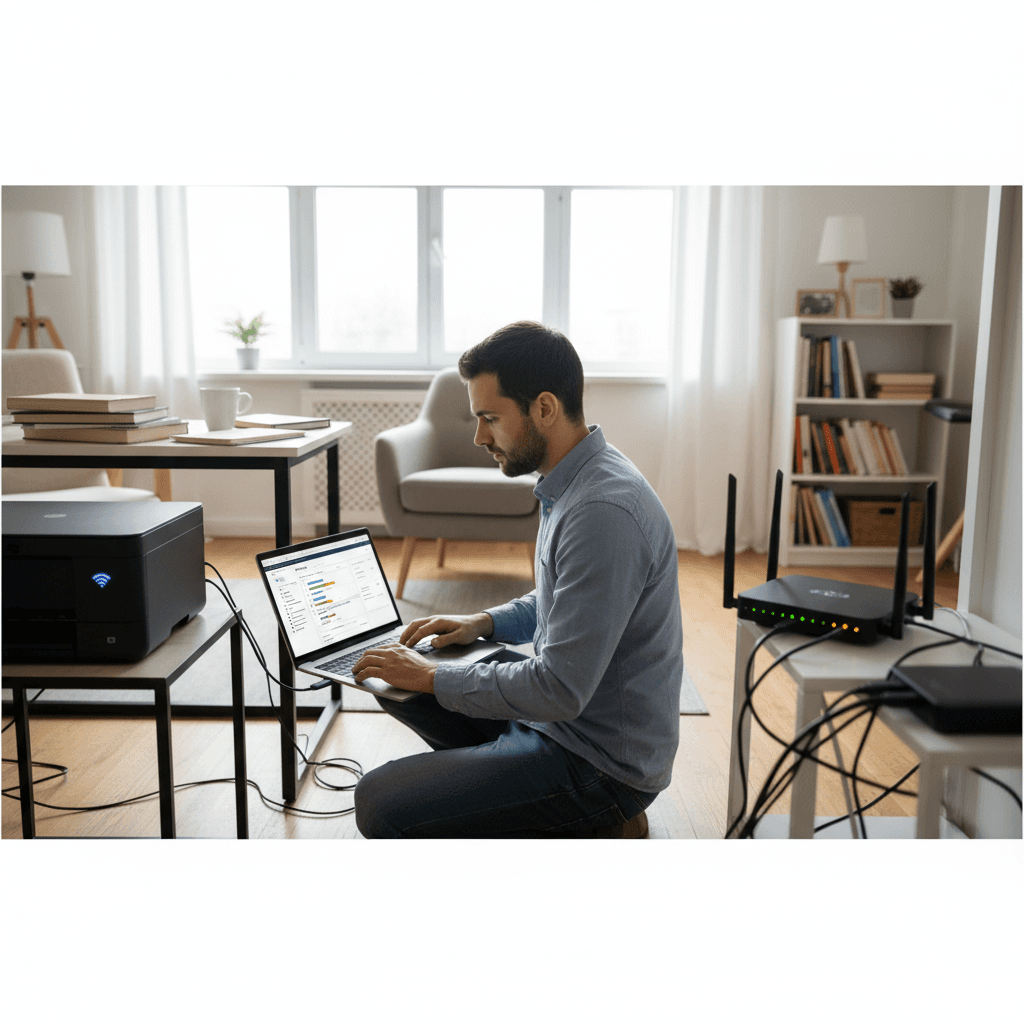
Printer IP Address Keeps Changing - DHCP vs Static IP
Printer works fine then suddenly stops? The IP address might be changing. Here's how to set a static IP and keep your printer connected.
What's Happening
Your printer works for a while, then suddenly Windows can't find it. When you check, the printer's IP address has changed. DHCP (how routers automatically assign IP addresses) sometimes gives your printer a different address when the lease expires or after a power outage. Since Windows is looking for the old address, printing fails.
Quick Checks (Do These First)
- Print a network config page from the printer - get the current IP.
- Compare to what Windows expects - check printer properties.
- Has there been a power outage recently? This often triggers IP changes.
- Have you added new devices to the network?
Step-by-Step Fixes
Fix 1: Create a DHCP Reservation (Best Method)
- Print a network config page from the printer to get the MAC address
- Log into your router (usually 192.168.1.1 or 192.168.0.1)
- Find DHCP settings or Address Reservation
- Add a new reservation:
- Enter the printer's MAC address
- Assign an IP like 192.168.1.200 (outside normal DHCP range)
- Restart the printer to pick up the reserved IP
- Update the printer in Windows with the new IP
Fix 2: Set Static IP on the Printer
- Go to the printer's network settings menu
- Switch from DHCP to Static/Manual IP
- Enter:
- IP: 192.168.1.200 (or similar, outside DHCP range)
- Subnet: 255.255.255.0
- Gateway: Your router's IP (e.g., 192.168.1.1)
- DNS: Same as gateway or 8.8.8.8
- Save and restart the printer
Fix 3: Update Windows with New IP
After fixing the IP:
- Go to Settings > Bluetooth & devices > Printers & scanners
- Remove the current printer
- Add it back using "Add manually" > TCP/IP address
- Enter the new static IP
Fix 4: Extend DHCP Lease Time
- In router settings, find DHCP lease time
- Increase from hours to days or weeks
- This reduces how often IP addresses change
- Not as reliable as static IP but helps
If Nothing Worked
Some routers have limited DHCP reservation slots or bugs with reservations. Try setting the static IP directly on the printer instead of using router reservations.
When to Call a Pro
If you're not comfortable with network configuration, or have multiple devices with IP issues, a technician can set up your entire network properly with static IPs for devices that need them.
Need Professional Help?
If you're in the Tampa Bay area and need hands-on assistance, Geeks in Sneaks provides friendly, on-site tech support in Clearwater, Clearwater Beach, and Dunedin.
Related Topics
Need Professional Help?
If you're still having trouble, our expert technicians can help.
Learn about our printer support serviceMore Printer Issues Fixes
See all Printer Issues fixes →How to Prevent Malware from Abusing Network Printers
Concerned about malware using your printer to spread or spy? Here's how to secure network printers against malicious software and attacks.
How to Prevent Kids or Guests from Printing 100-Page Jobs
Tired of accidental massive print jobs from kids or guests? Here's how to set up quotas, require approval, and control who can print what.
How Often Should You Check for Printer Security Updates?
Printer firmware updates aren't optional—they patch security holes. Here's how often to check, how to update, and how to set up automatic updates.
How to Block Unwanted Cloud and Remote Print Features
Don't want HP ePrint, Canon Cloud, or Epson Connect on your printer? Here's how to disable cloud printing features for better privacy and security.
How to Use Guest Networks or VLANs to Isolate Your Printer
Want to keep your printer on a separate network for security? Learn how to use guest networks and VLANs to isolate printers from your main devices.
How to Reset Forgotten Admin Password on Printer Web Interface
Locked out of your printer's web interface? Here's how to reset the admin password for HP, Canon, Epson, and Brother printers.
How to Securely Dispose of Old Printers with Stored Data
Getting rid of an old printer? Learn how to wipe stored data and dispose of it securely so your personal information doesn't end up in the wrong hands.
Are Scanned or Copied Documents Stored on Your Printer?
Wondering if your printer keeps copies of documents you scan or copy? Here's what gets stored, how to check, and how to clear it.