
Ping Is Fine But Gaming Still Feels Laggy
Your ping shows 30ms but your game feels like you're playing underwater. Here's why ping alone doesn't tell the whole story about connection quality.
What's Happening
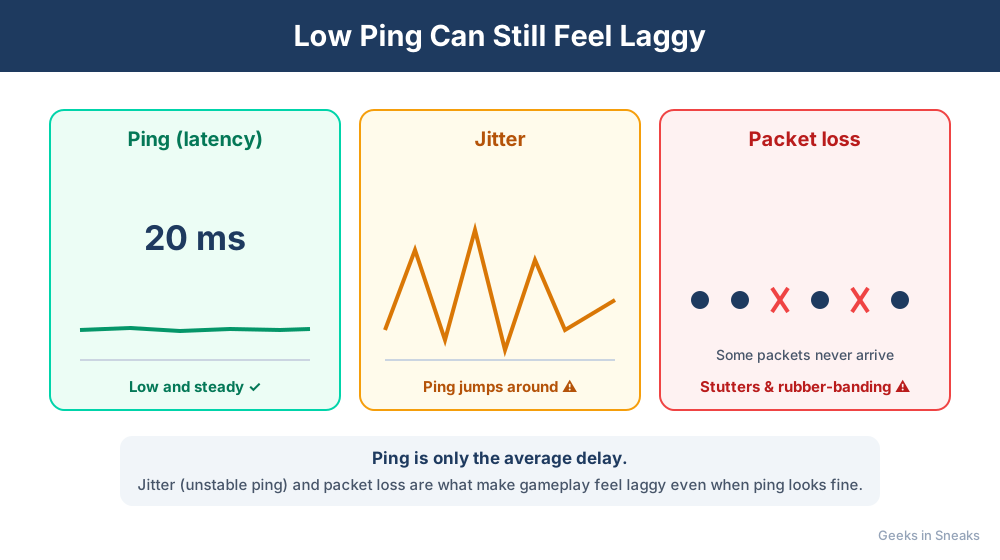
You run a ping test and see a beautiful 20-30ms response time, but when you play an online game, you're getting killed by players who seem to know where you are before you even move. Or your actions lag by a second or two despite the "good" ping. What's going on? The problem is that ping is only one measurement of network quality. Several other factors affect gaming performance, and they're often invisible to basic network tests.
Quick Checks (Do These First)
- Check packet loss. Open Command Prompt and type:
ping google.com -n 100- if you see any packet loss, that's your problem. - Close background apps. Windows updates, cloud backups, and streaming apps can cause lag spikes even with good ping.
- Test with a wired connection. Wi-Fi adds latency jitter that ping tests don't always show.
- Check your in-game server location. You might be connecting to a distant server by mistake.
- See if anyone else is using the network. Uploads are especially problematic for gaming lag.
Step-by-Step Fixes
Understanding Why Ping Isn't Everything
Ping measures the average round-trip time for data packets, but gaming needs consistent, stable latency. Here's what ping doesn't show you:
Problem 1: Jitter (Latency Variation)
Jitter is when your ping varies wildly from moment to moment:
- One moment your ping is 20ms, the next it's 80ms, then back to 25ms
- This inconsistency makes gameplay feel laggy even though your average ping looks good
- Causes include Wi-Fi interference, network congestion, and ISP routing instability
How to Test for Jitter:
- Open Command Prompt (Windows) or Terminal (Mac)
- Type:
ping google.com -n 100and press Enter - Watch the ping times in the results
- If they vary by more than 10-15ms consistently, you have jitter
For a better test, use PingPlotter (free trial) or visit packetlosstest.com. These tools graph your latency over time and make jitter obvious.
How to Fix Jitter:
- Use a wired connection - Wi-Fi is the #1 cause of jitter for gaming
- Enable QoS (Quality of Service) on your router and prioritize gaming traffic
- Upgrade to a gaming router with low-latency modes and better traffic management
- Limit bandwidth-heavy activities while gaming (streaming, downloads, uploads)
Problem 2: Packet Loss
Even 1-2% packet loss is devastating for online gaming. When packets are lost, the game has to wait for retransmission, causing visible lag and stuttering. Your ping might average 30ms, but if 5% of your packets are being lost, the game will feel terrible.
Testing for Packet Loss:
- Open Command Prompt
- Type:
ping google.com -n 100 - At the end, check the statistics: "Packets: Sent = 100, Received = X, Lost = Y"
- Any loss above 0% during gaming hours is problematic
Causes of Packet Loss:
- Wi-Fi interference from neighboring networks or devices
- Bad network cables - damaged ethernet cables drop packets
- Router overload - too many devices or traffic exceeding router capacity
- ISP issues - congestion or equipment problems on their end
- Failing network hardware - your modem or router might be dying
How to Fix Packet Loss:
- Switch to a wired ethernet connection
- Replace any old or damaged network cables (use Cat6 or Cat6a)
- Restart your modem and router
- Update your router's firmware
- If packet loss persists on wired connection direct to modem, call your ISP
Problem 3: Bufferbloat
Bufferbloat happens when your router's buffers get overwhelmed, causing massive latency spikes when other devices upload or download. Your idle ping might be 20ms, but when someone starts a YouTube video, it jumps to 200ms.
Testing for Bufferbloat:
- Go to waveform.com/tools/bufferbloat
- Run the test (takes about 1 minute)
- Check your bufferbloat grade - anything below B is problematic for gaming
How to Fix Bufferbloat:
- Enable QoS on your router with bandwidth limits slightly below your internet speed (set to 90-95% of actual speed)
- Use SQM (Smart Queue Management) if your router supports it - this is built into many gaming routers
- Upgrade to a router that handles bufferbloat well - look for routers with "adaptive QoS" or "gaming mode"
- Limit upload speed on other devices - uploads cause worse bufferbloat than downloads
Problem 4: Server Tickrate and Game Optimization
Sometimes the lag isn't on your end at all:
- Low tickrate servers update less frequently, making gameplay feel laggy even with good ping
- Poor server performance during peak hours can cause lag for everyone
- Game optimization issues can feel like network lag but are actually frame pacing or input lag
Check gaming forums and communities for your specific game. If many players report the same issues, it's not your network.
Problem 5: Wi-Fi Latency
Even with a strong Wi-Fi signal, wireless adds 5-30ms of extra latency compared to ethernet. More importantly, it adds inconsistency:
- Wi-Fi packets must wait their turn to be transmitted
- Interference causes retransmissions
- Distance and obstacles create variable latency
For competitive gaming, wired ethernet is essential. It's the single biggest improvement most gamers can make.
If Nothing Worked
If you're on a wired connection with low jitter and no packet loss, but gaming still feels laggy while ping tests look good, check your computer's performance. High CPU usage, insufficient RAM, or an overheating laptop can cause input lag and stuttering that feels like network lag but isn't. Monitor your CPU and GPU usage while gaming - if either is at 100%, your hardware is the bottleneck.
When to Call a Pro
If you've tested for jitter and packet loss, switched to wired, and checked with your ISP but still experience lag with good ping numbers, professional help can identify subtle issues like duplex mismatches, router configuration problems, or ISP routing issues that require advanced diagnostics.
Need Professional Help?
If you're in the Tampa Bay area and need hands-on assistance optimizing your network for gaming, Geeks in Sneaks provides friendly, on-site tech support in Clearwater, Clearwater Beach, and Dunedin.
Related Topics
Need Professional Help?
If you're still having trouble, our expert technicians can help.
Learn about our network repair serviceMore Router & WiFi Fixes
See all Router & WiFi fixes →Business-Grade vs Consumer Routers for Home Use
Considering a business-grade router for your home? Find out if the premium price delivers real benefits for residential use.
Buying Used or Refurbished Routers: Safe or Risky?
Tempted to save money with a used router? Learn the real security risks and when buying secondhand is safe versus when it's dangerous.
How Long Should a Router Last? When to Replace Yours
Your router is a few years old and you're wondering if it's time to replace it. Learn the typical lifespan and warning signs it's failing.
Gaming Routers: Real Benefits vs Marketing Hype
Wondering if a gaming router is worth the premium price? We separate the real performance benefits from marketing gimmicks.
Renting ISP Equipment vs Buying Your Own: Real Cost Comparison
Paying monthly rental fees for your modem and router? Find out how much you could save by buying your own equipment.
Matching Router Capabilities to Your Internet Speed Tier
Have gigabit internet but not getting those speeds? Your router might be the bottleneck. Learn how to match equipment to your plan.
What to Look for When Buying a Home Router in 2026
Shopping for a new router can be overwhelming with all the technical specs and marketing claims—here's what actually matters in 2026.
When to Move from Single Router to Mesh WiFi System
Dead zones and weak WiFi in parts of your home? Find out if it's time to upgrade from a traditional router to a mesh system.