
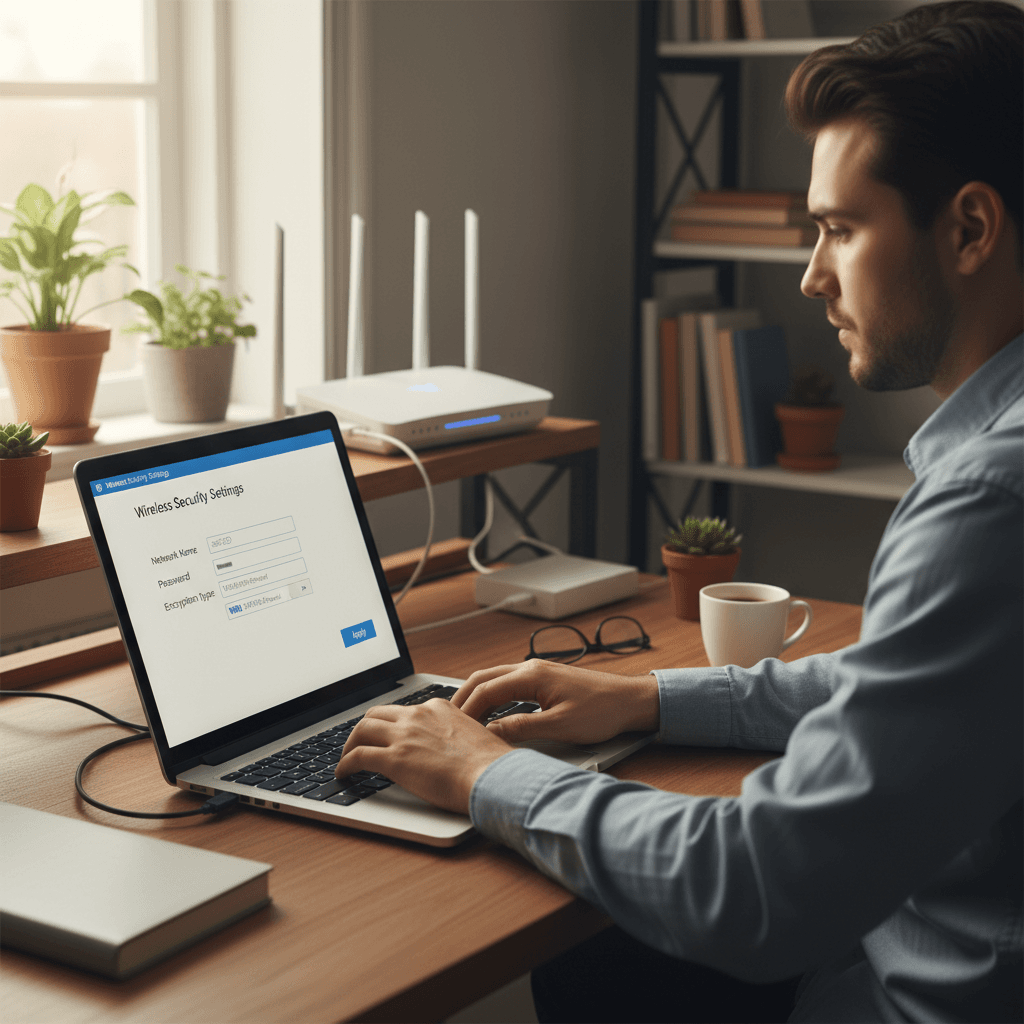
How to Fix Leaving Wi-Fi Network Open or Using Outdated Security
An open or poorly secured Wi-Fi network puts your personal data at risk and lets anyone steal your bandwidth - here's how to properly secure it.
What's Happening
Your Wi-Fi network is either completely open (no password required) or you're using outdated security like WEP or WPA, which can be cracked in minutes. This means neighbors, strangers, or worse - criminals - can access your network, see your traffic, and use your internet. This is seriously risky, but it's easy to fix.
Quick Checks (Do These First)
- Does your Wi-Fi have a password? If anyone can connect without entering a password, you have an open network.
- Look at your router settings. Access your router admin panel and check what security type is enabled.
- Check connected devices. In your router settings, look for "Connected Devices" - do you recognize them all?
- Know what security you should use. WPA3 is best, WPA2 is fine, WPA and WEP are outdated and insecure.
Step-by-Step Fixes
Fix 1: Enable WPA2 or WPA3 Security (Most Important)
- Log into your router's admin panel (usually at
192.168.1.1or192.168.0.1) - Navigate to Wireless Settings, Wi-Fi Settings, or Wireless Security
- Look for Security Mode, Security Type, or Authentication
- Select WPA3-Personal if available, or WPA2-Personal (also called WPA2-PSK)
- Set Encryption to AES (not TKIP)
- Create a strong Wi-Fi password - at least 12 characters with upper/lowercase letters, numbers, and symbols
- Save settings - your router will restart and all devices will disconnect
- Reconnect all your devices using the new password
Note: If you have very old devices (pre-2006), they might not support WPA2. In that case, consider upgrading those devices - they're security risks anyway.
Fix 2: Upgrade from WPA/WEP to Modern Security
- Access your router settings as described above
- If you see WEP, WPA, or WPA/WPA2 Mixed Mode, change it immediately
- Select WPA2-Personal or WPA3-Personal only
- Make sure AES encryption is selected (TKIP is outdated)
- Create a new, strong Wi-Fi password
- Save and apply changes
- All devices will need to reconnect with the new password
Fix 3: Set Up a Guest Network for Visitors
- While in your router settings, look for Guest Network or Guest Wi-Fi
- Enable the guest network feature
- Set security to WPA2-Personal or WPA3-Personal
- Create a separate password for guests
- Enable Guest Isolation so guests can't access your main network
- Give this password to visitors instead of your main Wi-Fi password
This keeps your main network secure while still being able to offer internet to guests.
If Nothing Worked
If your router is too old to support WPA2 (manufactured before 2006), it's time to replace it. Seriously - you can't properly secure an ancient router, and it's also likely slow and unreliable. Modern routers are inexpensive and much more secure. If you're having trouble finding the security settings, search for your router model plus "WPA2 setup" online.
When to Call a Pro
If you have a large home network with many devices and you're worried about compatibility issues when switching security protocols, or if you need help setting up a more complex network with VLANs and proper isolation, professional help can save you time and ensure everything's configured correctly.
Need Professional Help?
If you're in the Tampa Bay area and want a network security audit or help upgrading your Wi-Fi security, Geeks in Sneaks provides friendly, on-site tech support in Clearwater, Clearwater Beach, and Dunedin.
Related Topics
Need Professional Help?
If you're still having trouble, our expert technicians can help.
Learn about our network repair serviceMore Router & WiFi Fixes
See all Router & WiFi fixes →Business-Grade vs Consumer Routers for Home Use
Considering a business-grade router for your home? Find out if the premium price delivers real benefits for residential use.
Buying Used or Refurbished Routers: Safe or Risky?
Tempted to save money with a used router? Learn the real security risks and when buying secondhand is safe versus when it's dangerous.
How Long Should a Router Last? When to Replace Yours
Your router is a few years old and you're wondering if it's time to replace it. Learn the typical lifespan and warning signs it's failing.
Gaming Routers: Real Benefits vs Marketing Hype
Wondering if a gaming router is worth the premium price? We separate the real performance benefits from marketing gimmicks.
Renting ISP Equipment vs Buying Your Own: Real Cost Comparison
Paying monthly rental fees for your modem and router? Find out how much you could save by buying your own equipment.
Matching Router Capabilities to Your Internet Speed Tier
Have gigabit internet but not getting those speeds? Your router might be the bottleneck. Learn how to match equipment to your plan.
When to Move from Single Router to Mesh WiFi System
Dead zones and weak WiFi in parts of your home? Find out if it's time to upgrade from a traditional router to a mesh system.
Dual-Band vs Tri-Band Router: Who Actually Needs It?
Wondering if a tri-band router is worth the extra cost? We'll break down the real differences and help you decide what's right for your home.