
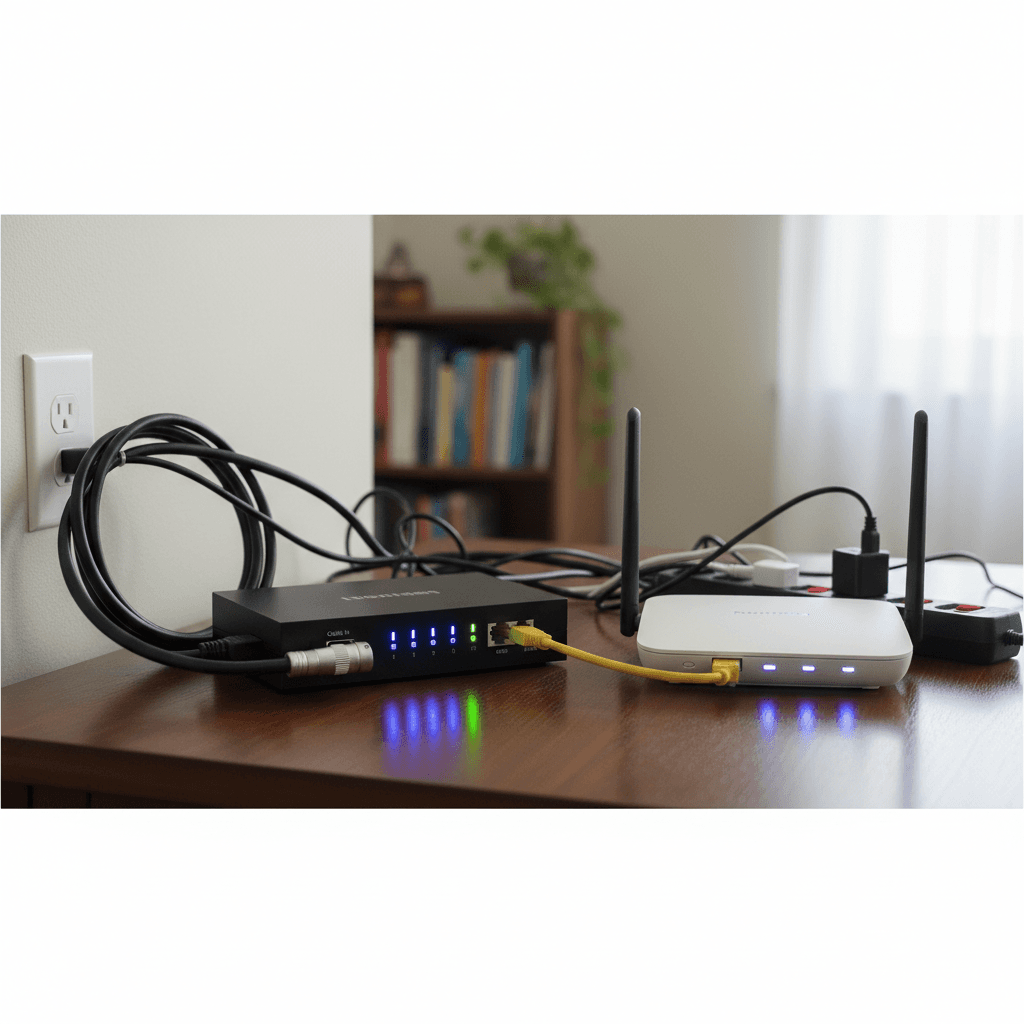
Labeling and Organizing Cables for Sanity
Tangled, unlabeled cables behind your router make troubleshooting a nightmare. Learn simple strategies to organize and label cables properly.
What's Happening
You've got a mess of cables behind your router and modem - ethernet cables, power cords, phone lines - and you have no idea which cable goes where. When you need to unplug something or troubleshoot a problem, you're afraid to touch anything. This is one of the most common tech headaches, and it's surprisingly easy to fix with a little organization.
Quick Checks (Do These First)
- Can you identify which cable does what? If not, it's time to label everything.
- Are cables tangled together? Untangling them prevents accidental disconnections.
- Do you have spare cables mixed in? Remove anything not actively in use.
- Is everything plugged into a power strip without labels? You need a better system.
Step-by-Step Fixes
Fix 1: Label Every Cable (The Most Important Step)
Proper labeling saves hours of frustration down the road:
- Get a label maker, masking tape and a marker, or specialized cable labels
- Start with the modem - label its power cable "Modem Power"
- Label the cable from modem to router "Modem to Router"
- Label ethernet cables by destination: "Router to PC," "Router to Xbox," "Router to Switch"
- Label both ends of each cable so you can identify them from either side
- Include the date on your labels if you want to track when cables were installed
- Use different colored labels or tape for different types of cables (power vs. data)
Spend 15 minutes labeling now to save hours of confusion later.
Fix 2: Use Cable Management Tools
Keep cables organized and separated to prevent tangles and accidental disconnections:
- Get velcro cable ties (not zip ties - velcro is reusable)
- Bundle cables that run the same direction together
- Use adhesive cable clips to route cables along walls or furniture
- Get a cable management box or sleeve to hide excess cable length
- Keep power cables separate from ethernet cables when possible (reduces interference)
- Leave a little slack - don't pull cables tight or they'll disconnect easily
Organized cables are easier to trace and less likely to be accidentally unplugged.
Fix 3: Create a Simple Connection Diagram
A quick diagram helps anyone understand your setup:
- Take a photo of your cable setup from multiple angles
- Draw a simple diagram on paper: boxes for devices, lines for cables
- Label each connection: "Wall → Modem → Router → PC"
- Note cable colors if you use different colored cables
- Tape this diagram behind your router or keep it in a desk drawer
- Update it whenever you add or remove equipment
This diagram is invaluable when troubleshooting or when someone else needs to help you.
Fix 4: Standardize Your Cable Colors
If you're buying new cables or replacing old ones, use a color system:
- Blue cables: Use for internet-related connections (modem to router, router to switch)
- Yellow cables: Use for connections to computers and laptops
- Green cables: Use for gaming consoles and entertainment devices
- Red cables: Use for important or primary connections
- Black cables: Use for everything else or less critical connections
Visual identification by color is faster than reading labels.
Fix 5: Document Port Assignments
If your router has multiple ethernet ports, track what's plugged into each:
- Write down which port number connects to which device
- Many routers label ports 1, 2, 3, 4 - note these in your diagram
- Some routers have special ports (like WAN or LAN1) - label these clearly
- Keep a list: "Port 1: Living Room PC, Port 2: Gaming Console, Port 3: Smart TV"
- Update this list when you rearrange connections
If Nothing Worked
If you have so many cables that organization seems impossible, you might have unnecessary equipment or could benefit from wireless solutions for some devices. Consider whether all your wired connections are actually needed, or if some devices could switch to Wi-Fi. Sometimes less is more.
When to Call a Pro
If you're dealing with a complex network setup - multiple switches, VLANs, or business equipment - professional cable management and documentation pays for itself. We can create professional-grade labeling and documentation systems that make future maintenance easy.
Need Professional Help?
If your home network has become a cable nightmare, Geeks in Sneaks provides friendly, on-site tech support in Clearwater, Clearwater Beach, and Dunedin. We'll organize, label, and document everything.
Related Topics
Need Professional Help?
If you're still having trouble, our expert technicians can help.
Learn about our network repair serviceMore Router & WiFi Fixes
See all Router & WiFi fixes →Business-Grade vs Consumer Routers for Home Use
Considering a business-grade router for your home? Find out if the premium price delivers real benefits for residential use.
Buying Used or Refurbished Routers: Safe or Risky?
Tempted to save money with a used router? Learn the real security risks and when buying secondhand is safe versus when it's dangerous.
How Long Should a Router Last? When to Replace Yours
Your router is a few years old and you're wondering if it's time to replace it. Learn the typical lifespan and warning signs it's failing.
Gaming Routers: Real Benefits vs Marketing Hype
Wondering if a gaming router is worth the premium price? We separate the real performance benefits from marketing gimmicks.
Renting ISP Equipment vs Buying Your Own: Real Cost Comparison
Paying monthly rental fees for your modem and router? Find out how much you could save by buying your own equipment.
Matching Router Capabilities to Your Internet Speed Tier
Have gigabit internet but not getting those speeds? Your router might be the bottleneck. Learn how to match equipment to your plan.
When to Move from Single Router to Mesh WiFi System
Dead zones and weak WiFi in parts of your home? Find out if it's time to upgrade from a traditional router to a mesh system.
Dual-Band vs Tri-Band Router: Who Actually Needs It?
Wondering if a tri-band router is worth the extra cost? We'll break down the real differences and help you decide what's right for your home.