
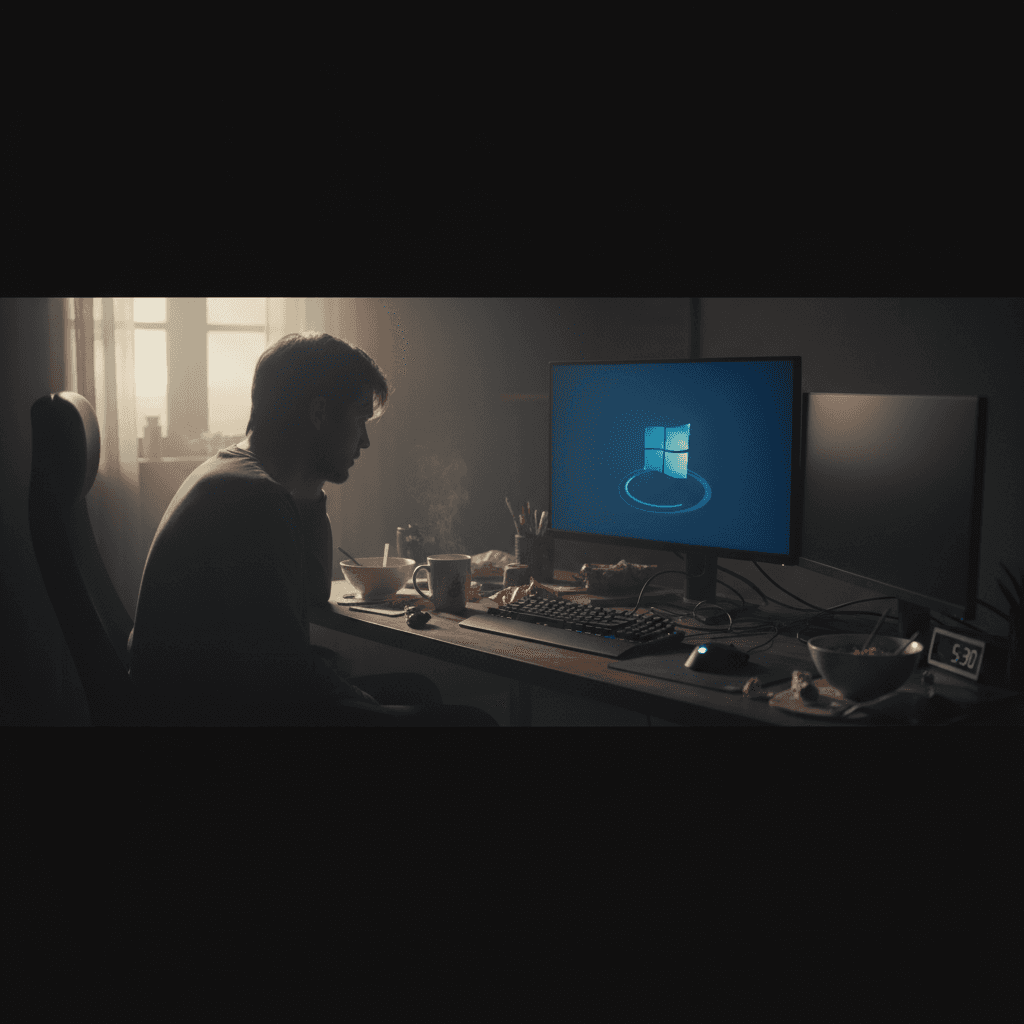
How Often to Restart Your Windows PC
Not sure how often you should restart your Windows PC? Learn the truth about restart schedules and why it matters for performance.
Why Restarting Your PC Matters
You've probably heard conflicting advice about restarting your computer. Some people say daily, others say only when needed. The truth is somewhere in between, and understanding why restarts matter will help you make the right choice for your situation.
When Windows runs continuously, it accumulates memory leaks, temporary files, and background processes that can slow things down. A restart clears all of this out and gives your system a fresh start.
The Quick Answer
Restart your Windows PC at least once a week, and always after installing updates. If you're experiencing slowdowns or unusual behavior, restart immediately. Most people find that restarting every 2-3 days keeps their system running smoothly.
If you use your computer heavily for work or gaming, you might benefit from daily restarts. If you only use it occasionally for light tasks, weekly is fine.
How Often You Should Restart Based on Usage
Light Users (Email, Web Browsing)
If you mainly check email and browse the web, restart once a week or whenever Windows prompts you for updates. This is enough to keep things running smoothly.
Regular Users (Office Work, Multitasking)
If you use your PC for work with multiple programs open throughout the day, restart every 2-3 days. This prevents memory issues from building up and keeps performance consistent.
Here's a simple schedule:
- Monday morning: Restart before starting work
- Thursday evening: Restart before shutting down
- After any Windows Update: Always restart when prompted
Power Users (Gaming, Video Editing, Development)
If you run demanding applications, consider restarting daily. Programs like video editors, 3D rendering software, and modern games use a lot of memory, and even small leaks add up quickly.
Many gamers restart before long gaming sessions to ensure maximum performance.
Signs You Need to Restart Right Now
Don't wait for your scheduled restart if you notice these symptoms:
- Programs are responding slowly even though you haven't opened anything new
- Your PC feels sluggish compared to when you first turned it on
- Error messages appear when opening programs that normally work fine
- Memory usage is high in Task Manager without explanation
- Windows Update has installed updates (the notification icon appears)
- After installing new software or drivers
Restart vs Shutdown: What's the Difference?
Since Windows 8, the "Shut Down" option doesn't actually fully shut down your PC. It uses Fast Startup, which hibernates the Windows kernel to boot faster next time. This is why some issues don't go away even after shutting down.
A restart actually restarts everything. It's more thorough than shutdown for fixing problems.
To fully shut down (rare situations when needed):
- Hold the Shift key while clicking Shut Down in the Start menu
- Or disable Fast Startup in Power Options
Setting Up Automatic Restarts
Windows can restart automatically for updates, but you can schedule this during off-hours:
- Open Settings > Windows Update
- Click Advanced options
- Set Active hours to when you normally use your PC
- Windows will only restart for updates outside these hours
You can also use Task Scheduler to create a weekly reminder to restart, though Windows won't do it automatically without updates pending.
What About Sleep Mode?
Sleep mode is fine for short breaks (hours or overnight), but it doesn't replace restarting. When your PC sleeps, everything stays in memory exactly as it was. This is convenient, but it means memory leaks and other issues continue to accumulate.
A good routine: Use sleep for breaks, but restart at least weekly.
When NOT to Restart
Don't interrupt these processes with a restart:
- While Windows Updates are installing (wait for completion)
- During large file transfers or downloads
- While rendering videos or running long processes
- During disk defragmentation or system scans
Still Having Performance Issues?
Professional PC Optimization
If regular restarts aren't solving your performance problems, there might be deeper issues with your system configuration, startup programs, or hardware.
Geeks in Sneaks can diagnose what's actually slowing down your PC and fix it permanently. We'll optimize startup programs, remove resource hogs, update drivers, and ensure your system is configured for best performance.
Book a service call today and get your PC running like new again.
Related Topics
Need Professional Help?
If you're still having trouble, our expert technicians can help.
Learn about our pc repair serviceMore Windows Problems Fixes
See all Windows Problems fixes →Should I Worry About Windows Event Errors?
Found errors and warnings in Event Viewer and worried something is wrong? Here's the truth about Windows event logs and what you actually need to fix.
Why Does My Cursor Freeze Momentarily?
Mouse cursor stuttering or freezing for a second or two randomly? Here's what causes it and how to fix the annoying micro-freezes.
Is 80°C CPU Temperature Dangerous?
Worried about your CPU hitting 80°C? Here's the truth about CPU temperatures, what's safe, and when you actually need to be concerned.
Why Does My Fan Spin Up Randomly?
Computer fan suddenly revving up for no apparent reason? Here's why it happens, when it's normal, and when you should be concerned.
Is High RAM Usage a Problem in Windows?
Seeing 70% or 80% RAM usage in Task Manager? Before you panic, read this to understand when high RAM usage is normal and when it's actually a problem.
Creating a Recovery Drive Before Disaster Strikes
A Windows recovery drive can save you when your PC won't boot. Learn how to create one now before you need it.
Why Does Windows Take So Long to Shut Down?
If your Windows PC takes forever to shut down, you're not alone—and there are several simple fixes you can try right now.
How Often to Update Drivers (and Which Ones to Leave Alone)
Driver updates can fix problems or create them. Learn which drivers to update, which to leave alone, and how to update safely without breaking your PC.