
How to Fix Guest Network Not Isolated from Main Network
Your guest network isn't actually isolated, letting visitors access your devices and files - here's how to properly secure guest Wi-Fi.
What's Happening
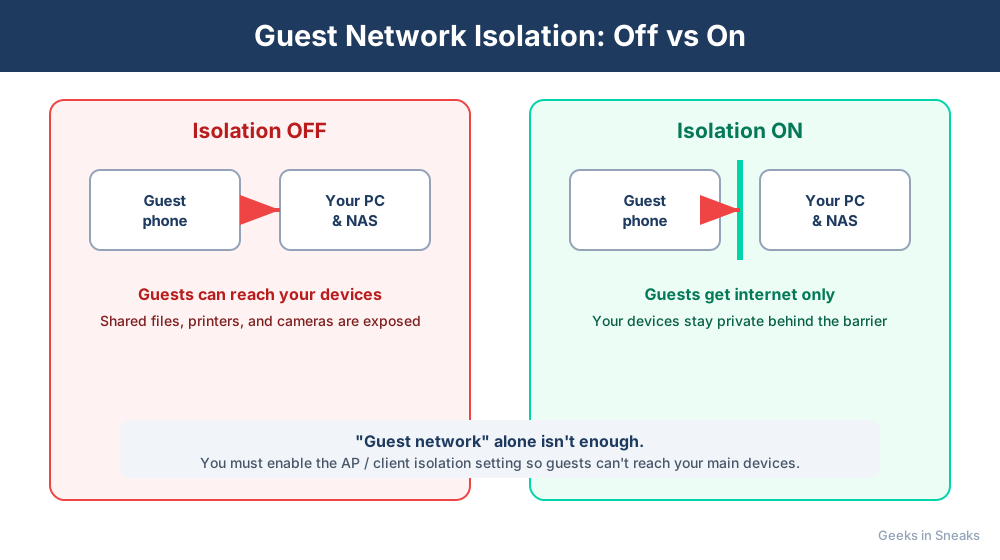
You set up a guest Wi-Fi network thinking it would keep visitors separate from your main network, but guests can still see your printers, shared folders, or smart home devices. This defeats the entire purpose of a guest network - it's supposed to give people internet access without letting them access your private network resources. The problem is that guest isolation isn't enabled by default on many routers.
Quick Checks (Do These First)
- Test the isolation. Connect a device to guest Wi-Fi and try to access a printer or shared folder from your main network.
- Check if guest network is enabled. Make sure you actually have guest Wi-Fi turned on in router settings.
- Verify different subnets. Guest network should use a different IP range than your main network (like 192.168.2.x vs 192.168.1.x).
- Look for isolation settings. Some routers call it "Guest Isolation," "AP Isolation," or "Client Isolation."
Step-by-Step Fixes
Fix 1: Enable Guest Network Isolation (Primary Fix)
- Log into your router admin panel (
192.168.1.1or192.168.0.1) - Navigate to Guest Network, Guest Wi-Fi, or Wireless Settings
- Find your guest network configuration
- Look for Guest Isolation, Enable AP Isolation, or Prevent Access to Local Network
- Enable this setting - it prevents guest devices from seeing your main network
- Also enable Prevent Guest-to-Guest Communication if available (stops guests from seeing each other)
- Save settings and reboot router
- Test by connecting to guest Wi-Fi and trying to access local network resources
Fix 2: Set Guest Network to Different Subnet
- Access your router's guest network settings
- Look for IP Address Range, DHCP Settings, or Network Settings for the guest network
- If your main network uses
192.168.1.x, change guest network to192.168.2.x - Set the subnet mask to
255.255.255.0 - Configure DHCP range for guest network (like
192.168.2.10to192.168.2.250) - Enable routing restrictions between subnets
- Save and apply changes
Different subnets make it much easier for the router to keep networks separated.
Fix 3: Disable Guest Access to Router Administration
- While in guest network settings, look for security options
- Find Block Access to Router Admin Page or Prevent Configuration Access
- Enable this setting - guests shouldn't be able to access router settings at all
- Also check Firewall or Access Control settings
- Create a rule blocking guest network from accessing router IP address (
192.168.1.1) - Save all changes
Fix 4: Configure Guest Network Bandwidth Limits
- In guest network settings, find Bandwidth Control or QoS Settings
- Set a maximum bandwidth limit for guest network (like 50% of your total speed)
- This doesn't directly affect isolation, but prevents guests from hogging bandwidth
- Configure upload and download limits separately
- Some routers let you set per-device limits too
- Save settings
This ensures your main network gets priority over guest traffic.
Fix 5: Set Up Guest Network Schedule (Bonus Security)
- Look for Guest Network Schedule or Access Time settings
- Configure guest Wi-Fi to only be active during certain hours
- For example, disable guest network overnight when you don't need it
- This reduces the window of opportunity for unauthorized access
- Save your schedule settings
If Nothing Worked
Some budget routers don't actually support true guest network isolation - they just create a second SSID but don't isolate it. Check your router's manual or manufacturer website to confirm guest isolation is a supported feature. If not, you have three options: (1) Upgrade to a router with proper guest isolation. (2) Use a separate physical router for guests. (3) Set up a VLAN if your router supports advanced networking, but that's complex.
When to Call a Pro
If you're running a business from home, have an Airbnb, or frequently have visitors and need bulletproof network segmentation, professional network setup is worth it. A tech can configure VLANs, proper firewall rules, and even set up captive portals for guest access. It's more secure and professional than basic guest Wi-Fi.
Need Professional Help?
If you're in the Tampa Bay area and need help setting up secure guest network access or network segmentation, Geeks in Sneaks provides friendly, on-site tech support in Clearwater, Clearwater Beach, and Dunedin.
Related Topics
Need Professional Help?
If you're still having trouble, our expert technicians can help.
Learn about our network repair serviceMore Router & WiFi Fixes
See all Router & WiFi fixes →Business-Grade vs Consumer Routers for Home Use
Considering a business-grade router for your home? Find out if the premium price delivers real benefits for residential use.
Buying Used or Refurbished Routers: Safe or Risky?
Tempted to save money with a used router? Learn the real security risks and when buying secondhand is safe versus when it's dangerous.
How Long Should a Router Last? When to Replace Yours
Your router is a few years old and you're wondering if it's time to replace it. Learn the typical lifespan and warning signs it's failing.
Gaming Routers: Real Benefits vs Marketing Hype
Wondering if a gaming router is worth the premium price? We separate the real performance benefits from marketing gimmicks.
Renting ISP Equipment vs Buying Your Own: Real Cost Comparison
Paying monthly rental fees for your modem and router? Find out how much you could save by buying your own equipment.
Matching Router Capabilities to Your Internet Speed Tier
Have gigabit internet but not getting those speeds? Your router might be the bottleneck. Learn how to match equipment to your plan.
What to Look for When Buying a Home Router in 2026
Shopping for a new router can be overwhelming with all the technical specs and marketing claims—here's what actually matters in 2026.
When to Move from Single Router to Mesh WiFi System
Dead zones and weak WiFi in parts of your home? Find out if it's time to upgrade from a traditional router to a mesh system.